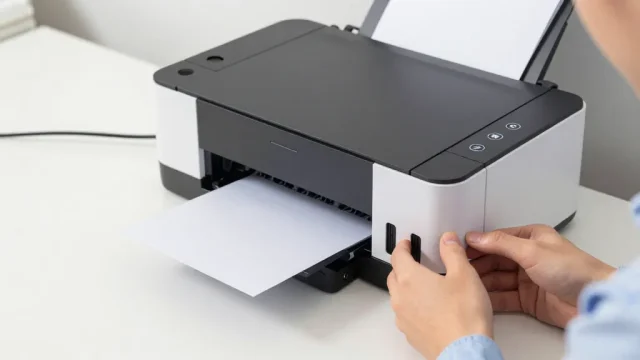
How to Troubleshoot Printer Problems
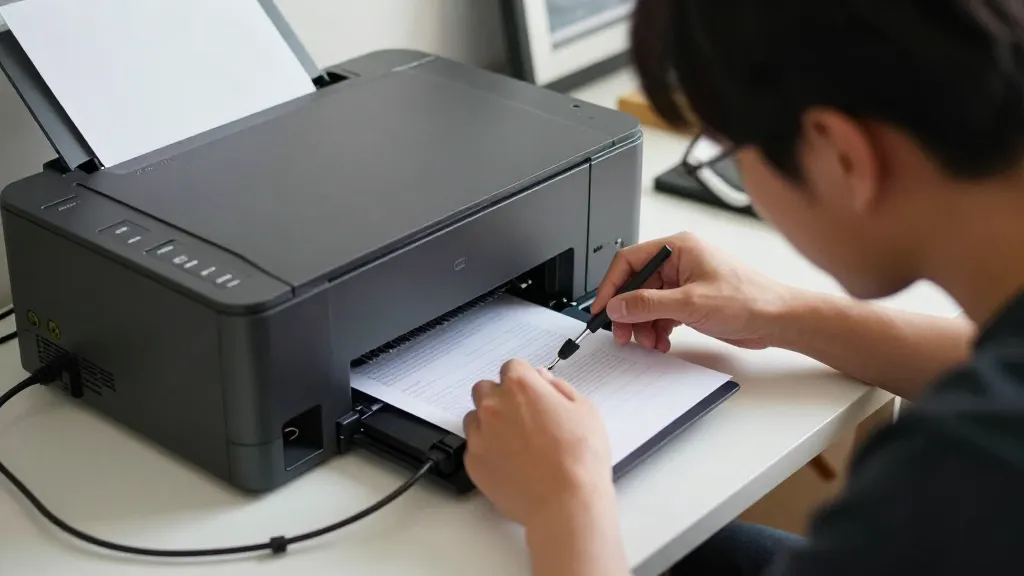
If your printer is malfunctioning, it can disrupt your workflow and cause frustration. Whether you're a home user or an office worker, knowing how to troubleshoot printer problems can save you time and avoid unnecessary expenses. Common issues like paper jams, connectivity problems, or software glitches can often be resolved with a few simple steps. This guide provides a clear, step-by-step approach to diagnosing and fixing printer issues on your own. By following these practical tips, you can identify the root cause and restore your printer's functionality quickly. We'll start by checking the basic connections and ensuring your printer is properly powered on. From there, we'll move through software and hardware troubleshooting to help you get back to printing without delay.
Check Basic Printer Connections
Before diving into more complex troubleshooting steps, start by verifying the basic connections between your printer and the computer or network. A simple misalignment or loose cable can often be the root cause of many printer issues. Ensuring that all physical connections are secure and functional can save time and effort in resolving more serious problems.
Physical Connection Check
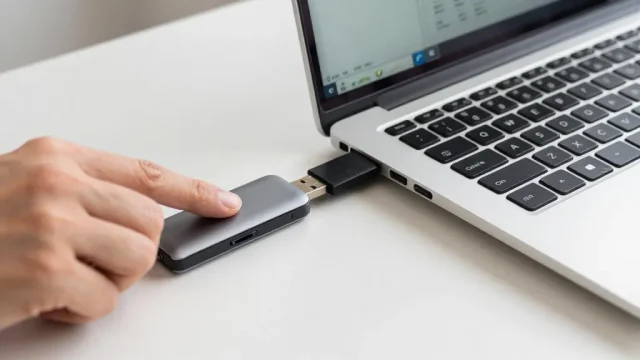
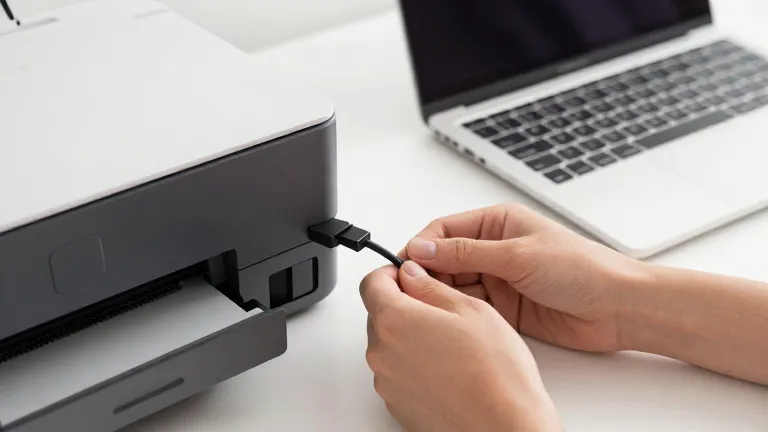
Begin by checking the physical connection between your printer and the computer or network. Ensure that all cables, such as USB or Ethernet, are firmly plugged into the corresponding ports on both the printer and the device. Look for any visible signs of damage, such as frayed wires or bent pins, which could prevent a stable connection. If you're using a wireless setup, confirm that the printer is connected to the correct Wi-Fi network and that the signal strength is sufficient.
Testing with Different Ports
If the printer is still not functioning correctly after verifying the physical connections, try using a different USB port or Ethernet connection. Sometimes, a specific port may be faulty or experiencing interference, which can disrupt communication between the printer and the computer. For wired connections, switching to a different Ethernet port or cable can help identify if the issue lies with the current port or cable. For USB connections, testing with another port on your computer can rule out any port-specific problems.
Confirm Printer Is Online and Ready
Before attempting more complex troubleshooting steps, ensure your printer is properly powered on and displaying correctly. A simple power cycle or visual inspection can often resolve minor issues that prevent the printer from operating as expected.
Power and Display Status
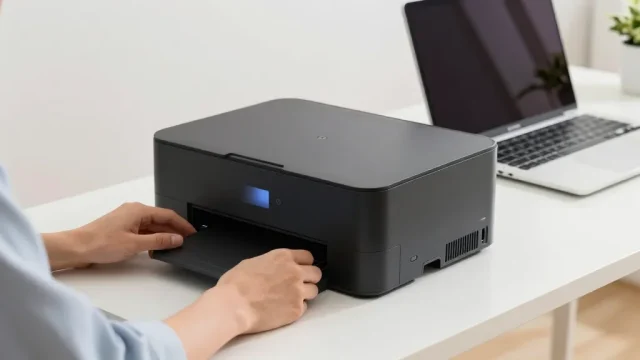
Start by verifying that the printer is powered on. Locate the power button, usually labeled with a power symbol, and press it if the device is off. If the printer is already on, check the display screen for any error messages or status indicators. A blank or unresponsive display may indicate a hardware issue or a power supply problem.
Ink/Toner and Paper Tray Check
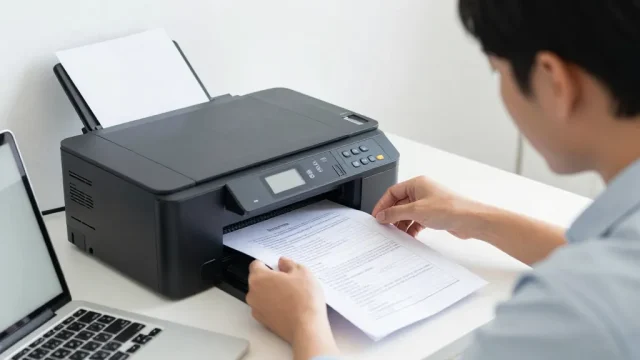
Next, inspect the ink or toner levels and the paper tray. Most printers have an indicator light or a status panel that shows when ink or toner is running low. If the printer is not printing, it may be due to empty cartridges. Additionally, ensure the paper tray is loaded correctly with the right type and size of paper. Misaligned or improperly loaded paper can cause jams or prevent the printer from starting a job.
Troubleshoot Printer Driver and Software
Troubleshooting printer driver and software issues is essential for ensuring smooth communication between your printer and computer. Outdated or corrupted drivers can lead to printing errors, while software updates often include critical fixes and performance improvements. By following these steps, you can resolve many common issues related to printer drivers and software.
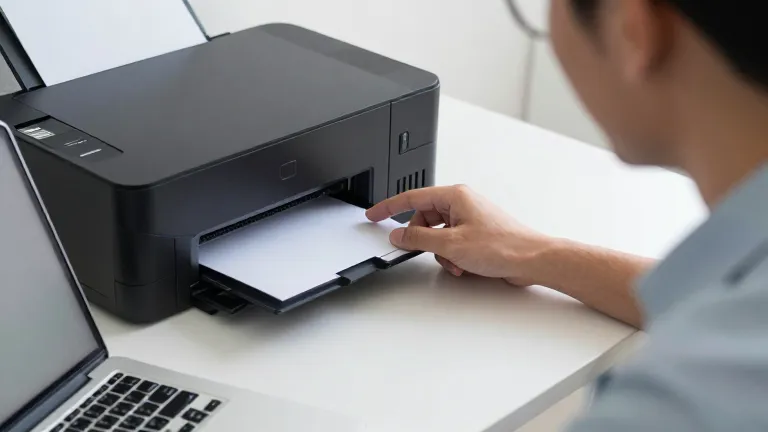
- Visit the printer manufacturer's official website to download the latest driver for your specific model.
- Install the updated driver following the on-screen instructions, ensuring your printer is connected during the process.
- Reinstall the printer driver if the current version is not working correctly, which can often resolve compatibility or functionality issues.
- Check for any available software patches or firmware updates for your printer, which may address bugs or improve performance.
Updating Printer Drivers
Updating printer drivers is a fundamental step in resolving software-related printing problems. Manufacturers frequently release new drivers to improve compatibility with operating systems, enhance print quality, and fix bugs. To update, visit the printer’s official website, locate the support or downloads section, and search for the latest driver that matches your model and operating system. Download and install the driver, restarting your computer if prompted to ensure the changes take effect.
Checking for Software Updates
Checking for software updates ensures your printer’s firmware and associated tools are up to date. Many printers come with dedicated software that manages settings, maintenance, and updates. Open the software, navigate to the update or support section, and follow the prompts to download and install any available patches or firmware. If no updates are found, consider contacting the manufacturer’s support team for further assistance.
Test Printer Functionality with Sample Documents
Testing the printer's functionality with sample documents is a straightforward way to identify if the issue lies with the printer itself or with the specific document being printed. By printing a test page or using an online test document, you can quickly determine if the printer is operating correctly and isolate potential problems.
Printing a Test Page
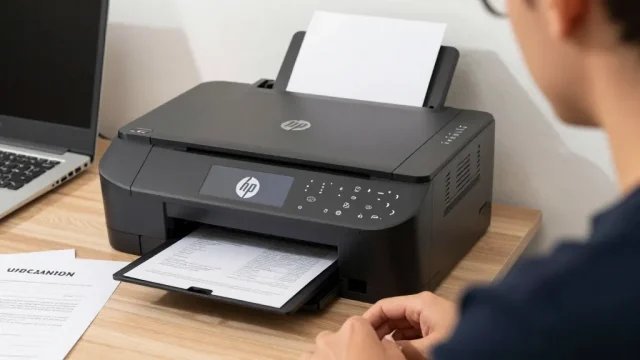
Most printers have a built-in test page option that can be accessed through the printer's control panel or via the printer settings on your computer. To print a test page, navigate to the printer menu and select the test page option. This page includes a variety of test patterns, including text, lines, and color samples, which help verify that the printer is functioning properly.
Using Online Test Documents
If the built-in test page is not available or you prefer an alternative, you can download a test document from the manufacturer's website or a trusted online source. These documents are designed to test different aspects of the printer, such as print quality, color accuracy, and alignment. Once downloaded, print the document using the same settings as your regular prints to ensure consistency.
Common Printer Error Codes and Fixes
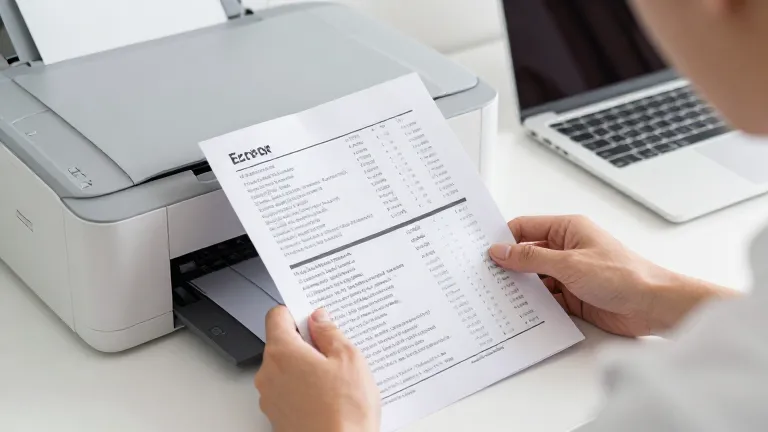
When your printer displays an error code, it provides a direct indication of the issue. These codes are typically alphanumeric and appear on the printer’s screen or in the printer’s status area. Understanding what these codes mean can help you address the problem quickly and efficiently.
Understanding Error Codes
Each error code corresponds to a specific issue, such as paper jams, low ink, or communication errors. For example, an error code like '0x04' might indicate a paper jam in the output tray, while '0x12' could relate to a problem with the ink cartridge. Refer to the printer’s manual or the manufacturer’s website to interpret the exact meaning of the code. If the code is unfamiliar, it’s best to consult the manual first, as it often provides the most accurate and relevant information.
Finding Support Resources
If the error code is not listed in the manual, many manufacturers provide online support resources, including FAQs, troubleshooting guides, and video tutorials. These resources can help you identify the cause of the error and provide step-by-step instructions for resolution. If the issue persists after following these steps, contacting the printer manufacturer’s support team is the next best option. Support teams can offer personalized assistance and may be able to guide you through advanced troubleshooting steps or recommend repairs if necessary.
Frequently Asked Questions
What should I do if my printer is not responding to commands?
First, check if the printer is online and ready. Ensure the printer is properly connected and powered on. If the issue persists, restart both the printer and the computer.
How can I reset my printer to factory settings?
Consult the printer's manual for specific reset instructions, as the process varies by model. Typically, this involves pressing and holding specific buttons or accessing the printer's settings menu.
What if my printer shows an error code I don't recognize?
Refer to the printer's user manual for error code explanations. If unavailable, search for the error code online or contact the manufacturer's support for assistance.
How do I fix a printer that won't print from my computer?
Ensure the printer is connected and the correct drivers are installed. Check for software updates and test printing with a sample document to isolate the issue.
Final Steps and Support
Troubleshooting printer issues often involves checking connections, software, and error messages. A systematic approach helps identify and resolve most common problems.
If you're still experiencing issues, consult the printer’s manual or contact technical support for further assistance. Regular maintenance and updates can prevent many common printer problems.