
Why Your iPhone Battery Is Draining Fast and How to Fix It
If your iPhone is draining battery fast, it can disrupt your daily routine and reduce productivity. Whether you're a tech-savvy user or a busy professional, understanding why your why iphone battery draining fast is happening is the first step toward fixing it. This article provides clear, actionable steps to identify and resolve the issue without needing professional help. From checking battery health to adjusting settings, we cover the essentials to help you regain control of your device's power usage.
iPhone battery drain can stem from various factors, including background processes, outdated software, or incorrect settings. By following the steps outlined in this article, you can pinpoint the cause and take effective action. We'll guide you through diagnosing the problem, optimizing settings, and troubleshooting advanced issues to extend your battery life.
No matter the cause, there are practical solutions to improve your iPhone's battery performance. From managing app refreshes to resetting settings, each step is designed to help you restore efficiency. If all else fails, we'll also discuss when it's time to seek professional assistance. With the right approach, you can enjoy longer battery life and a more reliable iPhone experience.
Understanding iPhone Battery Drain
iPhone battery drain can be frustrating, especially when it happens unexpectedly. Whether your device is aging or something more subtle is at play, understanding the underlying causes is key to resolving the issue efficiently. This section explores the common reasons behind rapid battery drain and how to assess your phone’s battery health to pinpoint the problem.
What Causes iPhone Battery Drain?
Battery drain on an iPhone can stem from a combination of software and hardware factors. Software issues, such as background app activity, location services, and push notifications, can significantly impact battery life. Hardware problems, like an aging battery or overheating, can also contribute to faster drainage. Identifying the root cause is essential to choosing the right solution.
How to Check Battery Health
Checking your iPhone’s battery health is a crucial first step in diagnosing the issue. Go to Settings > Battery > Battery Health to view your battery’s maximum capacity. A capacity below 80% indicates significant wear, which may require a replacement. Additionally, the 'Battery Percentage' option provides more accurate readings, especially on newer models. Monitoring these metrics helps you determine whether the problem lies with the battery itself or other factors.
Diagnosing the Problem
Diagnosing why your iPhone battery is draining fast starts with checking its built-in tools and settings. By reviewing app usage and software updates, you can identify potential culprits behind the rapid battery drain without needing external tools or professional assistance.
Using iPhone Battery Settings
Open the Settings app and tap on Battery to access detailed information about your iPhone's power usage. Here, you can see which apps are consuming the most battery and how much time they're using each day. If any app is using an unusually high amount of power, consider limiting its background activity or removing it altogether. Additionally, the Battery Usage section provides insights into how frequently apps are running and whether they're using significant power when they’re not in use.
Checking for Software Updates
Ensure your iPhone is running the latest version of iOS by going to Settings > General > Software Update. Apple often releases updates that include bug fixes, performance improvements, and battery efficiency enhancements. If an update is available, install it to optimize your device’s power management. Also, check the Background App Refresh settings under Settings > General > Background App Refresh. Disabling this feature for apps you don’t use frequently can significantly reduce battery drain by preventing them from running in the background.
Fixing Fast Battery Drain
Fixing fast battery drain on your iPhone starts with managing how your device uses power in the background and optimizing display settings. By disabling unnecessary features and adjusting brightness, you can significantly extend battery life without compromising usability.
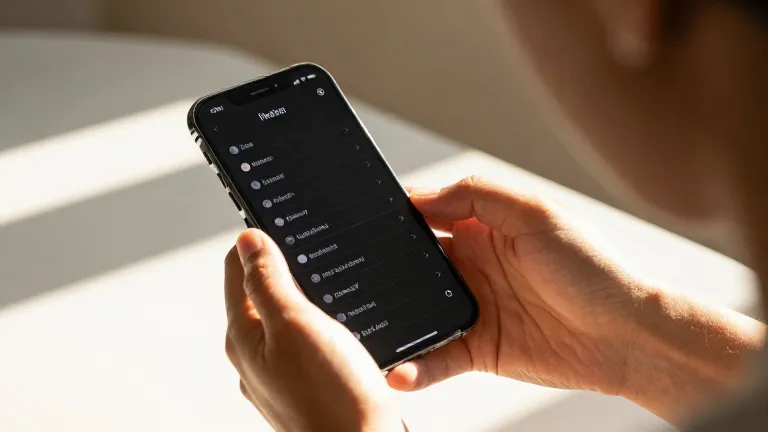
- Disable unnecessary background app refresh and location services.
- Reduce screen brightness and enable Auto-Brightness.
- Turn off features like Raise to Wake and Always On Display.
Managing Background App Refresh
Managing background app refresh is a key step in preventing your iPhone from draining battery quickly. Many apps continue to use data and power in the background, even when they’re not actively open. To limit this, go to Settings > General > Background App Refresh and toggle off the apps that don’t require constant updates. Disabling location services for apps that don’t need it also helps, as GPS usage can be a significant drain. You can adjust these settings in Settings > Privacy > Location Services and manage permissions for each app individually.
Adjusting Screen Brightness and Display Settings
Adjusting screen brightness and display settings can make a big difference in battery life. Lowering the screen brightness manually or enabling Auto-Brightness can help your iPhone adapt to ambient light conditions without overworking the display. Auto-Brightness uses the ambient light sensor to adjust brightness automatically, which can save power over time. Additionally, turning off features like Raise to Wake and Always On Display can reduce unnecessary power consumption. These settings are found in Settings > Display & Brightness, where you can customize your display preferences to suit your usage patterns.
Advanced Troubleshooting
Advanced troubleshooting steps can help resolve deeper issues that may be affecting your iPhone's battery life. These methods go beyond basic settings and focus on resolving software conflicts or reinstalling apps that may be causing unexpected battery drain. If these steps don’t resolve the problem, it may be necessary to consider hardware-related causes.
Resetting iPhone Settings
Resetting all settings on your iPhone can resolve hidden software conflicts that may be impacting battery performance. This process does not delete your data, photos, or apps, but it will reset network settings, wallpaper, and other preferences. To do this, go to Settings > General > Reset > Reset All Settings. This can be especially useful if you’ve recently installed new apps or updated your iOS, as it can clear out any residual issues that may be affecting battery life.
Reinstalling Problematic Apps
Reinstalling apps that are known to drain battery can improve performance and reduce unnecessary power consumption. Some apps, especially those that run in the background or use high amounts of data, can significantly impact battery life. To reinstall an app, first delete it from your home screen or App Library, then open the App Store and search for the app. Reinstalling can help fix corrupted files or outdated versions that may be causing battery drain. This is especially useful for apps that you use frequently but have not noticed any changes in their behavior.
When to Seek Professional Help
If you've tried all the troubleshooting steps and your iPhone battery is still draining too quickly, it's possible that the battery itself is faulty or degraded. Over time, lithium-ion batteries naturally lose their ability to hold a charge, and this can lead to faster battery drain even with optimal settings. In such cases, the only reliable solution is to replace the battery. However, this should be done by an authorized service provider to ensure compatibility and avoid voiding your warranty.
Apple offers support through its official channels, including Apple Support and Apple Stores, where trained technicians can perform diagnostics and determine if the battery is the root cause. These services can also assess whether the issue lies with the battery or another internal component. It's important to note that Apple provides warranty coverage for battery-related issues under certain conditions, so checking your warranty status before proceeding is advisable.
Avoid using third-party repair services or generic battery replacements, as these may not meet Apple’s quality standards and could potentially damage your device or void your warranty. Unauthorized repairs often lack the necessary diagnostics and can lead to further complications. If you're unsure about the cause of the battery drain, it's safer to consult an Apple representative for a thorough evaluation before making any hardware-related decisions.
Frequently Asked Questions
What should I do if my iPhone battery drains fast even when I'm not using it?
If your iPhone battery drains quickly when not in use, check for background app activity, disable location services for unused apps, and ensure your device is not in a power-saving mode. Consider resetting settings or checking for battery health issues.
Can a software update fix my iPhone's battery drain issue?
Yes, a software update can resolve battery drain by optimizing system performance and fixing bugs that may affect battery efficiency. Always check for updates through Settings > General > Software Update.
How can I tell if my iPhone battery is faulty or just old?
Use the Battery Health feature in Settings to check for maximum capacity. If it's below 80%, the battery may be degraded. A faulty battery may also cause unexpected shutdowns or rapid draining.
Is there a way to permanently fix my iPhone's battery drain?
While you can't permanently fix battery drain, you can extend battery life by managing settings, updating software, and replacing the battery if it's degraded. Regular maintenance and proper charging habits also help.
Final Thoughts
To address fast battery drain, start with basic settings adjustments and software updates. If issues persist, consider advanced troubleshooting like resetting settings or replacing the battery. A proactive approach can significantly improve battery life.
If your iPhone continues to drain quickly, it's time to seek professional help. An Apple-certified technician can assess your device and provide a lasting solution.





