
How to Fix USB-C Hub or Docking Station Disconnecting Randomly
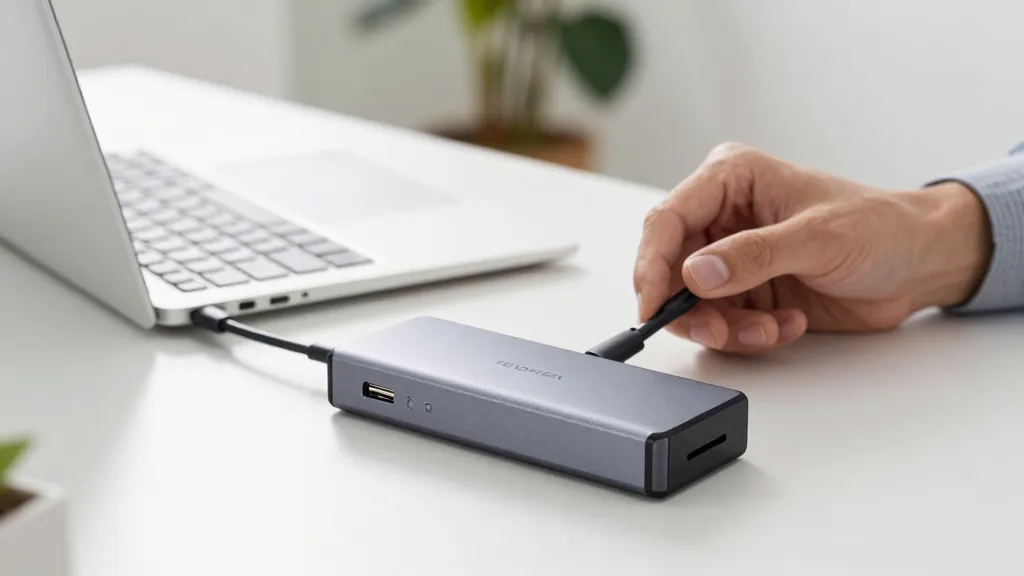
If your USB-C hub or docking station keeps disconnecting randomly, it can disrupt your workflow and frustrate even the most tech-savvy users. Whether you're working from home or in an office, intermittent connectivity can be a major hindrance. This article provides practical, step-by-step solutions to help you fix USB-C hub or docking station disconnecting issues without needing professional assistance. From checking physical connections to updating drivers, we cover essential troubleshooting methods to restore reliable performance.
The first step in resolving USB-C hub or docking station issues is to ensure all physical connections are secure and that the ports are free from dust or damage. Sometimes, a simple reconnection or a clean port can resolve unexpected disconnections. Additionally, testing the hub or dock with different devices can help identify if the problem lies with the hardware or the connected peripherals.
Beyond physical checks, software settings and power delivery can also play a role in USB-C hub or docking station disconnections. Disabling USB suspend, verifying power delivery capabilities, and using high-quality cables can significantly improve stability. If all else fails, replacing the hub or dock with a reliable alternative may be necessary to ensure consistent performance.
Troubleshoot USB-C Hub or Docking Station Disconnecting Issues
Before diving into advanced solutions, start with basic troubleshooting to determine if the issue stems from software, hardware, or external factors. Simple checks can often resolve intermittent disconnections without requiring complex interventions.

Check Physical Connections and Port Integrity
Begin by inspecting the physical connections between your USB-C hub or dock and the host device. Ensure the cable is securely plugged in and look for any signs of damage, such as frayed wires or bent pins. Also, check the ports on both the hub/dock and the host device for dirt, debris, or physical wear that might interfere with a stable connection.
Test the Hub or Dock with Different Devices
Testing the hub or dock with different devices and computers can help isolate whether the issue is with the hardware or the specific setup. Try connecting the hub or dock to another computer or device to see if the disconnection problem persists. If the issue disappears, it may indicate a compatibility problem or a conflict with the original host device. Conversely, if the problem remains, it could point to a faulty hub or dock requiring further investigation or replacement.
Fix USB-C Dock Disconnecting by Disabling USB Suspend
USB suspend is a power-saving feature in Windows and macOS that can cause USB-C docks to disconnect unexpectedly. Disabling this feature ensures your dock remains powered and connected, resolving intermittent issues.
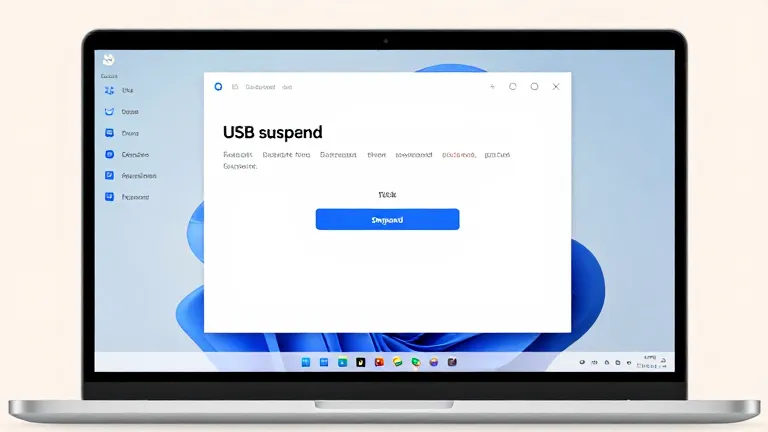
- Open the Device Manager on Windows and locate the USB Root Hub.
- Right-click the hub and select Properties, then navigate to the Power Management tab.
- Uncheck the 'Allow the computer to turn off this device to save power' option.
- Restart your computer to apply the changes.
- On macOS, go to System Settings and select Energy Settings.
- Under the USB section, disable the 'USB Power Management' option.
- Restart your Mac to ensure the settings take effect.
How to Disable USB Suspend on Windows
Disabling USB suspend on Windows involves accessing the Device Manager and adjusting the power management settings for the USB Root Hub. This prevents the system from powering down the hub, which can lead to disconnections. After making these changes, a system restart is necessary to apply the new settings.
How to Disable USB Suspend on macOS
On macOS, disabling USB power management is done through the Energy Settings panel. By turning off this feature, the operating system stops reducing power to USB devices, maintaining a stable connection with your dock. A restart is also required to ensure the changes are applied correctly.
Check for Proper Power Delivery on Your USB-C Hub or Dock
Proper power delivery is critical for USB-C hubs and docks to maintain stable connections. Insufficient power can cause intermittent disconnections, especially when multiple devices are connected. Ensuring your host device can supply adequate power or using an external power source can resolve many of these issues.
Verify Power Delivery Capabilities of Your Host Device
Verify the power delivery capabilities of your host device by checking its specifications. Most laptops and newer desktops support USB Power Delivery (PD), but the available wattage varies. For example, some laptops provide 60W or more, while others may only offer 30W. If your device does not meet the power requirements of your hub or dock, consider using a dedicated power adapter or a high-capacity power bank to supply additional power.
Use a High-Quality USB-C Cable for Power Delivery
Using a high-quality USB-C cable is essential for reliable power delivery. Inferior cables may not support PD, leading to power shortages and disconnections. Opt for a cable that explicitly states it supports USB PD and has a rating of at least 30W or higher, depending on your device's needs. Additionally, ensure the cable is not damaged or frayed, as physical wear can disrupt power flow. Testing with a different cable can help identify if the issue lies with the cable rather than the hub or dock itself.
Update and Reinstall Drivers for Your USB-C Hub or Dock
Outdated or corrupted drivers can cause USB-C hubs or docks to disconnect unexpectedly. Keeping drivers up to date ensures compatibility with your system and can resolve performance issues. If updates aren't available, reinstalling or rolling back drivers may restore stable operation.
- Check for driver updates from the manufacturer's website.
- Use Device Manager to update drivers on Windows.
- Reinstall drivers on macOS by removing and reattaching the device.
- Roll back drivers if recent changes caused instability.
How to Update USB-C Hub or Dock Drivers on Windows
To update USB-C hub or dock drivers on Windows, open Device Manager and locate the hub or dock under 'Universal Serial Bus controllers' or 'Human Interface Devices'. Right-click the device and select 'Update driver'. Choose 'Search automatically for updated driver software' to let Windows find the latest version. If no updates are found, visit the manufacturer's website to download the latest driver manually and install it.
How to Reinstall USB-C Drivers on macOS
On macOS, to reinstall USB-C drivers, first disconnect the hub or dock. Open System Settings, go to the 'Bluetooth & accessories' section, and remove the device. Restart your Mac, then reconnect the hub or dock. If the issue persists, boot into Recovery Mode by holding Command + R during startup. Use the Terminal to run 'sudo kextunload -b com.apple.driver.AppleUSBHub' and 'sudo kextload -b com.apple.driver.AppleUSBHub' to reinstall the driver. Ensure your macOS is updated to the latest version for compatibility.
Replace Faulty USB-C Hubs or Docking Stations
If all other troubleshooting steps fail, the USB-C hub or docking station itself may be faulty. A defective device can cause intermittent disconnections, regardless of the host system or cable quality. To confirm this, try using a different brand or model of hub or dock. This helps isolate whether the issue stems from the specific device or other factors in your setup.
How to Test a New USB-C Hub or Dock
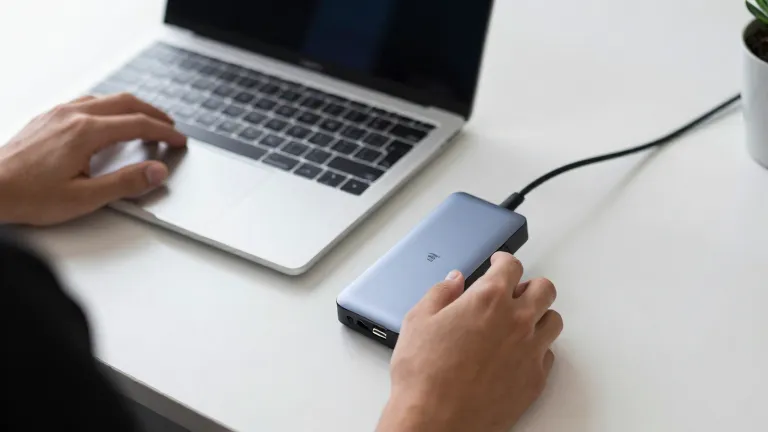
To test a new USB-C hub or dock, connect it to a different port on your laptop or desktop and use it with various devices. Monitor for any signs of disconnection, lag, or power issues. If the new hub or dock works reliably, the original device is likely the source of the problem. Keep in mind that some hubs may have compatibility issues with certain peripherals or operating systems.
Choosing a Reliable Replacement for USB-C Hubs
When choosing a reliable replacement for a USB-C hub, prioritize quality over price. Look for hubs that support the latest USB-C standards, such as USB 3.2 or Thunderbolt 4, to ensure compatibility with modern devices. Opt for reputable brands with positive user reviews and warranty support. A high-quality hub should provide stable connectivity and efficient power delivery, reducing the risk of intermittent disconnections.
Frequently Asked Questions
Why is my USB-C dock disconnecting when I use it with a laptop?
Your USB-C dock may disconnect due to power delivery issues, poor cable quality, or incompatibility with your laptop. Check for physical damage, ensure you're using a high-quality cable, and confirm your laptop supports the required power delivery.
Can disabling USB suspend fix my USB-C hub disconnection problem?
Disabling USB suspend can resolve disconnection issues caused by the system putting devices into sleep mode. This is particularly useful for older or lower-quality hubs that may not handle power management correctly.
How do I check if my USB-C hub is getting enough power?
To check if your USB-C hub is receiving enough power, use a multimeter to measure the voltage and current. Ensure your host device supports sufficient power delivery and that you're using a compatible, high-quality cable.
What should I do if my USB-C dock keeps disconnecting after updating drivers?
If your USB-C dock keeps disconnecting after updating drivers, try reinstalling the latest drivers from the manufacturer's website. If the issue persists, consider using a different hub or docking station that is compatible with your system.
Final Steps for a Stable Connection
To prevent USB-C hub or docking station disconnections, ensure proper power delivery, disable USB suspend if needed, and use high-quality cables. If issues persist, consider replacing the hub with a reliable alternative.
By following these troubleshooting steps, you can resolve most USB-C disconnection problems. If you continue experiencing issues, it may be time to invest in a new, high-quality hub or docking station.





