
How to Troubleshoot Internet Connection Issues
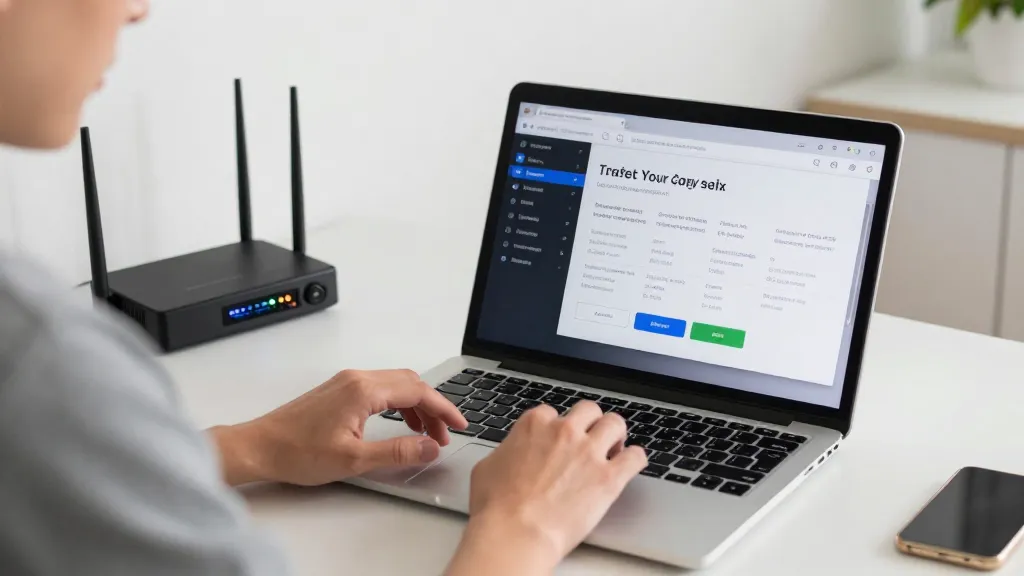
If your internet connection has suddenly gone dark, you're not alone. Many home users and office workers face frustrating outages that disrupt their daily routines. The good news is that most issues can be resolved without professional help. This article provides a clear, step-by-step guide on how to troubleshoot internet connection problems, empowering you to identify and fix the issue quickly. Whether you're dealing with a slow connection or a complete outage, these practical steps will help you regain control of your network. Let's start with the basics to ensure a solid foundation for troubleshooting.
Start with Basic Checks
Before diving into complex troubleshooting steps, it's essential to perform basic checks that can quickly resolve common internet issues. These simple actions often uncover the root cause of connectivity problems without requiring advanced technical knowledge.
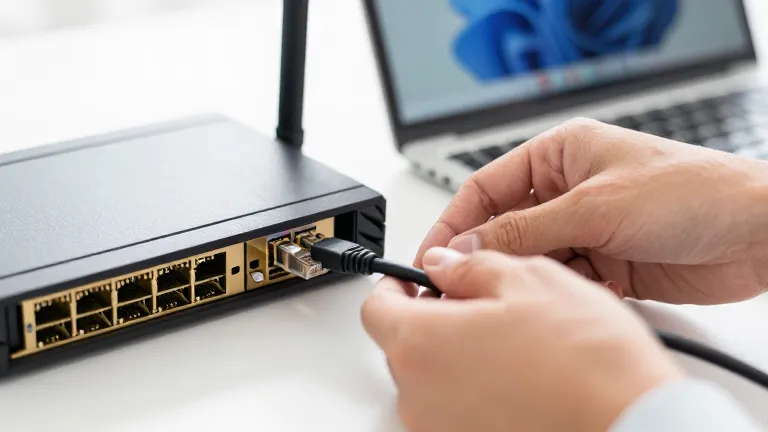
Check Physical Connections
Ensure that your router and modem are properly powered on. Look for indicator lights on these devices to confirm they are functioning. If the power light is off or blinking erratically, check the power cable and outlet. A loose connection or faulty power supply can disrupt your internet access. If necessary, try using a different power outlet or replacing the power cable.
Test Other Devices
Connect another device to your network to determine if the issue is specific to a single device or affects all connected devices. If other devices can access the internet, the problem may lie with the affected device's settings or hardware. If no other device works, the issue is likely with your router, modem, or internet service. This step helps narrow down the source of the problem and guides you toward the next troubleshooting stage.
Restart Your Router and Modem
Restarting your router and modem is a fundamental step in resolving internet connection issues. A simple power cycle can resolve temporary glitches, reset network settings, and restore connectivity without requiring technical expertise.
- Unplug the modem and router for 30 seconds, then plug them back in.
- Wait for the lights to stabilize before testing the connection.
- Try a power reset if the router is not responding.
- Avoid using the reset button on the router unless necessary.
How to Power Cycle Your Router
To power cycle your router, first locate the power cable for both the modem and router. Unplug both devices from the electrical outlet. Wait for at least 30 seconds to allow the internal capacitors to discharge. After the wait, plug the modem back in first, followed by the router. Allow the devices to fully boot up, which may take a few minutes, before checking your internet connection. This process clears minor software errors and re-establishes the connection with your ISP.
What to Do If Restarting Doesn’t Work
If restarting your router and modem doesn’t restore the connection, consider additional steps. Check if other devices on the same network are also affected, which could indicate a broader issue. Ensure that all cables are securely connected and that no physical damage is present. If the problem persists, try using a different Ethernet cable or connect a device directly to the modem to test the connection. If the issue remains unresolved, it may be necessary to contact your ISP for further assistance.
Check Your Internet Service Provider (ISP) Status
Before assuming your internet issue is due to your own equipment, it's essential to determine if the problem lies with your ISP. Service outages can affect multiple users in your area, and identifying this early can save time and effort in troubleshooting.

How to Check for ISP Outages
Visit your ISP’s official website or contact their customer service to check for any reported outages. Many providers offer real-time status updates or outage maps that show affected regions. If you're unable to reach customer service, search online for official outage announcements or check the ISP’s social media accounts for updates.
What to Do If Your ISP Is Down
If your ISP is experiencing an outage, wait for the service to be restored. You can monitor updates through the ISP’s website or social media channels. If you have access to a different ISP, consider temporarily switching to a backup provider to maintain connectivity. However, ensure that any alternative service meets your speed and reliability requirements before relying on it long-term.
Troubleshoot Your Wi-Fi Network
Troubleshooting your Wi-Fi network involves checking for firmware updates and optimizing your setup to enhance signal strength and performance. These steps can resolve connectivity issues and improve the overall stability of your network.
How to Update Router Firmware
Log in to your router’s admin panel to check for firmware updates. Typically, this can be done by entering the router’s IP address into a web browser and using the default login credentials, which are often found on a sticker at the back of the device. Once logged in, navigate to the firmware or software update section. If an update is available, follow the on-screen instructions to download and install it. Firmware updates often include bug fixes, security patches, and performance improvements that can resolve connectivity issues.
Tips for Improving Wi-Fi Signal
To improve your Wi-Fi signal, reduce interference from other wireless devices or appliances. Devices such as microwaves, cordless phones, and Bluetooth gadgets can cause signal disruption, especially if they operate on the same 2.4GHz frequency. Additionally, moving your router to a central location can help distribute the signal more evenly throughout your space. Avoid placing the router near thick walls, metal objects, or large furniture that may block the signal. Ensuring your router is in an open and elevated position can significantly enhance coverage and reduce dead zones.
Advanced Troubleshooting and Settings
Advanced troubleshooting steps can resolve persistent internet issues by resetting your router, adjusting DNS settings, and updating your device's network configuration. These methods are effective when basic solutions fail and require careful execution to avoid data loss or configuration errors.
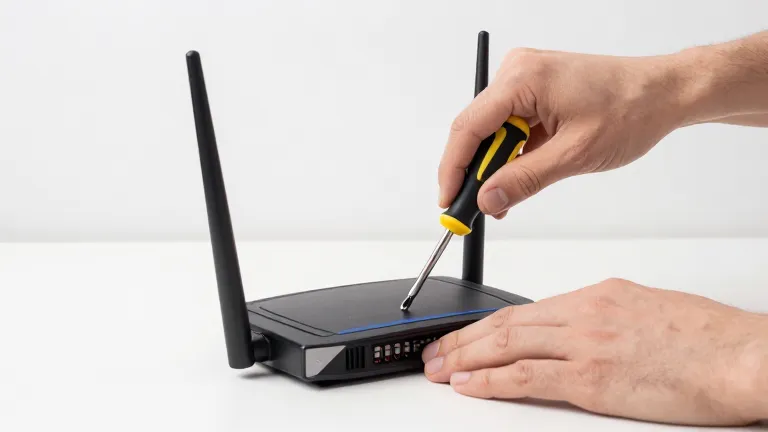
- Reset your router to factory settings if issues persist.
- Change the DNS settings to a public DNS like Google or OpenDNS.
- Update your device’s network settings or operating system.
- Use a network diagnostic tool if available.
How to Reset Your Router
Resetting your router to factory settings can resolve deep-seated configuration errors or software glitches. Before proceeding, note down your current Wi-Fi name and password, as these will be erased. Locate the reset button on your router, usually a small hole near the power port, and press and hold it for 30 seconds to initiate the reset. After rebooting, reconfigure your network settings, including Wi-Fi credentials and any custom preferences.
How to Change DNS Settings
Changing your DNS settings to a public DNS service like Google DNS (8.8.8.8 and 8.8.4.4) or OpenDNS can improve connection speed and security. Access your router’s admin panel by typing its IP address into a web browser, then navigate to the DNS settings section. Replace the default DNS servers with the public ones, save the changes, and restart your router for the new settings to take effect. This can help bypass local DNS issues and enhance browsing performance.
Frequently Asked Questions
What should I do if my internet connection suddenly stops working?
Start by checking physical connections and restarting your router. If the issue persists, verify your ISP status and ensure your modem is functioning correctly.
How can I tell if the problem is with my router or my ISP?
Check if other devices are affected and confirm if your ISP has reported outages. If only your router is impacted, restart or reset it to resolve the issue.
Can a faulty router cause my internet to drop frequently?
Yes, a faulty or outdated router can cause intermittent connectivity. Updating firmware or resetting the router may restore stable internet.
What are some common Wi-Fi issues that can affect my connection?
Interference from other devices, outdated firmware, and physical obstructions can degrade Wi-Fi performance. Ensuring optimal placement and regular updates can help.
Final Thoughts
Regularly monitoring your router and ISP status can prevent many connectivity issues. Maintaining firmware updates and ensuring optimal Wi-Fi placement improves reliability.
If persistent issues occur, contacting your ISP or a professional technician is the next step. Proactive maintenance ensures uninterrupted internet access.





