
How to Fix Weak WiFi Signal Caused by Neighbor Channel Interference
If you're experiencing a weak WiFi signal, it might not be your router's fault—it could be neighbor channel interference. Many home users struggle with slow speeds and dropped connections because nearby networks are using the same WiFi channel, causing congestion and signal degradation. Understanding how WiFi channels work and how to avoid interference is key to improving your connection. This article will guide you through the steps to diagnose and resolve the issue, starting with changing your WiFi channel to a less crowded one.
Changing your WiFi channel is a simple yet effective way to reduce interference. Most routers allow you to manually switch channels or use automatic tools to find the best option. However, knowing which channels are busy and how to access your router's settings can make the process easier. We’ll walk you through both methods, whether you prefer a hands-on approach or a more automated solution.
In addition to changing channels, there are long-term strategies to minimize interference, such as upgrading to a dual-band or tri-band router and optimizing your router’s placement. These steps can help you maintain a strong and stable WiFi signal, even in areas with high network activity. By following the guidance in this article, you can take control of your WiFi environment and enjoy a faster, more reliable internet experience.
Understanding WiFi Channel Interference
WiFi signal degradation from neighbor interference is a common issue for home users. Understanding how WiFi channels work and why they can cause interference is essential for resolving this problem. By learning about channel overlap and network congestion, you can take steps to improve your WiFi performance.
What Are WiFi Channels and How Do They Work?
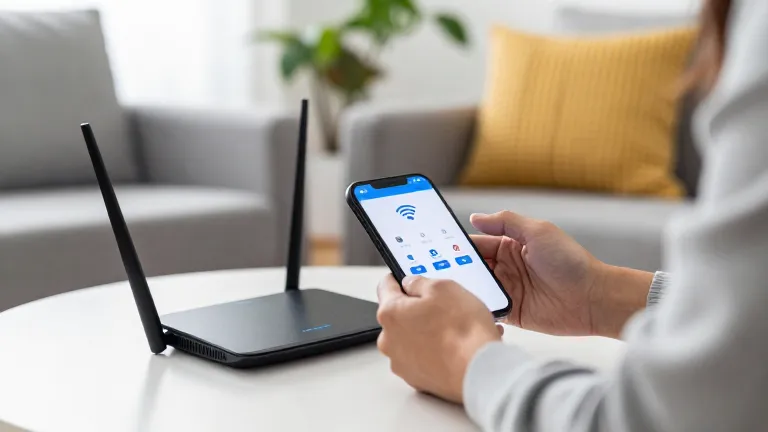
WiFi channels are specific frequency bands within the 2.4GHz and 5GHz spectrums that routers use to transmit data. These channels are divided into segments, with the 2.4GHz band having 11 channels and the 5GHz band offering more. When multiple devices use the same channel, their signals can overlap, leading to reduced performance and increased latency. This is especially common in densely populated areas where many neighbors operate on the same frequency.
Why Does Neighbor Interference Affect Your Signal?
Neighbor interference occurs when adjacent networks use the same WiFi channel, causing signal collisions and data loss. This results in slower internet speeds, dropped connections, and overall unreliable performance. The issue is exacerbated when multiple devices in the neighborhood are active simultaneously, such as during peak hours or when streaming video. Identifying which channel is most congested and switching to a less crowded one can significantly improve your WiFi experience.
How to Change Your WiFi Channel
Changing your WiFi channel is a straightforward way to reduce interference from neighboring networks. By accessing your router's admin panel and using tools like WiFi Analyzer, you can identify and switch to a less congested channel, improving your signal strength and overall performance.
- Log in to your router's admin panel using the default IP address, usually 192.168.1.1 or 192.168.0.1.
- Navigate to the wireless settings section and locate the channel selection option.
- Use a WiFi Analyzer app to scan for nearby networks and identify which channels are heavily used.
- Select a channel with lower traffic and save the new settings.
Accessing Your Router's Admin Panel
To access your router's admin panel, open a web browser and type in the default IP address. This is often listed in the router's manual or on the bottom of the device. Once logged in, look for the wireless or WiFi settings section. Here, you'll find options to change the channel for your 2.4GHz or 5GHz network. Make sure to select the correct band before making any changes.
Using WiFi Analyzer to Find the Best Channel
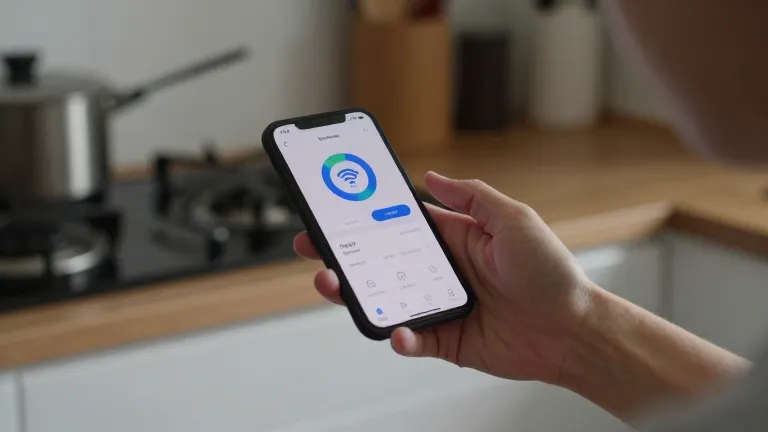
WiFi Analyzer apps, such as WiFi Analyzer for Android or WiFi Analyzer for iOS, help you visualize which channels are busy. Open the app and scan for nearby networks to see a map of channel usage. Look for channels with fewer connected devices and lower signal strength from neighbors. Once you've identified a suitable channel, return to your router's settings and manually assign it. This method allows for precise control over your WiFi environment, reducing interference effectively.
Optimizing Your Router's Channel Settings
Optimizing your router's channel settings is crucial for reducing interference and improving WiFi performance. By carefully selecting the right frequency band and enabling smart channel selection, you can minimize the impact of neighbor interference and achieve a more stable connection.
Choosing Between 2.4GHz and 5GHz Bands
The 2.4GHz band is widely used and only has 11 channels, many of which overlap. Channel 6 is particularly crowded and should be avoided unless necessary. Switching to the 5GHz band offers more channels and less interference, making it ideal for high-speed activities like streaming or gaming. If your router supports dual-band, prioritize using the 5GHz band for better performance.
Enabling Auto-Channel Selection
Enabling auto-channel selection allows your router to dynamically switch to the least congested channel, optimizing performance without manual intervention. Most modern routers have this feature, which can be found in the advanced settings of the admin panel. While auto-channel selection is convenient, it's still beneficial to periodically check the channel usage using a WiFi analyzer to ensure optimal settings. Combining auto-channel selection with manual adjustments can further enhance your WiFi experience and reduce interference from neighbors.
Tools and Methods to Diagnose WiFi Interference
Diagnosing WiFi interference requires tools that can identify crowded channels and signal strength variations. By using dedicated apps and manually adjusting settings, you can pinpoint and resolve issues caused by neighboring networks.
- Download and install a WiFi Analyzer app such as WiFi Analyzer or InSSIDer.
- Launch the app and scan for nearby networks to see which channels are in use.
- Review the signal strength and channel usage to identify overlapping or congested channels.
- Note the least used channel and switch your router to that channel manually.
Using WiFi Analyzer Apps for Diagnosis
WiFi Analyzer apps provide a visual representation of nearby networks and their channel activity. These tools help you understand which channels are heavily used and which are underutilized. By scanning your environment, you can see how many devices are on each channel and their signal strength, allowing you to make informed decisions about channel selection.
Manually Switching to a Less Crowded Channel
Once you've identified a less crowded channel, you can manually switch your router to that channel through its admin panel. This process typically involves accessing your router's settings, navigating to the wireless settings section, and selecting a different channel. After making the change, test your WiFi performance to see if the signal strength improves. This method is effective when automatic channel selection is not available or when you want more control over your network's configuration.
Long-Term Solutions for WiFi Interference
Long-term solutions for WiFi interference involve upgrading your equipment and optimizing your environment to ensure a stable and strong signal. These strategies provide lasting improvements by addressing the root causes of channel congestion and physical obstructions.
Upgrading to a Dual-Band or Tri-Band Router
Upgrading to a dual-band or tri-band router can significantly reduce interference by offering more channels and better performance. Dual-band routers operate on both 2.4GHz and 5GHz frequencies, allowing you to switch between bands based on usage. Tri-band routers add a third 5GHz band, further reducing congestion and improving speed. These routers often come with advanced features like auto-channel selection, which helps avoid crowded channels automatically.
Improving Router Placement for Better Signal
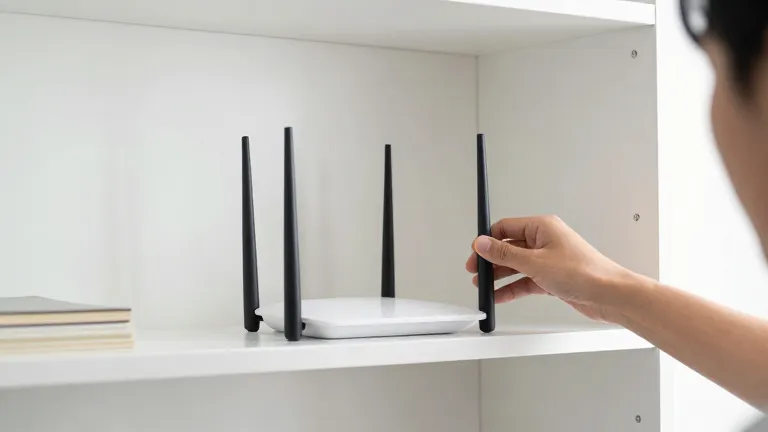
Improving router placement is another critical step in enhancing signal strength. Place your router in a central location, elevated and away from walls, metal objects, and other electronic devices that can absorb or block signals. Avoid placing it near microwaves, cordless phones, or Bluetooth devices, as they can cause interference. If your home is large, consider using WiFi extenders or mesh systems to ensure full coverage and maintain a strong signal throughout.
Frequently Asked Questions
How can I tell if my WiFi signal is affected by neighbor interference?
You can check for interference by observing slow speeds, dropped connections, or inconsistent performance. Use WiFi analyzer apps to see if multiple networks are using the same channel, which indicates interference.
What are the best WiFi channels to avoid interference?
In the 2.4GHz band, channels 1, 6, and 11 are typically the least crowded. For 5GHz, channels 36, 40, 44, 48, 149, 153, 157, and 161 are less likely to overlap with neighbors.
Can changing my WiFi channel improve my internet speed?
Yes, changing to a less crowded channel can reduce interference and improve speed. However, the actual impact depends on your router, environment, and network usage.
Is it possible to completely eliminate WiFi interference from neighbors?
It's not possible to completely eliminate neighbor interference, but you can minimize its impact by optimizing your channel, using dual-band routers, and improving your router's placement.
Final Thoughts
Optimizing your WiFi channel is a simple yet effective way to reduce interference and improve your connection. Regularly check your channel settings, especially if you notice performance issues. Consider using tools like WiFi analyzer apps to find the best channel for your environment.
If you're experiencing persistent interference, upgrading to a dual-band or tri-band router can provide better performance and more channel options. Always ensure your router is placed in a central location for the strongest signal.





