
Troubleshooting Steps for Common Tech Problems
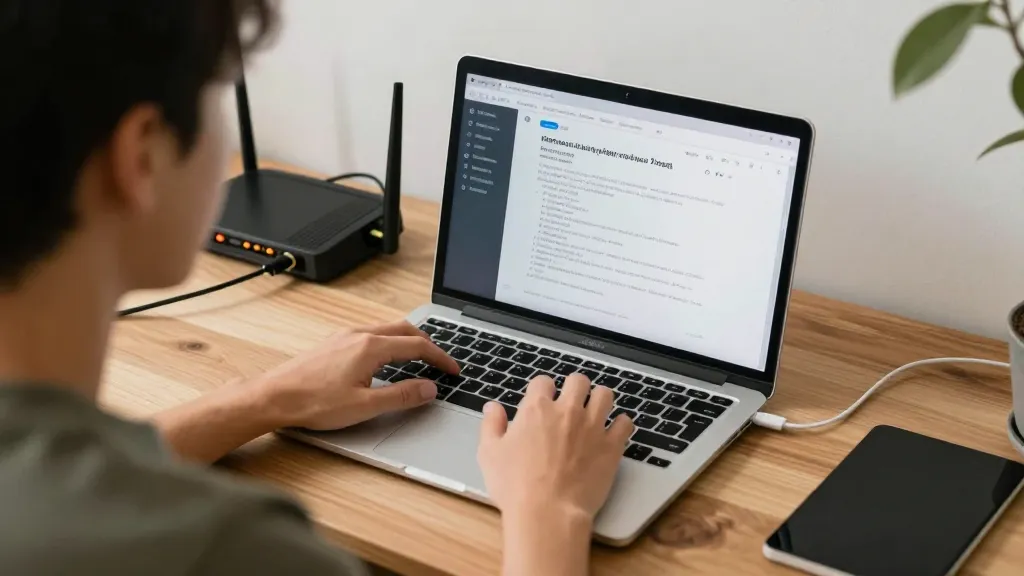
Tech problems can disrupt your work or home life, but many can be resolved with simple troubleshooting steps. Whether it's a frozen device, a slow internet connection, or an appliance that won't power on, knowing how to approach these issues can save you time and money. This article provides clear, step-by-step guidance to help you identify and fix common technology problems on your own. By following these practical tips, you'll gain confidence in handling everyday tech challenges without needing professional assistance. The goal is to empower home users and office workers to troubleshoot effectively and restore normalcy quickly. From basic restarts to network troubleshooting, each section covers essential actions to try before seeking further help. Understanding when and how to apply these troubleshooting steps is the first step toward resolving most tech issues efficiently.
Understanding the Importance of Troubleshooting Steps
Troubleshooting steps are essential for users who want to resolve common tech problems without relying on expensive repairs or professional help. These structured approaches empower home users and office workers to identify and fix issues using simple, logical actions. By following clear guidance, individuals can save time, avoid unnecessary costs, and regain control of their devices or appliances.

Why Troubleshooting Steps Work
Troubleshooting steps work by guiding users through a sequence of actions that systematically isolate the root cause of a problem. Instead of guessing, these steps encourage users to check basic elements like power connections, software updates, or network settings. This methodical process reduces the chance of overlooking simple solutions, making it easier to resolve issues efficiently.
When to Use Troubleshooting Steps
You should use troubleshooting steps whenever you encounter a problem that disrupts your workflow or daily routine. Whether it's a frozen device, a slow internet connection, or an appliance that won't power on, these steps provide a reliable way to address the issue. They are especially useful for common problems that often have straightforward fixes, such as restarting a device or checking for updates.
Basic Troubleshooting Steps to Try First
Before diving into complex solutions, it's essential to start with the simplest troubleshooting steps. These basic actions can often resolve a wide range of issues without requiring advanced technical knowledge.
- Restart your device or appliance
- Check for software or firmware updates
- Verify all cables and connections are secure
- Confirm settings are correctly configured
Restarting Your Device or Appliance
Restarting your device or appliance is one of the most effective and straightforward troubleshooting steps. Many technical issues, such as frozen screens or unresponsive controls, can be resolved by simply turning the device off and on again. This process clears temporary glitches and resets the system to its default state, allowing it to function properly.
Checking for Software or Firmware Updates
Checking for software or firmware updates is another essential step in troubleshooting. Manufacturers often release updates to fix bugs, improve performance, and enhance security. You can usually find these updates through the device's settings or the manufacturer's website. Applying these updates can resolve many common issues and ensure your device runs smoothly.
Troubleshooting Network and Internet Issues
Network and internet issues can disrupt work and communication, often causing slow connections, no access, or login errors. These problems may stem from your local setup, your ISP, or external factors. A systematic approach to troubleshooting can help identify and resolve these issues quickly, ensuring reliable internet access.
Fixing WiFi Connection Problems
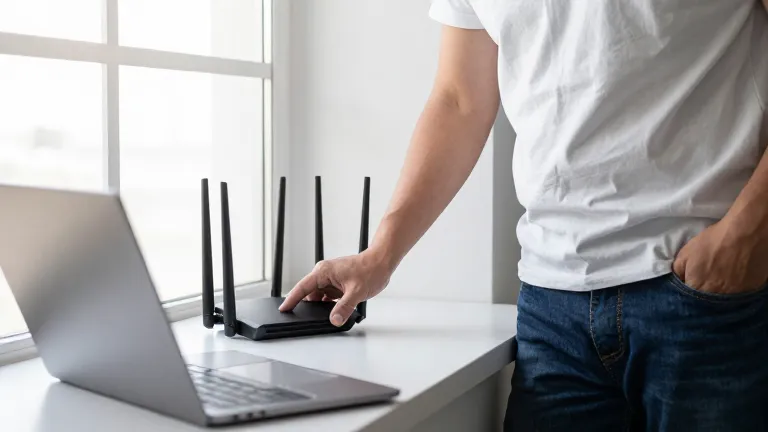
Fixing WiFi connection problems starts with verifying that your router is functioning properly. Ensure the router is powered on and all cables are securely connected. If your device is connected but still experiencing issues, try moving closer to the router to eliminate interference or signal blockage. Restarting your router can often resolve temporary glitches that disrupt the connection.
Troubleshooting Broadband Issues
Troubleshooting broadband issues typically involves checking the physical connection and ensuring your modem is working correctly. Verify that the phone line or fiber optic cable is connected and undamaged. If you're using a DSL connection, test the line with a different device to rule out local issues. Many ISPs provide troubleshooting guides on their websites, which can help you identify and fix common problems like signal degradation or service outages.
Troubleshooting Common Computer and Phone Problems
Troubleshooting common computer and phone problems often starts with simple, effective steps that can resolve many issues without professional help. Whether your device is frozen, apps are crashing, or your system is shutting down unexpectedly, there are practical methods to identify and fix the problem. These steps focus on basic diagnostics and maintenance, ensuring your device runs smoothly and efficiently.
- Restart your device
- Check for software updates
- Run built-in diagnostics
- Scan for malware
Fixing Frozen or Unresponsive Devices
If your computer or phone is frozen or unresponsive, the first step is to restart the device. A simple reboot can clear temporary glitches and free up memory. Before restarting, ensure any open files are saved, and avoid force-shutting down, as this may cause data loss. If the issue persists after a restart, it may indicate a deeper problem such as software conflicts or hardware failure.
Resolving App Crashes and System Errors
App crashes and system errors can be caused by corrupted files, outdated software, or malware. To resolve these issues, check for updates to your operating system and apps, as newer versions often include bug fixes and performance improvements. Many devices have built-in diagnostic tools that can scan for and repair system errors. Additionally, running a malware scan can help identify and remove any malicious software that might be interfering with normal operations.
When to Seek Further Help and What to Do Next
If basic troubleshooting steps fail to resolve the issue, it's time to consider more advanced solutions. Recognizing when to seek help is crucial to avoid unnecessary frustration and potential damage to your device or appliance. Understanding the right moment to contact support or a professional ensures you take the most effective action for your situation.

When to Call for Help
Call for help if the problem persists after trying all basic troubleshooting steps. Manufacturers often provide dedicated support channels, including phone lines, live chat, and online forums, which can offer tailored guidance. If the issue affects critical functions like internet connectivity or device operation, seeking immediate assistance is advisable to prevent further complications.
What to Do If You Can’t Fix the Problem
If you can't fix the problem on your own, consider professional repair services. Complex malfunctions, such as hardware failures or deep-seated software issues, often require specialized tools and expertise that are not available to the average user. Before proceeding, check if your device or appliance is still under warranty, as this may cover repair costs. Always choose reputable service providers to ensure quality and safety when handling technical repairs.
Frequently Asked Questions
What should I do if my phone is frozen and won’t respond?
If your phone is frozen, try a hard reset by pressing and holding the power button. If that doesn’t work, remove the battery (if removable) and restart. If the issue persists, consider a factory reset or contacting support.
How do I fix my internet connection if it keeps dropping?
Restart your router and modem by unplugging them for 30 seconds. Check for firmware updates on your router and ensure no devices are using excessive bandwidth. If the problem continues, contact your internet service provider.
What are the best troubleshooting steps for a slow computer?
Close unused programs, scan for malware, and check for system updates. Clear temporary files and ensure your hard drive has enough free space. If the issue remains, consider hardware upgrades or professional assistance.
How can I tell if my router is the cause of my network issues?
Check for signal strength and interference near your router. Test your connection by moving closer to the router. If problems persist, try resetting the router or contacting your ISP for further support.
Final Thoughts
Troubleshooting steps are essential for resolving common tech issues efficiently. By following a structured approach, you can often fix problems without professional help. If issues persist, seeking expert assistance is the next logical step.
Stay proactive by regularly updating your devices and monitoring for errors. Knowing when to apply troubleshooting steps and when to seek further help ensures your technology remains functional and reliable.





