How to Fix Windows Printing Issues Affecting Forcepoint Users
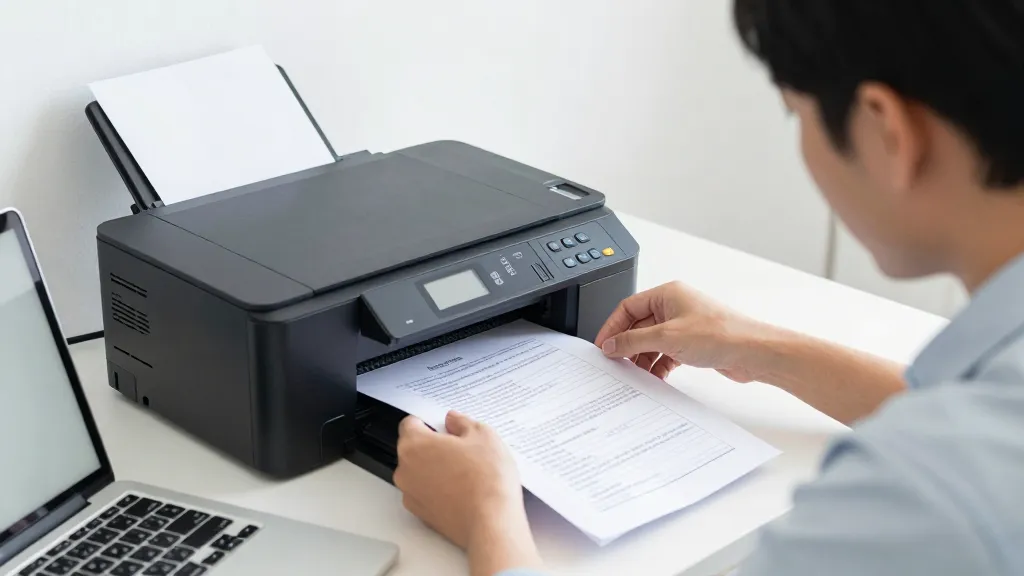
If you're experiencing printing issues on your Windows 11 system after installing recent updates, you're not alone. Many Forcepoint DLP Endpoint Agent users are facing problems with their printing functionality, including greyed-out print options and error messages. These issues stem from a compatibility conflict with the KB5132043 hotpatch update. If you're looking for a fix Windows printing issues solution, this article provides practical steps to resolve the problem.
We'll walk you through understanding the root cause of the printing issue and how to check if the KB5132043 hotpatch is installed. You'll also learn how to restart the Print Spooler service, a common fix for this type of problem. Additionally, we'll explore preventive measures to avoid future issues and alternative solutions if the problem persists.
Whether you're a home user or an office worker, these steps are designed to help you regain control of your printing functionality. If the issue continues, we'll guide you on when to seek professional support from Forcepoint or Microsoft. Let's get your printing back to normal.
Understanding the Windows Printing Issue with Forcepoint
Recent Windows hotpatch updates have caused printing issues for users of Forcepoint DLP Endpoint Agent, affecting their ability to print documents and manage print settings. The problem arises from a compatibility issue between the KB5132043 update and the Forcepoint software, leading to greyed-out print options or error messages when selecting a printer. This issue is linked to the Print Spooler service failing to start after the update, disrupting the printing process for affected users.
What Causes the Printing Issue?
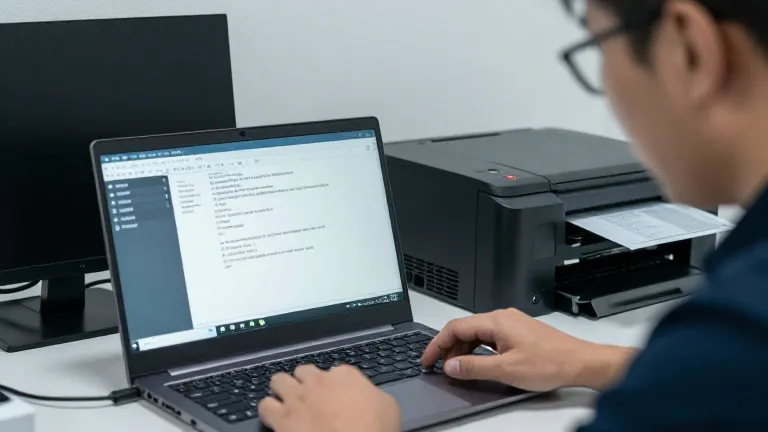
The printing issue is primarily caused by the KB5132043 hotpatch update, which is part of Microsoft's Windows 11 24H2 and later versions. This update is designed to address security vulnerabilities and improve system stability, but it has created a conflict with the Forcepoint DLP Endpoint Agent. The incompatibility between these two components results in the Print Spooler service failing to start, which is essential for managing print jobs. As a result, users may encounter difficulties in printing documents, with the print option becoming unavailable or error messages appearing when attempting to select a printer.
Which Systems Are Affected?
The issue specifically affects systems running Windows 11 2, 24H2, and later versions that have installed the KB5132043 hotpatch through Microsoft's Windows Autopatch service. Microsoft has confirmed that the problem does not impact systems that have only received the standard November 2026 Patch Tuesday security updates. Forcepoint users who have applied the hotpatch update are more likely to experience the printing issue, highlighting the need to be cautious when applying such updates. Microsoft and Forcepoint are aware of the issue and are working together to develop a solution, although a fix is not yet available.
Step-by-Step Guide to Fix Windows Printing Issues
This section provides actionable steps to resolve Windows printing issues affecting Forcepoint users. By following these steps, you can address the problem caused by the KB5132043 hotpatch and restore printing functionality.
- Check if the KB5132043 hotpatch was installed.
- Restart the Print Spooler service manually.
- Reinstall or update the Forcepoint DLP Endpoint Agent.
- Reset the printer settings on the affected system.
- Contact Forcepoint support for further assistance.
How to Check for the KB5132043 Hotpatch
To check if the KB5132043 hotpatch is installed, open the Start menu and search for 'Windows Update'. Click on 'View update history' to see a list of installed updates. Look for KB5132043 in the list. If it's present, the hotpatch may be the cause of the printing issue. If not, the problem might be unrelated to this update.
How to Restart the Print Spooler Service
To restart the Print Spooler service, press the Windows key and type 'services.msc' to open the Services window. Locate the 'Print Spooler' service and right-click it. Choose 'Restart' from the context menu. This action can resolve issues where the Print Spooler service fails to start, which is a common cause of printing problems. If the issue persists, consider stopping and starting the service again.
Preventive Measures to Avoid Future Printing Problems
Preventive measures are essential to avoid recurring printing issues and ensure system stability. By adopting careful update practices and maintaining software compatibility, users can significantly reduce the risk of encountering similar problems in the future.
Why Avoid Hotpatches Until a Fix Is Available?
Hotpatches are designed to address critical issues quickly, but they can sometimes introduce compatibility problems, especially with third-party applications like Forcepoint DLP Endpoint Agent. Until a permanent fix is released, it is advisable to avoid installing hotpatch updates. These updates are often pushed through Microsoft’s Windows Autopatch service, which can inadvertently cause issues with existing software. By delaying hotpatch installations, users can prevent potential conflicts and maintain system stability.
How to Stay Updated Safely
To stay updated safely, rely on standard security updates provided through Patch Tuesday rather than hotpatches. These updates are thoroughly tested and less likely to cause compatibility issues. Additionally, regularly check for updates from both Microsoft and Forcepoint to ensure all software remains compatible with the latest Windows versions. Users should also verify that their Forcepoint DLP Endpoint Agent is updated to the latest version, as this can help mitigate potential conflicts. Monitoring system performance after any update is crucial to detect and address issues early.
Alternative Solutions for Forcepoint Users
If standard troubleshooting fails, consider alternative solutions to bypass the printing issue. These methods can help you continue working while a permanent fix is developed.
- Use an alternative printing method, such as cloud printing via Google Cloud Print or Apple AirPrint.
- Try printing from another device or computer to isolate the problem.
- Ensure the printer is properly connected and functioning by checking cables, ink levels, and paper jams.
- Test with different print settings, including paper size, orientation, and print quality.
- Use third-party print management tools to manage and troubleshoot printing tasks.
How to Use Alternative Printing Methods
Using an alternative printing method can help you bypass the issue with the Forcepoint integration. Cloud-based solutions like Google Cloud Print or Apple AirPrint allow you to print directly from your device without relying on the local print spooler. This method is especially useful if the problem is specific to the Forcepoint DLP Endpoint Agent. Ensure that your printer is registered with the cloud service and that your device is connected to the internet.
Testing Different Print Settings
Testing different print settings can resolve compatibility issues with the hotpatch. Try changing the paper size, orientation, and print quality to see if the problem persists. Some printers have specific settings that may conflict with the updated system files. Additionally, check if the printer is set to the correct default printer in your system settings. If the issue remains, consider using a different printer or temporarily disabling the Forcepoint DLP Endpoint Agent to see if printing works normally.
When to Seek Professional Help
If you're still experiencing printing issues after trying all the troubleshooting steps, it's time to seek professional help. Whether you're a home user or an office worker, certain situations warrant expert intervention to ensure your systems function correctly and securely.

When to Contact Forcepoint Support
You should contact Forcepoint support if the printing issue persists despite following all the recommended troubleshooting steps. This is especially important if the problem is affecting critical business operations, such as document management or data loss prevention processes. Forcepoint's technical team can provide specific guidance tailored to your DLP Endpoint Agent configuration and help identify any compatibility issues with the latest Windows updates.
What to Expect From Technical Support
When you reach out to technical support, be prepared to provide detailed information about your system, including the version of Windows, the installed updates, and any error messages you've encountered. Support teams will likely ask you to check system logs or run diagnostic tools to pinpoint the issue. They may also guide you through advanced troubleshooting steps or recommend a temporary workaround until a permanent fix is available. This collaboration ensures that you receive the most accurate and effective assistance for your specific situation.
Frequently Asked Questions
What should I do if the print option is greyed out on Windows?
If the print option is greyed out, first check if the Print Spooler service is running. Restart the service through the Services app or use a command prompt. If the issue persists, consider uninstalling the KB5132043 hotpatch or contacting Forcepoint support.
How can I check if the KB5132043 hotpatch was installed?
To check for the KB5132043 hotpatch, open the Command Prompt and type 'wmic qfe list' to view installed updates. Look for KB5132043 in the list. If it's installed, consider uninstalling it until a fix is available.
Is there a temporary fix for the printing issue with Forcepoint?
A temporary fix involves restarting the Print Spooler service or temporarily disabling the Forcepoint DLP Endpoint Agent. These steps can help resolve the issue until a permanent solution is available.
Can I avoid the problem by not installing hotpatch updates?
Avoiding hotpatch updates can prevent the issue, but it may leave your system vulnerable to security risks. Ensure that you stay informed and only install updates from Microsoft when a fix is available.
Next Steps and Support
To address the printing issue, users should check for the KB5132043 hotpatch and restart the Print Spooler service. If the problem persists, contacting Forcepoint support is recommended. Staying informed about updates and following best practices can help prevent future issues.
Stay updated on the latest developments and follow the steps outlined in this article to resolve the printing issue. If problems continue, seek assistance from Forcepoint support to ensure your system remains secure and functional.