How to Turn AirPods Into an Air Mouse
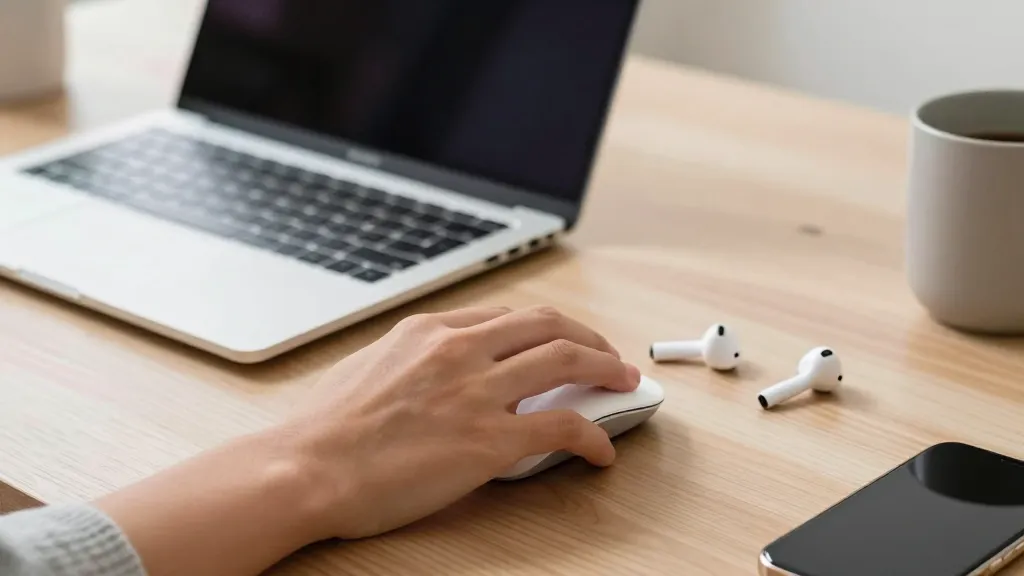
For home users and office workers seeking to boost productivity without extra costs, the idea of turning AirPods into an air mouse is both innovative and practical. With the right tools, your existing AirPods can transform into a wireless pointing device, offering a new way to interact with your computer. This article explores how to achieve this, providing a clear path to repurpose your AirPods for enhanced efficiency. Whether you're looking to simplify your workspace or reduce clutter, the process is more accessible than you might think.
The concept of using AirPods as a mouse relies on their built-in motion sensors, which track movement and position. By leveraging this technology, users can control their cursor with gestures, making tasks faster and more intuitive. While it may seem unconventional, the integration of motion-tracking software turns these everyday earbuds into a powerful peripheral. This guide walks you through the setup, ensuring you can start using your AirPods as a mouse in no time.
Beyond the basics, this article also covers alternative tools and tips to refine your experience. Whether you're a tech enthusiast or a casual user, understanding how to turn AirPods into an air mouse opens up new possibilities for interaction. With the right approach, you can unlock greater flexibility and control, all without additional hardware or expensive upgrades.
Why Turn AirPods Into an Air Mouse
Transforming your AirPods into an air mouse offers a novel way to enhance your computing experience without spending extra money. By leveraging the built-in motion sensors, you can repurpose your existing hardware to perform tasks typically handled by a traditional mouse, making your workflow more efficient and comfortable.
The Concept Behind AirPods as a Mouse
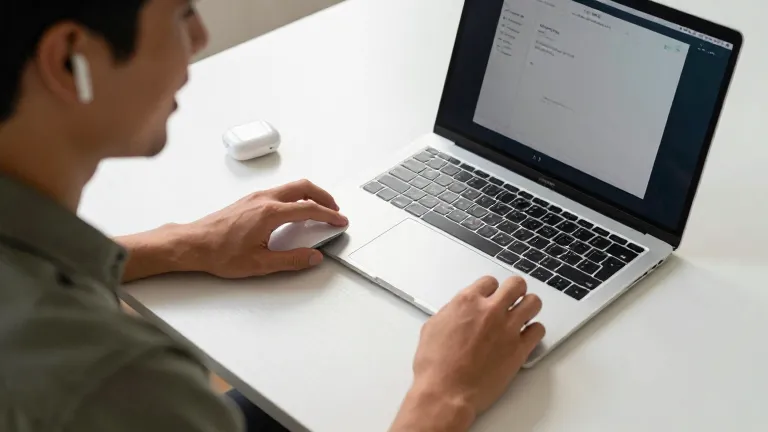
AirPods are equipped with motion sensors that track movement and orientation. These sensors, originally designed for features like Spatial Audio, can be reprogrammed to monitor the position and motion of the AirPods or their case. By utilizing this data, developers have created software that translates these movements into pointer actions on your computer screen. This innovative use of existing hardware allows for seamless integration without requiring any additional peripherals.
Benefits of Using AirPods as a Mouse
Using AirPods as a mouse can significantly improve productivity by reducing the need for constant hand movement. This method minimizes physical strain on your wrists and arms, which is particularly beneficial for users who spend long hours at their desks. Additionally, it eliminates the need to purchase a separate mouse, saving costs while maintaining functionality. For home users and office workers, this approach offers a practical and cost-effective way to enhance their digital workspace.
Understanding How AirPods Can Control Your Mouse
AirPods can function as a mouse by leveraging their built-in motion sensors, which track movement and orientation to translate physical gestures into cursor actions. This capability is made possible through specialized software that interprets the data collected by these sensors, allowing users to control their computer pointer with their AirPods, either in their ears or placed inside the case.
How Motion Sensors Work in AirPods
Modern AirPods are equipped with motion sensors that detect movement and orientation, enabling features like Spatial Audio. These sensors continuously monitor the position and rotation of the AirPods, providing real-time data that can be used for pointer control. When the AirPods are in your ears, the sensors track head movements, while placing them in the case allows the case's motion to be tracked instead. This dual functionality makes AirPods versatile for different use cases.
Software That Enables Pointer Control
Software such as AirCursor or similar tools acts as the bridge between the motion data from AirPods and the cursor on your screen. These applications interpret the sensor data, translating physical movement into on-screen pointer actions. For instance, moving your head while wearing AirPods can shift the cursor, and placing them in the case allows the case's motion to be used as a pointing device. The software often provides customization options, such as sensitivity settings and gesture controls, to enhance the user experience. By utilizing these tools, users can effectively transform their AirPods into an air mouse, offering a cost-effective alternative to traditional pointing devices.
Step-by-Step Guide to Turn AirPods Into an Air Mouse
Once you've decided to turn your AirPods into an air mouse, the next step is to install the necessary software and configure your device. This process involves downloading the right application, pairing your AirPods with your Mac, and fine-tuning the settings to ensure smooth pointer control.
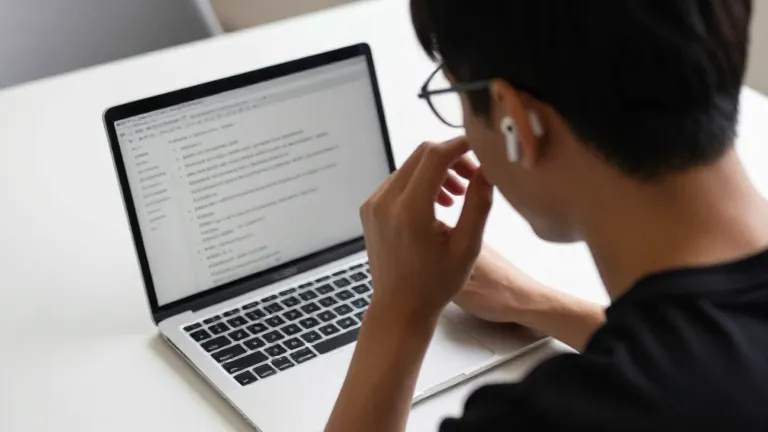
- Install AirCursor or similar software from the official website or trusted app store.
- Launch the software and follow the on-screen instructions to pair your AirPods.
- Configure the motion tracking settings to match your preferred sensitivity and movement style.
- Test the pointer movement and adjust calibration settings as needed for accuracy.
Installing and Setting Up the Software
To begin, download and install AirCursor or another software that allows your AirPods to act as a mouse. These applications are typically available for macOS and can be found through official sources or reputable app stores. Once installed, open the software and look for an option to connect your AirPods. The app will guide you through the pairing process, which may involve putting your AirPods in pairing mode and confirming the connection on your Mac.
Pairing AirPods with Your Device
After the software is installed, you need to pair your AirPods with your device. Ensure your AirPods are charged and within range of your Mac. Open the software and select the option to pair your AirPods. Follow the on-screen prompts to complete the pairing, which usually involves putting your AirPods in discovery mode. Once paired, the software will start tracking the motion of your AirPods or case, allowing you to move the cursor on your screen.
Calibrating and Testing the Air Mouse
Once your AirPods are paired, it's time to calibrate and test the air mouse. Launch the software and navigate to the settings menu to adjust the sensitivity and responsiveness of the pointer. You can also enable or disable features like head tracking or gesture controls based on your preferences. After making adjustments, move your AirPods around to see how the cursor responds. If the movement feels off, revisit the calibration settings and tweak them until you achieve the desired level of accuracy and speed.
Alternative Methods and Tools for AirPods as a Mouse
When it comes to turning AirPods into an air mouse, there are multiple tools and apps available, each offering unique features and levels of customization. Some apps prioritize simplicity and ease of use, while others provide advanced settings for more precise control. Understanding the options available can help you select the best tool for your specific needs.
Popular Apps for AirPods as a Mouse
Several apps have been developed to transform AirPods into an air mouse, each with its own approach to motion tracking and pointer control. For instance, AirCursor focuses on head movement to navigate the cursor, making it ideal for users who prefer a hands-free experience. Other apps, like AirMouse, offer more granular control, allowing users to adjust sensitivity, calibration, and even add custom gestures. These tools often integrate with macOS or Windows, providing a seamless experience for home users and office workers.
Choosing the Right Tool for Your Needs
When choosing the right tool, consider your workflow and how much customization you need. If you're looking for a straightforward solution, apps with minimal setup and intuitive controls might be the best fit. However, if you require advanced features like gesture recognition or fine-tuned sensitivity, opt for a tool that offers these options. Testing different apps can help you determine which one aligns best with your productivity goals and comfort level.
Tips and Tricks for Using AirPods as a Mouse
Once you've successfully set up your AirPods as an air mouse, the next step is to refine your experience. Fine-tuning your setup can make a big difference in how smoothly and efficiently you use this new input method. By focusing on accuracy, speed, and personalization, you can turn your AirPods into a more intuitive and responsive pointing device.
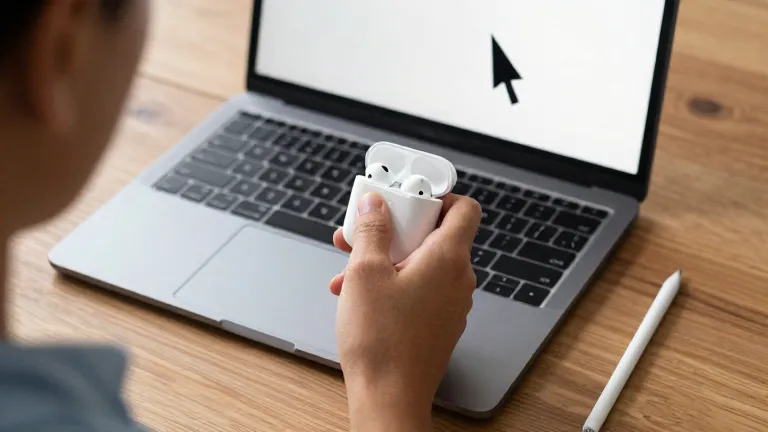
- Practice using the air mouse to get used to the motion control.
- Adjust sensitivity settings to match your preferred movement speed.
- Use a combination of gestures for more precise control.
Improving Accuracy and Speed
Improving accuracy and speed is essential for making your AirPods feel like a natural extension of your hand. Start by practicing basic movements, such as moving the pointer across the screen and clicking. As you become more familiar with the motion controls, you'll start to understand how subtle movements translate into cursor actions. It's important to be patient and consistent, as mastering this input method takes time and repetition.
To enhance speed, experiment with different sensitivity settings in the software you're using. A higher sensitivity can make the pointer move faster, but it might also reduce precision. Conversely, a lower sensitivity offers more control but requires more movement. Finding the right balance is key to achieving a smooth and efficient workflow.
Customizing Your Air Mouse Experience
Customizing your Air Mouse experience allows you to tailor the setup to your specific needs and preferences. Most apps offer options to adjust pointer speed, sensitivity, and even add custom gestures for actions like right-clicking or scrolling. Take the time to explore these settings and adjust them to match your workflow. For example, if you frequently work with graphics or design software, you might want to prioritize precision over speed.
Beyond basic settings, some tools allow you to assign specific gestures to different functions, making your AirPods even more versatile. For instance, you could set a specific motion to open a menu or switch between applications. These customizations can significantly boost productivity by making your interactions with the computer more intuitive and efficient.
Frequently Asked Questions
Can I use AirPods as a mouse on a Windows computer?
Yes, you can use AirPods as a mouse on a Windows computer with the right software. Tools like AirCursor or similar apps can translate motion data from your AirPods into pointer movement. However, compatibility may vary, and you may need to adjust settings for optimal performance.
What if my AirPods don't have motion sensors?
If your AirPods lack motion sensors, they cannot be used as a mouse. Motion sensors are essential for tracking movement and translating it into pointer control. Check your AirPods model to confirm if they support this feature.
Is it possible to use AirPods as a mouse without any software?
No, using AirPods as a mouse requires specific software to interpret motion data and translate it into pointer movement. Without such tools, the hardware alone cannot perform this function.
How do I fix if the pointer doesn't move with my AirPods?
If the pointer doesn't move, check the software settings and ensure your AirPods are properly paired and calibrated. Restarting the app or device may also resolve the issue. Ensure motion sensors are enabled and no other apps are interfering.
Final Thoughts
Using AirPods as a mouse is a creative and efficient way to enhance your computing experience. By leveraging motion sensors and the right software, you can turn your AirPods into a versatile pointing device. This method is especially useful for users seeking alternative input methods or those looking to improve their workflow.
To get started, download a suitable app, pair your AirPods, and calibrate the settings for the best performance. Experiment with different tools to find what works best for your needs.