How to Fix Windows 11 Mouse Lagging or Double Clicking
If your Windows 11 mouse is lagging or double-clicking, it can significantly slow down your productivity and frustrate even the most basic tasks. Whether you're working on a document, browsing the web, or using office software, a malfunctioning mouse can be a major hindrance. The main keyword here is how to fix Windows 11 mouse lagging or double clicking, and this article provides straightforward solutions for home users and office workers who want to resolve these issues without professional help.
We’ll start by explaining the common causes of mouse lag and double-click problems, then move on to practical fixes like updating drivers and adjusting settings. You’ll also learn how to identify and disable background applications that might be interfering with your mouse performance.
By the end of this article, you’ll have a clear, step-by-step guide to diagnosing and fixing mouse issues on your Windows 11 device. No tech expertise is required—just follow the instructions and get your mouse working smoothly again.
Understanding Why Your Mouse Is Lagging or Double Clicking
Mouse lagging or double clicking on Windows 11 can be frustrating, affecting productivity and user experience. Understanding the root cause is essential to resolving the issue efficiently. Whether the problem stems from software conflicts or hardware limitations, identifying the source can guide you toward the right solution.
Common Causes of Mouse Lagging and Double Clicking
Common causes of mouse lagging or double clicking include outdated drivers, incorrect settings, and background applications consuming system resources. Outdated mouse drivers can lead to communication issues between the device and the operating system, resulting in delayed or repeated clicks. Similarly, incorrect double-click speed settings may cause the system to register clicks as double clicks. Additionally, resource-heavy background applications can slow down the system, leading to mouse responsiveness issues.
How to Determine If the Issue Is Software or Hardware Related
To determine if the issue is software or hardware related, start by checking for driver updates and adjusting mouse settings. If the problem persists after these changes, consider testing the mouse on another computer to isolate the issue. If the mouse works correctly on a different system, the problem likely lies with your Windows 11 configuration. Conversely, if the mouse behaves abnormally on all devices, the issue may be with the hardware itself. This distinction helps you focus your troubleshooting efforts effectively.
Check and Update Mouse Drivers
Outdated or corrupted mouse drivers can lead to lagging or double-clicking issues. Updating or reinstalling your mouse driver through Device Manager is a straightforward way to resolve these problems. Ensuring compatibility with your Windows 11 version is essential for proper functionality.
- Open Device Manager and locate your mouse device under 'Mice and other pointing devices'.
- Right-click the mouse device and select 'Update driver' to install the latest manufacturer-provided driver.
- If the automatic update fails, visit the mouse manufacturer's website to download and install the latest compatible driver for Windows 11.
- After updating, restart your computer to apply the changes and check if the mouse performance has improved.
How to Update Mouse Drivers via Device Manager
To update your mouse driver via Device Manager, start by opening the utility through the Start menu. Navigate to 'Mice and other pointing devices' and identify your mouse model. Right-clicking the device and selecting 'Update driver' will initiate the process. Windows will search for the latest driver, and if available, install it automatically. This method is effective for most built-in and compatible devices.
What to Do If Driver Updates Don't Work
If the driver update doesn't resolve the issue, consider reinstalling the driver. Right-click the mouse device in Device Manager and select 'Uninstall device'. Confirm the action and restart your computer to allow Windows to reinstall the driver. If the problem persists, try connecting the mouse directly to a USB port instead of a hub, as this can sometimes improve performance. Additionally, ensure your Windows 11 system is up to date, as system updates often include driver improvements.
Adjust Mouse Settings in Windows 11
Adjusting mouse settings in Windows 11 can significantly impact your mouse's performance, helping to eliminate lagging or double-clicking issues. By fine-tuning sensitivity and double-click speed, you can align the mouse behavior with your personal preferences and usage patterns.
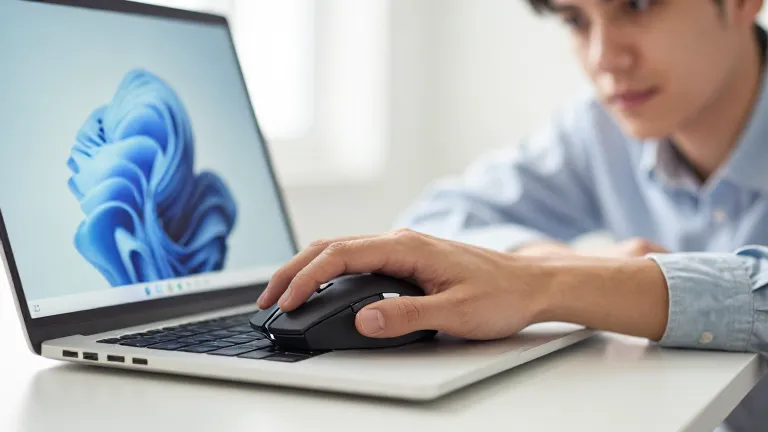
How to Adjust Mouse Sensitivity and Double-Click Speed
To adjust mouse sensitivity and double-click speed, open the Settings app and navigate to System > Mouse. Here, you can modify the pointer speed to make the cursor move faster or slower, which can help reduce lag. The double-click speed setting controls how quickly you need to click twice for the system to register a double-click, which can prevent unintended actions. If the mouse feels sluggish or clicks too quickly, tweaking these settings can restore a more responsive experience.
Optimizing Mouse Settings for Different Tasks
Optimizing mouse settings for different tasks involves balancing sensitivity and speed to suit specific activities. For example, graphic designers or gamers may prefer a higher sensitivity for precise control, while office workers might find a lower sensitivity more comfortable for everyday tasks. Experimenting with different settings can help you find the perfect balance for your workflow. It's also important to consider the type of mouse you're using, as mechanical and optical mice may respond differently to the same settings. Customizing these options ensures that your mouse performs reliably across various applications and environments.
Disable Background Applications That May Interfere
Background applications can significantly impact mouse performance by consuming CPU and memory resources. Identifying and disabling these apps can help resolve lagging or double-clicking issues. This section explains how to pinpoint and manage resource-heavy processes effectively.
- Open Task Manager by pressing Ctrl + Shift + Esc to view running applications and background processes.
- Look for apps with high CPU or memory usage in the 'Processes' tab. These are likely to be the culprits affecting your mouse performance.
- Right-click on the identified app and select 'End Task' to stop it temporarily. Avoid ending critical system processes like antivirus or system services.
- Consider using the 'Startup' tab in Task Manager to disable unnecessary programs from launching automatically at boot.
How to Identify and Disable Resource-Heavy Background Apps
To identify resource-heavy apps, use Task Manager to monitor CPU and memory usage. Focus on applications that are consistently using high resources, as they may be interfering with mouse operations. If you're unsure about an app's purpose, research it online or check its settings for more details.
Best Practices for Managing Background Processes
Managing background processes involves a balance between system performance and functionality. Disable non-essential apps, but ensure that critical services remain active. Regularly review your Task Manager to identify new resource consumers and adjust accordingly. Keeping your system clean of unnecessary background apps can lead to smoother mouse performance and overall better device efficiency.
Test Your Mouse on Another Computer
Testing your mouse on another computer is a straightforward way to identify whether the issue is with the hardware or your Windows 11 setup. This method helps isolate the problem and provides clarity on the next steps to resolve it.
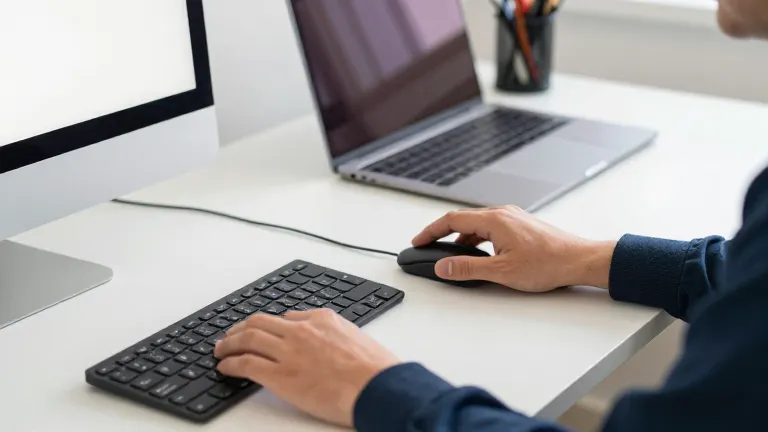
How to Test Your Mouse on a Different Computer
To test your mouse on another computer, connect it to a different device, such as another laptop, desktop, or a friend’s PC. Once connected, use the mouse to perform basic tasks like clicking, dragging, and scrolling. If the mouse functions normally on the new device, the issue is likely with your Windows 11 configuration rather than the mouse itself. This test can save time by eliminating the need to troubleshoot hardware issues unnecessarily.
What to Do If the Mouse Doesn't Work on Another PC
If the mouse doesn’t work on another computer, the problem is likely with the hardware. In this case, consider replacing the mouse or trying a different one to see if the issue persists. Faulty wiring, damaged sensors, or outdated firmware in the mouse can all contribute to lagging or double-clicking problems. If you're unsure about the mouse’s condition, purchasing a reliable alternative can help ensure smooth and accurate mouse performance across all devices.
Frequently Asked Questions
Why is my mouse lagging on Windows 11 even after updating drivers?
Mouse lagging can occur due to outdated system files, background processes, or hardware issues. Ensure your Windows 11 is up to date and check for resource-heavy applications running in the background. If the problem persists, consider testing the mouse on another computer to rule out hardware issues.
Can a mouse double-click issue be fixed without replacing the mouse?
Yes, double-click issues can often be resolved by adjusting settings in Windows 11, updating drivers, or disabling interfering background apps. If these steps don't work, the mouse may require hardware repair or replacement.
How do I know if my mouse is faulty or if it's a software issue?
To determine the cause, test the mouse on another computer. If it works there, the issue is likely software-related. If it doesn't, the mouse may be faulty. Check for driver updates and system settings to address software issues.
Is there a way to prevent mouse lagging on Windows 11 in the future?
Regularly update drivers and Windows 11, manage background processes, and keep your system optimized. Avoid overloading the system with unnecessary applications. Testing your mouse on different computers can help identify and prevent potential hardware issues.
Final Thoughts
By following these steps, you can address mouse lagging and double-clicking issues effectively. Regular maintenance and updates can help prevent future problems. If the issue persists, consider professional support or hardware replacement.
Take action today by updating drivers, adjusting settings, and managing background processes. These steps can significantly improve your mouse performance and overall system efficiency.