How to Fix HP Printer Offline on Windows 11
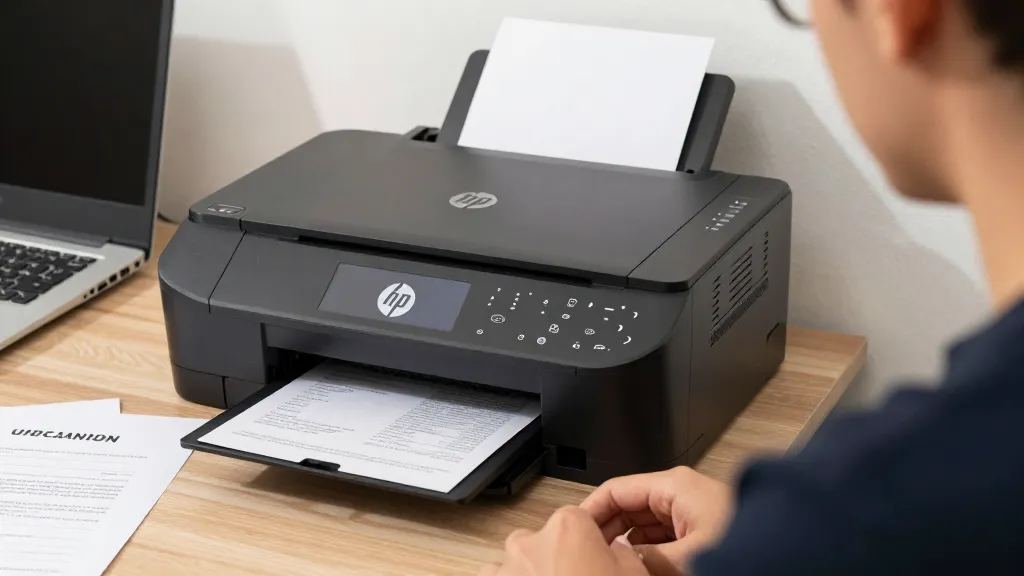
If your HP printer is showing as offline on Windows 11, it can disrupt your printing tasks and cause frustration. Whether you're at home or in an office setting, this issue can be resolved with the right steps. This article provides a straightforward guide on How to Fix HP Printer Offline on Windows 11, helping you restore your printer's connectivity without needing professional assistance. We'll walk you through practical solutions to troubleshoot and fix the problem effectively.
The first step is to verify your printer's physical and network connections. A loose cable or unstable Wi-Fi connection can often lead to the offline status. We'll guide you through checking both wired and wireless connections to ensure your printer is properly linked to your system.
Following the initial checks, we'll explore advanced options such as updating drivers, clearing print queues, and restarting your devices. These steps are designed to resolve common issues that cause HP printers to go offline on Windows 11, ensuring your printing tasks resume smoothly.
Check Your Printer Connection
Before troubleshooting more complex issues, start by verifying the basic connection between your HP printer and your Windows 11 device. A simple disconnect or misconfiguration can often be the root cause of the printer showing as offline. This section guides you through checking both physical and network connections to ensure your printer is properly recognized by your system.
Physical Connection Issues
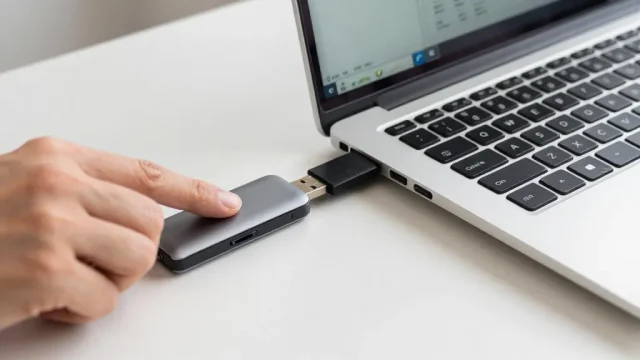
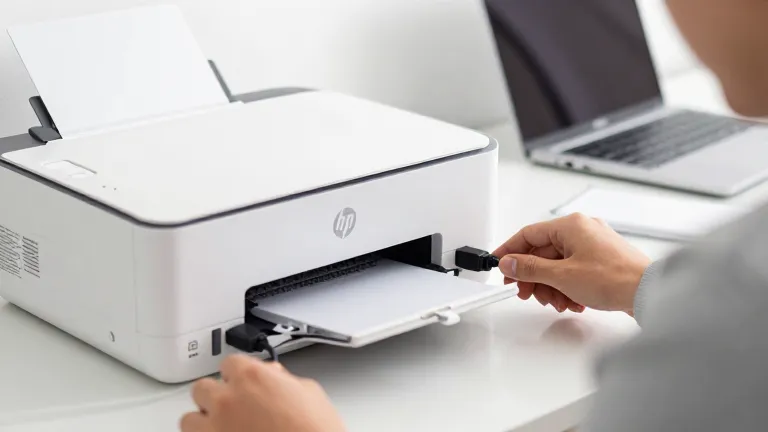
Ensure your HP printer is physically connected to your computer or network. If using a USB connection, check that the cable is securely plugged into both the printer and the computer. A loose or damaged cable can prevent the printer from being recognized. Also, verify that the printer is powered on and displays a ready state, such as an idle or print-ready indicator. If the printer is not responding, press the power button to restart it.
Network Connection Problems
If your printer is connected via Wi-Fi or Ethernet, confirm that it is properly connected to your network. For wireless printers, ensure that the printer is within range of your router and that the correct Wi-Fi network is selected. You can check the printer’s display or settings menu for network status. If the printer is connected to a different network, change the settings to match your Windows 11 device. Additionally, make sure your Windows 11 computer is connected to the same network, as this is essential for communication between devices.
Update HP Printer Drivers
Outdated or corrupted drivers can cause the HP printer to appear offline on Windows 11. Keeping your printer drivers up to date ensures compatibility with the operating system and resolves potential connectivity issues.
- Visit the HP official website to download and install the latest printer drivers.
- Use Windows Update to check for driver updates automatically.
- Ensure your printer is connected to the same network as your Windows 11 device.
- Restart your computer after installing new drivers to apply changes.
How to Download HP Drivers Manually
To download HP drivers manually, go to the HP Support website and enter your printer model. Select the appropriate operating system, then download the latest driver package. Follow the on-screen instructions to install the driver, ensuring your printer is connected during the process.
Using Windows Update for Driver Updates
Windows Update can automatically detect and install driver updates for your HP printer. Open Settings, navigate to 'Windows Update,' and click 'Check for updates.' If driver updates are available, install them and restart your computer to ensure the changes take effect.
Clear the Print Queue
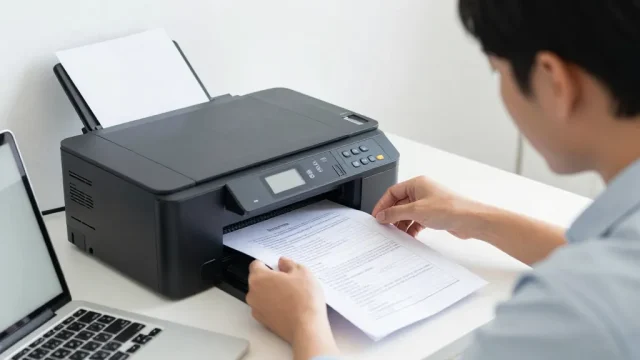
A stuck or corrupted print queue can prevent the printer from responding, leading to it being marked as offline. Clearing the print queue is a fundamental step in resolving this issue. By removing any pending or stuck jobs, you can help the printer reconnect and operate normally.
How to Cancel Stuck Print Jobs
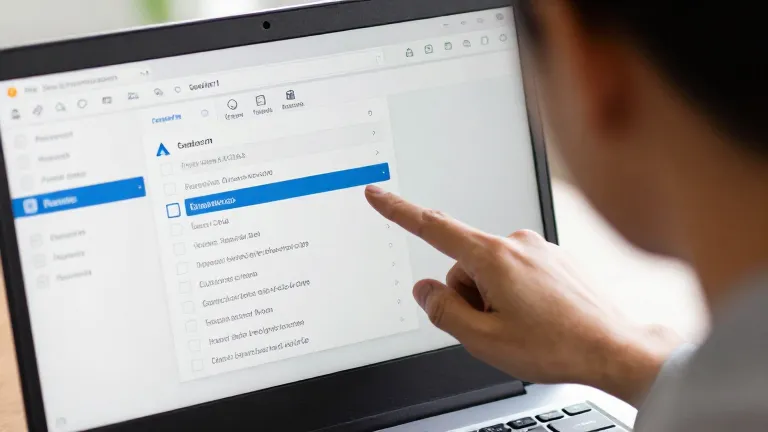
To cancel stuck print jobs, open the Printers and Scanners settings in Windows. Locate your HP printer and click on it to access the printer properties. Navigate to the 'See what's printing' section to view the print queue. Select any pending or error-prone jobs and click 'Cancel' to remove them. This action can resolve issues caused by corrupted or stuck print tasks.
Restarting the Print Spooler Service
If the print queue remains unresponsive, restarting the Print Spooler service can help. Press Win + R to open the Run dialog, type 'services.msc', and press Enter. Scroll through the list to find 'Print Spooler' and right-click it to select 'Restart'. This action clears any residual data and can resolve connectivity issues. Ensure no print jobs are actively printing when you restart the service to avoid further complications.
Restart Your Printer and Computer
A simple restart can resolve temporary software glitches that may be causing your HP printer to go offline on Windows 11. Restarting both the printer and your computer can help refresh the system and reestablish a stable connection.
- Turn off the printer and wait 30 seconds before turning it back on.
- Restart your Windows 11 computer to refresh the system and printer connection.
- Ensure the printer is properly connected to the power source and network.
- After restarting, check if the printer is recognized in the Windows 11 Devices settings.
Restarting the Printer
Restarting the printer is a straightforward step that can resolve many connectivity issues. Turn off the printer using the power button, wait for at least 30 seconds, and then turn it back on. This allows the printer’s internal systems to reset, which can fix minor malfunctions or temporary glitches that might be preventing it from communicating with your computer.
Restarting Windows 11
Restarting your Windows 11 computer can help refresh the operating system and reestablish a stable connection with your HP printer. Close all open applications, click the Start menu, and select the power icon to shut down your computer. Wait a few minutes, then turn it back on. This process can resolve software conflicts or system-level issues that might be affecting the printer’s status.
Check for Software Conflicts
Software conflicts can disrupt communication between your HP printer and Windows 11. Background applications or recently installed programs may interfere with printer operations, leading to an offline status. Identifying and resolving these conflicts can restore proper printer functionality.
How to Close Background Applications
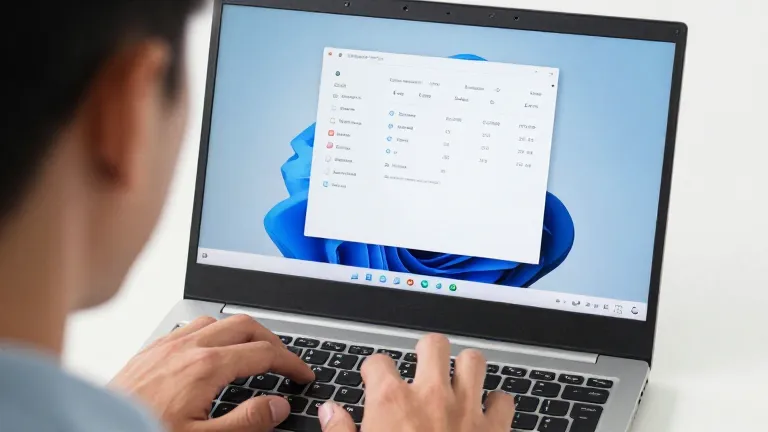
To address potential software conflicts, close unnecessary background applications that might be using system resources or interfering with printer services. Programs such as antivirus software, cloud storage apps, or multimedia players can occasionally cause issues. Launch Task Manager, locate any non-essential processes, and end them to free up system resources. After closing these applications, restart your printer and check if the offline status persists.
Troubleshooting with Printer Services
If closing background applications doesn't resolve the issue, troubleshoot with the Printer Services. Open the Services management console by typing 'services.msc' in the Start menu. Locate the 'Print Spooler' service, right-click it, and select 'Restart' to refresh the printer connection. Additionally, check if the 'HP Printer Assistant' or other related services are running. If they are not, start them to ensure the printer is recognized correctly. This process can help eliminate conflicts caused by misconfigured or inactive printer services.
Frequently Asked Questions
Why is my HP printer offline on Windows 11 even though it's connected?
Your HP printer may show as offline due to connection issues or software conflicts. Check the physical and network connections, and ensure the printer is recognized by Windows.
How do I update my HP printer drivers on Windows 11?
To update HP printer drivers, visit the HP website and download the latest drivers for your model. Alternatively, use Windows Update to check for driver updates.
What should I do if my printer shows offline but is working?
If your printer is working but shows offline, check the print queue for stuck jobs and restart the Print Spooler service. Ensure the printer is properly connected and configured.
Can restarting my printer fix the offline issue on Windows 11?
Restarting your HP printer can resolve minor connection issues. Power off the printer, wait a few seconds, and then turn it back on to see if the offline status clears.
Final Steps and Support
Fixing an HP printer offline issue on Windows 11 involves checking connections, updating drivers, clearing the print queue, and restarting devices. Ensure the printer is properly connected and recognized by the system.
If these steps don’t resolve the issue, consider checking for software conflicts or contacting HP support for further assistance. Regular maintenance and updates can help prevent future problems.