
How to Fix Smart Home Devices Not Pairing
Setting up a smart home system can be a game-changer, but the frustration of devices not pairing can quickly dampen the experience. If you're struggling with how to fix smart home devices not pairing, you're not alone. Many users face this issue when trying to connect their devices to a hub or app. The key to resolving these problems lies in a systematic approach that covers both basic checks and advanced troubleshooting. This article provides a clear, step-by-step guide to help you overcome common pairing issues and get your smart home system up and running smoothly.
We'll start by reviewing the essentials—like ensuring your devices are within range and that your hub and app are up to date. These simple steps can often resolve many pairing issues without the need for more complex solutions. If that doesn't work, we'll move on to resetting your hub or app, which can clear up any software glitches that might be causing the problem.
From there, we'll explore specific troubleshooting techniques for pairing issues, including checking for wireless interference and resetting devices to factory settings. We'll also cover how to verify internet connectivity and device compatibility, which are critical for a successful setup. Finally, we'll dive into advanced pairing methods and firmware updates that can further enhance your smart home experience.
Check the Basics Before Troubleshooting
Before diving into complex troubleshooting steps, it's essential to verify that your smart home devices are properly set up and that there are no simple issues causing the pairing failure. Many problems can be resolved by checking basic setup requirements and ensuring that everything is configured correctly.
Ensure Devices Are Within Range
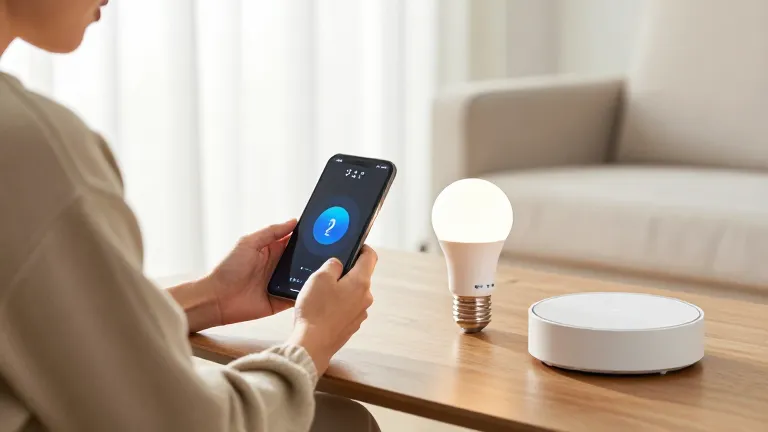
Ensure that all devices are within the recommended range of your hub or router. The distance between the device and the hub can significantly affect the pairing process. If the device is too far away, it may not receive a strong enough signal to connect. Move the device closer to the hub or router and try pairing again. If the device is still not pairing, consider using a repeater or extending the network coverage.
Update Hub and App Software
Verify that the hub or app is running the latest software version. Outdated software can cause compatibility issues and prevent devices from pairing correctly. Check for updates within the app or on the manufacturer’s website. If an update is available, install it and restart the app or hub before attempting to pair the device again. Keeping the software updated ensures that all features and fixes are properly implemented.
Reset Your Smart Home Hub or App
Resetting your smart home hub or app is a simple yet effective way to resolve pairing issues. Sometimes, a fresh start can reestablish the connection and fix any temporary glitches.
- Restart your hub or app to refresh the connection.
- Reset the hub to factory settings if needed.
- Log out of the app and log back in to refresh the pairing process.
- Reinstall the app if the problem persists.
Restart Your Hub or App
Restarting your hub or app can resolve minor connectivity issues. To do this, locate the hub's power button and turn it off for 10 seconds before turning it back on. Alternatively, close the app completely on your device and reopen it. This process can clear temporary errors and refresh the connection between your devices and the hub.
Resetting the Hub to Factory Settings
If restarting does not resolve the issue, consider resetting the hub to factory settings. This process will erase all current pairings and settings, so be prepared to reconfigure your devices afterward. Refer to the hub's manual for specific instructions, as the reset procedure may vary by brand. Once reset, try pairing your devices again to see if the issue is resolved.
Troubleshoot Specific Pairing Issues
When your smart home devices fail to pair, interference from other wireless devices can disrupt the connection. Identifying and reducing this interference is a crucial step in resolving pairing issues. Additionally, ensuring the device is not in pairing mode and resetting it can help reestablish a stable connection.
Check for Wireless Interference
Wireless interference can come from devices such as Wi-Fi routers, Bluetooth speakers, microwaves, and other smart home gadgets. These devices operate on the same frequency bands, which can cause signal conflicts. To minimize interference, move your smart home device closer to the hub or router, and keep it away from other wireless devices. If possible, use a different frequency band, such as switching from 2.4 GHz to 5 GHz for Wi-Fi, to reduce overlapping signals.
Resetting the Device to Factory Settings
If your device is not responding to pairing commands, it might still be in pairing mode. Check the device’s manual or app instructions to confirm how to exit pairing mode, which often involves pressing a button or waiting for a specific period. If the device remains unresponsive, resetting it to factory settings can clear any configuration errors. However, this will erase all existing settings, so ensure you have the device’s default credentials or setup instructions handy before proceeding.
Troubleshoot Smart Home Device Connection Issues
Smart home devices often fail to pair due to connection issues that stem from the hub or app's internet access, compatibility with the device, or network instability. Ensuring a stable and reliable internet connection is crucial for proper communication between devices and the central hub. If the connection is weak or interrupted, the pairing process may fail or become inconsistent. Addressing these issues can significantly improve the pairing experience and overall system performance.
Check Internet Connectivity
Ensure the hub or app is properly connected to the internet. A stable and active internet connection is essential for the hub to communicate with the smart home devices. If the connection is unstable or the hub is not connected to the internet, the pairing process may not work correctly. Check the router's status, ensure the hub is connected to the correct Wi-Fi network, and verify that no firewall or security settings are blocking the hub's access to the internet.
Verify Device Compatibility
Verify that the device is compatible with your hub or app. Not all smart home devices are supported by every hub or platform, so it's important to confirm compatibility before attempting to pair. Check the manufacturer's website or the hub's compatibility list to ensure the device is recognized. If the device is not compatible, it may not function correctly or may not pair at all. In such cases, consider using a different hub or app that supports the device.
Advanced Pairing Solutions
If standard pairing methods fail, advanced solutions can help resolve persistent smart home device pairing issues. By exploring alternative pairing techniques, updating firmware, and seeking manufacturer support, you can overcome complex technical barriers and restore seamless connectivity.
- Try Alternative Pairing Methods
- Update Firmware for Better Performance
- Contact the Manufacturer for Additional Support
Try Alternative Pairing Methods
Some smart home systems offer multiple pairing options, such as Bluetooth, Zigbee, or Wi-Fi. If your device fails to pair using the default method, try switching to an alternative pairing mode. Consult the device manual or app settings for instructions on changing the pairing protocol. This can resolve compatibility issues or bypass software glitches affecting the original method.
Update Firmware for Better Performance
Outdated firmware can cause pairing failures, poor performance, or security vulnerabilities. Visit the manufacturer’s website to download the latest firmware for your hub or device. Follow the installation instructions carefully, as improper updates can disrupt connectivity. Firmware updates often include bug fixes and improved compatibility with other smart home devices.
Frequently Asked Questions
What should I do if my smart home device still won't pair after restarting?
If your smart home device still won't pair after restarting, try resetting both the device and the hub. Ensure that you're using the latest software versions and check for any wireless interference that might be causing the issue.
How do I know if my hub or app needs an update?
To determine if your hub or app needs an update, check for available updates within the app settings or the manufacturer's website. If an update is available, install it and then attempt to pair the device again.
Can I pair multiple devices at the same time?
You can pair multiple devices at the same time, but it's often more reliable to pair one device at a time. Ensure that each device is in pairing mode and that your hub or app is ready to accept new connections.
What should I do if my smart home device is not responding to commands?
If your smart home device is not responding to commands, check its connectivity and ensure it's paired correctly. Restart the device and the hub, and verify that the device is compatible with your hub and app.
Final Thoughts
Proper pairing of smart home devices requires attention to basic settings, software updates, and interference. If issues persist, advanced troubleshooting or alternative pairing methods may be necessary.
Always start with the basics, like range and software updates, before moving to more complex solutions. Regularly check for firmware updates to ensure optimal performance and compatibility.





