
How to Fix Smart Home Device Offline Error
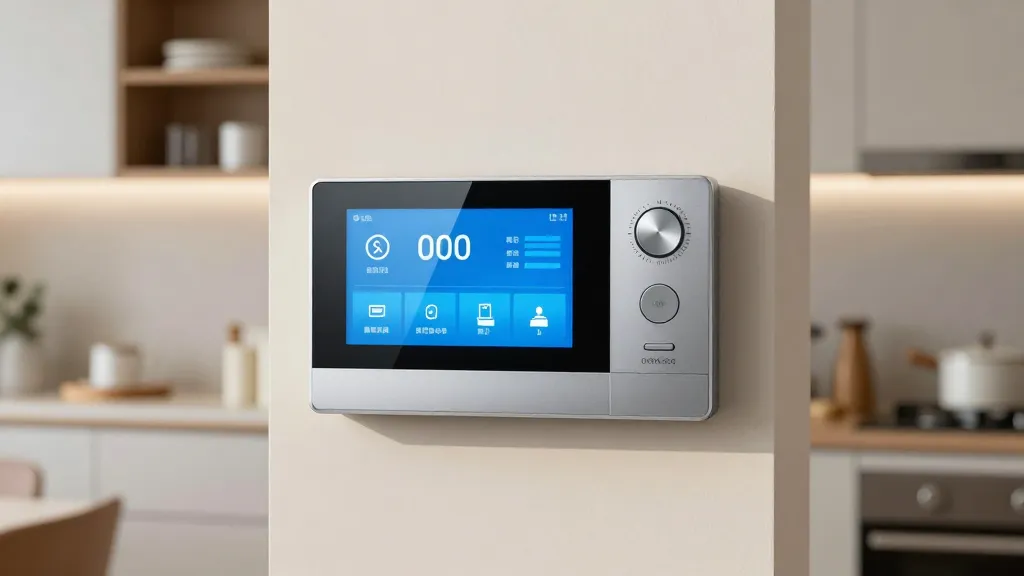
If your smart home device is showing as offline in the app, it can be frustrating, especially when you rely on these gadgets for convenience and security. The main keyword here is how to fix smart home device offline error, and this article will guide you through practical solutions to restore connectivity. Whether you're a homeowner or a tech-savvy individual, understanding the common causes and fixes can save you time and effort. From basic checks to advanced troubleshooting, we've covered the most effective methods to get your device back online. By following these steps, you can ensure your smart home system functions smoothly and reliably. Let's start by addressing the simplest solutions before moving on to more complex fixes.
Check Basic Connectivity and Power
Before diving into more complex troubleshooting steps, start by verifying the most basic elements of your smart home device's functionality. A device that is offline may simply be experiencing a power or connectivity issue that can be resolved quickly with a few simple checks.
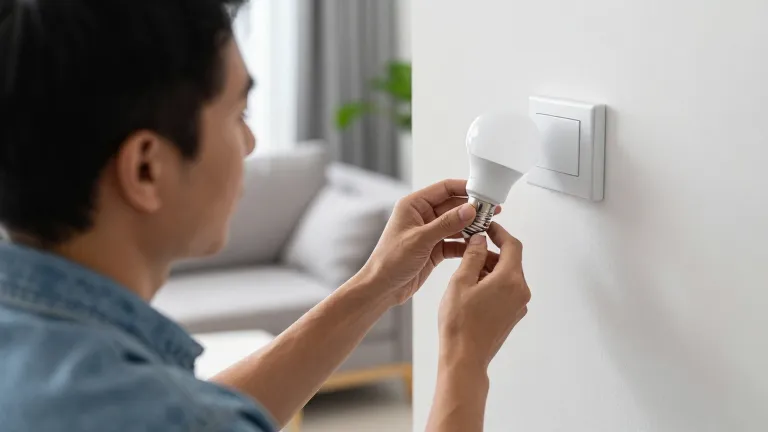
Verify Power and Physical Connections
Ensure the smart home device is powered on and properly connected to the power source. Check the power adapter or battery to confirm it is securely plugged in or charged. If the device uses a battery, make sure it has sufficient charge. If the device is not responding, try plugging it into a different outlet or using a different power source to rule out electrical issues.
Ensure Proper Range and Signal Strength
Verify that the device is within range of your WiFi network or Bluetooth signal. Many smart home devices rely on a stable wireless connection, and if the device is too far from your router or signal source, it may lose connectivity. Move the device closer to the router or signal source and test if it reconnects. If the device uses Bluetooth, ensure it is within a few feet of your phone or hub. If the signal strength is weak, consider using a WiFi extender or relocating the device to a better position.
Restart the Smart Home Device and App
Restarting your smart home device and app is a fundamental troubleshooting step that can resolve many connectivity issues. Simple actions like rebooting the device or closing and reopening the app can refresh the connection and clear temporary glitches.
- Turn off the device and wait for 30 seconds before turning it back on.
- Close the app and restart it to refresh the connection.
- Restart your router and modem to reset the network.
Restart the Device and App
Turning off your smart home device and waiting for 30 seconds allows the device to fully power down and clear any temporary software glitches. This process can help resolve issues caused by corrupted data or unstable internal processes. Once the device is off, wait the full 30 seconds before turning it back on to ensure a complete reset.
Reset Your Network Equipment
Restarting your router and modem is an effective way to refresh your network connection. These devices can sometimes become overloaded or experience minor software issues that affect device connectivity. By unplugging them for a few minutes and plugging them back in, you can reset their internal state and potentially restore stable connectivity for your smart home devices.
Update the App and Firmware
Keeping your smart home app and device firmware up to date is crucial for resolving offline errors and ensuring optimal performance. Manufacturers frequently release updates that fix bugs, improve security, and enhance compatibility with other devices. By following these steps, you can ensure both your app and smart home device are running the latest versions, reducing the likelihood of connectivity issues.
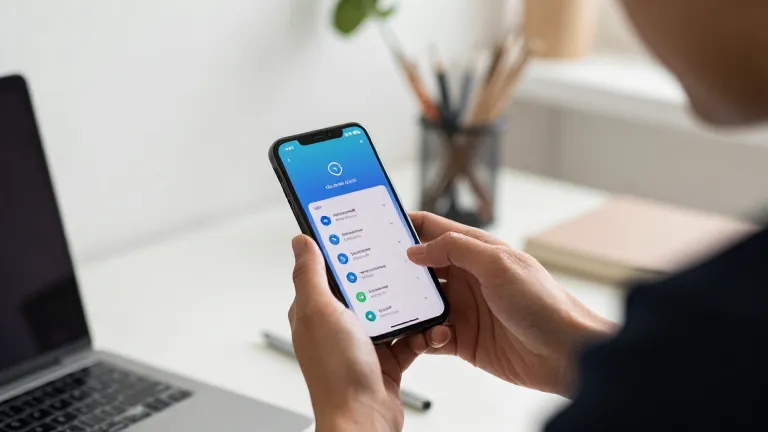
Update the App to the Latest Version
To update your smart home app, open the app store on your mobile device and check for any available updates. If an update is available, download and install it. Some apps may require you to log back in or reauthorize access to your devices after the update. It's important to install updates promptly, as they often include critical fixes and new features that can improve the overall user experience.
Check for Firmware Updates on the Device
Updating the firmware of your smart home device typically involves accessing its settings through the app or visiting the manufacturer's website. Look for a firmware update option within the device's settings or on the manufacturer's support page. Follow the on-screen instructions carefully, as some updates may require a stable internet connection or a temporary power cycle. Always ensure your device is connected to a reliable network before initiating the firmware update process.
Reconnect the Device to Your Network
Reconnecting your smart home device to your network is a critical step in resolving offline errors. This process ensures the device is properly linked to your WiFi and can communicate with your app. Follow the steps below to re-establish a stable connection.
- Remove the device from your app and re-add it using the setup wizard.
- Ensure the device is connected to the correct WiFi network, especially if you have multiple networks.
- Use a strong and stable WiFi password to prevent disconnection.
- Restart your router and modem to refresh the network connection.
Remove and Re-Add the Device
To begin, remove the device from your app by navigating to the device settings and selecting the 'Remove' or 'Unpair' option. This action clears any existing connection and prepares the device for a fresh setup. Once removed, follow the app’s setup instructions to re-add the device, ensuring you select the correct WiFi network during the process.
Confirm WiFi Network Settings
If you have multiple WiFi networks, such as a 2.4GHz and 5GHz band, make sure the device is connected to the correct one. Some devices only support 2.4GHz, while others can use both. Check your router settings to confirm which network the device is associated with. Also, verify that the WiFi password is correctly entered and matches the one on your router. A weak or incorrect password can cause intermittent connectivity issues.
Troubleshoot Advanced Connectivity Issues
If your smart home device remains offline despite basic troubleshooting, advanced network and system checks may be necessary. Issues related to security software, network configuration, or device-specific settings can often be overlooked but are critical to resolving persistent connectivity problems.
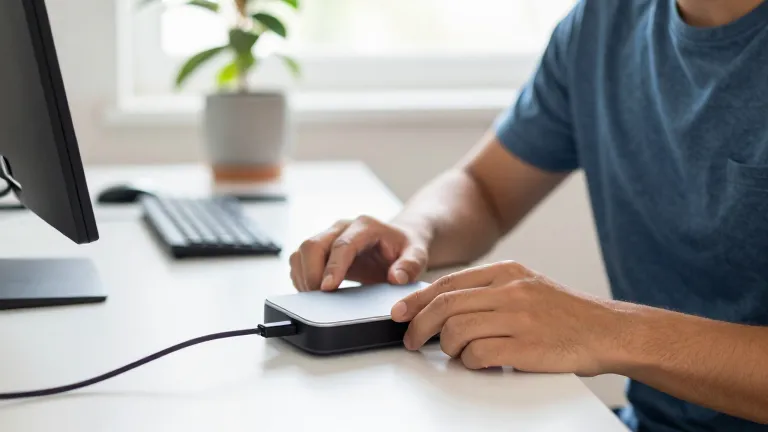
Check for Firewall or Antivirus Blocks
Firewall and antivirus software can sometimes block smart home devices from accessing the network or communicating with the cloud. Check your firewall settings to ensure that the device's IP address or the app's server is allowed through. Similarly, some antivirus programs may flag smart home communication as suspicious activity. Temporarily disabling these programs can help identify if they are causing the issue, though it's important to re-enable them afterward for security.
Test with a Wired Connection
Testing your smart home device with a wired Ethernet connection can help determine if the issue is related to your WiFi network. Connect your router to your computer using an Ethernet cable and check if the device can establish a stable connection. This method bypasses potential WiFi interference or signal degradation, providing a more reliable environment for the device to operate. If the device works with a wired connection, consider optimizing your WiFi setup or switching to a more stable network.
Frequently Asked Questions
What should I do if my smart home device is offline but still has power?
If your smart home device is offline but still has power, check the network connection and signal strength. Ensure it is within range of your router. If the issue persists, try restarting the device and the app.
Can a weak WiFi signal cause my smart home device to go offline?
Yes, a weak WiFi signal can cause your smart home device to go offline. Ensure the device is within range of your router and that the signal strength is strong enough for stable connectivity.
How often should I update my smart home device's firmware?
You should update your smart home device's firmware regularly, ideally whenever a new update is released. Firmware updates often include important security patches and performance improvements.
What if my smart home device is offline and I can't reconnect it?
If your smart home device is offline and you can't reconnect it, try removing it from the app and re-adding it. If that doesn't work, reset the device and reconfigure it through the app.
Final Thoughts
Regularly check your smart home device's connectivity, power, and firmware to maintain optimal performance. If issues persist, consider advanced troubleshooting steps or contact customer support for further assistance.
By following these steps, you can resolve most smart home device offline errors. Ensure all components are updated and properly configured for a seamless smart home experience.





