
How to Fix Xbox or PS5 Controller Drift on PC
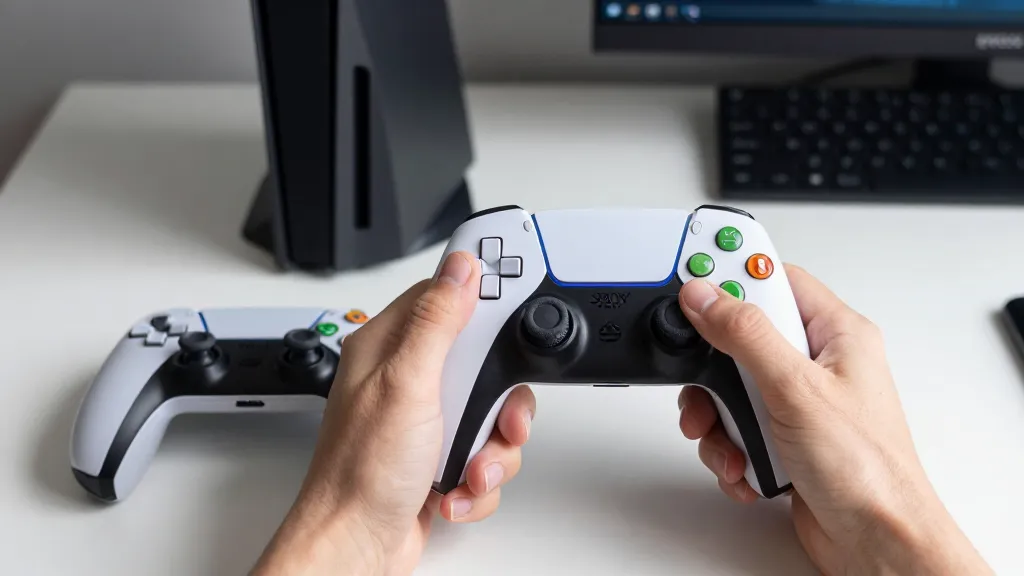
Controller drift can ruin your gaming experience, especially if you're using an Xbox or PS5 controller on your PC. Whether you're playing a competitive match or enjoying a casual session, a drifting stick can be frustrating and hard to ignore. This article provides clear, step-by-step solutions to help you fix controller drift without needing to send your device for professional repair. From cleaning the analog stick to recalibrating the controller, we cover both physical and software-based fixes tailored for PC users. If you're experiencing drift, you're not alone, and there are practical ways to restore your controller's performance. Let's dive into the solutions that can save your gaming sessions and keep your controller working smoothly.
Understanding Controller Drift and Its Causes
Controller drift is a common issue faced by PC gamers using Xbox or PS5 controllers, where the analog stick moves on its own or fails to respond accurately to input. This can disrupt gameplay and reduce the overall gaming experience, making it essential to understand the problem and its underlying causes.
What Is Controller Drift?
Controller drift refers to the unintended movement of the analog stick, which can cause characters or objects to move on their own during gameplay. This issue is often noticed when the stick drifts to the left, right, up, or down without any input from the user. The problem can be subtle or severe, depending on the extent of the damage or wear.
Why Does Controller Drift Happen?
Drift is typically caused by wear and tear on the internal components of the controller, such as the analog stick's housing or the microswitches that detect movement. Over time, repeated use can lead to the stick's internal parts becoming loose or misaligned. Additionally, debris buildup, such as dust or dirt, can interfere with the stick's movement, making it unresponsive or erratic. Calibration errors on the PC or console can also contribute to drift, especially if the controller's settings are not properly adjusted.
Can Drift Affect Both Xbox and PS5 Controllers?
Both Xbox and PS5 controllers can experience drift when connected to a PC, as the issue is primarily mechanical and not specific to the console platform. The cause of drift is often related to the internal structure of the analog stick and its connection to the controller's circuitry. While the specific design of each controller may influence the type of damage or debris accumulation, the fundamental reason for drift remains the same. This means that users of either controller can encounter the same symptoms and require similar troubleshooting steps to address the problem.
How to Clean the Analog Stick and Fix Physical Damage
Cleaning the analog stick and removing debris are essential steps in addressing controller drift. Physical damage or buildup can cause the stick to move unpredictably, so careful maintenance can restore smooth gameplay.
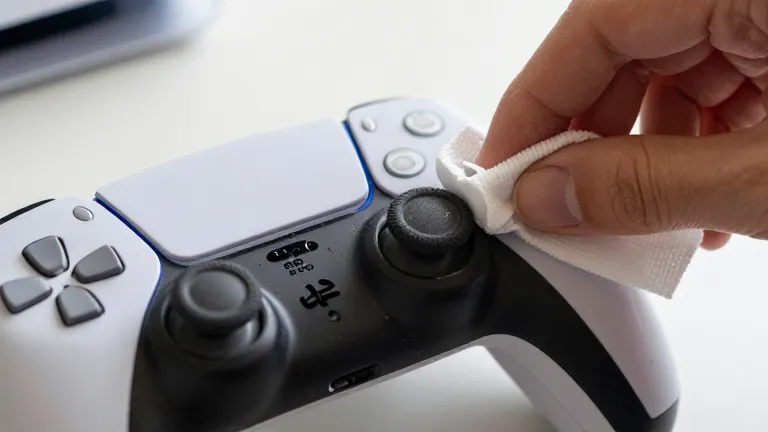
- Use a soft cloth to wipe the analog stick and surrounding area. This removes surface dirt and oils that may interfere with the stick's movement.
- Dampen the cloth with isopropyl alcohol (70% or higher) to disinfect and clean more thoroughly. Ensure the cloth is not overly wet to avoid damaging internal components.
- Gently wipe the stick in a circular motion to lift any residue without applying excessive pressure. Avoid using abrasive materials that could scratch the surface.
- Inspect the controller for visible debris such as dust or small particles lodged in the stick's housing. These can cause erratic movement and must be removed carefully.
Cleaning the Analog Stick
Cleaning the analog stick involves using a soft cloth or isopropyl alcohol to remove dirt and oils that accumulate over time. This buildup can create resistance or cause the stick to drift unintentionally. Wiping the stick gently helps maintain its responsiveness without risking damage to the internal mechanism.
Removing Debris From the Controller
Removing debris from the controller requires a careful inspection of the analog stick area. Use a small brush or compressed air to dislodge any dust or particles trapped in the housing. If debris is lodged deep within, avoid using force to prevent further damage. A clean controller can significantly improve the accuracy and performance of the analog stick.
Recalibrating the Controller on Windows and macOS
Recalibrating your Xbox or PS5 controller can resolve drift issues caused by software glitches or misalignment. This process ensures that the controller sends accurate input to your PC, restoring responsiveness and precision. Before starting, make sure the controller is connected via USB or Bluetooth, as proper connection is essential for successful calibration.
Calibrating on Windows
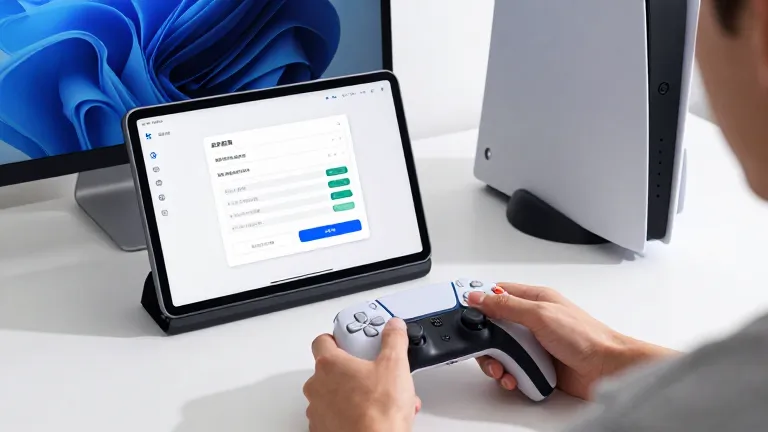
On Windows, you can calibrate your controller using the Xbox Accessories app. Launch the app, select your controller, and navigate to the 'Calibration' option. Follow the on-screen prompts to recalibrate the analog stick and buttons. If the app doesn't detect your controller, try connecting it via USB first. For advanced users, third-party tools like DS4Windows or Steam Input can offer more detailed calibration settings, especially for PS5 controllers.
Calibrating on macOS
macOS users should use the Xbox Accessories app or Steam Input for calibration. The Xbox Accessories app is available on macOS 10.15 and later and allows you to adjust settings for both Xbox and PS5 controllers. Open the app, select your controller, and use the calibration tool to realign the analog stick. If you prefer Steam Input, install Steam and enable the controller in the settings. This method is particularly useful for users who play games through Steam, as it integrates seamlessly with the platform's input system.
Troubleshooting Controller Drift with Software Fixes
Software fixes can address controller drift by resolving compatibility issues, outdated firmware, or misconfigured settings. Ensuring your system and controller software are up to date can often resolve minor glitches without requiring hardware intervention.
- Update the controller firmware and drivers to ensure compatibility and bug fixes.
- Use game-specific calibration tools, such as Steam Input or Xbox Accessories app.
- Test the controller with different games or applications to isolate the issue.
- Ensure your operating system is up to date to avoid software conflicts.
Updating Firmware and Drivers
Updating the firmware and drivers for your Xbox or PS5 controller can resolve bugs that contribute to drift. For Xbox controllers, use the Xbox Accessories app to check for firmware updates. PS5 controllers can be updated through the PlayStation Store or by connecting them to a PS5 console. Keeping drivers for your operating system current also helps prevent conflicts that might exacerbate drift issues.
Testing with Different Games
Testing your controller with different games or applications can help identify whether the drift is a general issue or specific to a particular title. If the problem only occurs in one game, it might be a compatibility issue with that game’s input settings or a bug within the software. Using a variety of applications, such as Steam or Discord, can also provide insight into whether the controller behaves consistently across platforms.
When to Replace the Controller or Seek Professional Help
If cleaning and recalibrating your Xbox or PS5 controller don’t resolve the drift issue, it may be time to consider replacement or professional repair. Persistent drift can indicate deeper hardware damage that isn’t easily fixed with DIY methods.
Signs Your Controller Is Beyond Repair
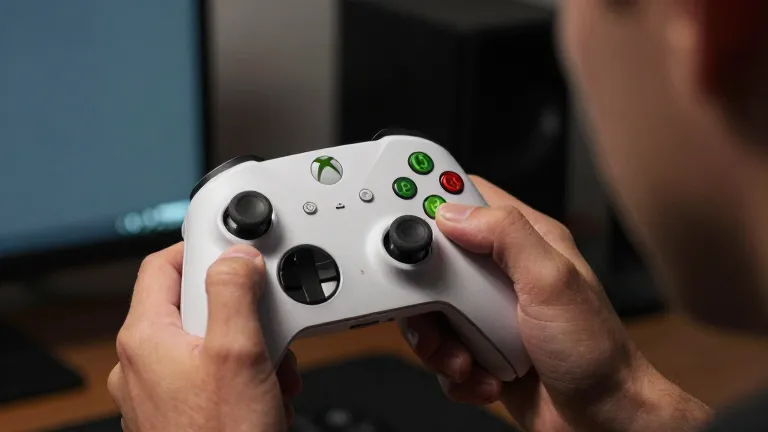
Signs your controller is beyond repair include consistent drift even after cleaning, unresponsive buttons, or physical damage like cracks or broken parts. These issues often point to internal components such as the analog stick assembly or circuitry being damaged. If the controller no longer functions reliably, it may not be worth repairing, especially if the cost exceeds the price of a new unit.
When to Replace the Controller
When deciding whether to replace your controller, compare the cost of repair with the price of a new or used model. If the repair cost is higher than buying a replacement, it’s usually more cost-effective to invest in a new controller. Additionally, check if your controller is still under warranty. Many manufacturers offer free or discounted repairs for eligible models, which can save you money and hassle. Always review the warranty terms to determine if your controller qualifies for coverage before making a replacement decision.
Frequently Asked Questions
Can I fix controller drift without buying a new controller?
Yes, you can often fix controller drift without buying a new controller by cleaning the analog stick, recalibrating, and troubleshooting software issues.
How often should I recalibrate my Xbox or PS5 controller?
Recalibrate your controller every few months or whenever you notice drift, especially after cleaning or software updates.
Is controller drift a common issue on PC?
Controller drift is relatively common on PC, especially with older or heavily used controllers, but it can be resolved with proper maintenance and calibration.
What should I do if recalibrating doesn’t fix the drift?
If recalibrating doesn’t fix the drift, try cleaning the analog stick, checking for physical damage, or replacing the controller if it’s beyond repair.
Final Thoughts and Next Steps
Controller drift can be frustrating, but it’s often fixable with regular maintenance and careful troubleshooting. Start by cleaning the analog stick and recalibrating your controller. If these steps don’t resolve the issue, consider software updates or professional repair.
If your controller is no longer responding to calibration or cleaning, it may be time to replace it. Always check for physical damage before assuming it’s a software problem.





