How to Fix Logitech Unifying Receiver Not Recognizing Mouse or Keyboard
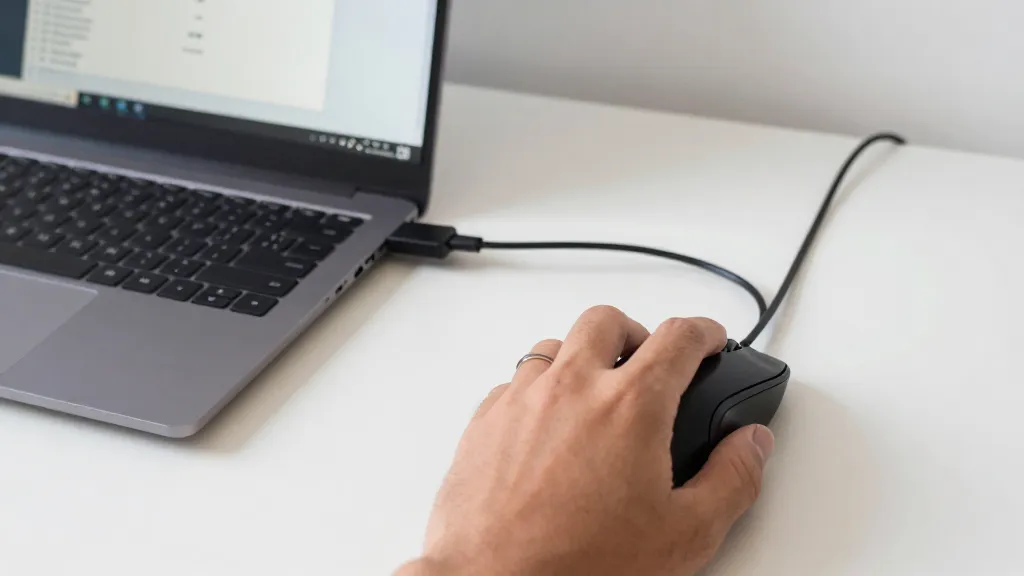
If your Logitech Unifying Receiver is not recognizing your mouse or keyboard, it can be frustrating, especially when you're relying on these devices for work or daily tasks. This issue often stems from simple connectivity problems or outdated software. The goal of this article is to guide you through a series of practical steps to resolve the issue and restore seamless communication between your Logitech peripherals and the receiver. Whether you're dealing with a disconnected mouse or a keyboard that isn't responding, we'll cover the most effective solutions to get you back on track.
We'll start by checking the basics, such as ensuring the USB port is functioning and restarting your system. These simple steps can often resolve minor connectivity glitches. Next, we'll walk you through the process of re-pairing your devices, both manually and using Logitech's software, to ensure a stable connection. If the problem persists, we'll explore updates and reinstalls of the Logitech software, as well as physical and environmental factors that might be affecting the signal.
Finally, we'll address the possibility of a faulty Unifying Receiver, including checking for physical damage and replacing it if needed. By following these steps, you can systematically troubleshoot the issue and regain full control over your Logitech peripherals. Let's get started.
Check the Basic Connectivity
Before diving into advanced troubleshooting, it's essential to confirm that the Logitech Unifying Receiver is functioning correctly. Simple steps like checking the USB port and restarting your system can often resolve connectivity issues without requiring complex interventions.
Verify the USB Port Is Working
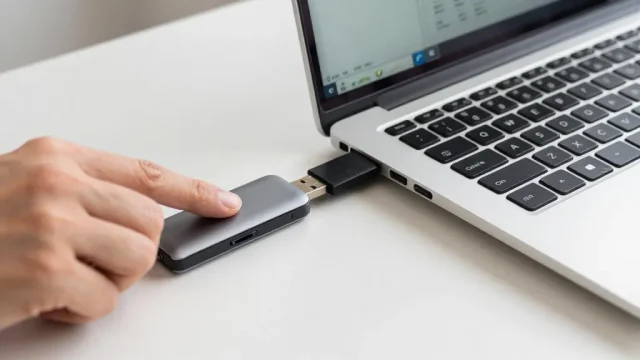
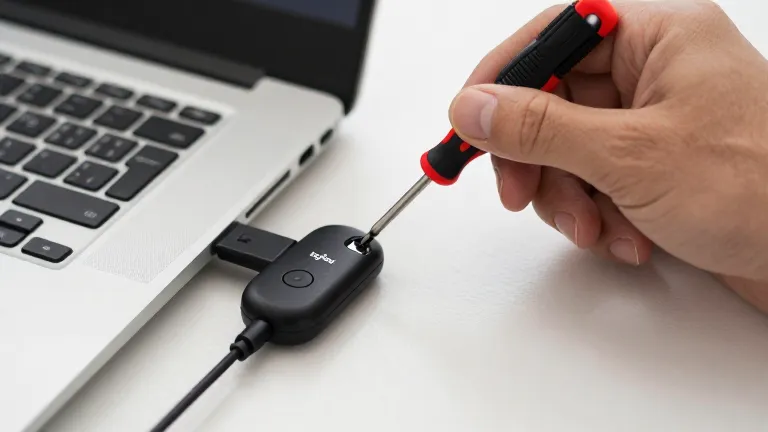
Ensure the Logitech Unifying Receiver is securely plugged into a USB port on your computer. Look for a small LED indicator on the receiver that confirms it is powered and recognized by the system. If the LED does not light up, the receiver may not be properly connected or could be damaged. If the receiver is loose or not fully inserted, try gently pushing it into the port to ensure a stable connection.
Restart the System and Receiver
To refresh the connection, restart both your computer and the Logitech receiver. Power off your device, wait for 10 seconds, and then turn it back on. This can help resolve temporary glitches that may be preventing the receiver from recognizing your mouse or keyboard. If your system has multiple USB ports, try plugging the receiver into a different one to rule out port-specific issues. If the receiver still doesn’t work after rebooting, move on to the next troubleshooting step.
Re-Pair the Logitech Devices
Re-pairing your Logitech mouse or keyboard with the Unifying Receiver is a simple process that can resolve connectivity issues. This section guides you through both manual and software-based methods to ensure your device is properly recognized.
Unpair and Re-Pair the Device
To unpair a device manually, locate the small pairing button on your mouse or keyboard. Press and hold this button until the LED light on the device turns off, indicating it has been successfully unpaired from the receiver. Once unpaired, the device will no longer be connected to the receiver. Next, press and hold the pairing button on the Unifying Receiver until the LED light starts flashing, which signals that it is ready to accept a new device. Ensure the device is within 10 feet of the receiver for a stable connection.
Use Logitech Software for Pairing
If you prefer using Logitech software, open the Logitech Options or Logitech G Hub application on your computer. Navigate to the device settings and select the mouse or keyboard you want to re-pair. Click the 'Unpair' option to remove the device from the receiver. After unpairing, restart the software and select 'Pair New Device' to guide you through the process. The software will automatically detect nearby devices and prompt you to complete the pairing. This method is particularly useful if you have multiple devices or want a more streamlined pairing experience.
Update or Reinstall Logitech Software
Outdated or corrupted Logitech software can prevent the Unifying Receiver from recognizing your devices. Ensuring your software is up to date or reinstalling it can resolve compatibility issues and improve connectivity.
Update Logitech Software
Visit the Logitech website and navigate to the support section for your specific device. Download and install the latest version of the Logitech Unifying Software. This ensures you have the most recent features and bug fixes that may address your connectivity problems. Make sure to select the version compatible with your operating system, as using an incompatible version can lead to further issues.
Uninstall and Reinstall the Software
If updating the software does not resolve the issue, consider uninstalling and reinstalling the Logitech software. This process can eliminate conflicts with existing system files or drivers. To uninstall, go to the Control Panel (or Settings on Windows 10/11) and select 'Programs and Features.' Locate Logitech software and remove it. After uninstallation, restart your computer and download the latest version from the Logitech website to reinstall it.
Troubleshoot Physical and Environmental Factors
Physical and environmental factors can significantly impact the performance of your Logitech Unifying Receiver. Ensuring optimal placement and minimizing interference are essential steps to restore connectivity. By addressing these factors, you can improve the reliability of your wireless devices.
Improve Signal Strength
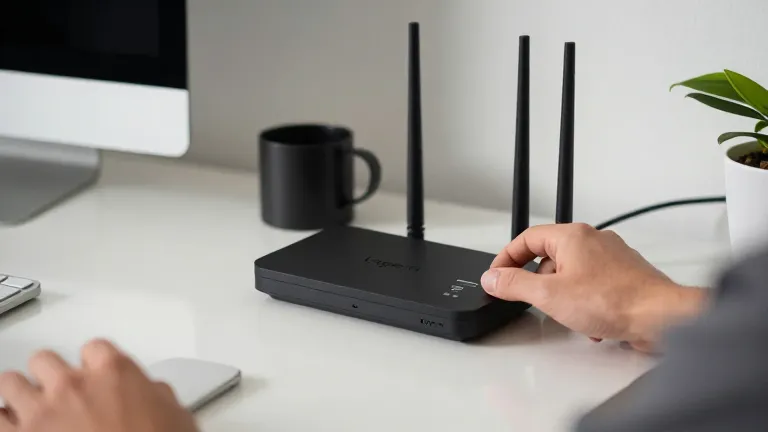
Improving signal strength is crucial for reliable communication between your Logitech devices and the Unifying Receiver. Place the receiver as close as possible to the device, ideally within a few feet, to ensure a strong connection. Avoid positioning the receiver behind thick walls, furniture, or other objects that might block the signal. A clear line of sight between the receiver and the device can make a noticeable difference in performance.
Avoid Interference From Other Devices
Interference from other wireless devices can disrupt the signal and cause connectivity issues. Keep the Unifying Receiver away from devices such as Wi-Fi routers, Bluetooth speakers, cordless phones, and microwave ovens, which operate on similar frequency ranges. Additionally, avoid placing the receiver near other USB hubs or wireless peripherals that may interfere with its operation. If multiple wireless devices are in use, consider using separate USB ports or adjusting their placement to reduce signal conflicts.
Replace the Logitech Unifying Receiver
If the Logitech Unifying Receiver is damaged or faulty, replacing it with a new one can resolve the connectivity issue. Physical damage or internal hardware failure may prevent the receiver from properly communicating with your Logitech devices. Before proceeding with a replacement, ensure that all other troubleshooting steps have been completed, as hardware failure is typically a last-resort solution.
Check for Physical Damage
Inspect the receiver for any visible signs of physical damage, such as cracks, bends, or loose connections. These issues can disrupt the internal circuitry and prevent the receiver from functioning correctly. If the receiver is damaged, it may not be possible to repair it, making replacement the only viable option.
Replace the Receiver with a New One
Replacing the receiver with a new one ensures that the issue is resolved and not due to hardware failure. Purchase an official Logitech Unifying Receiver to guarantee compatibility and support. Once installed, test the connection with your Logitech mouse or keyboard to confirm that the problem has been resolved. This step is particularly effective if all other troubleshooting methods have failed.
Frequently Asked Questions
What should I do if my Logitech receiver is not recognizing my mouse?
If your Logitech receiver isn't recognizing your mouse, start by checking the USB port and ensuring the receiver is properly connected. Next, try re-pairing the mouse using the Logitech software or the pairing button on the receiver. If the issue persists, test the receiver with another device to isolate the problem.
How can I check if my USB port is working properly?
To check if your USB port is working, try connecting another device, such as a keyboard or flash drive, to the same port. If it works, the port is functional. If not, test the port with another device or try a different USB port on your computer.
Can I pair a Logitech mouse with a different receiver?
Yes, you can pair a Logitech mouse with a different receiver, but it must be a compatible Logitech Unifying Receiver. Ensure the receiver is properly connected and the mouse is in pairing mode. Follow the pairing instructions in the Logitech software or manually via the receiver's button.
What if the Logitech receiver is still not working after re-pairing?
If the receiver still doesn't work after re-pairing, try updating or reinstalling the Logitech software. If the issue continues, check for physical damage to the receiver or try using a different USB port. If all else fails, consider replacing the receiver with a new one.
Final Steps for Resolution
Addressing issues with the Logitech Unifying Receiver requires a systematic approach, starting with basic checks and moving to advanced troubleshooting. By following these steps, you can resolve most connectivity problems effectively.
If you're still experiencing issues, consider replacing the receiver or contacting Logitech support for further assistance. Maintaining proper connectivity ensures optimal performance for your Logitech devices.