
How to Fix YouTube App Not Loading on Older Smart TV
If you're struggling with the YouTube app not loading on your older smart TV, you're not alone. Many users face this issue, especially with devices that are a few years old. The YouTube app is a popular way to watch videos, but it can sometimes fail to load due to a variety of reasons. This article provides practical solutions to help you resolve the problem without needing professional assistance. We'll cover common troubleshooting steps, app reinstallation, and alternative methods to stream YouTube content. Whether you're experiencing a connection issue or app-specific error, there are ways to get the app working again on your smart TV.
Troubleshoot Common Causes of YouTube App Not Loading
Before attempting more complex solutions, it's essential to check for common issues that might prevent the YouTube app from loading on your older smart TV. Simple fixes like verifying your internet connection or ensuring the app is up to date can often resolve the problem without requiring advanced technical knowledge.
Check Your Internet Connection
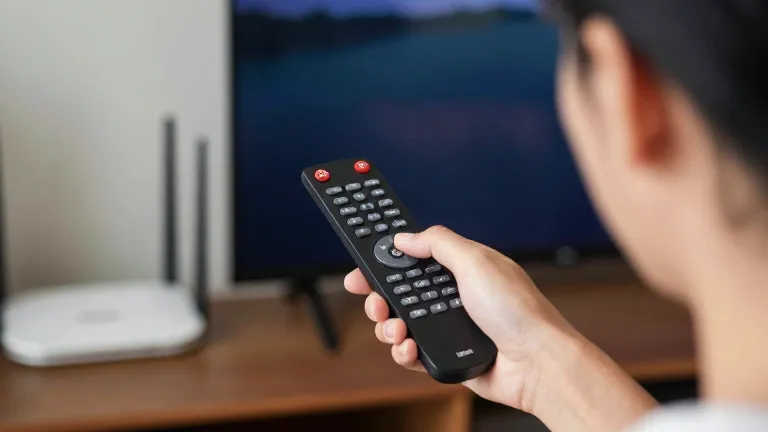
A stable internet connection is crucial for the YouTube app to function properly. Begin by checking if your smart TV is connected to the same Wi-Fi network as your other devices. If you're unsure about the connection, try accessing another website or app to confirm internet availability. If the connection is weak or unstable, move closer to your router or consider switching to a wired Ethernet connection for better reliability.
Confirm the YouTube App Is Updated
Ensure that the YouTube app on your smart TV is updated to the latest version. Outdated apps can cause compatibility issues or bugs that prevent them from loading correctly. To check for updates, navigate to your TV's app store or settings menu and look for available updates. If an update is available, install it and restart the app to see if the issue is resolved. If the app is already up to date, proceed to the next troubleshooting step.
Reinstall the YouTube App on Older Smart TV
Reinstalling the YouTube app on an older smart TV can resolve loading issues by removing corrupted data and ensuring you have the latest version. This process involves uninstalling the app, clearing its cache and data, and then reinstalling it from the TV’s app store.
- Navigate to the TV's app settings and uninstall the YouTube app.
- Clear the app cache and data through the TV's settings menu to remove any corrupted files.
- Update the TV's app store to ensure it has the latest app versions available.
- Reinstall the YouTube app from the updated app store to restore functionality.
Uninstall and Clear Cache
Uninstalling the YouTube app is the first step in resolving loading issues. Access the TV's app settings, locate the YouTube app, and select 'Uninstall.' This removes the app and any associated data that may be causing problems. After uninstalling, it's essential to clear the app cache and data to eliminate any residual files that might interfere with the app's performance.
Reinstall the YouTube App
Once the app is uninstalled, return to the TV's app store and search for YouTube. Ensure the app store is updated to provide access to the latest version of the app. Reinstalling YouTube from the app store will restore the app with fresh data and settings, which can help resolve any issues that were previously preventing it from loading properly.
Cast YouTube From Phone to Smart TV
If your YouTube app won't load on your older smart TV, casting from your phone is a quick workaround. This method bypasses app issues by using your phone's YouTube app to stream directly to your TV. It’s simple and requires no advanced technical knowledge, making it ideal for home users looking for a fast solution.
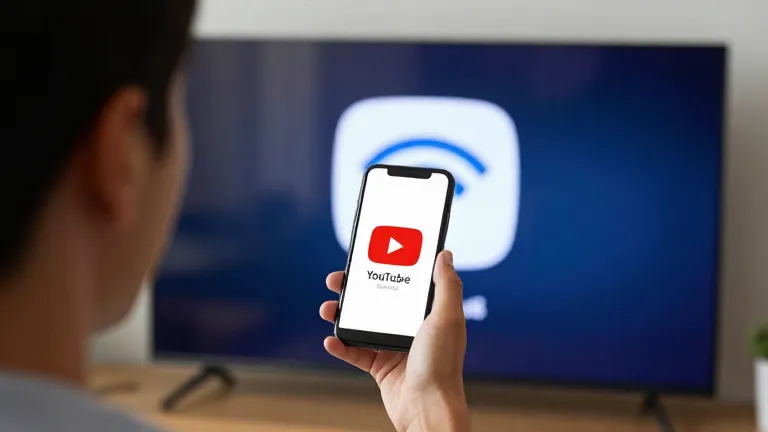
- Ensure both your phone and TV are connected to the same WiFi network.
- Open YouTube on your phone and tap the Cast icon.
- Select your TV from the Cast list and start casting.
- Use a wired connection as a backup if WiFi is unstable.
Cast YouTube From Phone to Smart TV
To cast YouTube from your phone to your smart TV, start by making sure both devices are connected to the same WiFi network. This ensures a stable and seamless connection. If your TV is not on the same network, you’ll need to adjust your phone’s WiFi settings to match your TV’s network.
Alternative: Use a HDMI Cable for Streaming
If your WiFi connection is weak or unreliable, consider using a HDMI cable as an alternative. This method provides a more stable connection and avoids potential issues with casting over WiFi. Simply connect your phone to the TV using an HDMI adapter and play YouTube directly from your phone through the TV.
Check for App-Specific Errors or Updates
If the YouTube app continues to fail to load, it's important to investigate app-specific errors or updates that may be causing the issue. Checking for error messages and ensuring the app is up to date can often resolve the problem without requiring more advanced troubleshooting.
Check for YouTube App Errors
When the YouTube app fails to load, look for any error messages displayed on the screen. These messages can provide valuable clues about what is preventing the app from functioning properly. Common errors may relate to app corruption, outdated code, or compatibility issues with the TV's operating system. If an error message appears, take note of the details and search for solutions online or consult YouTube's support resources.
Update the YouTube App on Smart TV
To ensure the YouTube app is running the latest version, check for updates in your TV's app store. Navigate to the TV's settings, locate the app store, and search for the YouTube app. If an update is available, install it immediately. After the update is complete, restart your TV to allow the changes to take effect. This process can resolve bugs or compatibility issues that may have been fixed in a newer version of the app.
If the app still does not load after updating, consider reaching out to YouTube support for further assistance. They may be able to provide specific troubleshooting steps or confirm if there are known issues with the app on your TV model. Support teams can also guide you through more advanced diagnostic procedures if needed.
Alternative Solutions for Older Smart TVs
If the YouTube app continues to fail on your older smart TV, consider alternative solutions that bypass the app entirely. These options range from using a streaming stick to installing a browser-based version of YouTube, offering flexibility and improved performance without requiring hardware upgrades.
- Use a Streaming Stick as an Alternative
- Install a Browser-Based YouTube Version
- Use an External Media Player to Stream YouTube Content
- Upgrade the Smart TV if the App Continues to Fail
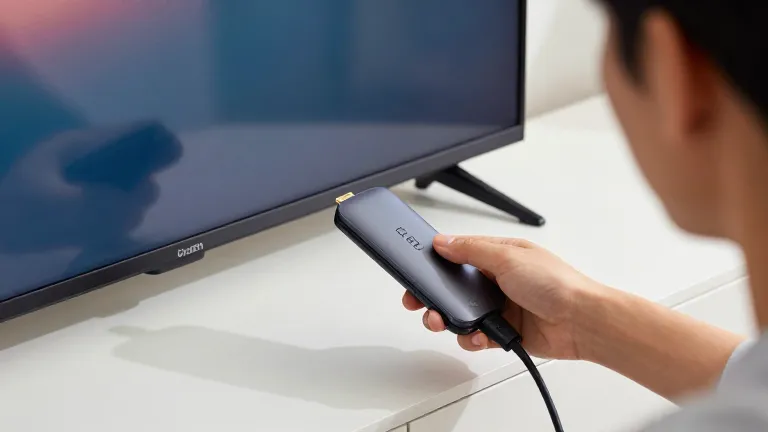
Use a Streaming Stick as an Alternative
A streaming stick like a Fire Stick or Roku can replace the YouTube app on your smart TV. These devices run a dedicated operating system and often support the latest versions of YouTube, avoiding compatibility issues. Simply plug the stick into your TV’s HDMI port and follow the setup instructions. This method ensures smoother playback and access to features that may not work on older smart TV apps.
Install a Browser-Based YouTube Version
Installing a browser-based version of YouTube allows you to access the platform without relying on the TV’s app store. Open a browser on your smart TV, navigate to YouTube’s website, and log in with your account. While this method may lack some app-specific features, it provides a reliable way to stream content. Some smart TVs support extensions or add-ons that enhance the browsing experience for YouTube.
Frequently Asked Questions
Why won't the YouTube app load on my older smart TV?
The YouTube app may not load due to outdated software, connectivity issues, or app-specific errors. Checking your internet connection, updating the app, or reinstalling it can help resolve the issue.
Can I cast YouTube from my phone to an older smart TV?
Yes, you can cast YouTube from your phone to an older smart TV using the Cast feature. Ensure both devices are connected to the same Wi-Fi network and the TV supports casting.
How do I update the YouTube app on my smart TV?
To update the YouTube app on your smart TV, go to the TV's app store, find the YouTube app, and check for updates. If no update is available, consider reinstalling the app.
What should I do if the YouTube app keeps crashing on my smart TV?
If the YouTube app keeps crashing, try clearing the app's cache, reinstalling the app, or checking for system updates on your TV. If the issue persists, consider using alternative streaming methods.
Final Thoughts
To address the YouTube app not loading on an older smart TV, start by checking the internet connection, updating the app, or reinstalling it. If these steps don't work, consider using a streaming stick or casting from a phone. These solutions offer practical alternatives for older devices with limited capabilities.
By following the outlined steps, you can effectively troubleshoot and resolve YouTube app issues on older smart TVs. If all else fails, exploring alternative streaming methods ensures you can still enjoy YouTube content.





