
How to Fix Amazon Alexa Saying ‘Sorry, Something Went Wrong’
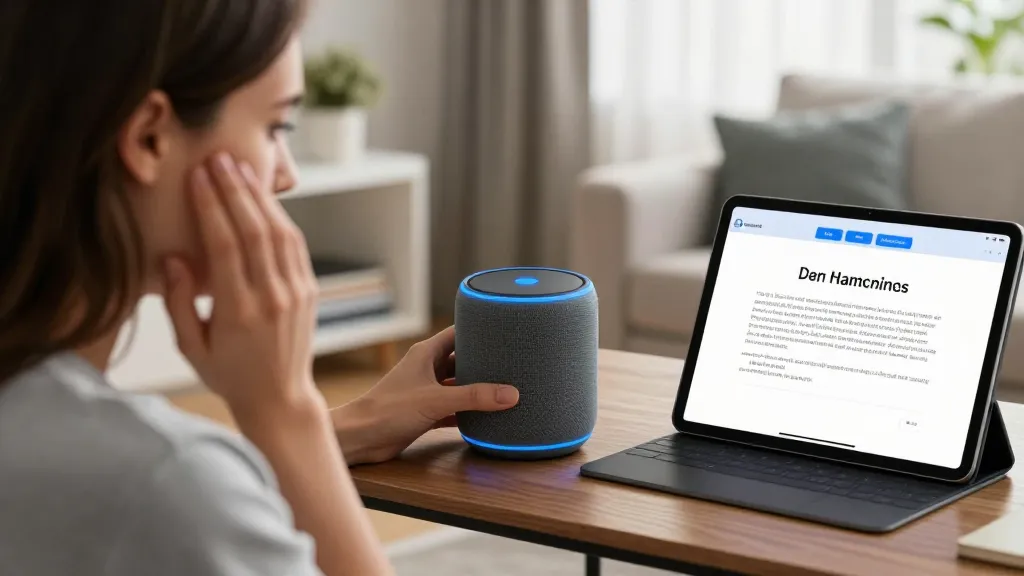
If your Amazon Alexa device is displaying the message 'Sorry, Something Went Wrong,' it can be frustrating, especially when you're relying on it for smart home control. This error often disrupts your ability to use Alexa effectively, leaving you unsure of how to proceed. In this article, we'll explore the common causes of this error and provide practical solutions to help you restore your Alexa's functionality. Whether you're a homeowner or a tech-savvy user, these steps will guide you through basic troubleshooting, advanced fixes, and when to seek further assistance. By following this guide, you'll be able to resolve the issue and get your Alexa working smoothly again.
Understanding the "Sorry, Something Went Wrong" Error
The 'Sorry, Something Went Wrong' error on Amazon Alexa is a common issue that disrupts the user experience. It typically appears when there is a problem with the communication between your Alexa device and Amazon’s cloud services. This error can occur during various interactions, such as when issuing voice commands, pairing new devices, or using the Alexa app. Understanding the root cause of this error is essential to resolve it effectively.
Common Causes of the Error
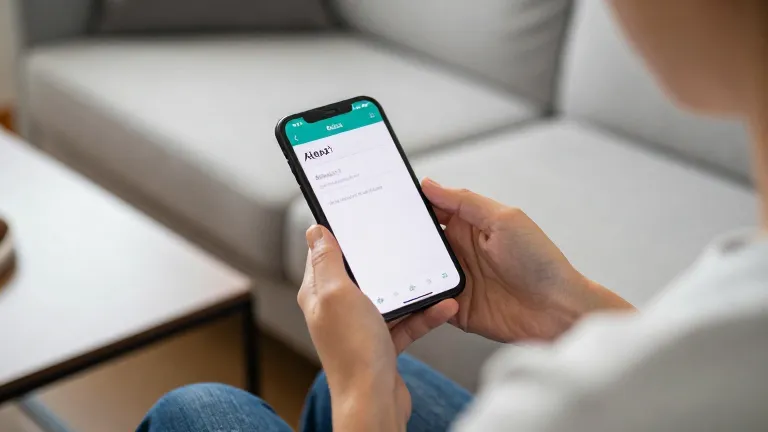
The error is often caused by network problems, such as an unstable Wi-Fi connection or a router that is not functioning correctly. It can also stem from software glitches within the Alexa app or the device itself. Incorrect settings, like a misconfigured Wi-Fi password or an outdated firmware version, can also trigger this error. Additionally, temporary connectivity issues between your Alexa device and Amazon’s servers may result in this message appearing unexpectedly.
When to Expect This Error
This error can appear during voice commands when the device fails to process the request due to connectivity issues. It may also occur during device pairing when the Alexa app cannot establish a stable connection with the new device. In some cases, the error may show up when interacting with the Alexa app on a smartphone or tablet, especially if the app is not properly synchronized with the cloud. Users should pay attention to the context in which the error appears to identify the underlying cause more effectively.
Basic Troubleshooting Steps to Fix the Error
Basic troubleshooting steps can often resolve the 'Sorry, Something Went Wrong' error on Amazon Alexa. These steps are simple but effective, addressing common issues that may be causing the problem.
- Restart the Echo device to refresh its connection.
- Ensure the device is within range of the Wi-Fi router.
- Check that the Wi-Fi connection is stable and working correctly.
- Verify that the Alexa app is up to date.
How to Reboot Your Echo Device
Restarting your Echo device is a fundamental step in resolving connectivity issues. To do this, press and hold the action button on the top of the device until the status light turns off. Wait for about 30 seconds, then release the button and wait for the device to reboot. This process can help refresh the device's connection to your network and resolve temporary glitches.
Testing Wi-Fi Connectivity
Testing Wi-Fi connectivity is crucial to ensure that your Echo device is connected to the correct network. If your router is experiencing interference or signal degradation, your Alexa device may fail to communicate properly. Move the Echo device closer to the router to improve signal strength. Additionally, check if other devices on the same network are also experiencing connectivity issues, which could indicate a broader problem with your Wi-Fi setup.
Fixing Alexa Connectivity Issues
Fixing Alexa connectivity issues is crucial for resolving the 'Sorry, Something Went Wrong' error. Ensuring your Echo device is connected to the right Wi-Fi network and minimizing interference can significantly improve its performance. If Wi-Fi is unstable, switching to a wired connection can provide a more reliable alternative. These steps help maintain consistent communication between your Alexa device and the cloud.
Verifying the Correct Wi-Fi Connection
To verify that your Echo device is connected to the correct Wi-Fi network, open the Alexa app and navigate to the device settings. Tap on your Echo device to view its connection status. If it's connected to the wrong network, tap the Wi-Fi icon and select the correct network from the list. Ensure the network password is correctly entered, and restart the device if the connection remains unstable.
Switching to a Wired Connection
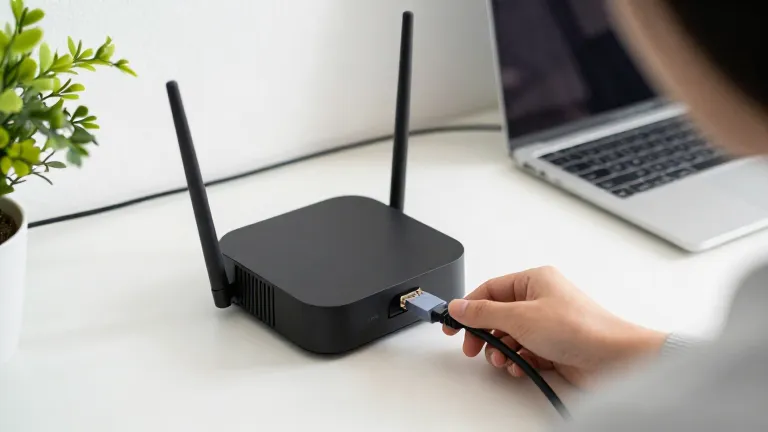
If Wi-Fi connectivity is unreliable, consider using a wired Ethernet connection for improved stability. Connect an Ethernet cable from your router to the Echo device's Ethernet port, if available. This method bypasses potential interference from other wireless devices and physical obstructions. For Echo devices without an Ethernet port, use a Wi-Fi extender or mesh network to enhance signal strength and reliability.
Advanced Solutions for Persistent Errors
If basic troubleshooting fails, advanced solutions can resolve persistent issues with Amazon Alexa. These steps focus on deeper system adjustments that can restore functionality after simpler fixes have been attempted.
- Update the firmware of your Echo device through the Alexa app.
- Re-pair the Echo device with the Wi-Fi network.
- Check for any recent changes to your home network or router settings.
- Uninstall and reinstall the Alexa app to reset the connection.
Updating Firmware and Re-pairing
To update your Echo device's firmware, open the Alexa app and navigate to the device settings. Ensure your device is connected to Wi-Fi, then check for available updates. If an update is found, follow the prompts to install it. This process ensures your device runs the latest software, which may include bug fixes and performance improvements.
Re-pairing your Echo device with Wi-Fi can resolve connectivity issues. Go to the Alexa app, select your device, and choose 'Forget This Wi-Fi Network.' Then, follow the setup process to reconnect. This step can help if your device is no longer recognizing the network or if there are changes to your router settings.
Reinstalling the Alexa App
Uninstalling and reinstalling the Alexa app can reset the app's connection to your Echo device. Remove the app from your device, then download it again from the App Store or Google Play. Reinstalling the app ensures that any corrupted data or outdated configurations are cleared, potentially restoring proper communication between the app and your Echo device.
Before reinstalling, check if recent changes to your home network, such as router firmware updates or new security settings, could interfere with Alexa. Temporarily disabling firewall or antivirus software may also help identify if third-party security tools are blocking the connection.
When to Contact Amazon Support
If basic troubleshooting steps do not resolve the 'Sorry, Something Went Wrong' error, it may indicate a deeper system issue that requires professional assistance. Amazon Alexa users should consider contacting Amazon support if their Echo device is completely unresponsive or if the error persists despite following all recommended steps. Support representatives can access internal diagnostic tools and provide targeted solutions that are not available through standard troubleshooting methods. It is important to note that some errors are linked to software glitches or hardware malfunctions that require expert intervention to correct.
When reaching out to Amazon support, it is essential to provide detailed information about the error, including when it first occurred and any recent changes to your setup, such as new devices, firmware updates, or changes to your Wi-Fi network. This information helps support teams identify potential causes more efficiently and tailor their assistance to your specific situation. Additionally, ensure that your Amazon account is in good standing, as account restrictions or billing issues can sometimes interfere with device functionality. If you have recently made changes to your account settings or payment information, verify that everything is up to date before contacting support.
To prepare for your support interaction, note any additional symptoms, such as whether the error occurs consistently or only under certain conditions. This level of detail allows support representatives to conduct a more thorough investigation and provide accurate guidance. If you are unable to resolve the issue through customer support, they may escalate the problem to technical teams for further examination. It is always advisable to reach out to Amazon support promptly, as delays in addressing persistent errors can lead to more complex problems over time.
Frequently Asked Questions
Why is my Alexa saying 'Sorry, Something Went Wrong' even though my Wi-Fi is working?
Even with a working Wi-Fi connection, issues like a weak signal, router overload, or incorrect network settings can cause the error. Ensure your Echo is within range and try restarting your router to improve connectivity.
What should I do if my Echo device is not responding to commands?
Start by rebooting the Echo device and checking its Wi-Fi status. If it still doesn't respond, try re-pairing it with your Alexa app or resetting the device to restore functionality.
How can I check if my Echo is connected to the correct Wi-Fi network?
Open the Alexa app and navigate to the device settings. Here, you can view the connected Wi-Fi network. If it's incorrect, remove the device and re-pair it to the right network.
Is there a way to reset my Echo without losing my settings?
You can reset your Echo by holding the action button for 20 seconds, which will restore factory settings. However, this will erase all custom settings. For a non-destructive reset, use the Alexa app to re-pair the device.
Final Steps to Resolve the Issue
The 'Sorry, Something Went Wrong' error is often resolved through basic troubleshooting steps like rebooting the device and checking Wi-Fi connectivity. If issues persist, advanced methods such as firmware updates or re-pairing can help restore full functionality.
If all else fails, contacting Amazon support is the best option for expert assistance. Always ensure your Echo is within range of your router and connected to the correct network for optimal performance.





