
How to Fix Smart Thermostat Screen Blank or Not Powering On
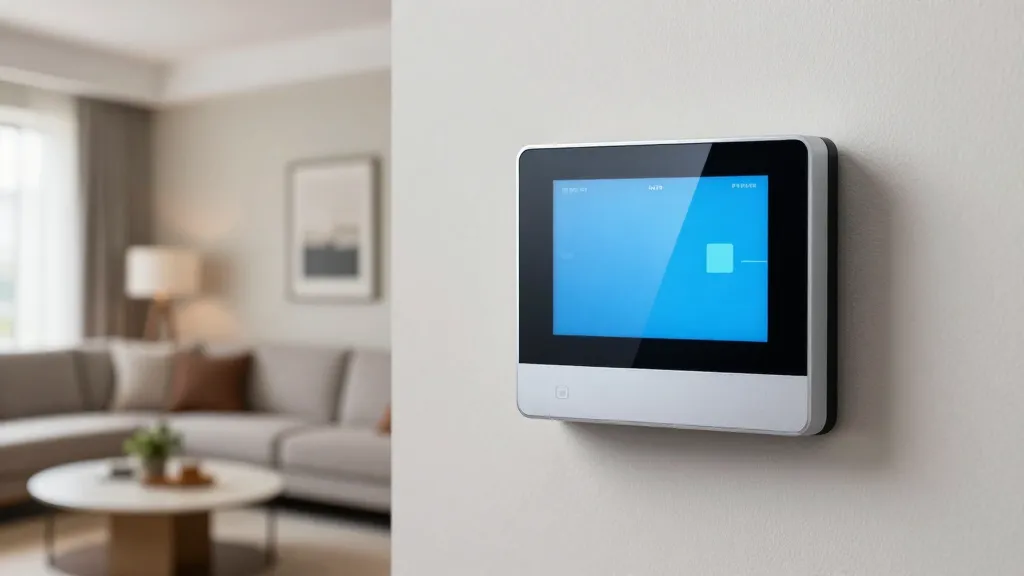
A smart thermostat's blank screen or failure to power on can be frustrating, especially when it's essential for managing your home's climate. Whether you're a homeowner or renter, encountering this issue can disrupt your comfort and energy efficiency. This article provides a clear, step-by-step guide to help you troubleshoot and resolve the problem without needing professional assistance. The main focus is on 'How to Fix Smart Thermostat Screen Blank or Not Powering On,' offering practical solutions that you can try at home. From checking the power source to resetting the device, we cover the most common causes and fixes. If you're experiencing a blank thermostat screen, read on to find out what steps you can take to restore its functionality.
Check the Power Source and Basic Connections
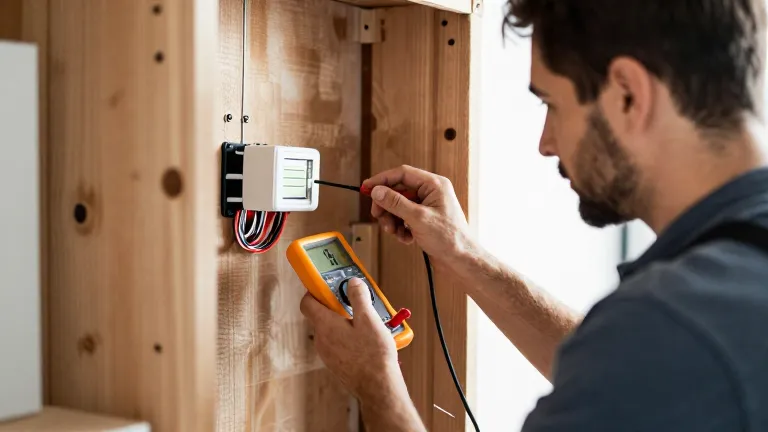
Before attempting more complex troubleshooting, start by ensuring your smart thermostat has a stable power supply. A simple power issue can often cause the screen to go blank or the device to fail to power on. Begin by verifying that the thermostat is properly connected to its power source and checking for any loose connections or damaged wiring.
Verify Thermostat Power Source
Confirm that the thermostat is connected to a reliable power source. Most smart thermostats require a constant electrical supply to function. If your thermostat uses a battery, check the battery level and replace it if it is low. For thermostats that rely on a hardwired connection, inspect the wiring for any signs of wear, fraying, or disconnection. Ensure that the wires are securely fastened and that the terminals are clean and free from corrosion.
Check for a C-Wire Connection
A C-wire (Common wire) is often necessary for smart thermostats to maintain a continuous power supply. If your thermostat requires a C-wire and it is not connected, the device may not power on or may experience intermittent issues. Locate the C-wire in your HVAC system and check if it is properly connected to both the thermostat and the HVAC panel. If the C-wire is missing or damaged, consider replacing it or installing an alternative power solution such as a battery backup or a power extender. Always ensure that the connections are tight and secure to prevent power disruptions.
Troubleshoot the Thermostat Screen and Display
If your smart thermostat's screen is blank or not powering on, the issue might be with the display itself or its connection to the power source. Before moving to more complex troubleshooting steps, start by ensuring the thermostat is receiving power and that the display can be reset.
- Cycle the thermostat's power by unplugging it for 30 seconds and plugging it back in.
- Check for any visible cracks, scratches, or water damage on the screen or housing.
- Confirm the thermostat is not in low-battery mode by checking for a low-battery indicator or error message.
- Ensure the thermostat is connected to a stable power supply and not experiencing voltage fluctuations.
Reset the Thermostat Display
To reset the thermostat display, begin by unplugging the unit from its power source for at least 30 seconds. This allows the internal system to reset and can often resolve temporary glitches that cause the screen to go blank. After reconnecting, wait a few moments for the thermostat to reboot and display its interface. If the screen remains unresponsive, try repeating the process or using the reset button if your model has one.
Inspect for Physical Damage
Inspect the thermostat's screen and housing for any signs of physical damage, such as cracks, water exposure, or scratches. A cracked screen might prevent the display from working correctly, while water damage can cause internal circuitry issues. If you notice any damage, it may be necessary to replace the thermostat or have it repaired by a professional. Always ensure the unit is placed in a dry, well-ventilated area to avoid further damage.
Verify HVAC System and Circuit Breaker Status
Verifying the HVAC system and circuit breaker status is crucial when troubleshooting a smart thermostat with a blank screen or power issues. A tripped breaker or improper system connection can prevent the thermostat from receiving power, leading to display problems. Ensuring the HVAC system is properly connected and the breaker is in the correct position can resolve many common issues.
Check the HVAC Breaker
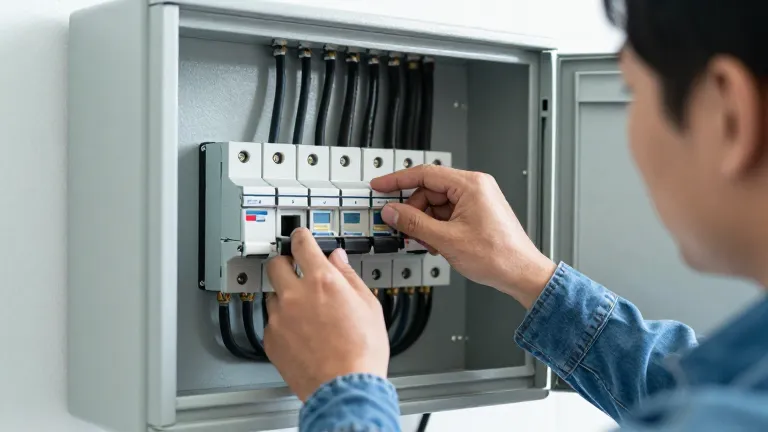
Start by locating the circuit breaker panel for your home and checking the breaker associated with the HVAC system. If the breaker has tripped, switch it back to the 'On' position and wait a few minutes before checking if the thermostat powers on. If the issue persists, consider temporarily disconnecting and reconnecting the thermostat’s power source to reset the system. A tripped breaker may indicate an underlying electrical problem that requires further attention.
Confirm HVAC System Connection
Next, confirm that the thermostat is connected to the correct HVAC system. Some thermostats are designed to work with specific heating or cooling units, and a mismatch can cause operational failures. Check the wiring connections between the thermostat and the HVAC system to ensure they are secure and correctly configured. If the system is not properly connected, the thermostat may not receive the necessary signals to function, resulting in a blank screen or power failure. Testing the thermostat with an alternative power source, such as a battery backup, can also help determine if the issue lies with the primary power supply.
Reset and Reconfigure the Thermostat
If your smart thermostat remains unresponsive after checking the power source and connections, a factory reset can often resolve software glitches or configuration errors. This process will erase all settings, so it's best to attempt it only after verifying that the issue persists and you're ready to reconfigure the device.
- Factory Reset the Thermostat
- Reconnect to Wi-Fi Network
- Ensure Proper Pairing with HVAC System
- Update Thermostat Firmware
Factory Reset the Thermostat
To factory reset your thermostat, locate the reset button, usually found on the back or bottom of the device. Press and hold it for 10 to 30 seconds until the screen turns off or a reset message appears. Once reset, the thermostat will revert to its default settings, and you'll need to reconfigure it from scratch.
Reconnect to Wi-Fi Network
After resetting, reconnect your thermostat to your Wi-Fi network by opening the companion app and following the on-screen instructions. Ensure your mobile device is within range of the Wi-Fi router and that the network is stable. If your thermostat is not a smart model, skip this step and proceed to pairing with your HVAC system.
When to Call a Professional for Help
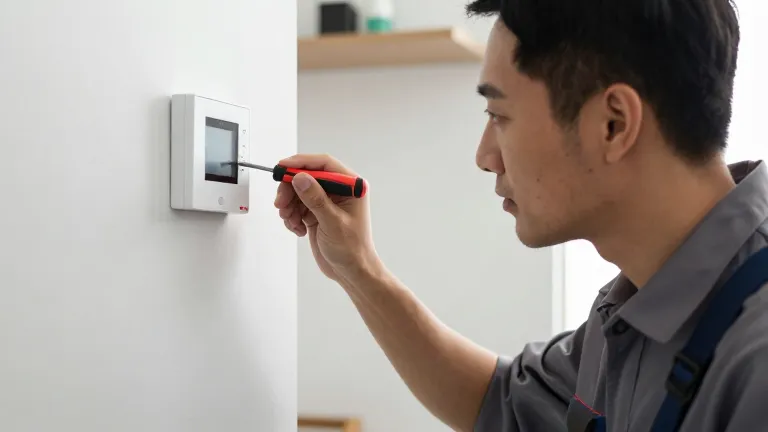
If all troubleshooting steps fail to resolve the blank screen or power failure issue, it may indicate a deeper problem that requires professional assistance. A qualified electrician or HVAC technician can diagnose and repair complex electrical faults or internal thermostat malfunctions that are beyond the scope of basic troubleshooting.
Recognize When to Seek Help
Recognize When to Seek Help: If the thermostat remains unresponsive after checking the power source, resetting the device, and verifying connections, it’s time to consult a professional. Persistent issues like a blank screen or failure to power on often point to internal damage, faulty wiring, or a malfunctioning circuit board. These problems can compromise the thermostat’s ability to regulate temperature effectively, leading to increased energy costs and discomfort.
Professional Repair Vs. Replacement
Professional Repair vs. Replacement: A qualified electrician can inspect for deeper electrical issues, such as faulty wiring or circuit board damage, and perform necessary repairs. However, if the thermostat is old, damaged beyond repair, or no longer supported by the manufacturer, replacement may be the most practical solution. A HVAC technician can also assess the thermostat’s compatibility with your system and recommend a suitable replacement model to ensure optimal performance and energy efficiency.
Frequently Asked Questions
What should I do if my thermostat screen is completely blank?
If your thermostat screen is blank, first check the power source and connections. Ensure the thermostat is properly connected to the C-wire and that the HVAC breaker is not tripped. If these steps don’t resolve the issue, try a factory reset.
Can a tripped HVAC breaker cause my thermostat to not power on?
Yes, a tripped HVAC breaker can prevent the thermostat from receiving power. Check the breaker panel to see if the circuit for your HVAC system is on. If it’s off, reset the breaker and test the thermostat again.
How do I know if my thermostat needs a new C-wire?
A missing or faulty C-wire can lead to a blank screen or power issues. If your thermostat requires more power than the existing wiring can provide, you may need to install a new C-wire. Consult an electrician if you are unsure.
What if all troubleshooting steps fail and the thermostat still doesn’t work?
If all steps fail, the thermostat may be damaged or incompatible with your system. Consider replacing it with a compatible model. If you're unsure, consult a professional to avoid further complications.
Final Thoughts
Fixing a smart thermostat that has a blank screen or won’t power on often starts with checking the power source, C-wire, and HVAC breaker. If these don’t resolve the issue, resetting the thermostat or reconnecting to Wi-Fi may help. If all else fails, professional help is recommended.
Always start with the basics before assuming hardware failure. A simple reset or reconfiguration can often restore functionality. If the problem persists, seeking expert assistance ensures proper diagnosis and resolution.





