
How to iPhone Factory Reset: Step-by-Step Guide
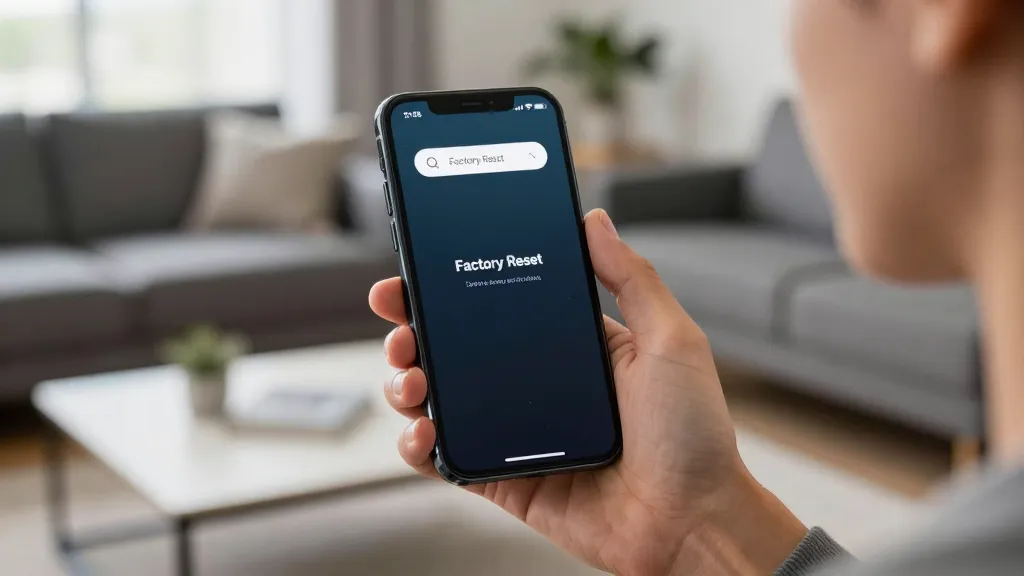
If your iPhone is running slowly, experiencing crashes, or you're preparing to sell or gift it, a factory reset can be the solution. How to iPhone factory reset is a straightforward process that can restore your device to its original state, eliminating software glitches and ensuring a clean start. Whether you're troubleshooting performance issues or transitioning ownership, understanding the steps involved is crucial to avoid data loss. This guide walks you through the entire process, from preparation to post-reset setup, ensuring a smooth experience for both tech-savvy users and those less familiar with device management.
Before initiating a factory reset, it's essential to back up your data and sign out of your Apple ID to prevent any unexpected complications. This step ensures your personal information remains safe and accessible after the reset. Additionally, disabling Find My iPhone is a critical part of the process, as it prevents your device from being tracked or locked during the reset. These precautions help minimize risks and ensure a seamless transition to a fresh start.
Once you're ready to proceed, the factory reset can be performed through the Settings app or via Recovery Mode, depending on your situation. Each method offers a clear path to resetting your iPhone, whether you're dealing with a frozen screen or simply want to start over. After the reset, you'll have the option to restore from a backup or set up your iPhone as a new device. This guide covers all these steps in detail, giving you the confidence to handle the process effectively.
Why You Might Need to Factory Reset Your iPhone
A factory reset is a powerful tool that can resolve persistent issues with your iPhone, but it should be used carefully. Before proceeding, it's important to understand when this action is necessary, how it differs from a standard reset, and the potential risks involved in losing your data.

Common Reasons for a Factory Reset
A factory reset is typically needed when your iPhone is experiencing severe performance issues, such as frequent crashes, unresponsive apps, or unexpected shutdowns. It can also be necessary if you're preparing to sell or give away your device, ensuring all personal data is removed. In some cases, a factory reset may be required to resolve issues with software updates or when your iPhone is stuck in a loop. However, it's important to note that a factory reset erases all data, settings, and apps, so it should only be used as a last resort.
Understanding Backup and Restore Options
Before initiating a factory reset, it's crucial to understand the backup and restore process. A standard reset, such as turning off your iPhone and restarting it, does not erase your data. In contrast, a factory reset completely wipes your iPhone, returning it to its original state. To avoid losing important data, you should back up your iPhone to iCloud or a computer before proceeding. This ensures you can restore your data after the reset. However, if you're giving away or selling your iPhone, you should also sign out of your Apple ID and disable Find My iPhone to protect your privacy.
Preparing for an iPhone Factory Reset
Before initiating a factory reset, it's essential to prepare your iPhone to ensure data is preserved and the reset process goes smoothly. Taking these steps helps prevent data loss and avoids complications during the reset.
- Ensure your iPhone is charged to at least 50% to avoid unexpected shutdowns during the reset process.
- Back up your iPhone data using iCloud or a computer to prevent data loss.
- Sign out of your Apple ID and disable Find My iPhone before the reset.
- Disconnect from Wi-Fi and cellular networks to avoid syncing issues.
How to Back Up Your iPhone Data
Backing up your iPhone data is crucial to prevent losing important information. You can use iCloud to back up your data wirelessly, which is convenient and automatic. Alternatively, you can connect your iPhone to a computer and use iTunes or Finder to create a local backup. Both methods ensure your data is saved securely before the reset.
Signing Out of Apple ID and Disabling Find My iPhone
Signing out of your Apple ID and disabling Find My iPhone are essential steps to ensure your account and device are properly secured before the reset. Go to Settings > [Your Name] > Sign Out, and follow the prompts to sign out. Once signed out, disable Find My iPhone by going to Settings > [Your Name] > Find My > Find My iPhone, and toggle it off. This prevents your device from being tracked or accessed remotely after the reset.
Performing a Factory Reset on Your iPhone
Performing a factory reset on your iPhone is a straightforward process that can be done through the Settings app or by using Recovery Mode. This section outlines the steps for both methods, ensuring your device is fully erased and ready for a fresh start.
Using the Settings App for a Factory Reset
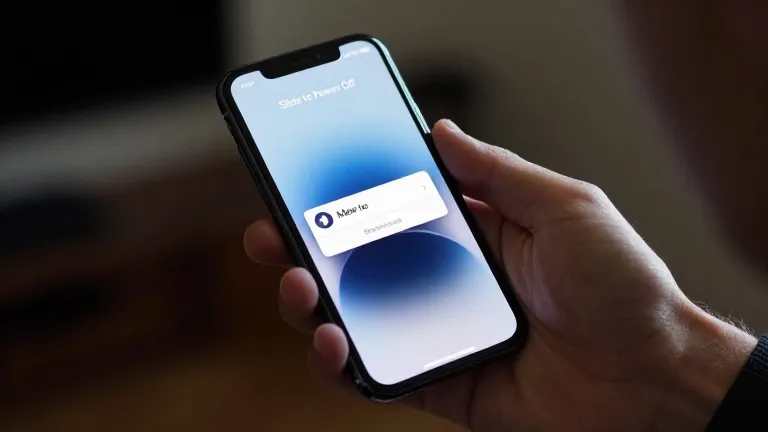
To initiate a factory reset via the Settings app, open the Settings and navigate to General > Transfer or Reset iPhone > Reset > Erase All Content and Settings. Follow the on-screen prompts to confirm the reset and wait for the process to complete. Avoid using the iPhone during the reset to prevent interruptions, as the device will be unresponsive until it finishes.
Alternative Methods for Factory Reset (e.g., Recovery Mode)
If your iPhone is unresponsive or you prefer an alternative method, using Recovery Mode is an effective option. Connect your iPhone to a computer with iTunes (or Finder on macOS Catalina or later) and follow the on-screen instructions to enter Recovery Mode. Once in Recovery Mode, select 'Erase All Content and Settings' to perform the factory reset. Ensure the iPhone is connected to a power source throughout the process to prevent unexpected shutdowns.
Troubleshooting Common Issues During a Factory Reset
Troubleshooting a factory reset can be tricky, especially if your iPhone becomes unresponsive or the process gets stuck. Knowing how to handle these issues can prevent data loss and ensure the reset completes successfully.
- If your iPhone gets stuck during the reset process, try a force restart by pressing and holding the Side button and Volume Up button for at least 15 seconds until the Apple logo appears.
- For an unresponsive iPhone, use a force restart by pressing and holding the Side button and Volume Down button simultaneously until the Apple logo appears.
- If the reset fails, check if your iPhone is connected to Wi-Fi and ensure your Apple ID is signed in to access iCloud backup options.
- To recover data after a failed reset, use iTunes or Finder to restore from a backup, or use third-party data recovery tools if the device is still functional.
Resolving Stuck or Unresponsive iPhone During Reset
If your iPhone gets stuck during the reset process, it's crucial to act quickly. A force restart can often resolve the issue by resetting the device's temporary state. Press and hold the Side button and Volume Up button for at least 15 seconds until the Apple logo appears. This action can help the device resume the reset process or reboot into a functional state.
If the device remains unresponsive, a force restart using the Volume Down button may be necessary. Press and hold the Side button and Volume Down button simultaneously until the Apple logo appears. This method is particularly useful if the device is stuck in a loop or frozen during the reset process.
Data Recovery Tips After a Failed Factory Reset
If the factory reset fails or data is lost, reviewing your backup options is essential. If you have an iCloud backup, ensure your iPhone is connected to Wi-Fi and signed into your Apple ID to restore from the cloud. For local backups, use iTunes or Finder to restore data from a previously created backup.
In the event of a failed reset, data recovery may require specialized tools. If your iPhone is still functional, use third-party recovery software to retrieve lost data. However, these tools may not always recover all data, especially if the device is in a critical state.
After the Factory Reset: Setting Up Your iPhone Again
Once your iPhone has been factory reset, the next step is to set it up either as a new device or by restoring from a backup. This process ensures your iPhone is ready to use and allows you to recover your data and settings efficiently.
Restoring From Backup or Setting Up as a New iPhone
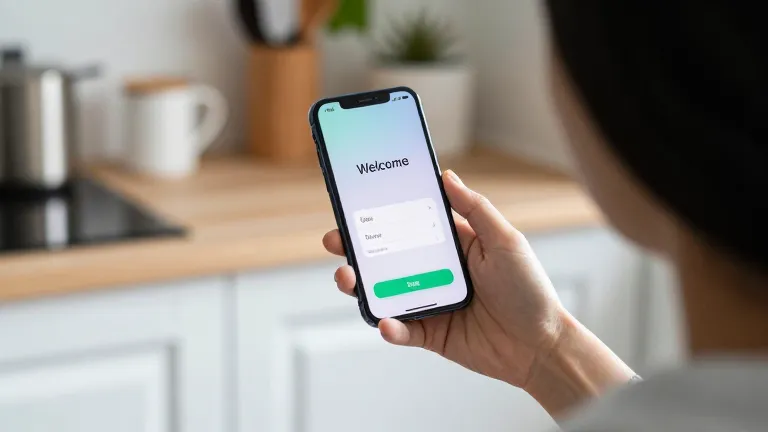
To restore from a backup, connect your iPhone to a computer and open Finder (for macOS Catalina or later) or iTunes (for older systems). Select your device, then choose 'Restore Backup' and follow the on-screen instructions to recover your data. If you prefer to set up your iPhone as a new device, simply follow the setup wizard, which will guide you through language, region, Wi-Fi, and other initial settings.
Post-Reset Setup Tips and Final Checks
After the setup is complete, reinstall your apps by visiting the App Store and downloading them again. You can also restore your settings by syncing with iCloud or manually reconfiguring preferences. Ensure your iPhone is updated to the latest iOS version by going to Settings > General > Software Update. This will provide the most recent features, security patches, and performance improvements.
Frequently Asked Questions
What happens to my data after a factory reset?
A factory reset deletes all data, apps, and settings from your iPhone. It removes personal information, photos, and other content, leaving the device in its original state.
Can I recover my data if I accidentally factory reset my iPhone?
If you have a backup, you can restore your data from iCloud or iTunes. Without a backup, data recovery is unlikely, so always back up before resetting.
Will a factory reset fix my iPhone's performance issues?
A factory reset can resolve software glitches and improve performance, but it doesn't fix hardware problems. It's best for addressing system errors or bloatware.
How long does a factory reset take on an iPhone?
A factory reset typically takes 15 to 30 minutes, depending on the device and backup size. Larger backups may extend the time.
Final Steps and Considerations
A factory reset can be a useful tool for troubleshooting or starting fresh, but it's important to back up your data first. Follow the steps carefully to avoid losing essential information.
Once your iPhone is reset, you can restore from a backup or set it up as a new device. Choose the option that best suits your needs and ensure your device is secure.





