
How to Fix iPhone Hotspot Not Working or Disconnecting
If your iPhone hotspot is not working or keeps disconnecting, it can disrupt your ability to share your mobile data with other devices. Whether you're at home or in the office, a reliable hotspot is essential for staying connected. This article provides practical steps to resolve common issues with your iPhone's personal hotspot, helping you restore your connectivity without needing professional assistance. We’ll walk you through a series of troubleshooting methods, from basic checks to more advanced solutions, ensuring you can get back to using your hotspot seamlessly. Each step is designed to be clear and actionable, so you can quickly identify and fix the problem. By following this guide, you’ll gain the confidence to handle hotspot issues independently and maintain a stable connection for all your devices.
Check Your iPhone Settings for Hotspot Activation
The first step in resolving issues with your iPhone's hotspot is to ensure that the Personal Hotspot feature is properly activated. This simple check can often resolve connectivity problems before moving on to more complex solutions. If the hotspot is not working, it may be turned off, or you might be using a feature that conflicts with its operation.
Turn On Personal Hotspot
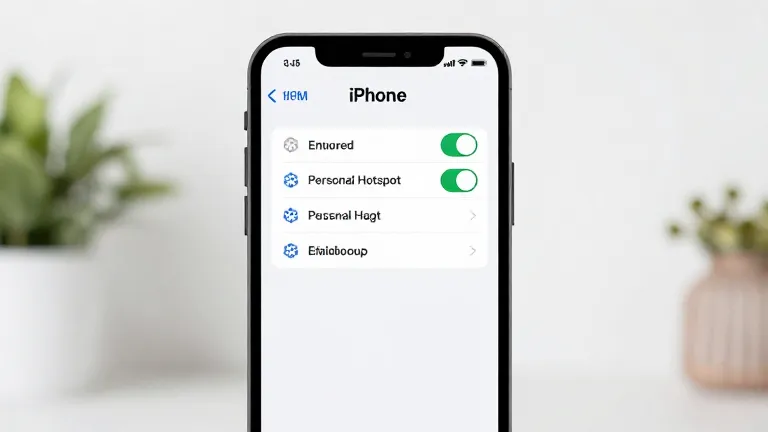
To activate the Personal Hotspot, open the Settings app on your iPhone and scroll down to the bottom of the screen. Tap on 'Personal Hotspot' and toggle the switch to the 'On' position. If the option is not visible, ensure that your iPhone is running the latest iOS version, as updates can affect the availability of certain features. Once enabled, your iPhone will begin broadcasting a Wi-Fi network that other devices can connect to.
Verify Cellular Connection and Battery Level
Before relying on your hotspot, confirm that your iPhone is connected to a stable cellular network. A weak or unstable connection can cause the hotspot to malfunction or disconnect unexpectedly. Check the signal strength by looking at the cellular bars at the top of your screen. If the signal is poor, move to an area with better reception. Additionally, ensure that your iPhone has sufficient battery life. A low battery can cause the hotspot to shut off automatically to conserve power. If your battery is below 20%, charge your iPhone before attempting to use the hotspot.
Troubleshoot Your Connected Devices
When your iPhone hotspot isn't working or keeps disconnecting, the issue might lie with the devices trying to connect. Ensuring these devices are in a good position relative to your iPhone and properly configured can resolve many connectivity problems.
- Check Device Range and Signal Strength
- Restart the Connected Device
- Try Connecting to a Different Device
Check Device Range and Signal Strength
Ensure the device you're trying to connect is within a reasonable range of your iPhone. Walls, large objects, and other electronic devices can interfere with the signal, causing disconnections. Move closer to your iPhone and see if the connection stabilizes. Also, check if other devices in the area are using the same network, as congestion can affect performance.
Restart the Connected Device
If your device is within range but still disconnects, try restarting it. A restart can clear temporary glitches or software conflicts that might be disrupting the connection. After rebooting, attempt to reconnect to the hotspot and monitor for any improvement. This step is especially useful if the issue started after a recent app update or system change.
Reset Network Settings on Your iPhone
Resetting your iPhone's network settings can effectively resolve hotspot connectivity issues by eliminating outdated configurations and potential conflicts. This process clears saved Wi-Fi networks, passwords, and hotspot settings, which may have become corrupted or incompatible. While it requires reconfiguration, it's a reliable method for restoring stable hotspot performance.
How to Reset Network Settings on iPhone
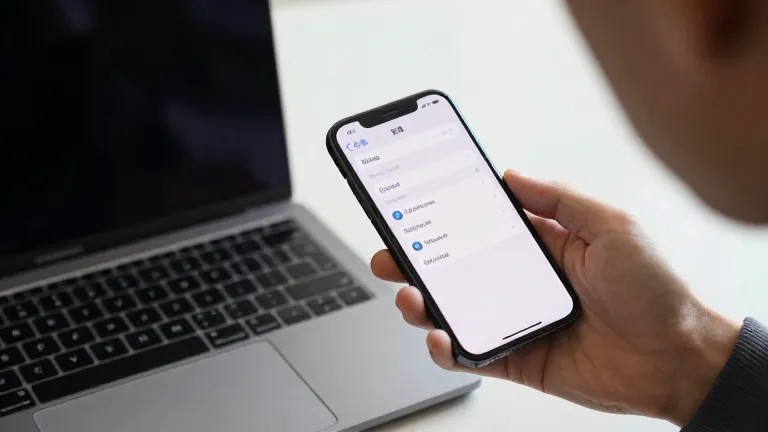
To reset network settings, go to Settings > General > Transfer or Reset iPhone > Reset > Reset Network Settings. This action will erase all saved Wi-Fi passwords and cellular settings, so ensure you have access to any necessary login details. After the reset, your iPhone will restart, and you'll need to re-enter your Wi-Fi credentials and reconfigure your hotspot settings.
Reconfigure Hotspot After Reset
Once the network settings are reset, open the Settings app and navigate to Personal Hotspot. Toggle the switch to turn it on, and ensure that your cellular data is active. Your iPhone will automatically generate a new hotspot name and password, which you can then share with your connected devices. If your devices are still unable to connect, restart them to ensure they recognize the updated hotspot configuration.
Update Your iPhone Software
Keeping your iPhone's software up to date is essential for maintaining stable hotspot functionality. Apple frequently releases iOS updates that address bugs, improve performance, and fix connectivity issues, including those related to personal hotspots. If your iPhone is running an outdated version of iOS, it may be the root cause of your hotspot problems.
Check for iOS Updates
To check for iOS updates, open the Settings app and navigate to General > Software Update. Your iPhone will automatically search for available updates. If an update is found, it will be listed with a download progress bar. Ensure your iPhone is connected to a stable Wi-Fi network and has sufficient battery power before initiating the update process.
Test Hotspot After Update
After installing the iOS update, restart your iPhone to apply the changes. Once the device has rebooted, go back to the Personal Hotspot settings and test the connection again. If the issue was caused by a software bug or compatibility issue, the update should resolve it. If the problem persists, consider moving to the next troubleshooting step, such as resetting network settings or reaching out to Apple Support.
Consider Advanced Troubleshooting Options
If basic troubleshooting steps fail to resolve the hotspot issue, consider more advanced options to identify and resolve the problem.
- Toggle Cellular Data and Reboot
- Test Hotspot in a New Location
- Reach Out to Apple Support
Toggle Cellular Data and Reboot
If the hotspot still isn't working, try toggling your iPhone's cellular data off and on. This action can refresh your network connection and resolve any temporary glitches. After disabling cellular data, wait a few seconds before re-enabling it, then restart your iPhone. This process can reset internal network settings and improve hotspot performance.
Test Hotspot in a New Location
Moving to a different location can significantly improve hotspot performance by reducing interference and enhancing signal strength. Areas with thick walls, metal structures, or other obstructions can weaken the signal. Try moving closer to a window or an open space to test if the hotspot reconnects. This step helps determine if environmental factors are affecting connectivity.
Reach Out to Apple Support
If the issue persists after trying the above steps, it's best to contact Apple Support. Their experts can guide you through deeper diagnostics and identify potential hardware or software issues. Apple Support can also provide tailored solutions based on your iPhone model and iOS version. Seeking professional assistance ensures that no underlying problem is overlooked.
Frequently Asked Questions
Why is my iPhone hotspot not showing up on other devices?
If your iPhone hotspot isn't showing up, check that it's activated in Settings. Ensure other devices are within range and have Wi-Fi enabled. A weak signal or interference can also prevent detection.
How do I fix my iPhone hotspot disconnecting after a few minutes?
Disconnecting can be due to low battery or signal strength. Restart your iPhone and connected devices. Also, try toggling cellular data and rebooting to stabilize the connection.
Can I use my iPhone hotspot with a password?
Yes, you can set a password for your iPhone hotspot. Go to Settings > Personal Hotspot and enable the password option. This helps secure your connection and prevent unauthorized access.
What should I do if my hotspot works sometimes but not consistently?
Inconsistent connectivity may be due to interference or network issues. Try moving to a different location, restarting your iPhone, or resetting network settings. If the problem persists, contact Apple Support.
Next Steps for a Stable Hotspot
To resolve iPhone hotspot issues, start with basic checks like ensuring the hotspot is enabled and devices are within range. If problems persist, consider resetting network settings or updating your iOS. Regular maintenance and a stable environment can help avoid recurring issues.
If you're still experiencing problems, reaching out to Apple Support is a good next step. They can provide tailored solutions and ensure your device is functioning optimally.





