
How to Unlock Free Channels on Your Roku TV
If you're looking to enhance your TV experience without spending extra, unlocking free channels on your Roku TV is a great way to access a wealth of content. Whether you're into sports, news, or local programming, there are plenty of free channels available that can enrich your viewing options. The main keyword here is 'Roku TV free channels unlock,' which is the focus of this guide. We'll walk you through how to unlock and make the most of these free channels, helping you streamline your entertainment without extra costs.
This article covers everything you need to know about unlocking free channels on your Roku TV. From understanding what free channels are to step-by-step instructions on how to enable them, we've got you covered. You'll also discover how to connect an antenna and use the Live TV Channel Guide to access local and streaming content seamlessly.
In addition to unlocking free channels, we’ll provide tips on organizing your channel guide and using the search function effectively. We also address common issues like antenna connection problems and guide malfunctions, ensuring you can enjoy your free content without interruptions. Whether you're a home user or tech-savvy, this guide will help you maximize your Roku TV experience.
Why Unlocking Free Channels on Your Roku TV Matters
Unlocking free channels on your Roku TV can significantly enhance your entertainment options without the need for additional subscriptions. By leveraging free content from local and global sources, Roku TV offers a cost-effective way to access a wide range of programming. Understanding how to unlock these channels helps users streamline their viewing experience and make the most of their TV setup.
What Are Free Channels on Roku TV?
Free channels on Roku TV provide access to a variety of content, including live TV, news, sports, and entertainment, all without the need for a subscription. These channels are available through The Roku Channel and can be combined with live TV content from an antenna. This integration allows users to enjoy both free and paid channels in a single guide, making it easier to navigate and access their favorite content.
How Does Roku TV Combine Free and Paid Channels?
Roku TV is designed to combine both live TV and streaming channels into a single guide, offering a seamless viewing experience. By integrating free channels with paid subscriptions, Roku ensures that users can easily switch between different types of content without the hassle of managing multiple guides. This unified approach not only simplifies the user experience but also helps users save money by utilizing free content alongside their paid subscriptions.
How to Unlock Free Channels on Your Roku TV
Unlocking free channels on your Roku TV is a straightforward process that enhances your viewing experience without additional costs. By leveraging your TV’s built-in capabilities, you can access local broadcast channels and streaming content seamlessly.
- Verify your Roku TV has a built-in ATSC tuner for over-the-air content.
- Connect an antenna to access local channels and expand your viewing options.
- Use the Live TV Channel Guide to merge over-the-air and streaming content into one guide.
- No login or subscription is required for most free channels.
Step-by-Step Guide to Enable Free Channels
To enable free channels on your Roku TV, start by ensuring your device has a built-in ATSC tuner. This tuner allows your TV to receive digital over-the-air broadcasts, which are available for free. Once confirmed, you can access local channels without any additional setup or cost.
Connecting an Antenna to Your Roku TV
Connecting an antenna to your Roku TV is essential for accessing local broadcast channels. Simply plug the antenna into the TV’s HDMI port, and Roku will automatically detect it. This setup allows you to watch free local programming, including news, sports, and weather updates, all without a subscription or login.
What Free Channels Are Available on Roku TV
Roku TV provides access to a wide array of free channels, making it a valuable addition to any home entertainment setup. With over 500 free live TV channels available, users can enjoy a variety of content without the need for a subscription. These channels span multiple categories, ensuring that there is something for everyone, whether they're interested in news, sports, weather, or cooking.
Popular Free Channels You Can Access
Among the popular free channels on Roku TV, you can find local news stations, which provide up-to-date information and community updates. Sports channels are also available, offering live coverage of games and events, including major sports leagues and local competitions. Weather channels keep you informed about current conditions and forecasts, while cooking channels provide recipe ideas and cooking tutorials. These channels are curated to offer a mix of entertainment and practical content.
What to Expect From the Live TV Channel Guide
The Live TV Channel Guide on Roku TV organizes all free channels into a single, easy-to-navigate interface. This guide allows users to browse through different categories and find content quickly. It also includes a search function, making it simple to locate specific channels or programs. The guide is designed to be user-friendly, ensuring that even those who are not tech-savvy can easily access the content they want. This integration of free and paid channels simplifies the viewing experience and enhances the overall usability of the Roku TV.
Tips for Using Free Channels on Your Roku TV
Once you've unlocked free channels on your Roku TV, maximizing their potential requires thoughtful organization and efficient navigation. By organizing your channel guide and utilizing the search function, you can easily access the content you want without frustration. Additionally, setting up reminders and keeping your device updated ensures you stay in control of your viewing experience.
- Organize your channel guide for easy navigation.
- Use the search function to find specific content.
- Set up reminders for your favorite shows.
- Keep your Roku TV updated for the latest features.
How to Organize Your Channel Guide
Organizing your channel guide helps you locate content quickly. You can sort channels by category, such as news, sports, or entertainment, and create custom folders for frequently watched channels. This makes it easier to navigate through the guide, especially when you have a large number of free channels available. Additionally, you can prioritize your most-used channels to appear at the top of your guide, reducing the time needed to find what you want.
To organize your guide, go to the Home Screen, tap the Channel Guide, and then select 'Settings' to customize how channels are displayed. You can choose to sort by name, category, or popularity. If you want to add a channel to your favorites, simply tap the 'Star' icon next to it. This allows you to access your preferred channels with a single tap, improving your overall viewing experience.
Using the Search Function on Roku TV
The search function on Roku TV is a powerful tool for finding specific content. Whether you're looking for a particular show, channel, or keyword, the search bar lets you enter your query and instantly displays relevant results. This is especially useful when you have a large number of free channels and want to avoid scrolling through the entire guide. You can also use the search function to find upcoming episodes or schedule reminders for your favorite shows.
To use the search function, tap the magnifying glass icon on the Home Screen or within the Channel Guide. Type in the name of the show, channel, or keyword you're looking for, and Roku will display matching results. If you find a show you want to watch later, you can set a reminder by tapping the 'Reminder' option. This ensures you don't miss out on your favorite content, even when you're busy with other tasks.
Troubleshooting Common Issues With Free Channels
Troubleshooting issues with free channels on your Roku TV can help you regain access to local and streaming content. If you're experiencing problems, start by checking your antenna connection, updating your firmware, or restarting your TV. These steps can resolve many common issues and restore your channel guide functionality.
- Check your antenna connection if you can't receive local channels.
- Ensure your Roku TV is updated to the latest firmware.
- Restart your TV to resolve any temporary glitches.
- Verify that your channel guide is properly synced.
How to Fix Antenna Connection Problems
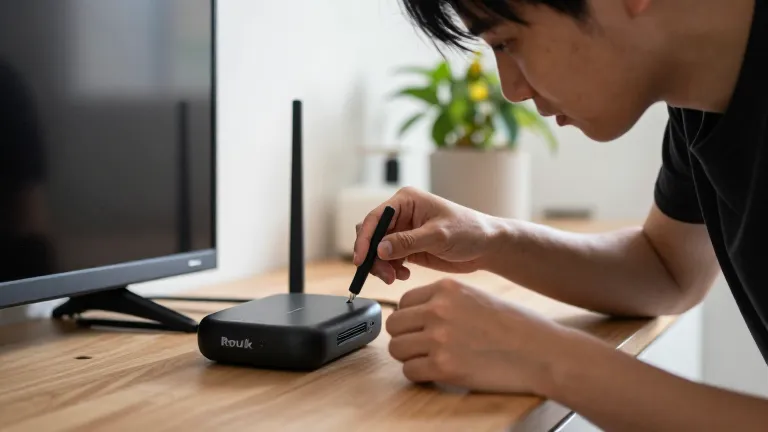
If you're unable to receive local channels, start by checking your antenna connection. Make sure the antenna is securely plugged into the correct port on your Roku TV. A loose connection can prevent your TV from receiving over-the-air signals. You can also try using a different antenna or cable to rule out any hardware issues. If you're using an indoor antenna, ensure it's positioned in a location with a clear line of sight to the broadcast tower for optimal reception.
If the antenna is connected properly and you're still having trouble, consider using a signal strength meter or app to test the quality of your reception. Weak signals can result in poor or no channel reception. Additionally, if you're experiencing interference from other electronic devices, try moving your antenna away from potential sources of interference, such as Wi-Fi routers or microwaves.
What to Do If Your Channel Guide Is Not Working
If your channel guide isn't working, start by ensuring your Roku TV is updated to the latest firmware. Updates often include bug fixes and performance improvements that can resolve issues with the guide. To update your TV, go to Settings > System > System Software Update. If an update is available, follow the on-screen instructions to install it. Your TV will restart automatically once the update is complete.
After updating, restart your Roku TV to ensure all changes take effect. If the guide still isn't functioning correctly, try syncing your channel guide by going to Settings > Channels > Channel Guide > Sync Guide. This will refresh your guide and ensure it's up to date with the latest available channels. If the problem persists, check for any network issues that might be affecting your TV's ability to sync the guide.
Frequently Asked Questions
How do I know if my Roku TV has a built-in antenna tuner?
Check the model number on your Roku TV. If it includes 'TV' or 'Tuner,' it likely has a built-in antenna tuner. You can also go to the Settings menu and look for 'Live TV' or 'Antenna' options.
Can I access free channels without an antenna?
Yes, you can access free channels on The Roku Channel without an antenna, but for live local channels, an antenna is required. The Roku Channel offers over 500 free streaming channels.
What should I do if my free channels stop working suddenly?
First, check your internet connection and restart your Roku TV. If issues persist, try reconnecting your antenna or resetting the Live TV settings.
How often are new free channels added to Roku TV?
New free channels are occasionally added to Roku TV, but they are not regularly updated. The Roku Channel typically adds new content through partnerships and promotions.
Final Thoughts
Unlocking free channels on your Roku TV enhances your viewing experience with a mix of streaming and live content. The process involves enabling the Live TV guide and connecting an antenna for local channels.
To get started, check your Roku TV model for a built-in tuner and follow the setup steps. With a well-organized guide, you can enjoy a seamless blend of free content.





