
How to Use a PIN Instead of a Password for Microsoft Accounts
Switching from a password to a PIN for your Microsoft account can simplify your login process while improving security. Many users are unsure why Microsoft prefers PINs over traditional passwords, but the choice is rooted in practical security and convenience. This article explores why using a Microsoft pin instead of password is recommended and how to set it up effectively. We’ll cover the benefits of PINs, how to create and manage them, and how they compare to passwords. Whether you're a home user or an office worker, understanding these options can help you protect your Microsoft account better. By the end of this guide, you’ll have a clear plan to switch to a PIN and keep your account safe from unauthorized access. Let’s dive into the details and make your login process both easier and more secure.
Why Microsoft Recommends Using a PIN Instead of a Password
Microsoft recommends using a PIN instead of a password for Microsoft accounts to enhance security and simplify the login process. A PIN is designed to be more convenient while offering robust protection against unauthorized access, making it a preferred choice for both home users and office workers.
The Security Benefits of Using a PIN
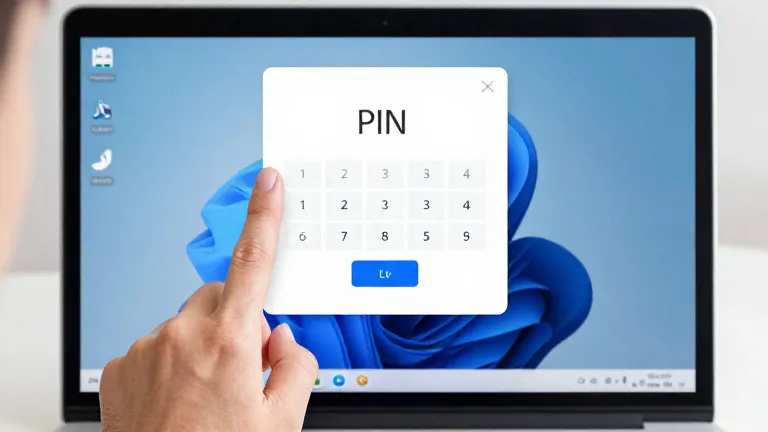
A PIN is tied to a specific device, which significantly reduces the risk of unauthorized access. Unlike passwords, which can be used across multiple platforms, a PIN is locked to the device where it was created. This means that even if a hacker obtains your PIN, they cannot use it to access your Microsoft account from another computer. This device-specific nature of PINs makes them a more secure option for protecting your data and privacy.
Why Passwords Are Less Secure for Microsoft Accounts
Passwords are less secure for Microsoft accounts because they can be easily stolen or compromised. If a password is leaked, it can grant access to your Microsoft account and potentially other services linked to it. In contrast, a PIN is not transmitted to Microsoft or other servers, and it remains tied to your device. This reduces the risk of your PIN being intercepted or misused, making it a more secure choice for safeguarding your account.
How to Set Up a PIN for Your Microsoft Account
Setting up a PIN for your Microsoft account is a straightforward process that can be done during Windows setup or later through your device settings. Whether you're setting up a new device or changing your PIN, following the right steps ensures your account remains secure while making logins more convenient.
Setting Up a PIN During Windows Setup
During Windows setup, you'll be prompted to create a PIN before proceeding. If you're using a Microsoft account, ensure it's linked to your device by signing in with your email and password. Once logged in, select the option to set up a PIN, and follow the on-screen instructions to create a secure PIN. Your PIN should be at least four digits and include a mix of numbers for better protection. After setting it up, you'll be able to log in using your PIN instead of a password, making the process faster and more secure.
Changing or Resetting Your PIN Later
If you need to change or reset your PIN later, open the Windows Settings app and navigate to Accounts > Sign-in options. From there, select the PIN option and choose 'Change PIN' or 'Reset PIN' depending on your needs. You'll be required to enter your current PIN or Microsoft account password to verify your identity before making changes. It's important to remember your PIN or store it securely, as it's tied to your device and Microsoft account. Regularly updating your PIN ensures continued security and prevents unauthorized access.
Steps to Create and Secure Your Microsoft PIN
Creating and securing your Microsoft PIN is essential to maintaining the safety of your account. A strong PIN not only protects your data but also minimizes the risk of unauthorized access. By following best practices, you can ensure that your PIN remains both secure and manageable without compromising convenience.

Creating a Strong and Secure PIN
When creating your PIN, choose something that is easy for you to remember but difficult for others to guess. Avoid using common patterns or sequences like '1234' or '0000' as these are easily cracked. Instead, consider using a combination of numbers and letters, or even a memorable phrase that can be converted into a PIN. For example, turning 'MyDogLovesMe' into '49365278' can provide a secure PIN that is still meaningful to you.
Best Practices for PIN Management
Once your PIN is set, it's important to manage it effectively. Enable biometric login options such as facial recognition or fingerprint scanning if your device supports them. This adds an extra layer of security and reduces the need to remember your PIN. Additionally, keep your device updated with the latest security patches and software updates to ensure that any vulnerabilities are addressed. Regularly review your account activity for any unusual sign-ins, which can help you detect and respond to potential security threats promptly.
Comparing PINs and Passwords for Microsoft Accounts
When deciding between a PIN and a password for your Microsoft account, it's important to understand the differences in security, convenience, and flexibility. Both options have their strengths and weaknesses, and the best choice depends on your personal preferences and security needs.
| Feature | PIN | Password |
|---|---|---|
| Security | A PIN is simpler but less secure if not managed properly. | A password offers more security due to its complexity. |
| Convenience | Easier to remember and use, especially for frequent logins. | Can be more cumbersome due to complexity and frequent changes. |
| Flexibility | Limited to numbers and a few symbols, making it less versatile. | Offers greater flexibility with letters, numbers, and symbols. |
| Device Association | Tied to a specific device, preventing cross-device access. | Not tied to a device, allowing access from multiple devices. |
| Management | Easier to manage with fewer characters, but requires device-specific protection. | More secure with strong complexity, but demands regular updates and careful storage. |
The Pros and Cons of Using a PIN
Using a PIN can be more convenient, especially for frequent logins, as it's shorter and easier to remember. However, its simplicity can also be a weakness if not properly protected. A PIN tied to a specific device provides an added layer of security, as it cannot be used across different computers. This makes it a good choice for users who prioritize device-specific protection over maximum complexity.
The Pros and Cons of Using a Password
Passwords offer greater flexibility and can be configured to be highly secure with a mix of letters, numbers, and symbols. This complexity makes them more resistant to brute-force attacks. However, the need for frequent changes and the risk of forgetting a complex password can reduce convenience. Passwords also pose a higher risk if they are shared or stored insecurely. For users who value flexibility and strong security, a password can be an effective choice, provided it is managed carefully.
Tips for Keeping Your Microsoft Account Safe
Keeping your Microsoft account secure requires a combination of strong habits and proactive measures. By following these tips, you can significantly reduce the risk of unauthorized access and ensure your account remains protected.
Enhancing Your Microsoft Account Security
Use a strong PIN and avoid sharing it with others. A PIN should be unique, not based on personal information, and avoid common patterns like birthdays or repeated numbers. Never share your PIN with anyone, even if they claim to be from Microsoft. If you suspect your PIN has been compromised, change it immediately and enable additional security measures.
Additional Tips for Safe Account Management
Enable two-factor authentication (2FA) for an extra layer of security. Microsoft offers 2FA through authenticator apps, SMS, or security keys, which require a second form of verification beyond just your PIN. Regularly update your device and software to protect against vulnerabilities. Microsoft frequently releases updates that patch security flaws, so ensure your Windows and other software are always up to date. Monitor your account activity for any suspicious behavior. Check your account settings regularly for unusual login attempts or unauthorized changes. If you notice anything suspicious, report it to Microsoft immediately and take steps to secure your account.
Frequently Asked Questions
Can I use the same PIN on multiple devices?
No, a Windows Hello PIN is tied to a specific device. It cannot be used to sign in to your Microsoft account from another computer.
What should I do if I forget my Microsoft PIN?
You can reset your PIN through the Microsoft account settings or use your backup PIN if you've set one up. If you don't have a backup, you may need to use your Microsoft account password to reset it.
Is a PIN safer than a password for Microsoft?
A PIN can be safer for Microsoft accounts because it is tied to one device and not linked to your Microsoft account password. This reduces the risk of unauthorized access to your account.
How can I change my PIN if I need to?
You can change your PIN through the Microsoft account settings or by using the Windows settings. Make sure to choose a new PIN that is unique and not easily guessable.
Final Thoughts
Using a PIN instead of a password for your Microsoft account offers enhanced security by linking it to a specific device. This minimizes the risk of unauthorized access to your account and other linked services.
To ensure your Microsoft account remains secure, follow best practices for PIN management and consider using additional security features like two-factor authentication. Start by setting up a PIN for your Microsoft account today.





