
How to Set Up and Use the Aqara UWB Smart Lock U400
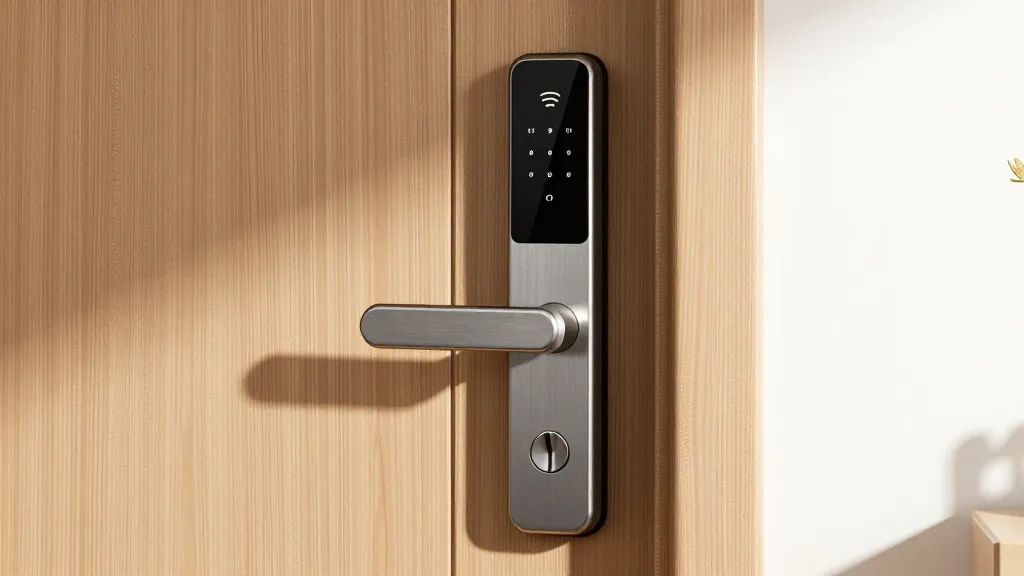
If you're tired of fumbling for keys with a full bag in your hands, the aqara smart lock u400 offers a seamless solution with its UWB technology. This smart lock allows you to unlock your door effortlessly as you approach, using your iPhone or Apple Watch. It’s perfect for those who rely on their Apple ecosystem, providing a modern and convenient way to manage access. In this article, we’ll guide you through setting up and using the aqara smart lock u400 to enjoy keyless entry with confidence.
Setting up the aqara smart lock u400 is straightforward, especially if you already use Apple devices. We’ll walk you through the step-by-step process, including connecting the lock to your iPhone or Apple Watch, ensuring a smooth integration into your smart home setup. Whether you're a homeowner or apartment dweller, this guide will help you maximize the features of your new smart lock.
Once installed, the aqara smart lock u400 offers multiple backup options, like fingerprint and keypad entry, so you’re never locked out. We’ll also cover troubleshooting tips and maintenance advice to keep your lock secure and functioning optimally. Discover how to fully utilize the aqara smart lock u400 for a smarter, more convenient way to manage your home access.
Why Choose the Aqara UWB Smart Lock U400
The Aqara UWB Smart Lock U400 is a smart lock solution designed to simplify daily life for homeowners and apartment dwellers. It combines advanced technology with a reliable ecosystem of backup options, making it an ideal choice for those who rely on Apple devices. Its integration with Apple’s ecosystem ensures seamless control and convenience, while its multiple access methods provide added security and flexibility.
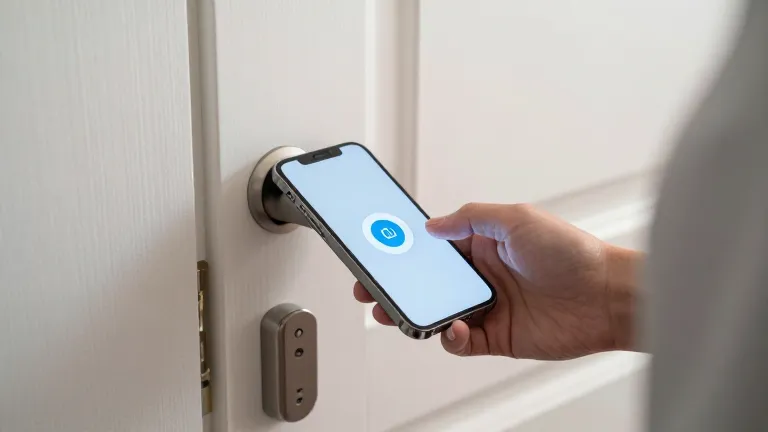
Hands-Free Entry with UWB Technology
The Aqara UWB Smart Lock U400 offers hands-free entry using Ultra-Wideband (UWB) technology, which allows iPhone and Apple Watch users to unlock their doors effortlessly. As you walk up to the door, the lock detects your device and automatically opens, eliminating the need to fumble with keys. This feature is particularly useful when your hands are full or when you’re in a hurry. The UWB technology ensures a secure and accurate unlock experience, making it a convenient addition to your daily routine.
Multiple Backup Options for Reliability
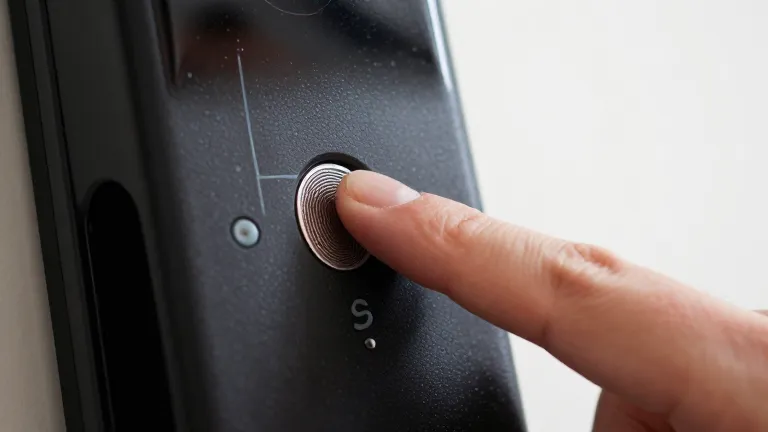
In addition to the UWB unlock feature, the Aqara U400 provides multiple backup methods for reliability. It includes a fingerprint scanner with up to 50 fingerprint storage and a keypad for manual entry. These options ensure that you can access your home even if your phone or Apple Watch is unavailable or out of range. The fingerprint reader has a high recognition rate of 98.6%, offering both convenience and security. This combination of backup methods makes the Aqara U400 a dependable choice for smart home integration.
How to Set Up the Aqara UWB Smart Lock U400
Setting up the Aqara UWB Smart Lock U400 is a straightforward process that ensures seamless integration with your Apple ecosystem. By following the steps below, you'll be able to install and configure the lock efficiently, making sure it works with your iPhone or Apple Watch for hands-free access.
- Unbox the Aqara U400 and M100 Hub, then mount the lock on your door.
- Install the Aqara app and connect the M100 Hub to your Wi-Fi network.
- Pair the lock with your iPhone or Apple Watch using the UWB feature.
- Test the lock to ensure it works with all your access methods.
Step-by-Step Setup Process
Start by unboxing the Aqara U400 and the M100 Hub. The kit includes the lock, the hub, and necessary mounting hardware. Mount the lock on your door using the provided brackets, ensuring it is aligned properly for smooth operation. Once mounted, place the M100 Hub near your Wi-Fi router for a strong signal.
Connecting to Your Apple Devices
Download the Aqara app from the App Store and create an account. Open the app and follow the on-screen instructions to add the M100 Hub. Select your Wi-Fi network and enter the password to connect the hub. Once connected, the hub will sync with the app, allowing you to manage the lock remotely. Ensure the hub is within range of your Wi-Fi router to maintain a stable connection.
Using the Aqara UWB Smart Lock U400 for Keyless Entry
The Aqara UWB Smart Lock U400 offers a seamless keyless entry experience by leveraging Ultra-Wideband (UWB) technology to detect your iPhone or Apple Watch as you approach your door. This hands-free method eliminates the need to fumble for keys, especially when your hands are full. With the right setup, the lock automatically unlocks as you walk toward the door, providing convenience and ease of use.
How UWB Unlock Works
UWB unlock works by using precise location data from your iPhone or Apple Watch to determine when you're within range of the lock. As you approach the door, the lock detects your device and automatically opens, allowing for smooth and effortless entry. This feature is particularly useful for busy mornings or when carrying groceries, ensuring you can enter without interruption.
Customizing Your Smart Lock Experience
Customizing your smart lock experience allows you to tailor the UWB unlock settings to suit your lifestyle and preferences. You can set up different scenarios for various users, such as adjusting sensitivity or defining specific zones where the lock will activate. This flexibility ensures that the lock adapts to your routine, making it more intuitive and user-friendly.
In addition to UWB settings, the Aqara U400 supports Apple Home Key, which lets you use your iPhone or Apple Watch as a digital key. This integration with the Apple ecosystem enhances convenience, as your phone can act as a key in your wallet. You can also set up automation rules to trigger the lock based on location or time, such as unlocking when you arrive home or when your phone is near the door.
Troubleshooting Common Aqara U400 Issues
Troubleshooting issues with your Aqara UWB Smart Lock U400 can help you restore seamless keyless entry and device connectivity. If you're facing problems with your iPhone or Apple Watch not unlocking the door, start by checking UWB compatibility and ensuring proper setup. Addressing these common issues can significantly improve the performance of your smart lock.
- Check for UWB compatibility on your iPhone or Apple Watch.
- Ensure the lock is properly connected to the M100 Hub and your Wi-Fi network.
- Verify that the fingerprint scanner is calibrated correctly.
- Restart the Aqara app and the lock if experiencing connectivity problems.
Common Setup and Connection Issues
If your iPhone or Apple Watch isn’t unlocking the door, start by confirming UWB compatibility. The Aqara U400 supports UWB with select iPhone and Apple Watch models, so ensure your device is compatible. If your phone or watch isn’t listed as supported, you may need to use alternative unlocking methods like fingerprints or the keypad. Check the Aqara app for specific compatibility details and update your device if needed.
Fixing Fingerprint and Keypad Problems
Ensure the Aqara U400 is correctly connected to the M100 Hub and your Wi-Fi network. A stable connection is essential for seamless operation. If the lock isn’t communicating with the hub, try restarting both devices and re-establishing the connection through the Aqara app. Also, verify that your Wi-Fi network is active and that the hub is properly powered. Issues with the hub or network can prevent the lock from functioning as expected.
Maintaining and Securing Your Aqara U400 Smart Lock
Maintaining and securing your Aqara U400 Smart Lock is essential to ensure its longevity and continued performance. Regular upkeep, including software updates, battery management, and physical maintenance, helps prevent issues and keeps your home protected.
Keeping Your Lock Secure and Up-to-Date
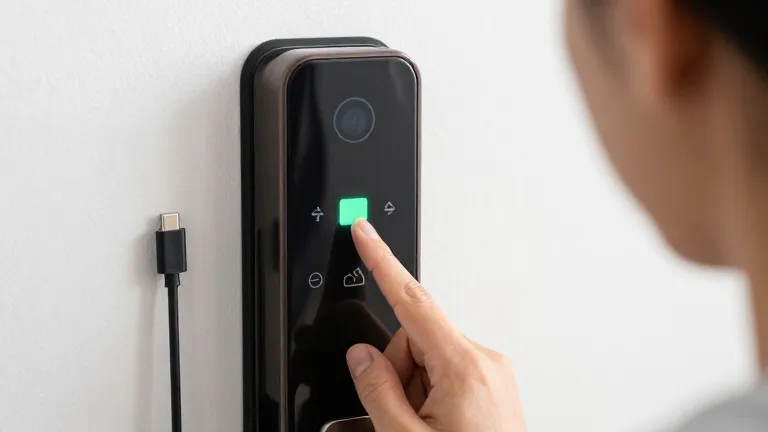
Keeping your Aqara U400 secure and up-to-date involves regular firmware and app updates. The Aqara app provides notifications for updates, which should be installed promptly to address security vulnerabilities and enhance functionality. Additionally, ensure your Apple devices are running the latest software to maintain seamless communication with the lock. Monitoring access logs through the app allows you to track who enters your home and when, offering an added layer of security.
Battery and Maintenance Tips
Replacing the battery in your Aqara U400 is crucial when it reaches the end of its lifespan, which is typically around 6 months per charge. A low battery can lead to unexpected lock failures, so it's important to monitor the battery level through the Aqara app. When the battery is depleted, replace it with a compatible Li-ion battery and recharge it via USB-C. Regularly cleaning the lock’s exterior ensures it remains free of debris, which can affect its performance and appearance. Use a soft, damp cloth to wipe the surface and avoid harsh chemicals that may damage the finish.
Frequently Asked Questions
How do I know if my iPhone or Apple Watch is compatible with the Aqara U400?
Check if your iPhone is running iOS 15 or later and supports UWB. Apple Watch Series 7 or later with UWB compatibility is also required.
What should I do if the Aqara U400 isn’t responding to my fingerprint?
Ensure your fingerprint is registered correctly in the app. Clean the sensor and try re-registering the fingerprint for better recognition.
Can I use the Aqara U400 without an iPhone or Apple Watch?
Yes, you can use the lock with fingerprint, keypad, or Matter over Thread integration. Apple devices are optional for UWB unlock.
How often should I replace the battery in the Aqara U400?
The battery lasts up to 6 months on a single charge. Replace it when the lock shows low battery warnings or when performance drops.
Final Thoughts
The Aqara U400 offers a seamless keyless entry experience with UWB and multiple backup options. Its compatibility with Apple devices and Matter over Thread makes it a versatile addition to any smart home setup.
To get started, follow the setup steps, ensure your devices are compatible, and enjoy the convenience of a secure, modern lock.





