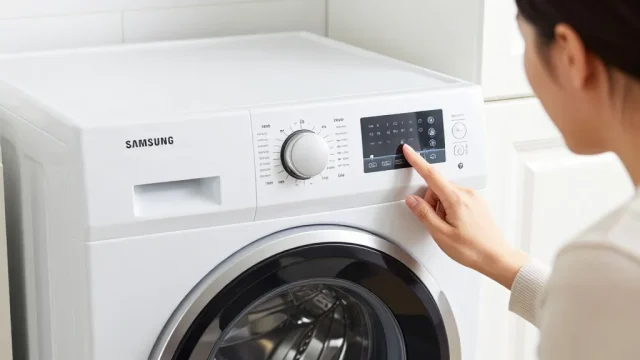
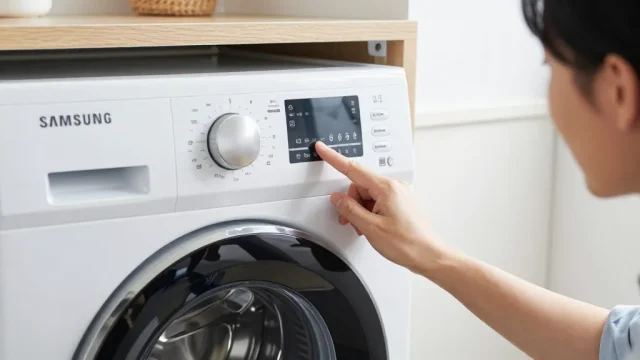
Not Working Properly: Troubleshooting Guide for Devices and Appliances
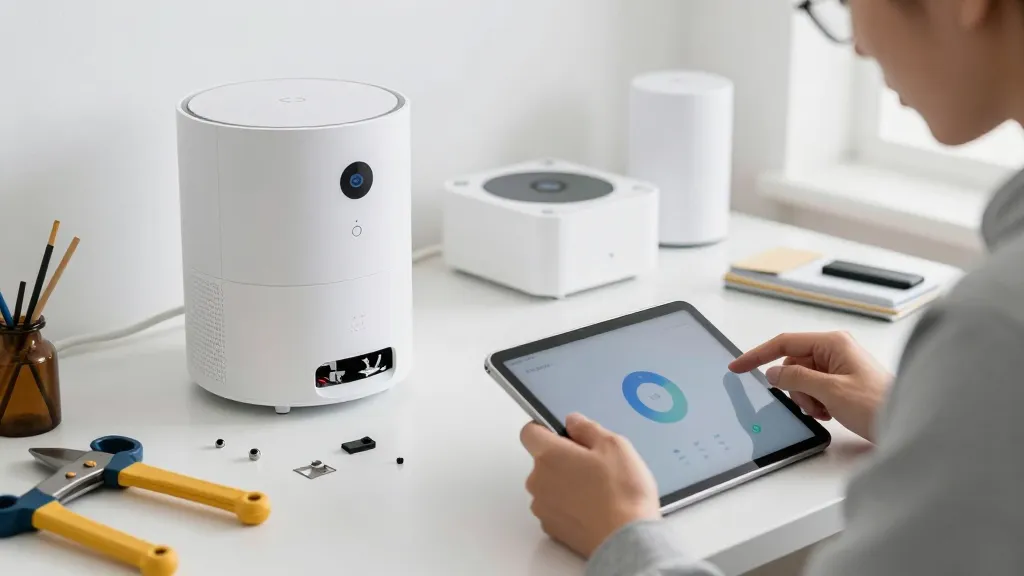
If your device or appliance is not working properly, it can be frustrating and disrupt your daily routine. Whether it's a smart home gadget, a kitchen appliance, or a computer, malfunctioning equipment can leave you stuck without clear solutions. This guide is designed to help homeowners and tech-savvy individuals identify and resolve common issues without needing to call a professional. We’ll walk you through practical steps to diagnose and fix problems, from checking for physical damage to running diagnostic tools. By following these steps, you can often restore functionality and avoid unnecessary costs. Let’s start by understanding how to pinpoint the issue and take the right actions to get your device back in working order.
Identify the Problem
Before attempting any fixes, it's essential to clearly understand what's causing your device or appliance to not work properly. Start by distinguishing whether the issue lies with the device itself or the appliance it's connected to. This step helps narrow down the problem and ensures you focus your troubleshooting efforts in the right direction.
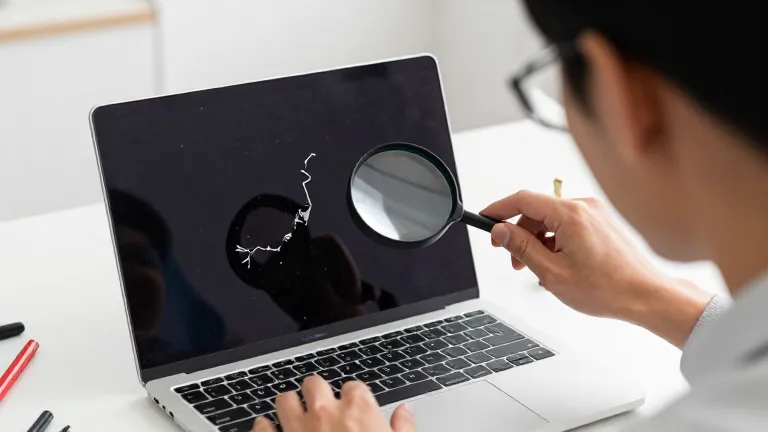
Check for Physical Damage
Inspect the device or appliance for any visible signs of physical damage, such as frayed wires, broken parts, or cracks in the casing. These can often be the root cause of malfunction, especially if the damage occurred recently or after an accident. If the damage is severe, it may require replacement or professional repair rather than simple troubleshooting.
Look for Error Messages
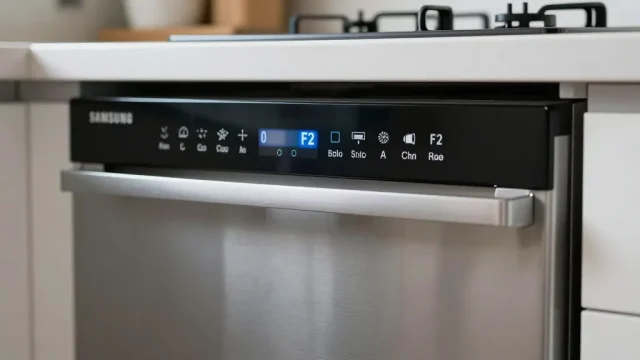
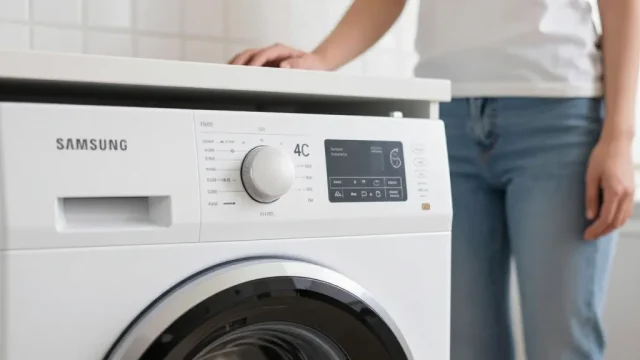
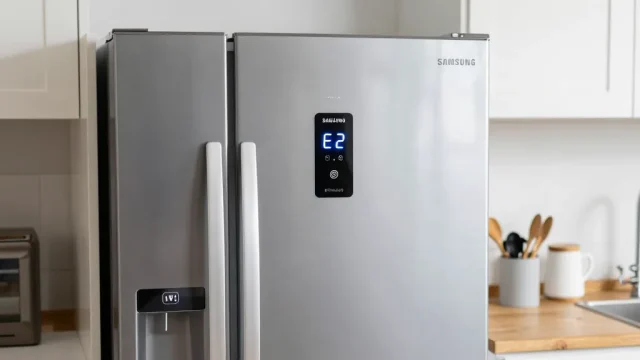
Look for error codes or messages displayed on the device or appliance. These messages are usually designed to indicate specific issues, such as overheating, power failures, or software glitches. Refer to the user manual or manufacturer's website to understand what each code means and what steps you can take to resolve it. If the error message is unclear, note it down for further investigation.
Restart the Device or Appliance
Restarting a device or appliance is often the simplest and most effective way to resolve minor malfunctions. This process can clear temporary glitches, reset internal systems, and refresh the device’s operation. Before restarting, it is important to ensure that the device is completely powered down. This means unplugging it from the power source or turning off the circuit breaker if it is an appliance. Waiting for at least 30 seconds allows the internal capacitors to discharge, ensuring a full reset when the device is turned back on. This step is crucial for devices that may retain residual power even after being disconnected.
- Unplug the device or appliance for at least 30 seconds before plugging it back in.
- For appliances, turn off the power at the circuit breaker or switch.
- Wait for the device or appliance to fully power down before turning it back on.
- Avoid using a power strip or surge protector unless it is known to be reliable.
- If the device or appliance is a computer, restart it using the proper shutdown procedure.
Check Connections and Settings
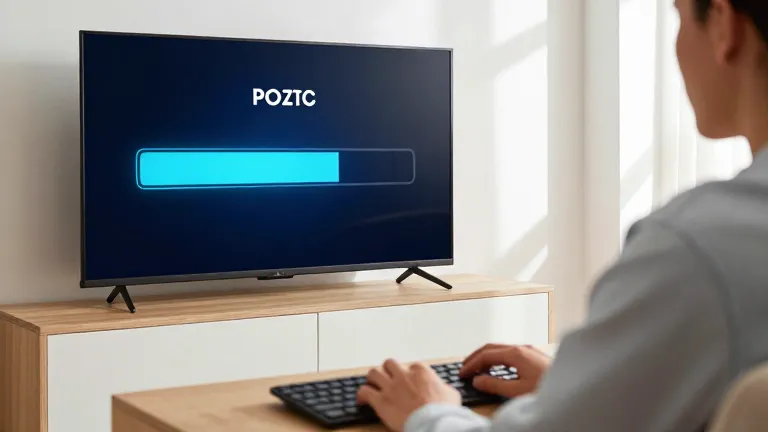
Checking connections and settings is a critical step in troubleshooting devices and appliances that are not working properly. Many issues can be resolved by ensuring that all physical and digital components are correctly configured and connected.
Verify Power and Cable Connections
Start by inspecting all cables, wires, and connectors for signs of damage, fraying, or looseness. Ensure that each connection is securely fastened and that there are no visible cracks or breaks in the insulation. If any cables appear damaged, replace them immediately to prevent further issues. Also, confirm that the device is plugged into the correct power source, such as a wall outlet or a compatible power adapter. If the device relies on multiple connections, such as USB or HDMI, test each one individually to identify any faulty links.
Update Software and Firmware
For devices like smartphones, tablets, or computers, check for available software updates or firmware upgrades. These updates often include bug fixes, performance improvements, and security patches that can resolve unexpected behavior. To do this, navigate to the device’s settings menu and look for an option related to system updates or firmware management. If an update is available, follow the on-screen instructions to install it. Additionally, test the device with a different power outlet or battery to rule out electrical problems that may be affecting its performance.
Run Diagnostic Tools
Running diagnostic tools can help identify and resolve issues that prevent a device or appliance from functioning properly. These tools are often built into the device or available through the operating system, providing a structured way to pinpoint problems without requiring advanced technical knowledge.
Use Built-In Diagnostic Tools
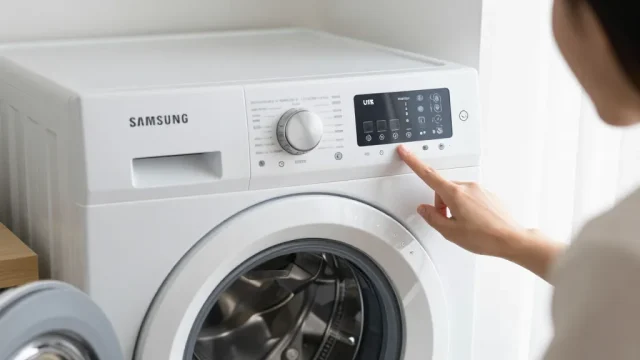
Use built-in diagnostic tools if available, such as the Windows Troubleshooter or iPhone diagnostic mode. These tools are designed to detect and fix common issues like software glitches, connectivity problems, or hardware malfunctions. For appliances, consult the user manual for any built-in diagnostic functions, which may include self-tests or error code interpretations. Following the manufacturer’s instructions for these tests can provide valuable insights into the root cause of the malfunction.
Check for Malware or System Errors
Check for malware or system errors in the device's settings or control panel. Malware can interfere with normal operations, causing unexpected behavior or complete failure. Run a comprehensive virus or malware scan using trusted antivirus software to rule out malicious activity. For computers, online tools can also be used to scan for hardware or software issues, offering additional layers of diagnostics that may not be available through the device’s native tools.
When to Seek Professional Help
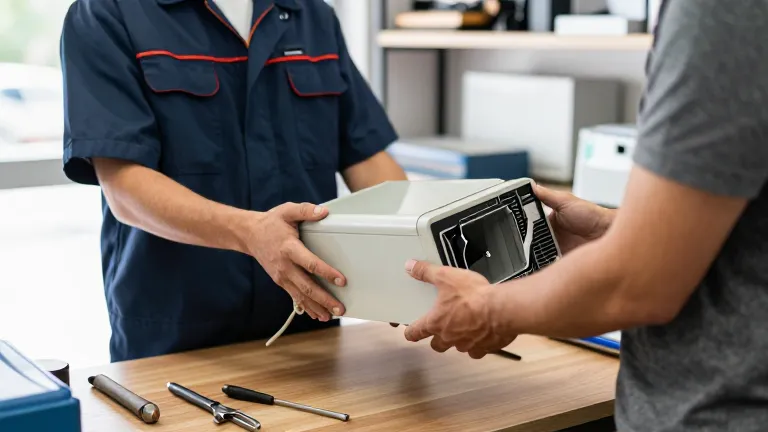
Knowing when to seek professional help is crucial to ensuring safety, preserving warranty coverage, and avoiding further damage. If basic troubleshooting steps fail to resolve the issue, or if the problem poses a safety risk, it's time to consult an expert.
When to Stop Trying to Fix It Yourself
Stop using the device or appliance immediately if there is a risk of electrical shock, fire, or other hazards. Continuing to operate a faulty device can lead to serious injury or property damage. If the device is not working properly and you are unsure of the cause, it's better to err on the side of caution and discontinue use until a qualified technician can assess the situation.
Contacting the Manufacturer or Technician
If the device or appliance is still under warranty, contact the manufacturer for support. Most warranties require you to seek assistance from authorized service centers to maintain coverage. Attempting to repair the device yourself may void the warranty, especially if the issue involves internal components or complex systems. Always refer to the manufacturer's guidelines for proper support procedures.
For recurring issues or problems affecting multiple devices, consulting a professional technician is advisable. These situations may indicate underlying electrical or wiring problems that require specialized tools and expertise. Avoid attempting to repair complex internal components unless you are fully qualified. DIY repairs can lead to further damage or safety risks, making professional intervention the safest and most effective option.
Frequently Asked Questions
What should I do if my device is not working properly?
Start by checking for physical damage and error messages. Restart the device, ensure all connections are secure, and update the software. If these steps don’t resolve the issue, consider running diagnostic tools or seeking professional assistance.
How can I tell if my appliance is faulty or just not working properly?
Look for signs like unusual noises, overheating, or persistent error messages. If the appliance fails to operate after checking connections and resetting, it may be faulty. A professional inspection can help determine the cause.
Can I fix my device not working properly without professional help?
Many issues can be resolved with basic troubleshooting, such as restarting, checking connections, and updating software. However, complex malfunctions or hardware failures typically require professional expertise for a proper diagnosis and repair.
What are the most common reasons a device or appliance stops working properly?
Common causes include power issues, software glitches, faulty wiring, and hardware malfunctions. Environmental factors like overheating or moisture can also affect performance. Regular maintenance and updates can help prevent many of these problems.
Next Steps and Maintenance
Troubleshooting a device or appliance not working properly requires a systematic approach. Begin with basic checks, such as power connections and software updates, before moving to more advanced steps. If the issue persists, seeking professional help is the best course of action.
By following these steps, you can often identify and resolve common issues. Always prioritize safety and consult a professional if you're unsure. Taking care of your devices through regular maintenance can prevent many problems from arising in the first place.