
Set Up These 4 Android Emergency Settings Before Your Life Depends on It
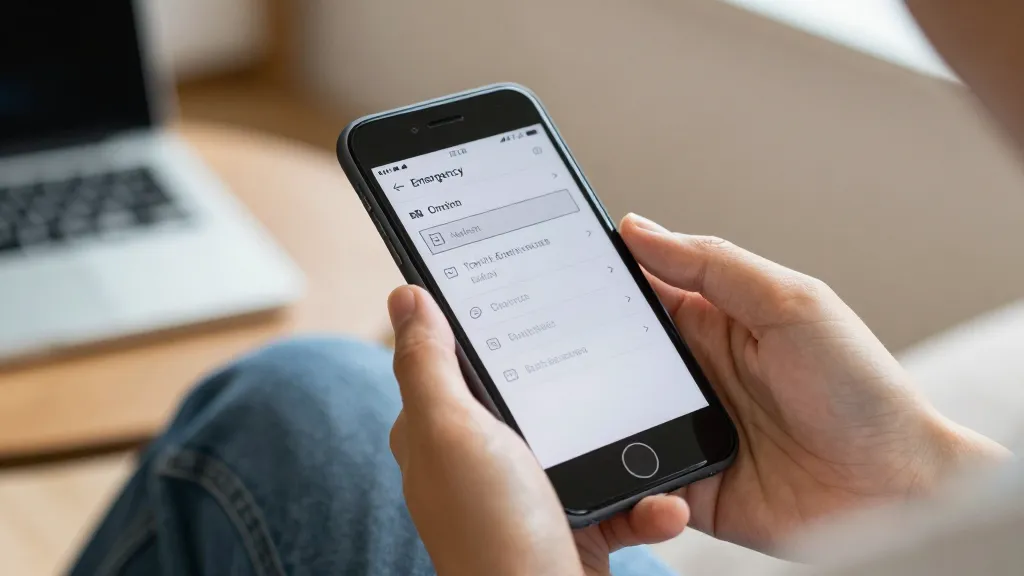
In today’s fast-paced world, emergencies can strike at any moment, and having your Android phone ready to help can mean the difference between life and death. Android emergency settings are a simple yet powerful tool that can provide critical information to responders when you’re unable to communicate. Whether you're dealing with a medical emergency, a dangerous situation, or simply need to reach someone quickly, these settings can save time and potentially lives. This article guides you through setting up essential android emergency settings to ensure your phone is always prepared for emergencies.
Many people overlook the importance of configuring their Android device for emergencies, assuming they’ll always have access to a physical medical card or a phone call. However, digital emergency settings offer a reliable alternative that’s always with you. By storing medical details, emergency contacts, and quick access to emergency calls, you can ensure that help is just a tap away, even if you’re unable to unlock your phone.
This guide covers four key areas: adding medical information, setting up emergency contacts, enabling emergency call shortcuts, and best practices for keeping your settings updated. Whether you're a home user or a working professional, these steps will help you prepare your Android device for any situation without needing professional help. Let’s get started with the first step—setting up your medical information.
Why Emergency Settings Matter for Your Android Phone
In today’s fast-paced world, emergencies can strike at any moment, and your Android phone can be a lifeline if properly configured. Emergency responders often rely on digital information to make quick, informed decisions, and your phone can provide critical details like medical conditions, allergies, and emergency contacts. Setting up these features ensures your phone is ready to assist when seconds count.
What Happens When Responders Access Your Phone in an Emergency
When emergency responders arrive on the scene, they may access your phone to retrieve vital health information. This can include details about chronic conditions, medications, allergies, and emergency contacts. Having this data readily available can help first responders provide timely and appropriate care, especially if you're unable to communicate clearly. For example, if you have a severe allergy or are experiencing anaphylaxis, knowing this information can be lifesaving.
How to Ensure Your Information Is Accessible
To ensure your information is accessible during an emergency, you must set up your Android phone correctly. This includes adding medical details to your device so they are visible even when your phone is locked. You can also set up emergency contacts who will be notified automatically if needed. By taking these steps, you ensure that critical information is always available, reducing the risk of miscommunication or delays in care. Regularly updating these settings is essential to maintain their effectiveness.
How to Add Medical Information to Your Android Phone
Adding medical information to your Android phone is a critical step in ensuring that emergency responders have access to vital health details during a crisis. This data can include allergies, medications, and pre-existing conditions, all of which can significantly impact the care you receive. Including contact details for family members or emergency contacts further streamlines the response process, allowing first responders to reach someone who can provide additional context or support.
What to Include in Your Medical Information
When compiling your medical information, focus on details that could influence immediate medical decisions. This includes any known allergies, current medications, and pre-existing health conditions. It’s also wise to note any specific instructions for treating certain conditions, such as diabetes management or asthma relief protocols. Including blood type and any chronic illnesses ensures that responders are fully informed about your health status.
How to Access the Medical Info Settings on Your Phone
To access the medical information settings on your Android device, navigate to the Settings app and look for the 'Safety & Emergency' section. For Samsung devices, this is found under 'Safety and emergency' > 'Medical info'. On Pixel devices, it’s located under 'Safety & Emergency' > 'Medical information'. Once there, you can input your details directly into the provided fields. Make sure to save your information and verify that it is set to display even when your phone is locked to ensure it is accessible in emergencies.
Setting Up Emergency Contacts on Android
Emergency contacts are crucial for ensuring a swift response in critical situations. By setting up multiple contacts for different scenarios, you increase the chances of someone being available to assist you quickly. Your contacts can be accessed even when your phone is locked, making it easier for first responders or loved ones to reach out in an emergency. Including family members or medical professionals can significantly improve the speed and effectiveness of the response.
How to Add Emergency Contacts on Samsung
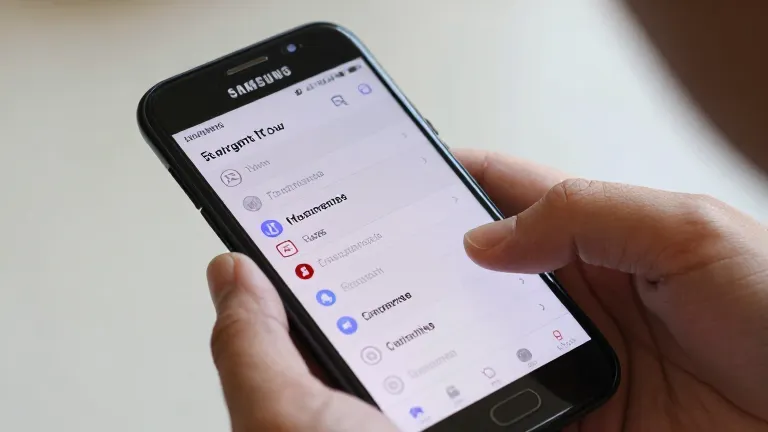
On Samsung devices, you can add emergency contacts through the Safety and emergency settings. Navigate to Settings -> Safety and emergency -> Emergency contacts. Here, you can add up to 5 contacts, each with a name and phone number. It's important to include a mix of family members and medical professionals to cover various scenarios. Make sure to verify the numbers are correct and up to date.
How to Add Emergency Contacts on Pixel
For Pixel phones, the process is similar but located under the Safety & Emergency settings. Go to Settings -> Safety & Emergency -> Emergency contacts. You can also add up to 5 contacts here. It's recommended to include both personal and professional contacts to ensure multiple points of contact. Regularly reviewing and updating these contacts is essential to maintain their accuracy and effectiveness.
How to Enable Emergency Call Settings on Android
Emergency call settings on Android are designed to help you reach emergency services quickly, even if your phone is locked or you're in distress. These settings allow you to call 9,11 or your local emergency number with a single press, making them invaluable in situations where you might not be able to unlock your device. Setting up these shortcuts ensures that help is just a tap away, which can be crucial during emergencies.
Enabling Emergency Call Shortcuts
To enable emergency call shortcuts, go to your phone's Settings and navigate to the Safety & Emergency section. Look for the 'Emergency call' option and toggle it on. Once activated, you can add up to three emergency contacts or numbers to your list. These shortcuts will appear on your home screen, allowing you to call emergency services without unlocking your device. This feature is especially useful if you're unable to use your phone due to injury or panic.
How to Test Your Emergency Call Settings
After setting up your emergency call shortcuts, it's important to test them to ensure they work as intended. Tap on one of the emergency contacts or numbers on your home screen and verify that it dials the correct number. If the call doesn't connect, double-check your settings and make sure the emergency number is correctly entered. Regularly reviewing and updating your emergency call settings can help ensure they remain functional and reliable during critical moments.
Best Practices for Keeping Your Emergency Settings Updated
Keeping your emergency settings up to date is crucial for ensuring they work when you need them most. Regularly reviewing and testing your configurations can prevent outdated or incorrect information from being accessed in an emergency. Additionally, maintaining a charged and accessible phone, along with informing your emergency contacts about your setup, can make a significant difference in response times and effectiveness.
How to Review and Update Your Emergency Settings
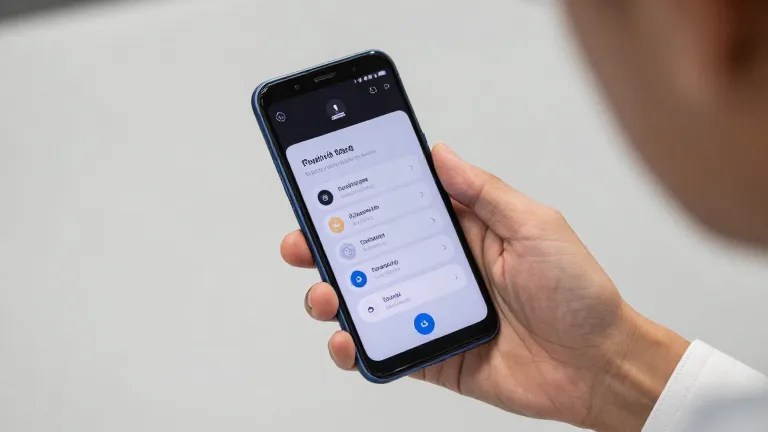
To keep your emergency settings current, set a reminder to review them every few months. Check if your medical information, emergency contacts, and call shortcuts are still accurate. Update any changes, such as new medications, allergies, or contact details. It's also wise to ensure your phone's software is up to date, as updates may improve the functionality of emergency features.
Testing Your Emergency Settings for Reliability
Periodically testing your emergency settings ensures they function as intended. Try accessing your medical information from the lock screen, simulate an emergency call, and verify that your contacts are correctly listed. Testing also helps identify any issues with your phone's settings or connectivity. If you find any problems, address them immediately to avoid complications during an actual emergency.
Frequently Asked Questions
How do I add medical information to my Android phone?
To add medical information, go to Settings > Safety & Emergency > Medical Information. Input your health details, allergies, medications, and emergency contacts. This info is accessible even if your phone is locked.
Can I access emergency contacts if my phone is locked?
Yes, emergency contacts are accessible even if your phone is locked. This ensures responders can reach your loved ones quickly without needing to unlock your device.
How do I set up an emergency call shortcut on my Android?
To set up an emergency call shortcut, go to Settings > Safety & Emergency > Emergency Call. Add your preferred emergency number and assign a shortcut, such as a button or gesture, for quick access.
What should I include in my medical information for emergency responders?
Include your health conditions, allergies, medications, blood type, and emergency contacts. This helps responders provide timely and accurate care during critical situations.
Final Thoughts
Setting up Android emergency settings is essential for your safety and preparedness. By configuring medical information, emergency contacts, and call shortcuts, you ensure that critical data is accessible in emergencies.
Regularly review and update your emergency settings to reflect any changes in your health or contact details. Test your configurations to confirm they work as expected, giving you peace of mind.





