
What Is Not Working on the Internet and How to Fix It
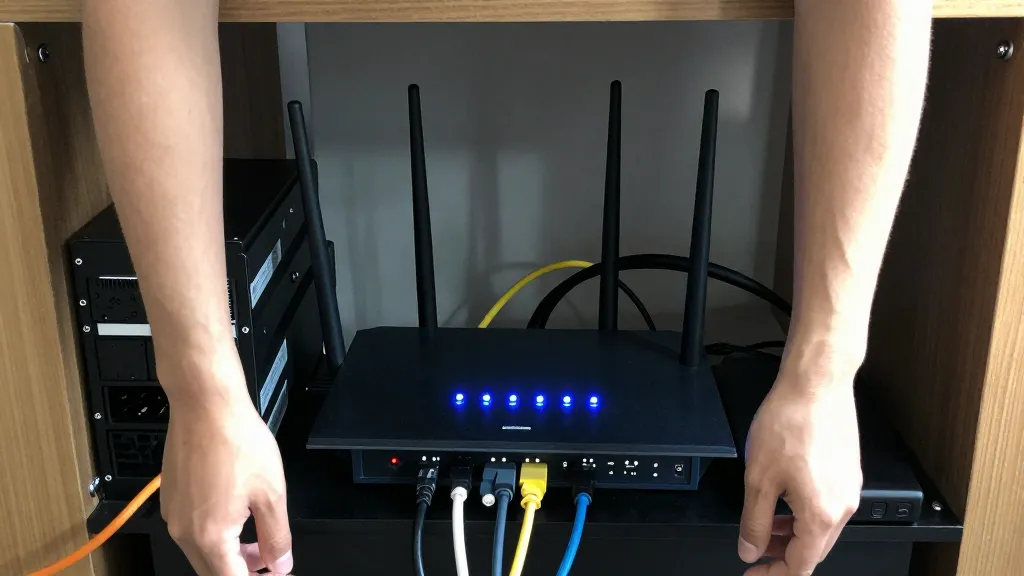
If you're asking, what is not working on the internet, it's likely a common issue that can be resolved with a few simple steps. Whether you're at home or in the office, internet problems can disrupt your workflow and online activities. From weak signals to outdated settings, there are several factors that may be causing your connection to fail. This article provides a clear, step-by-step guide to help you identify and fix these issues without needing professional assistance. We'll start by checking your physical connections and router status, then move through testing, updating, and advanced troubleshooting methods. By following these practical steps, you can regain stable internet access and get back to your daily tasks efficiently.
Check Your Physical Connection
Before diving into more complex solutions, start by checking your physical connection. A simple misalignment or loose cable can often be the root cause of internet issues. Verifying that all hardware is properly connected and functioning can save time and effort in troubleshooting.
Ethernet Cable Issues
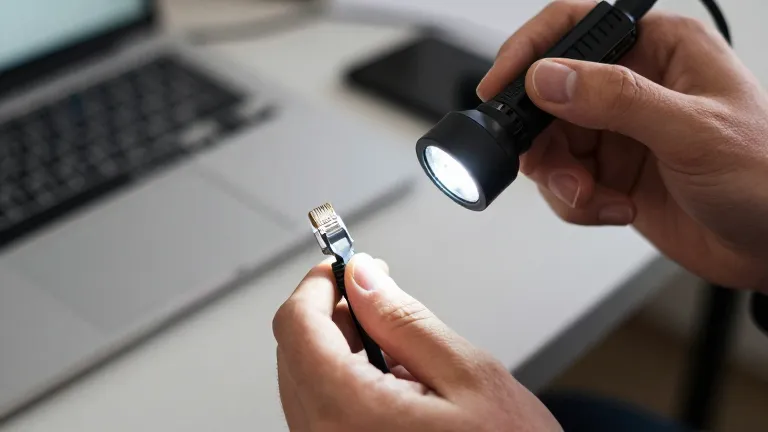
Ensure that all Ethernet cables are securely plugged into both your router and modem, as well as your computer or network device. Loose connections or damaged cables can lead to intermittent connectivity or complete loss of internet access. If you're using a wired connection, test with a different cable to rule out faulty wiring.
Router and Modem Status
Inspect the router and modem for power and status lights to confirm they are operating correctly. Most devices have indicator lights that show whether they are powered on, connected to the internet, and receiving a signal. If any lights are off or blinking erratically, it could indicate a hardware issue or a problem with the power supply. Refer to the device manual for specific light meanings and troubleshooting steps.
Restart Your Router and Modem
Restarting your router and modem is a simple yet effective troubleshooting step that can resolve many common internet issues. This process clears temporary glitches and refreshes your connection, often restoring functionality without the need for professional assistance.
- Turn off the router and modem for 30 seconds.
- Wait for the lights to stabilize before turning them back on.
- Avoid unplugging devices during a power surge.
- Ensure that your ISP is not experiencing outages.
How to Restart Your Router
To restart your router and modem, first locate the power button on both devices. Press and hold the power button for about 30 seconds to fully shut them down. This allows the internal systems to reset and can resolve minor software or hardware issues. After waiting a few moments, turn the devices back on in the same order they were turned off. It's important to wait for the indicator lights to stabilize before checking your connection, as this ensures the devices have fully rebooted.
ISP Outage Check
Before assuming the problem is with your equipment, check if your ISP is experiencing outages. You can do this by visiting the ISP's official website or using a third-party outage map. These tools can show if there are known service disruptions in your area. If an outage is confirmed, contact your ISP for updates and expected resolution times. This step helps distinguish between a local issue and a broader network problem, allowing you to take appropriate action.
Test Your Internet Speed and Connection
Testing your internet speed and connection is a crucial step in diagnosing what is not working on the internet. By assessing your current performance, you can identify whether the issue lies with your service provider, your network setup, or other factors affecting your connection.

Speed Test Tools
Use a speed test tool to determine your internet speed. Popular options include Ookla, Speedtest by Ookla, and Fast.com. These tools measure download and upload speeds, as well as latency, which can help you understand how well your connection is performing. Compare the results with the speeds promised by your ISP to see if you're getting the service you're paying for. If your speeds are significantly lower than expected, it could indicate a problem with your connection or service.
Signal Strength and Bandwidth
Check for signal strength if using WiFi. A weak signal can result in slower speeds and dropped connections. Use your device’s WiFi settings to view signal strength or use a WiFi analyzer app to get a more detailed view of your network’s performance. Ensure that no other devices are using excessive bandwidth, as this can also impact your internet speed. Close unnecessary applications or limit the number of devices connected to your network to free up bandwidth for critical tasks.
Update Your Network Settings
Updating your network settings is a critical step in resolving internet issues. Ensuring your router and devices are configured correctly can eliminate many connectivity problems. This section covers how to update router firmware and adjust device network settings for optimal performance.
Router Firmware Updates
Check for firmware updates on your router. Manufacturers often release updates to improve performance, security, and compatibility. Visit the router’s admin panel or the manufacturer’s website to download and install the latest firmware. If unsure, consult the router’s manual or support documentation for guidance on the update process.
Device Network Settings
Ensure that your device’s IP settings are set to automatic. Most devices can obtain an IP address automatically from your router, which simplifies network management. If your device is using a static IP, ensure it does not conflict with other devices on the network. Reset your network settings if they are incorrect by going to your device’s network settings and selecting the option to renew or reset the connection.
Troubleshoot WiFi and Network Issues
Troubleshooting WiFi and network issues often starts with addressing signal strength and interference. A weak signal or overlapping networks can cause connectivity problems, so simple adjustments can make a big difference.
- Move closer to the router to improve signal strength.
- Change the WiFi channel to avoid interference.
- Forget and reconnect to the WiFi network.
- Use a WiFi extender if you have a large home.
Improving WiFi Signal
Improving WiFi signal strength is one of the first steps in resolving connectivity issues. If your device is far from the router or has physical obstructions like walls, furniture, or metal objects, the signal may weaken. Positioning your device closer to the router or removing barriers can significantly enhance performance. For optimal results, avoid placing the router near large appliances that emit electromagnetic interference, such as microwaves or cordless phones.
WiFi Channel Optimization
WiFi channel optimization helps reduce interference from other networks. WiFi operates on specific channels, and if multiple networks are using the same channel, it can cause congestion and slow speeds. Most routers allow you to manually select a less crowded channel, typically in the 2.4 GHz or 5 GHz frequency bands. Using a WiFi analyzer app can help identify which channels are busy and suggest alternatives for smoother, faster connections.
Advanced Troubleshooting for Persistent Issues
If basic troubleshooting steps fail to resolve your internet issues, you may need to take more advanced measures. Resetting your modem and router to factory settings can eliminate configuration errors, while checking firewall and antivirus settings can identify potential blocks. Command-line tools like ping and tracert can help diagnose connectivity problems, and contacting your ISP may be necessary if the issue persists.
Factory Reset Options
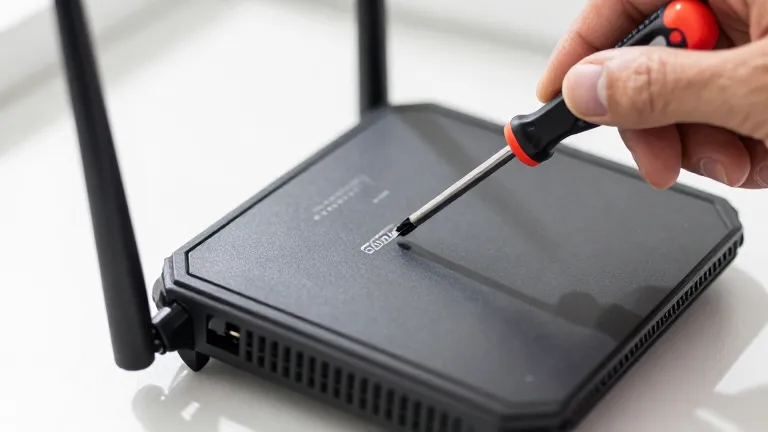
Resetting your modem and router to factory settings can resolve configuration errors that may be causing connectivity issues. Locate the reset button on your router, usually a small hole near the port, and press it for 30 seconds. This will restore default settings, so you will need to reconfigure your network, including Wi-Fi name and password. Be sure to note any custom settings before resetting to avoid losing important configurations.
Firewall and Antivirus Checks
Firewall or antivirus software can sometimes block internet access, especially if they are set to high security levels. Temporarily disable these programs to see if internet access is restored. If this resolves the issue, adjust the settings to allow necessary traffic without compromising security. Additionally, ensure your antivirus definitions are up to date to prevent false positives that might interfere with your connection.
Frequently Asked Questions
Why is my internet not working on my phone?
Your phone's internet may not work due to a weak or unstable WiFi signal, incorrect network settings, or a problem with your mobile data connection. Check if other devices are connected and try restarting your phone or switching networks.
How do I know if my router is faulty?
A faulty router may show no lights, intermittent connectivity, or slow speeds. If other devices are also affected, the issue is likely with the router, not individual devices.
What should I do if my internet is still not working after restarting?
If restarting doesn't resolve the issue, check for firmware updates on your router, test your internet speed, and ensure no firewall or antivirus settings are blocking your connection.
Can a firewall block my internet connection?
Yes, a firewall can block your internet connection if it's misconfigured or overly restrictive. Check your firewall settings to ensure they're not blocking essential network traffic.
Next Steps for Resolving Internet Issues
Troubleshooting internet issues often starts with basic checks like physical connections and restarts. If problems persist, advanced steps such as firmware updates or firewall checks can help resolve the issue. Following a structured approach ensures you cover all potential causes without unnecessary complexity.
If your internet is still not working after trying these steps, contacting your ISP or a technical support team is the next logical step. Most connectivity issues can be resolved with patience and a methodical approach.





