
How to Connect Your Smart TV to WiFi Without a Remote
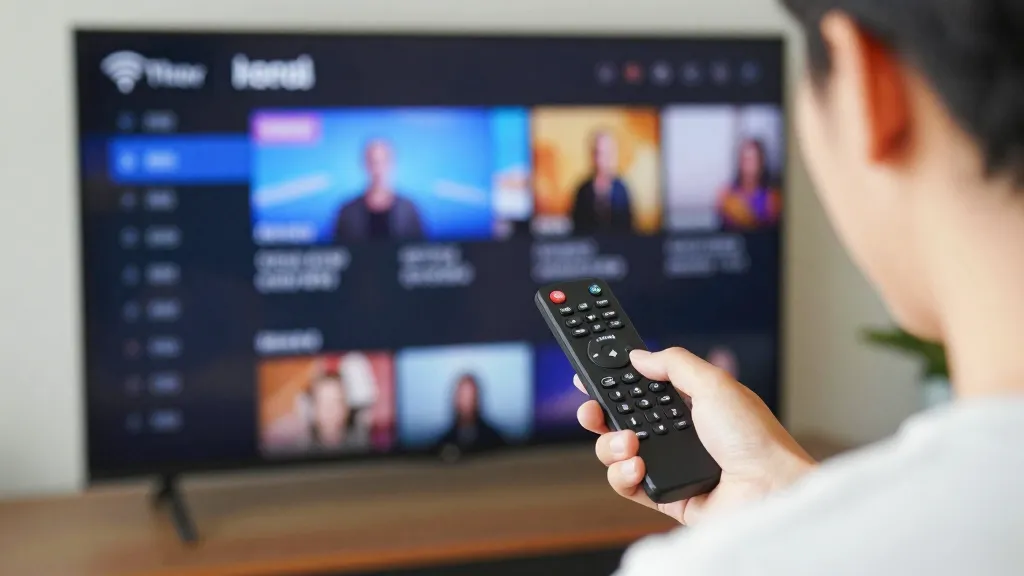
Connecting your smart TV to WiFi without a remote can be a frustrating challenge, especially if you've misplaced your remote or are setting up the TV for the first time. This guide provides a clear, step-by-step approach to help you achieve the goal: how to connect smart tv to wifi without remote. By using the physical buttons on your TV, you can access the on-screen menu and navigate through the settings without needing a remote control. This method is ideal for home users and tech-savvy individuals who prefer a hands-on setup process.
The process begins by locating the physical buttons on your smart TV, which are typically found on the front, side, or back of the device. These buttons allow you to access the on-screen menu, where you can find the WiFi settings. Understanding how to navigate through the menu is essential to ensure you reach the correct options quickly and efficiently.
Once you've accessed the WiFi settings, the next steps involve selecting your network and entering the password. This guide walks you through each step, from finding your WiFi network to confirming the connection. If you encounter any issues, it also includes troubleshooting tips to help you resolve common problems and complete the setup successfully.
Access the On-Screen Menu
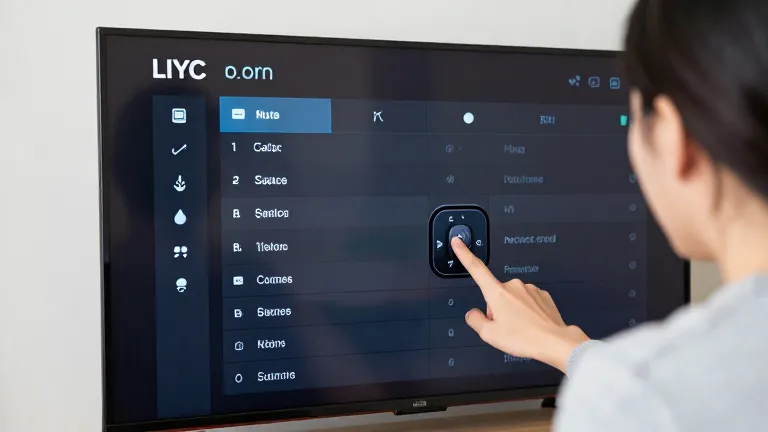
Accessing the on-screen menu is the first step in connecting your smart TV to WiFi without a remote. Most smart TVs have physical buttons on the back or side that allow you to navigate the interface. These buttons typically include a power button, directional arrows, and a menu button. By using these buttons, you can interact with the TV’s interface and access the settings you need.
Finding the Physical Buttons on Your Smart TV
To locate the physical buttons on your smart TV, start by checking the back or side panel of the device. Look for a power button, which is often labeled with a power symbol or the word 'Power.' Next to it, you’ll likely find directional buttons—up, down, left, and right—that allow you to move through the on-screen menu. Some models also include a menu button, which you can press to open the main settings menu. If you’re unsure where the buttons are, refer to the TV’s user manual for a diagram.
Understanding the On-Screen Menu
Once you’ve located the physical buttons, press the menu button to open the on-screen menu. This menu typically includes options like 'Settings,' 'Network,' and 'Wi-Fi.' If you're new to the TV’s interface, take time to explore the options and familiarize yourself with the layout. The on-screen menu is designed to be user-friendly, with clear labels and icons. If you’re having trouble finding an option, use the directional buttons to scroll through the menu and look for the correct setting.
Navigate to WiFi Settings
Once you've accessed the on-screen menu, the next step is to locate the WiFi settings. Most smart TVs have a dedicated section for network or wireless settings, which is usually labeled as 'WiFi,' 'Network,' or 'Wireless Settings.' It's important to find the correct menu to ensure you're on the right path for connecting to a WiFi network.
Locating WiFi Settings in the Menu
Locating WiFi Settings in the Menu typically involves scrolling through the main menu options until you find the relevant section. Use the arrow keys or directional pad on your TV's physical buttons to navigate. If the menu is cluttered, look for a main category such as 'Network' or 'System Settings,' which often contains the WiFi options.
Navigating Through the Menu Options
Navigating Through the Menu Options requires careful attention to avoid selecting the wrong settings. Once you've found the WiFi section, you may need to press Enter or select the option to access the sub-menu. If the TV has multiple network-related settings, such as 'WiFi Setup' or 'Ethernet,' ensure you're choosing the correct one for wireless connectivity. Proceed step by step to avoid confusion and ensure you're on the right path for connecting to WiFi.
Select a WiFi Network
Once you've accessed the WiFi settings on your smart TV, the next step is to locate and choose the correct WiFi network from the available options. This process involves scanning for nearby networks and selecting the one you want to connect to. It’s important to ensure that the network you choose is both visible and active to avoid connection issues.
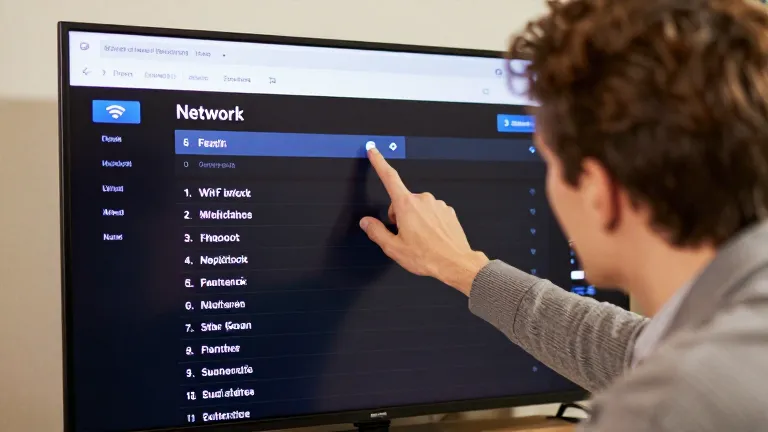
- Use the TV’s on-screen menu to scan for nearby WiFi networks.
- Look for your WiFi network name (SSID) in the list of available networks.
- Verify that the network is active by checking for a signal strength indicator.
- Select the desired network using the TV’s navigation controls.
Finding Your WiFi Network
The TV will display a list of available WiFi networks it detects in the surrounding area. These networks are typically listed with their names (SSIDs) and signal strength indicators. Make sure the network you want to connect to is visible and not hidden. If you’re unsure which network to choose, look for familiar names or check with other devices connected to the same WiFi.
Selecting the Correct Network
Once you’ve identified the correct network, use the TV’s navigation buttons to select it. Some TVs may require you to confirm your selection before proceeding. Ensure that the network you choose is the one you intend to connect to, as connecting to the wrong network can lead to connectivity problems. If the network is password-protected, you’ll need to enter the password in the next step.
Enter WiFi Password
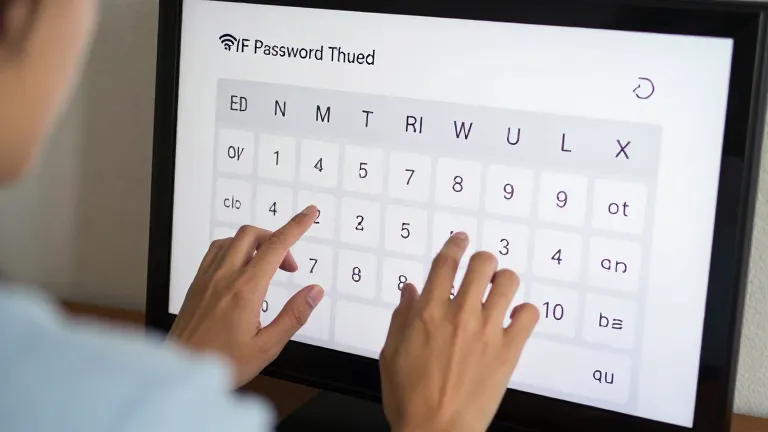
Once you've selected the correct WiFi network, the next step is entering the password. Most smart TVs use an on-screen keyboard to input the password, which can be a bit slow and error-prone. Pay close attention to the characters as you type to ensure accuracy, as even a small mistake can prevent the TV from connecting.
Using the On-Screen Keyboard
The on-screen keyboard typically appears when you select a WiFi network that requires a password. Use the arrow keys or buttons on the TV to navigate through the keyboard and input each character. Some TVs may allow you to type the password directly using the number pad or letter keys, depending on the model. If the keyboard is not visible, press the 'Menu' button or check the TV's settings for an option to display it.
Typing the WiFi Password Correctly
After typing the password, double-check each character for accuracy. Pay special attention to uppercase and lowercase letters, as some networks use case-sensitive passwords. If the TV prompts an error, review the password again and make sure there are no extra spaces or missing characters. If you're unsure about the password, refer to the router's settings or the WiFi network's documentation for confirmation.
Complete the Connection
Once you've entered the WiFi password, the TV will attempt to connect to the selected network. Allow a few moments for the connection to establish, as the TV may take time to authenticate and establish a stable link. If the connection is successful, the TV will typically display a confirmation message or show the WiFi icon in the status bar, indicating that it is now online and ready to use.
Confirming the WiFi Connection
After entering the WiFi password, wait patiently for the TV to connect. The on-screen display may show a message like 'Connected to WiFi' or a progress bar indicating the connection status. Once the connection is confirmed, you can proceed to use your smart TV as usual, accessing streaming apps, browsing the internet, or using other connected features.
Troubleshooting Connection Issues
If the TV fails to connect to WiFi, start by checking the network name and password for accuracy. Ensure that the WiFi network is active and within range of the TV. If the issue persists, try restarting the TV or the router. Additionally, verify that no other devices are experiencing the same connectivity problems, which may indicate a broader network issue. For further assistance, refer to the TV's user manual or contact the manufacturer's support team.
Frequently Asked Questions
What if my smart TV doesn't have physical buttons?
If your smart TV lacks physical buttons, you can use the TV's built-in on-screen keyboard or connect a Bluetooth keyboard. Some models also allow you to use a mobile device as a remote via apps like Smart View or Screen Mirroring.
How do I know if my smart TV is connected to WiFi?
You can check the connection status by looking for a WiFi icon on the TV screen or in the network settings. Some TVs also display a confirmation message once connected.
What should I do if I can't find my WiFi network?
Ensure your WiFi is enabled on your router and that your TV is within range. If the network still doesn't appear, try restarting your router or checking for signal interference.
Can I connect my smart TV to WiFi using voice commands?
Voice commands are typically not available for WiFi setup on most smart TVs. However, some models with built-in Alexa or Google Assistant may allow limited control through voice, but manual setup is still required.
Final Thoughts
Connecting your smart TV to WiFi without a remote is straightforward using the on-screen menu and keyboard. Follow the steps to ensure a stable and secure connection. If you encounter issues, troubleshoot by checking the network settings and signal strength.
Once connected, you can enjoy streaming services and apps without the need for a remote. If your TV lacks physical buttons, consider using a Bluetooth keyboard or mobile device for easier navigation.





