
How to Reset Your Android Phone to Factory Settings

If your Android phone is running slow, frozen, or you're preparing to sell it, a factory reset might be the solution. However, the process can be confusing, especially if you're worried about losing your data. The main keyword here is how to reset Android phone to factory settings, and this guide will walk you through the steps to do it safely. Whether you're a tech-savvy user or new to Android, knowing the right approach can save you from data loss and frustration.
Before starting the reset, it's important to understand what a factory reset does. It erases all personal data, settings, and installed apps, returning your device to its original state. This section explains why you might need a factory reset and what to expect during the process.
The article covers everything from preparation to post-reset steps, ensuring you can reset your Android phone confidently. You'll learn how to back up your data, charge your phone, and follow the reset prompts. Additionally, alternative methods like recovery mode and computer tools are explained, giving you multiple ways to achieve the same result.
Why You Might Need to Factory Reset Your Android Phone
Factory resetting your Android phone is a powerful solution for resolving persistent software issues or preparing the device for a new owner. While it can solve complex problems, it's important to understand the implications and ensure you're fully prepared before proceeding.

When Is a Factory Reset Necessary?
A factory reset is often necessary when your Android phone becomes unresponsive, experiences frequent crashes, or has persistent software glitches that cannot be resolved through standard troubleshooting. This process essentially reinstates the device to its original state, eliminating corrupted system files, app conflicts, or malware that may be causing the issues. However, it should only be considered after all other solutions have been exhausted, as it can lead to data loss.
What Happens During a Factory Reset?
During a factory reset, all personal data, apps, and settings are erased from the device, restoring it to its out-of-the-box condition. This includes removing user accounts, app preferences, and any customizations you've made. While this can resolve performance issues, it also means that you must ensure you have backed up your data before initiating the reset. The process typically takes several minutes, depending on the device and the amount of data being erased.
Preparation Before Factory Reset
Before initiating a factory reset on your Android phone, it's essential to take necessary precautions to ensure that no critical data is lost. A reset will erase all personal information, apps, and settings, so preparation is key to a smooth process.
Backup Your Data
Backup Your Data is the first and most crucial step before resetting your Android phone. Transfer all important files, including photos, videos, documents, and contacts, to a secure location. You can use cloud storage services like Google Drive, Dropbox, or email to send files, while contacts can be backed up via Google Account. If you have a computer, connecting your phone via USB and using file transfer tools can help move data safely. Make sure to also back up your messages, as they cannot be recovered after a factory reset.
Charge Your Phone Fully
Charge Your Phone Fully to prevent interruptions during the reset process. A factory reset can take several minutes to complete, and if your phone runs out of battery, it may stop mid-process, potentially causing issues. Ensure your device is at least 80% charged before starting the reset. If your phone has a removable battery, consider charging it fully beforehand. For phones with non-removable batteries, use a charger and let it sit until it reaches full capacity. This step helps avoid unexpected shutdowns and ensures the reset proceeds without complications.
Step-by-Step Guide to Factory Reset Your Android Phone
Resetting your Android phone to factory settings is a straightforward process that can resolve software issues or prepare your device for a new user. This guide provides clear, step-by-step instructions to ensure the process is done safely and effectively.
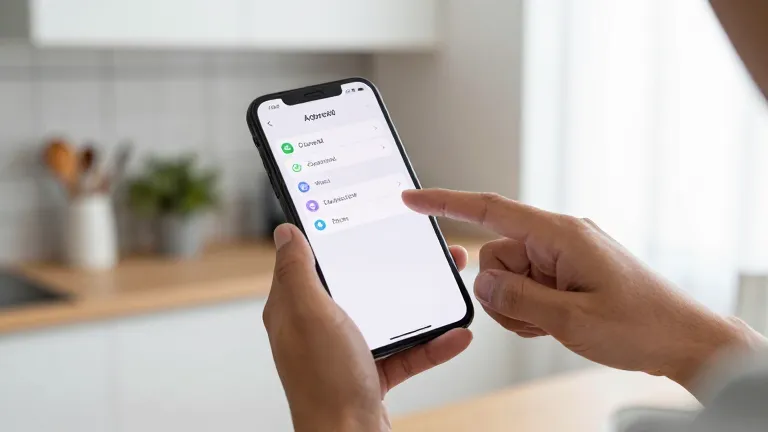
- Open the Settings app and locate the 'System' or 'Advanced' section.
- Select 'Reset' or 'Factory Reset' and confirm your choice.
- Choose whether to erase all data or retain your account information.
- Wait for the reset process to complete and then power on your device.
Access the Settings Menu
To begin the factory reset, open the Settings app on your Android phone. Scroll down to find the 'System' or 'Advanced' section, which varies slightly depending on your device's manufacturer and Android version. Tap on 'System' to access advanced settings or look for a 'Reset' option within the main menu.
Follow the Reset Prompts
Once you've accessed the reset option, follow the on-screen prompts carefully. You'll be asked to confirm your decision, and it's important to ensure you're not in the middle of an important task. If you want to keep your account information but erase all data, select the appropriate option. This ensures your personal data is removed while preserving your Google account details for future use.
Alternative Ways to Factory Reset Your Android Phone
If your Android phone is unresponsive or stuck in a boot loop, recovery mode can be a powerful alternative to a standard factory reset. This method is particularly useful when the device won't boot normally, and it allows you to access advanced settings for resetting the system.
- Turn off your Android phone and press the Volume Up and Power buttons simultaneously to enter recovery mode.
- Use the volume buttons to navigate to 'Wipe data/factory reset' and confirm the action with the Power button.
- Some manufacturers provide dedicated factory reset options through their software, which can be accessed by connecting your phone to a computer and using their official tools.
Using Recovery Mode
Recovery mode is a built-in feature that provides access to system-level functions, including factory resets. It is typically used when the phone is not responding to normal commands. This method is especially helpful for devices that are locked or in a boot loop, as it bypasses the usual user interface.
Using Computer Tools
Using a computer tool can be an effective alternative for resetting an Android phone, especially if the device is not functioning properly. Third-party software can assist in wiping the device and restoring it to its original state. However, it is important to use trusted tools to avoid potential security risks.
After the Reset: Reinstall Apps and Restore Data
After your Android phone has been reset to factory settings, the next step is to reinstall essential apps and restore your data. This process ensures that your device is fully functional and personalized to your needs. Begin by setting up your phone with your accounts and preferences, then proceed to reinstall apps and recover your data.

Reinstall Apps and Services
Reinstalling essential apps and services is crucial to restoring your phone’s functionality. Start by opening the Google Play Store and searching for apps you regularly use, such as messaging apps, productivity tools, and social media platforms. Make sure to install the latest versions of these apps to ensure compatibility and security. You may also need to reconfigure services like email, calendar, and cloud storage by signing in with your accounts.
Restore Your Data
Restoring your data from a backup is the final step in recovering your phone. If you used cloud services like Google Drive or iCloud, log in to your account and download your backed-up files, photos, and contacts. For data stored on a computer, use a USB cable to transfer files back to your device. Be patient, as some data may take time to sync. Once everything is restored, your phone should be ready for daily use with all your personal settings and information intact.
Frequently Asked Questions
Will a factory reset delete all my photos and messages?
Yes, a factory reset will delete all photos, messages, and personal data from your Android phone. It removes everything stored on the internal storage, so it's crucial to back up your data before proceeding.
Can I recover data after a factory reset?
Recovering data after a factory reset is possible if you have a backup. If not, data recovery may be difficult and not guaranteed. It's important to ensure you have a recent backup before initiating the reset.
How long does a factory reset take on an Android phone?
A factory reset typically takes 10 to 30 minutes to complete, depending on your phone's model and the amount of data stored. The process may take longer if your device has a large amount of data to erase.
What if my Android phone won't turn on during the reset process?
If your phone won't turn on during the reset, try charging it fully first. If it still doesn't work, you may need to use recovery mode or a computer tool to proceed with the reset.
Final Thoughts
A factory reset can resolve performance issues or prepare your phone for sale. Always back up your data before proceeding to avoid losing important information.
After the reset, reinstall apps and restore data from your backup. This ensures your device is ready to use and all your personal data is safely restored.





