
How to Set Up Smart Home Devices with Alexa
Connecting your smart home devices to Alexa can transform your home into a more convenient and responsive space. Whether you're a tech-savvy homeowner or a first-time user, learning how to set up smart home devices with Alexa is the first step toward seamless voice control. This guide walks you through the entire process, from preparing your devices to troubleshooting common issues and maintaining your setup. You'll discover how to pair your devices, customise voice commands, and even automate routines to make your life easier. By the end of this article, you'll have a clear understanding of how to integrate your smart home ecosystem with Alexa, ensuring a smooth and efficient experience. With the right tools and steps, setting up your smart home with Alexa becomes a straightforward and rewarding task.
Preparing Your Alexa and Smart Home Devices
Before you start setting up your smart home devices with Alexa, it's essential to ensure both your Alexa device and your smart home gadgets are ready for integration. A smooth setup process depends on proper configuration and compatibility, so taking the time to prepare thoroughly can prevent many common issues.
Check Your Alexa Device
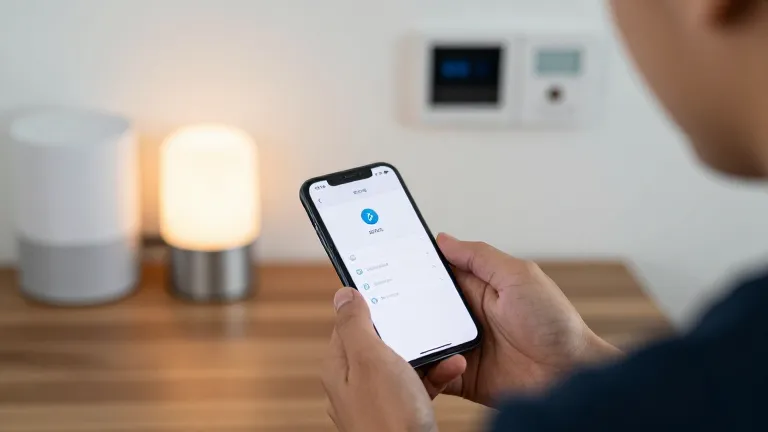
Ensure your Alexa device is properly connected to Wi-Fi and has the latest firmware. Open the Alexa app and check for any connection issues, such as a weak signal or incorrect network settings. If your device is not connected, follow the setup instructions in the app to restore the connection. Regular firmware updates improve performance and security, so make sure your device is up to date.
Verify Smart Device Compatibility
Before adding smart home devices, verify that they are compatible with Alexa and have the required app. Check the manufacturer's website or product packaging for Alexa compatibility details. Most smart devices will have an app for setup and control, such as the Philips Hue app for lights or the Ecobee app for thermostats. Ensure that these apps are installed on your smartphone or tablet before proceeding with the setup.
Adding Smart Devices to Alexa
Adding smart devices to Alexa is a straightforward process that ensures seamless integration with your voice assistant. By using the Alexa app, you can easily connect and configure your devices, enabling them to respond to voice commands. This section guides you through the essential steps to add and pair your smart home devices with Alexa.
- Open the Alexa app and navigate to the 'Devices' section.
- Select 'Add Device' and follow the on-screen prompts for your specific smart home brand.
- Use the Alexa app to pair and configure your smart devices for voice commands.
Using the Alexa App to Add Devices
To begin, open the Alexa app on your smartphone or tablet and tap the 'Devices' icon. From there, select 'Add Device' to start the setup process. The app will guide you through the steps to connect your new smart device, which may include selecting the brand and model of your device. This process ensures that your device is recognised by Alexa and can be controlled through voice commands.
Pairing Smart Devices Step-by-Step
Once you select 'Add Device', the app will prompt you to follow the on-screen instructions to pair your smart home device. This usually involves turning on the device's pairing mode, which can be done through a physical button or a mobile app. Follow the on-screen prompts to complete the pairing process, which may include confirming the device's connection and setting up any necessary preferences. This step is crucial for ensuring that your device is fully integrated with Alexa and ready for use.
Setting Up Voice Commands and Routines
Once your smart home devices are connected to Alexa, the next step is to customise voice commands and create automation routines to enhance your smart home experience. By tailoring commands to your preferences and setting up routines, you can streamline daily tasks and make your smart home more intuitive.
How to Customise Voice Commands
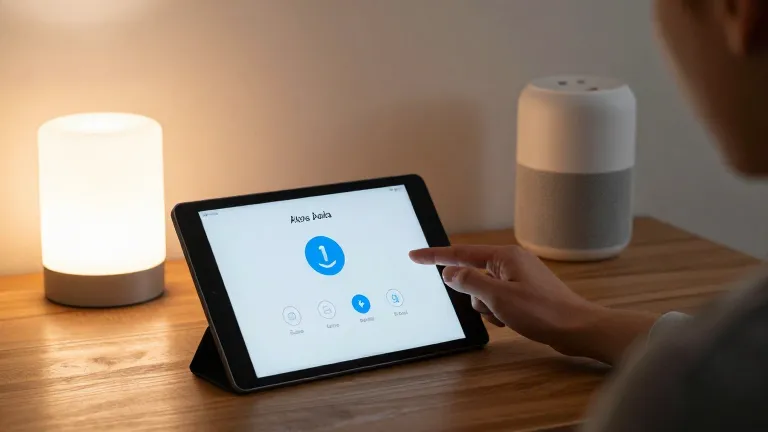
To customise voice commands, open the Alexa app and navigate to the 'Skills & Devices' section. Tap on the specific device you want to adjust, then select 'Edit' to modify its wake word or command. For example, you can change 'Alexa, turn on the lights' to 'Hey Echo, light up the room' for a more natural feel. This flexibility allows you to personalise interactions based on your household's needs.
Creating Automation Routines with Alexa
Creating automation routines involves linking multiple devices to a single command. In the Alexa app, go to 'Routines' and select 'Create Routine'. Choose a trigger, such as a specific time or a voice command, and add the actions you want to execute. For instance, a 'Good Morning' routine could turn on the lights, start the coffee maker, and play news updates. Testing these routines ensures they work seamlessly, providing a hassle-free smart home experience.
Troubleshooting Common Setup Issues
Troubleshooting common setup issues is essential to ensure seamless integration between your Alexa device and smart home devices. Connectivity problems, pairing errors, and device malfunctions can disrupt your smart home experience. By following a few key steps, you can identify and resolve these issues effectively.
Fixing Connectivity Problems
Connectivity problems often arise from unstable Wi-Fi signals or incompatible device settings. Start by ensuring all devices are connected to the same Wi-Fi network. If the issue persists, restart your router to refresh the connection. You can also check the device status in the Alexa app, which provides real-time updates on connectivity and device health.
Reinitialising Your Smart Devices
If pairing errors occur, reinitialising your smart devices can help resolve the issue. Most smart devices have a reset button or a specific pairing mode that can be accessed through the manufacturer's instructions. After reinitialising, attempt to pair the device again with Alexa using the Alexa app. This process ensures the device is properly registered and can communicate with your Alexa system.
Maintaining and Updating Your Smart Home Setup
Maintaining and updating your smart home setup is essential for optimal performance and security. Regular updates ensure your devices run smoothly and are protected against vulnerabilities. By staying proactive with maintenance, you can extend the lifespan of your devices and enjoy a more reliable smart home experience.
Updating Your Smart Home Devices
Keeping your Alexa device and smart home devices updated with the latest software is crucial for performance and security. Most devices will automatically receive updates through their respective apps or manufacturer platforms. However, it's a good idea to manually check for updates periodically, especially when new features or security patches are released. Firmware updates can often be found in the device’s settings within the Alexa app or the manufacturer’s companion app.
Securing Your Smart Home Network
Securing your smart home network is vital to protect your devices from unauthorized access. Always use strong, unique passwords for your Wi-Fi network and each device. Enable two-factor authentication wherever possible to add an extra layer of security. Regularly review your connected devices through the Alexa app to ensure no unknown devices are accessing your network. If you notice any suspicious activity, disconnect the device immediately and change your passwords to prevent potential breaches.
Frequently Asked Questions
What should I do if my smart device won't connect to Alexa?
Ensure your smart device is compatible with Alexa and is within range of your Wi-Fi network. Try restarting both your Alexa device and the smart device. If issues persist, check the Alexa app for troubleshooting steps or contact the device manufacturer.
How can I set up a custom voice command for my smart home device?
Open the Alexa app, navigate to 'Skills & Devices,' select your device, and choose 'Custom Commands.' Follow the prompts to create a new command. Test it by saying the custom phrase to ensure it works.
Can I use Alexa with multiple smart home brands?
Yes, Alexa supports a wide range of brands through its ecosystem. Ensure each device is compatible and add them via the Alexa app. Some brands may require specific skills or integrations for full functionality.
What should I do if my Alexa device stops responding to voice commands?
Check if your Alexa device is connected to Wi-Fi and has the latest firmware. Try a voice command test from the Alexa app. If it still doesn't respond, reset the device and re-pair it with your account.
Next Steps for Your Smart Home Setup
Setting up smart home devices with Alexa is a straightforward process that can significantly enhance convenience and efficiency. By following the steps outlined, you can seamlessly integrate your devices and customise your experience.
To get started, ensure your devices are compatible, connect them via the Alexa app, and explore the automation options. Regular maintenance and updates will help keep your smart home secure and functional.





