
How to Fix Smart Devices Failing to Connect to 2.4GHz WiFi
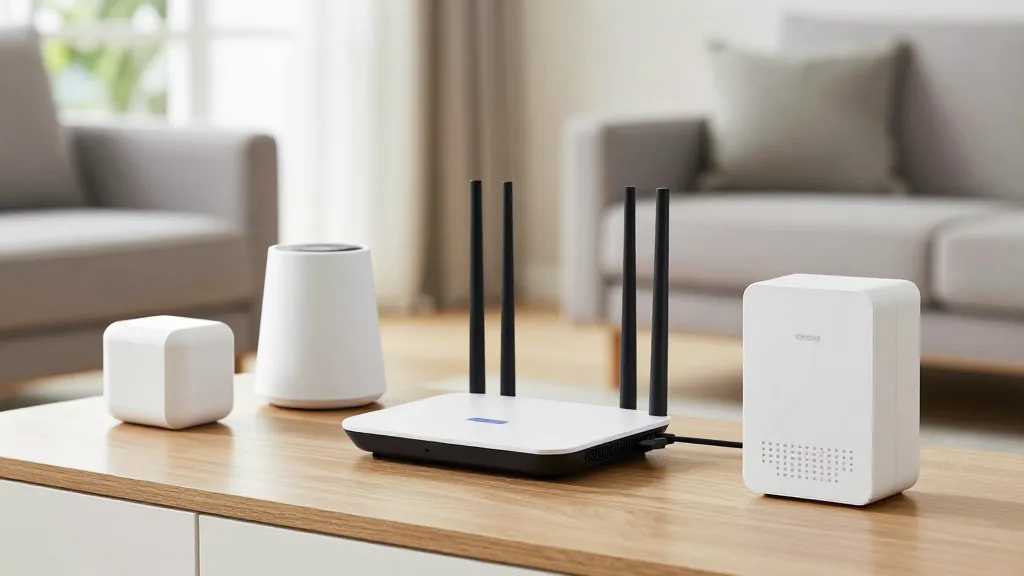
Many smart home devices rely on 2.4GHz WiFi for stable and reliable connectivity, but users often face frustrating issues when these devices fail to connect. Whether it's a smart plug, thermostat, or security camera, the inability to link to a 2.4GHz network can disrupt the seamless operation of your smart home. This article provides a clear, step-by-step guide on how to fix smart devices failing to connect to 2.4GHz WiFi, helping you troubleshoot common problems without needing professional help. We’ll explore the reasons behind these connectivity issues and offer practical solutions to restore your smart devices’ access to the correct WiFi band.
Understanding the role of 2.4GHz WiFi in smart home ecosystems is key to resolving connection problems. Unlike 5GHz, which offers faster speeds but shorter range, 2.4GHz provides broader coverage, making it ideal for devices that require consistent connectivity. However, many modern routers broadcast both bands, leading to confusion for smart devices that may default to the wrong network. This guide walks you through identifying and adjusting your 2.4GHz setup to ensure your devices can connect properly.
From checking your router settings to resolving interference issues, this article covers all the essentials for fixing smart devices failing to connect to 2.4GHz WiFi. Whether you're dealing with password errors, split band confusion, or physical obstructions, we’ll provide actionable advice to get your devices back online. By following these steps, you can maintain a reliable smart home network without the need for technical support.
Understanding Why Smart Devices Fail to Connect to 2.4GHz WiFi
Smart devices frequently depend on 2.4GHz WiFi for reliable and consistent connectivity, making it critical to understand why they might fail to connect. This section explores the underlying reasons for these connection issues and highlights the importance of properly configuring your 2.4GHz network to ensure seamless performance for your smart home ecosystem.
The Role of 2.4GHz WiFi in Smart Home Devices
2.4GHz WiFi is widely used in smart home devices due to its longer range and better penetration through walls and obstacles compared to the 5GHz band. This frequency is also supported by a broader range of devices, including older models and those with limited hardware capabilities. As a result, many smart devices, such as security cameras, smart thermostats, and voice assistants, prioritize connecting to the 2.4GHz band for stability and compatibility. However, this band can be more susceptible to interference from other wireless devices, which can affect performance.
Why 5GHz May Not Be the Right Choice for Smart Devices
While 5GHz WiFi offers faster speeds and less congestion in some environments, it has a shorter range and struggles to pass through physical barriers. Smart devices often lack the hardware to support 5GHz, and even if they do, the band may not be ideal for long-range or low-interference scenarios. Choosing a 5GHz network for these devices can lead to intermittent connectivity, reduced performance, and increased power consumption. To avoid these issues, it's essential to ensure that your smart devices are connected to the 2.4GHz band, which is better suited for their operational needs.
Checking and Adjusting Your 2.4GHz WiFi Setup
Before attempting to connect your smart devices to 2.4GHz WiFi, it's essential to ensure your router is properly broadcasting the correct band. Many modern routers support both 2.4GHz and 5GHz bands, which can lead to confusion if not managed correctly. Verifying your router's settings and ensuring the network is visible can resolve many connectivity issues.
- Check your router's settings to confirm it is broadcasting the 2.4GHz band.
- Ensure the WiFi password is correct and the network is not hidden.
- Restart your router and smart devices to refresh the connection.
How to Confirm Your Router Is Broadcasting 2.4GHz
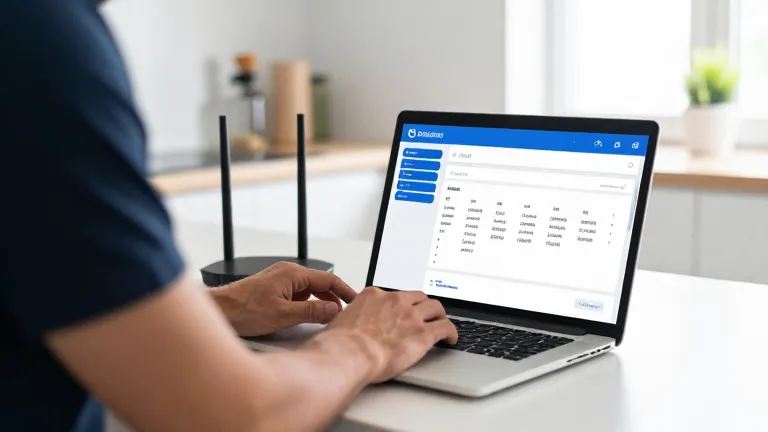
To confirm your router is broadcasting the 2.4GHz band, access the router's admin panel by entering its IP address into a web browser. Look for settings related to WiFi bands or dual-band configuration. Ensure that the 2.4GHz band is enabled and that the network name (SSID) is visible. Some routers allow you to set a separate SSID for the 2.4GHz band, which can help prevent confusion with the 5GHz network.
Troubleshooting WiFi Password and Network Visibility
If your smart device is unable to connect, double-check that the WiFi password is correct and that the network is not hidden. A hidden network does not broadcast its SSID, making it harder for devices to connect automatically. If the network is hidden, you'll need to manually enter the SSID and password on your device. Also, ensure that the password is not case-sensitive or contains special characters that might be misinterpreted by some devices.
Resolving Split WiFi Band Issues
Split WiFi band issues can cause confusion for smart devices, as many routers broadcast both 2.4GHz and 5GHz bands simultaneously. This can lead to devices connecting to the wrong band or failing to connect altogether. Understanding the causes and how to configure separate networks is essential for resolving these issues.
What Causes Split WiFi Band Confusion?
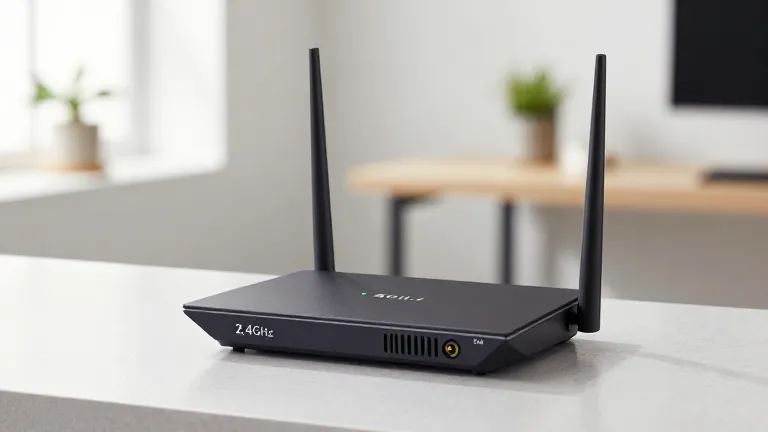
Split WiFi band confusion often arises when a router broadcasts both 2.4GHz and 5GHz bands with the same network name (SSID). Smart devices may struggle to distinguish between the two, especially if they only support 2.4GHz. Additionally, some devices may default to the 5GHz band if it's stronger, even if they are not designed for it, leading to connectivity problems. This can be particularly frustrating for users who rely on older or less powerful smart devices.
How to Set Up Separate 2.4GHz and 5GHz Networks
To prevent split band confusion, configure your router to broadcast separate SSIDs for 2.4GHz and 5GHz. Most modern routers allow this through their settings menu. Assign distinct names to each band, such as 'Home-2.4GHz' and 'Home-5GHz', to help devices identify the correct network. This setup ensures that smart devices connect to the 2.4GHz band, while other devices, like smartphones or laptops, can use the 5GHz band for faster speeds. It also reduces interference between the two bands, improving overall network performance.
Connecting Smart Plugs and Other Devices to 2.4GHz WiFi
Connecting smart plugs and other devices to 2.4GHz WiFi requires attention to both the device's compatibility and the environment. Many smart devices, including plugs, rely on 2.4GHz for stable and consistent performance, especially in larger homes or areas with interference. Following specific steps ensures a successful connection and avoids common pitfalls.
- Use the manufacturer's app to manually connect the device to your WiFi network.
- Ensure the device is within range of the router and not blocked by walls or objects.
- Check for firmware updates on both the device and the router.
- Reset the device and reconnect it to the WiFi network.
Smart Plug Connection Tips for 2.4GHz WiFi
Smart plugs and similar devices often need a 2.4GHz connection for optimal performance. When setting up a new smart plug, open the manufacturer's app and follow the on-screen instructions to connect it to your WiFi network. Most apps allow you to manually select the 2.4GHz network, especially if your router broadcasts both bands. Ensure that the device is close enough to the router to maintain a strong signal, and avoid placing it near other electronic devices that might interfere with the connection.
Troubleshooting Distance and Obstacle Issues
Distance and physical obstacles can significantly impact the performance of smart plugs connected to 2.4GHz WiFi. Walls, furniture, and other objects can weaken the signal, leading to dropped connections or unreliable performance. To mitigate this, place the smart plug as close as possible to the router, ideally within 10–15 feet. If the device is located far from the router, consider using a WiFi repeater or range extender to boost the signal. Additionally, avoid placing the plug near microwaves, cordless phones, or other devices that emit radio waves, as they can cause interference.
Advanced Troubleshooting for Persistent 2.4GHz WiFi Connection Issues
When basic troubleshooting steps fail to resolve persistent 2.4GHz WiFi connection issues, advanced techniques are required. These include updating firmware, identifying and mitigating interference, and resetting devices. Each step addresses potential compatibility or environmental factors that may be disrupting the connection.
How to Update Router and Device Firmware
Updating the firmware of your router and smart devices can resolve compatibility issues and improve performance. Visit the manufacturer's website to check for firmware updates for both your router and connected devices. Download and install the latest firmware following the provided instructions. Firmware updates often include bug fixes, security patches, and improved network compatibility, which can significantly enhance your smart devices' ability to connect to the 2.4GHz band.
Reducing WiFi Interference From Other Devices
Other electronic devices, such as microwaves, cordless phones, and Bluetooth devices, can interfere with 2.4GHz WiFi signals. These devices operate on the same frequency band and can cause signal degradation or complete disconnection. To reduce interference, keep such devices away from your router and smart devices. Additionally, consider switching to a less congested WiFi channel using your router's settings. This can help minimize signal conflicts and improve the stability of your 2.4GHz network.
Frequently Asked Questions
Why is my smart plug not connecting to my 2.4GHz WiFi?
Smart plugs may fail to connect to 2.4GHz WiFi due to incorrect network settings or interference. Ensure your router is broadcasting the 2.4GHz band and that the plug is within range. Check for password errors and try restarting the device.
How do I force my smart device to connect to the 2.4GHz band?
To force a smart device to connect to the 2.4GHz band, set up separate 2.4GHz and 5GHz networks on your router. During setup, manually select the 2.4GHz network for the device. This avoids confusion caused by split WiFi bands.
Can I use the same WiFi password for both 2.4GHz and 5GHz bands?
Yes, you can use the same WiFi password for both 2.4GHz and 5GHz bands, but it's recommended to set them up as separate networks. This helps prevent confusion and ensures smart devices connect to the correct band for optimal performance.
What should I do if my smart home device keeps dropping its 2.4GHz WiFi connection?
A dropping 2.4GHz WiFi connection can be due to interference or outdated firmware. Update your router and device firmware, and position the device closer to the router. Avoid placing obstacles between the device and the router.
Final Thoughts on 2.4GHz WiFi Connectivity
Smart devices often struggle with 2.4GHz WiFi due to interference, incorrect settings, or split band confusion. By ensuring your router broadcasts a dedicated 2.4GHz network and manually selecting it for your devices, you can improve connectivity. Regular firmware updates and minimizing obstructions also play a key role in maintaining a stable connection.
To resolve persistent 2.4GHz WiFi issues, start by verifying your network setup and device compatibility. If problems persist, consider advanced troubleshooting steps like adjusting channel settings or using a WiFi extender. A stable 2.4GHz connection is essential for reliable smart home performance.





