
How to Fix iPhone Charging Slowly or Stopping at 80%
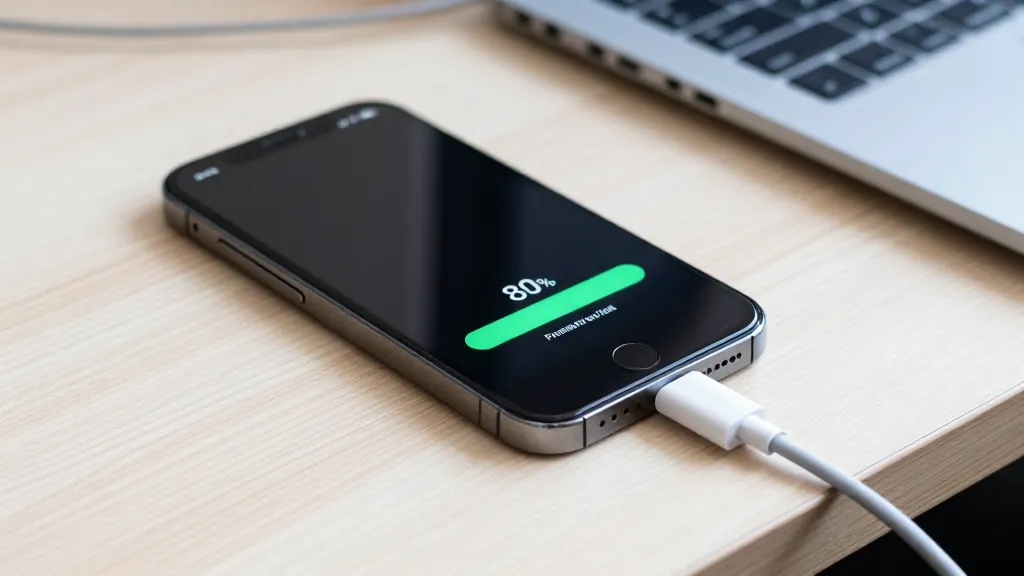
If your iPhone is charging slowly or stops at 80%, it can be frustrating, especially when you need it to power through a busy day. This issue can arise from various factors, including software glitches, hardware limitations, or even the way your device manages battery health. Understanding how to fix iPhone charging slowly or stopping at 80% is key to restoring your device’s performance without spending money on repairs. By following simple troubleshooting steps, you can often resolve the problem quickly.
This article covers the common reasons behind slow or incomplete charging and provides practical solutions that home users and working professionals can try. From checking your charging cable and port to updating your iOS, we break down each step to help you identify and fix the issue efficiently. Whether your iPhone is stuck at 80% or charging at an unusually slow pace, there are ways to address it without professional help.
Preventive measures are also essential to avoid recurring charging problems. Using certified accessories, avoiding overcharging, and keeping your iOS updated can significantly improve your iPhone’s charging efficiency. If these steps don’t resolve the issue, it may be time to consider hardware problems and seek professional assistance. Let’s dive into the details to get your iPhone back to full power.
Understanding Why Your iPhone Charges Slowly or Stops at 80%
iPhone users often encounter issues where their device charges slowly or stops at 80%. Understanding the root causes is essential to determine if the problem is due to software, hardware, or environmental factors. Apple has designed several features to protect the battery, which can sometimes lead to confusion about normal versus abnormal behavior.
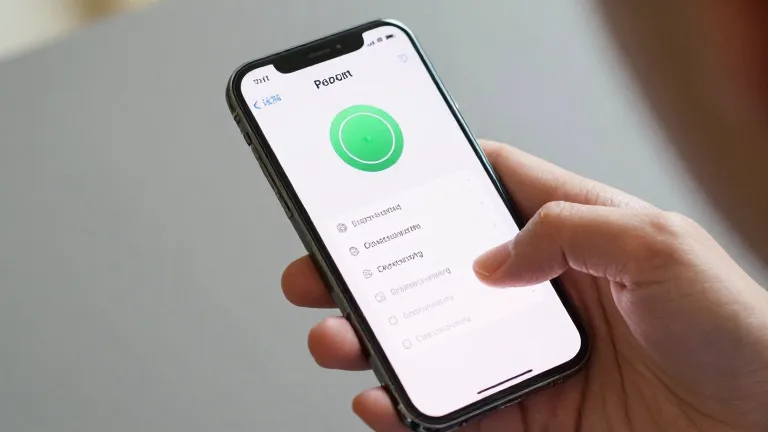
What Is Optimized Battery Charging?
Optimized Battery Charging is a feature introduced by Apple to extend the lifespan of your iPhone's battery. This setting slows down the charging process after the battery reaches 80% to prevent overcharging and reduce wear on the battery. While this is intended to preserve battery health, it can sometimes be mistaken for a malfunction, especially if the device doesn’t reach 100%.
When Is Charging Stuck at 80% Normal?
Charging stuck at 80% is often a normal behavior when Optimized Battery Charging is enabled. This is particularly common if you charge your iPhone overnight or for extended periods. However, if your iPhone consistently stops charging at 80% even when this feature is disabled, it might indicate a deeper issue, such as a faulty battery or software conflict.
What Causes iPhone Charging to Be Slow?
Slow charging can be caused by a variety of factors, including outdated software, a damaged charging cable or adapter, or a dirty charging port. Environmental conditions, such as extreme temperatures, can also affect charging speed. Additionally, using your iPhone while it is charging can slow down the process, as the device may prioritize running apps over charging.
Basic Troubleshooting for iPhone Charging Issues
Basic troubleshooting can often resolve iPhone charging issues without requiring advanced tools or professional help. Start by checking the most common culprits, such as the charging cable, adapter, and port, before moving on to more complex solutions.
- Try a different charging cable and wall adapter to rule out hardware problems.
- Ensure the charging port is clean and free from debris.
- Avoid using the iPhone while it’s charging to prevent interference with the charging process.
Check Your Charging Cable and Adapter
One of the simplest ways to determine if your iPhone is charging slowly is to try a different charging cable and wall adapter. Faulty or low-quality cables and adapters can significantly reduce charging speed or prevent the phone from reaching full capacity. If your phone starts charging normally with a new cable or adapter, the issue likely lies with the original one.
Clean the Charging Port
A dirty or debris-filled charging port can block the connection between your iPhone and the charger, leading to slow or inconsistent charging. Use a soft, dry brush or compressed air to gently clean the port. Avoid using sharp objects or liquid, as this can damage the port or risk water damage. A clean port ensures a stable connection and optimal charging performance.
Avoid Using the Phone While Charging
Using your iPhone while it’s charging can interfere with the charging process, especially if you're running resource-intensive apps or streaming media. This can cause the phone to charge slowly or even stop at 80%. To avoid this, try charging your iPhone in a quiet, distraction-free environment. If you must use your phone while charging, keep the screen dimmed and minimize background activity to reduce strain on the battery.
Advanced Steps to Fix iPhone Charging Slowly or Stopping at 80%
Advanced steps can resolve persistent iPhone charging issues by addressing software-related problems that may interfere with the charging process. These methods are effective for troubleshooting deeper-level glitches and ensuring your device operates smoothly.
- Restart Your iPhone
- Update iOS to the Latest Version
- Reset All Settings
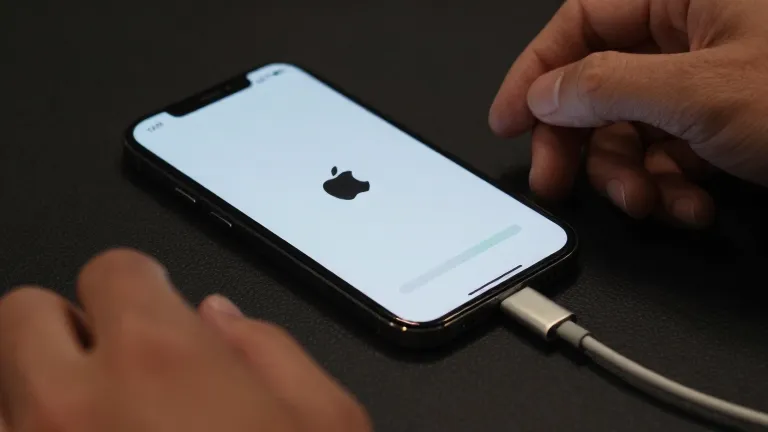
Restart Your iPhone
Restarting your iPhone can resolve temporary software glitches that may be affecting the charging process. When your device experiences unexpected behavior, a simple restart can reset internal processes and improve performance. This step is particularly useful if your iPhone is charging slowly or stopping at 80% due to a minor system conflict.
Update iOS to the Latest Version
Updating your iOS to the latest version ensures your iPhone benefits from the latest bug fixes, security patches, and performance improvements. Apple frequently releases updates that address issues related to battery management and charging efficiency. To update your device, connect it to Wi-Fi, open the Settings app, and check for available updates. Installing the latest version can help stabilize your charging behavior and prevent future issues.
Reset All Settings
Resetting all settings can eliminate software conflicts that may be causing your iPhone to charge slowly or stop at 80%. This process restores your device to its default configuration without deleting personal data, which can help resolve persistent charging problems. To reset your settings, go to Settings > General > Reset > Reset All Settings. After the reset, ensure your device is updated and reconfigure your preferences to restore optimal performance.
When to Consider Hardware Issues or Professional Help
If your iPhone continues to charge slowly or stop at 80% despite trying all software-based fixes, it may indicate a hardware issue. Problems with the charging port, battery, or internal components can prevent your device from charging properly. Identifying these signs early can help you decide whether to seek professional assistance.
Signs of Hardware Failure
Signs of hardware failure include inconsistent charging, where the iPhone occasionally charges but not reliably. Overheating during charging is another red flag, as it can damage the battery and affect performance. If your iPhone refuses to charge at all, even with a working cable and adapter, this points to a deeper hardware problem. These issues often require professional diagnosis and repair.
When to Seek Professional Help
Consult an Apple service provider or authorized repair center if the issue persists after trying all basic and advanced troubleshooting steps. These professionals have the tools and expertise to diagnose and fix hardware problems such as a faulty charging port or degraded battery. Attempting DIY repairs can risk further damage, so it's best to leave hardware issues to trained technicians.
Preventive Measures to Avoid iPhone Charging Issues
Preventive measures are essential to maintain your iPhone's charging efficiency and prolong its battery life. By adopting good habits and using the right tools, you can avoid common charging issues and ensure your device remains in optimal condition over time.
- Use only Apple-certified accessories
- Avoid overcharging the iPhone
- Keep iOS updated
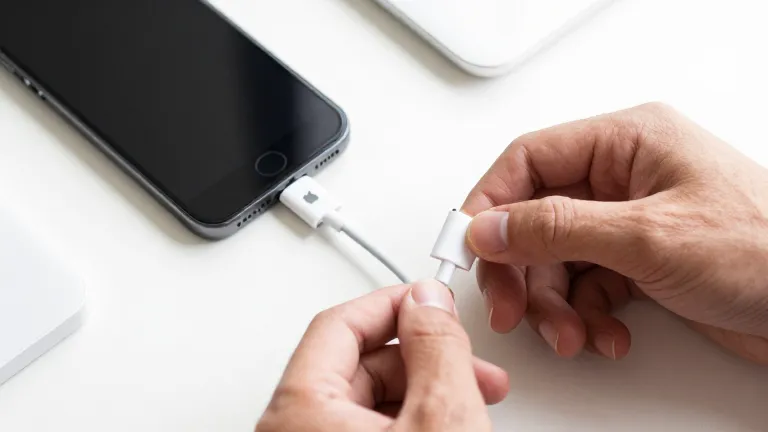
Use Certified Accessories
Using Apple-certified accessories ensures compatibility and safety during charging. Third-party chargers and cables may not meet the same quality standards, leading to slower charging or potential damage to your device. Always look for the Apple MFi (Made for iPhone) certification on your accessories to guarantee they work efficiently with your iPhone.
Avoid Overcharging
Avoid overcharging your iPhone by unplugging it once it reaches 100%. Prolonged charging can degrade the battery over time, reducing its overall lifespan. To prevent this, use the built-in battery percentage indicator or a third-party app to monitor your charging progress and disconnect the device once it’s fully charged.
Keep iOS Updated
Regularly check for iOS updates to maintain optimal performance and charging efficiency. Apple often releases updates that improve battery management and address known issues. Enabling automatic updates in Settings ensures your iPhone stays up to date without requiring manual intervention, helping to prevent charging problems in the future.
Frequently Asked Questions
Why does my iPhone stop charging at 80%?
Your iPhone may stop charging at 80% due to optimized battery charging, a feature designed to prolong battery life. This is normal and not an indication of a problem. However, if it consistently stops at 80% even when not in use, it could signal a software or hardware issue.
Can a faulty charging cable cause my iPhone to charge slowly?
Yes, a faulty charging cable or adapter can significantly slow down charging. Ensure you are using an Apple-certified cable and adapter for optimal performance. If you're using a third-party cable, it might not deliver enough power.
Is it normal for my iPhone to take longer to charge than usual?
It can be normal if you're using a non-certified charger or if your iPhone is in a low-power state. However, if it takes significantly longer than usual, it could indicate a charging issue or battery degradation.
How do I know if my iPhone's battery is failing?
Signs of a failing battery include inconsistent charging, reduced battery life, and unexpected shutdowns. You can also check your battery health in Settings > Battery > Battery Health. If the maximum capacity is below 80%, it may be time to replace the battery.
Final Thoughts
To address slow or inconsistent charging, start with basic troubleshooting steps like checking your cable and port, then move to advanced fixes such as restarting your device and updating iOS. If these steps don't resolve the issue, consider hardware problems or professional assistance.
Maintaining your iPhone's charging health involves using certified accessories, avoiding overcharging, and keeping your iOS updated. By following these steps, you can prevent many common charging issues and extend your device's lifespan.





