
How to Fix Face ID Not Working on iPhone
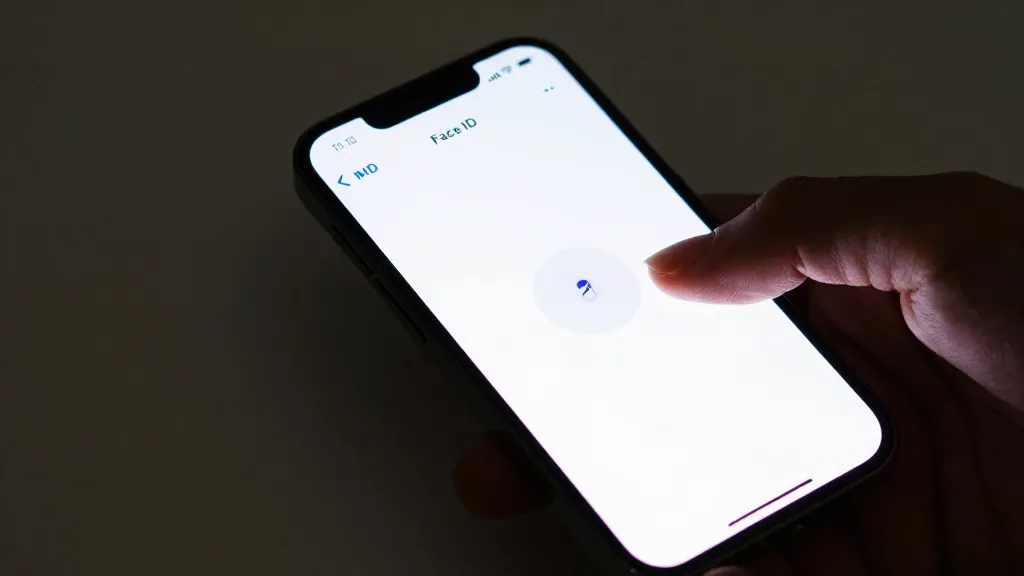
If your iPhone's Face ID isn't working properly, it can be frustrating—especially when you're relying on it to unlock your device or authenticate payments. Whether it's not recognizing your face, failing to respond, or simply not responding at all, there are several steps you can take to resolve the issue without needing professional help. This article provides a clear, step-by-step guide to help you fix Face ID problems on your iPhone. From basic troubleshooting to more advanced solutions, we cover everything you need to know to get your Face ID working again.
Troubleshoot Face ID Not Working on iPhone
If your iPhone's Face ID is not working, start with basic troubleshooting steps to resolve the issue. These simple actions can often fix common problems without requiring advanced technical knowledge.
Check for Software Updates
Before diving into more complex solutions, make sure your iPhone is running the latest software update. Apple frequently releases updates that address bugs and improve system performance, including Face ID functionality. To check for updates, go to Settings > General > Software Update. If an update is available, download and install it, then restart your device.
Verify Face ID Settings
Ensure that Face ID settings are correctly configured to avoid recognition issues. Go to Settings > Face ID & Passcode and verify that your face is registered properly. If you've recently changed your appearance, such as growing a beard or shaving your head, you may need to update your facial data. Additionally, make sure that Face ID is enabled for all apps and services, including Apple Pay and third-party applications.
Reset Face ID to Fix Unlock Issues
Resetting Face ID can resolve issues caused by corrupted data or misconfigurations. This process removes all saved facial data and allows you to re-enroll your face, which can fix unlocking problems without affecting your personal data.
- Ensure your iPhone is fully charged to prevent interruptions during the reset process.
- Go to Settings > Face ID & Passcode and tap 'Reset Face ID'.
- Confirm the reset by entering your passcode and following the on-screen instructions.
- After resetting, you will need to re-enroll your face to set up Face ID again.
How to Reset Face ID on iPhone
To reset Face ID, start by opening the Settings app and navigating to Face ID & Passcode. Tap 'Reset Face ID' and enter your passcode when prompted. This action will remove all existing facial data, so it's important to ensure your iPhone is charged to avoid any issues during the process. Once confirmed, the system will guide you through the steps to complete the reset.
What Happens When You Reset Face ID
When you reset Face ID, all previously saved facial data is erased, and the system reverts to its default settings. This means you will need to re-enroll your face to set up Face ID again. While this process doesn't delete your personal data, it does require you to go through the setup steps again, which can take a few minutes. It is a safe and effective way to resolve persistent unlocking issues without affecting other functions of your iPhone.
Fix Face ID Not Recognizing Face
If your iPhone's Face ID is not recognizing your face, the issue may be due to physical obstructions or poor lighting conditions. Simple adjustments can often resolve these problems without requiring technical expertise.
Check for Physical Obstructions
Start by inspecting the front-facing camera for any dirt, smudges, or debris that might be blocking the sensor. Use a soft, lint-free cloth to gently wipe the lens. Ensure that no objects are covering the camera or interfering with its ability to scan your face. Even a small obstruction can significantly impact Face ID performance.
Improve Lighting Conditions
Face ID relies on optimal lighting conditions to accurately recognize your face. Avoid using the iPhone in extremely bright or dark environments, as this can confuse the sensor. If you're in a dimly lit room, try using a lamp or natural light to improve visibility. Conversely, if the room is too bright, consider using a shade or adjusting the lighting to create a more balanced environment for Face ID to function properly.
Advanced Fixes for Persistent Face ID Issues
If basic troubleshooting steps fail to resolve Face ID issues, advanced fixes may be necessary. Resetting all settings and reinstalling iOS updates can address deeper system conflicts that affect Face ID functionality.
Reset All Settings on iPhone
Resetting all settings on your iPhone can restore Face ID to its default behavior by removing custom configurations that may interfere with its operation. To do this, go to Settings > General > Reset > Reset All Settings. Note that this action will not delete your data but will reset network settings, wallpaper, and other preferences. After the reset, restart your iPhone and re-enable Face ID if needed.
Reinstall iOS Updates
Reinstalling iOS updates can resolve Face ID issues caused by corrupted or incomplete system files. If your iPhone has not received the latest iOS update or if updates are not working as expected, try reinstalling the update through Settings > General > Software Update. Ensure your device is connected to a stable Wi-Fi network and has sufficient battery power. Reinstalling the update may fix underlying system errors that prevent Face ID from functioning properly.
When to Seek Professional Help for Face ID Problems
If all troubleshooting steps fail and Face ID still doesn't work, the issue may be related to hardware components such as the TrueDepth camera system or the Face ID sensor itself. These parts are delicate and can malfunction due to physical damage, wear and tear, or manufacturing defects. Since these components are not user-repairable, attempting to fix them without professional tools can cause further damage to your device.
Apple provides dedicated support for hardware-related Face ID issues. You can contact Apple Support through their website or call their support line to get guidance on the next steps. If your iPhone is still under warranty or covered by AppleCare+, you may be eligible for a free repair or replacement. Apple Stores also offer in-person assistance, where technicians can diagnose and resolve Face ID problems using specialized diagnostic tools.
It is important to avoid attempting any DIY repairs on the Face ID sensor or related hardware. The internal components are tightly integrated and require specific expertise to handle safely. Unauthorized repairs can void your warranty and lead to permanent damage, making your iPhone unusable. Always rely on official Apple support channels to ensure your device is handled correctly and safely.
If you're unsure whether the issue is software or hardware-related, it's best to seek professional help early. Apple technicians can perform a comprehensive diagnostic to determine the exact cause and recommend the most appropriate solution. This ensures your iPhone remains secure and functional while protecting your investment in the device.
Frequently Asked Questions
What should I do if Face ID isn't working after an iOS update?
If Face ID isn't working after an iOS update, first check for any pending software updates. If the issue persists, reset Face ID or restart your iPhone. If these steps don’t resolve the problem, consider contacting Apple Support.
Can I reset Face ID without losing my data?
Yes, you can reset Face ID without losing your data. Resetting Face ID only removes your current facial recognition settings and does not delete personal files or data on your iPhone.
Why is my iPhone not unlocking with Face ID?
Your iPhone may not unlock with Face ID due to software glitches, physical obstructions, or incorrect settings. Ensure your face is fully visible, check for updates, and verify Face ID settings to resolve the issue.
Is there a way to fix Face ID not recognizing my face without resetting the device?
Yes, you can try improving lighting conditions, checking for physical obstructions, and recalibrating Face ID. If these steps don’t work, resetting Face ID or the device may be necessary.
Final Steps for Face ID Troubleshooting
Face ID issues can often be resolved through simple troubleshooting steps such as checking for updates, resetting settings, and ensuring optimal lighting. If problems persist, advanced fixes or professional assistance may be required.
If Face ID is still not working after trying these solutions, consider contacting Apple Support for further assistance. Keeping your device updated and maintaining good settings can help prevent future Face ID issues.





