
How to Fix iPhone Black Screen of Death While Still Vibrating
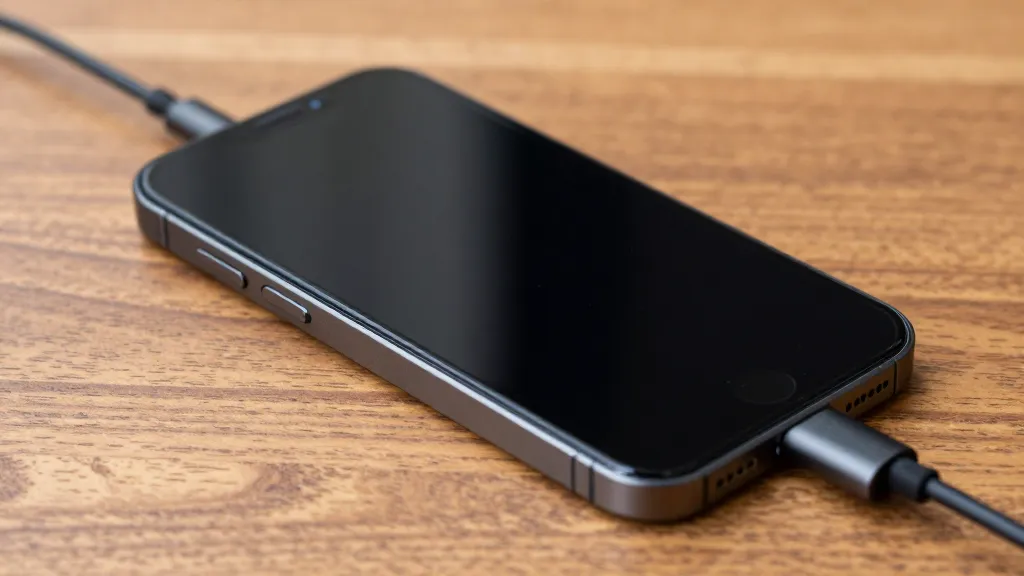
If your iPhone has gone black but is still vibrating, it can be a frustrating and confusing experience. This issue, often referred to as the Black Screen of Death, can leave you unsure whether your device is still functional or if you’ve lost access to your data. While the screen is unresponsive, the vibration can be a sign that the phone is still powered on and may be recoverable with the right steps. This article will guide you through understanding the issue and taking practical actions to restore your iPhone without losing your data. Whether you're a home user or an office worker, these troubleshooting steps can help you regain control of your device.
The Black Screen of Death on an iPhone can stem from a variety of causes, including software glitches, overheating, or minor hardware issues. It’s important to determine whether your iPhone is still receiving power and if the vibration is a sign of ongoing functionality. By following the steps outlined in this article, you can systematically troubleshoot the issue and potentially resolve it without needing to seek professional assistance. Each section provides clear, actionable guidance tailored to users who may not be familiar with advanced technical processes.
From basic restarts to using recovery tools like iTunes or Finder, this article covers a range of options to help you recover your iPhone. If the device doesn’t respond to initial troubleshooting, we’ll also guide you on when it’s best to consult a professional. The goal is to empower you with the knowledge to handle the Black Screen of Death confidently, while keeping your data safe and your device functional.
Understanding the iPhone Black Screen of Death
The iPhone black screen of death (BSOD) is a frustrating issue where the device's screen goes dark and becomes unresponsive, yet the phone may still be functioning internally. This problem can occur for various reasons, including software glitches, hardware damage, or a failed system update. Despite the screen being black, the device may still be powered on and vibrating, which can help users determine whether the phone is still operational.
What Causes an iPhone to Go Black and Vibrate?
An iPhone may go black and start vibrating due to a variety of software issues. Common causes include a failed system update, a corrupted operating system file, or an unexpected shutdown. In some cases, a recent app update or a software conflict can trigger the black screen. Additionally, hardware malfunctions such as a faulty display or damaged internal components can also lead to this issue.
Is the iPhone Still Powered On When the Screen Is Black?
Even though the screen is black, the iPhone may still be powered on and functioning. The vibration is typically a sign that the device is still receiving power and is not completely shut down. However, the screen remains unresponsive, making it difficult to access basic functions like the lock screen or settings. It is important to note that the phone may not be in a fully operational state, and some internal processes might be affected.
Initial Troubleshooting Steps for a Black Screen
Before attempting more advanced fixes, start with simple checks that can resolve the black screen issue quickly. These steps help identify whether the problem is software-related or due to physical damage, ensuring you address the right cause.
- Press and hold the Sleep/Wake button and the Volume Up button for 10 seconds to force a restart.
- Ensure the iPhone is connected to a power source and check for any physical damage.
- If the screen remains black, move to the next step.
How to Force Restart Your iPhone
To force restart your iPhone, press and hold the Sleep/Wake button and the Volume Up button simultaneously for about 10 seconds. This action can reset the device and potentially resolve software glitches that cause the screen to go black. If your iPhone responds by vibrating and the screen briefly flickers, it may be rebooting. If not, try this step again or move to the next troubleshooting option.
Check for Physical Damage or Charging Issues
Check if the iPhone is connected to a power source by plugging it into a wall charger or using a USB port on a computer. If the screen remains black, the device may be low on battery or have a charging issue. Look for any signs of physical damage, such as cracks or liquid exposure, which can affect the screen or internal components. If you notice any damage, it may be necessary to seek professional repair before proceeding with further troubleshooting steps.
Performing a Hard Reset on an iPhone
A hard reset can resolve software-related issues that cause the iPhone screen to go black while the device is still vibrating. This process forces the iPhone to restart without affecting your data, making it a useful first step in troubleshooting the issue.
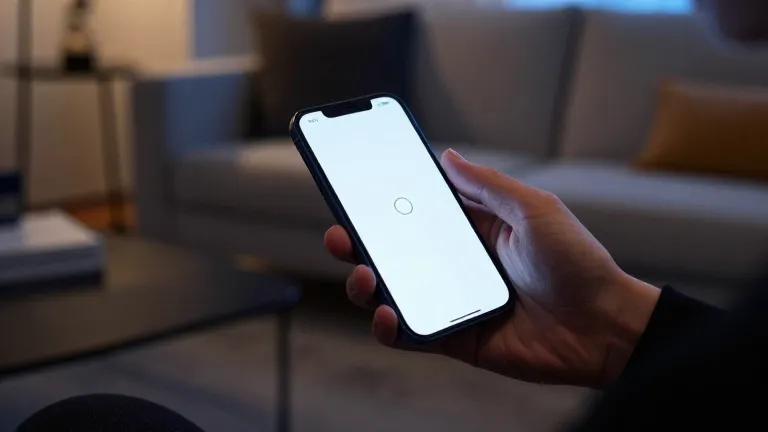
- For iPhone 8 or earlier models, press and hold the Sleep/Wake and Home buttons simultaneously for 10 seconds until the Apple logo appears.
- For iPhone X or later models, press and hold the Sleep/Wake and Volume Up buttons simultaneously for 10 seconds until the Apple logo appears.
- Once the Apple logo is visible, release the buttons and allow the iPhone to restart.
- After the restart, check if the black screen issue has resolved. If not, proceed to the next troubleshooting steps.
How to Hard Reset an iPhone 8 or Earlier
To hard reset an iPhone 8 or earlier, begin by pressing and holding both the Sleep/Wake and Home buttons at the same time. This action will trigger a reboot of the device, which can help resolve minor software glitches that might be causing the black screen. Keep the buttons pressed for approximately 10 seconds or until the Apple logo appears on the screen. Once the logo is visible, release the buttons and wait for the device to restart. This process is straightforward and does not require any additional tools or steps.
How to Hard Reset an iPhone X or Later
For iPhone X or later models, the hard reset process involves pressing and holding the Sleep/Wake and Volume Up buttons simultaneously. This combination will initiate a reboot of the device, which can address software issues that may be causing the screen to go black while the iPhone is still vibrating. Hold the buttons for about 10 seconds or until the Apple logo appears, then release them and let the iPhone restart. This method is effective for newer models and can help restore normal functionality without data loss.
Advanced Recovery Options for a Black Screen
If the hard reset doesn’t resolve the black screen issue, connecting your iPhone to a computer and using iTunes or Finder can help recover the device. This method allows you to enter recovery mode and either restore or update the iPhone’s software, which may fix underlying software glitches causing the problem.
How to Use iTunes or Finder for Recovery
To use iTunes or Finder for recovery, first ensure your computer has the latest version of iTunes or macOS installed. Connect your iPhone to the computer using a trusted USB cable. If your iPhone is in recovery mode, iTunes or Finder should detect it and display a message prompting you to proceed with restoration or updating. Follow the on-screen instructions carefully to avoid further complications.
What to Do If the iPhone Doesn’t Recognize the Computer
If your iPhone isn’t recognized by the computer, try using a different USB port or cable. Ensure the computer is running the latest macOS or Windows version and that iTunes is updated. If the device still isn’t detected, restart the computer and attempt the connection again. In some cases, a firmware update or reinstallation of iTunes may be necessary to enable proper communication between the iPhone and the computer.
When to Seek Professional Help
If your iPhone remains unresponsive with no vibration and the screen is completely black, it may indicate a deeper hardware issue that requires professional attention. While software solutions can often resolve black screen problems, certain signs suggest that the issue lies beyond the operating system or storage.

Signs That the iPhone May Have a Hardware Problem
A completely unresponsive screen with no vibration typically points to a hardware malfunction, such as a damaged display, faulty logic board, or internal connection issues. If the iPhone fails to react to any input, including charging or button presses, it may be beyond the scope of software recovery. In such cases, the device might need physical inspection and repair to diagnose and fix the underlying problem.
How to Prepare for a Professional Repair
Before seeking professional help, ensure you have a backup of your data to avoid losing important information during repairs. If you haven't already backed up your iPhone, try connecting it to a computer using a USB cable and using Finder or iTunes to create a backup. If the device is unresponsive, you may need to use a third-party tool or wait for Apple to identify a way to recover the data. Always choose an authorized service center to ensure proper diagnosis and repair procedures.
Frequently Asked Questions
What should I do if my iPhone is black and vibrating but not responding?
If your iPhone is black and vibrating but not responding, start by attempting a force restart. If that doesn’t work, try a hard reset. If the issue persists, you may need to use iTunes or Finder for recovery, or seek professional help.
Can I fix a black screen on my iPhone without losing data?
You can attempt to fix a black screen without losing data by using a force restart or hard reset. However, if these steps fail, data recovery may require professional tools or services.
How do I know if my iPhone is still powered on when the screen is black?
An iPhone with a black screen but vibrating is likely still powered on. However, it may be in a frozen state. Check for a charging indicator or attempt a force restart to confirm.
What is the best way to recover data from an iPhone with a black screen?
To recover data, use iTunes or Finder to enter recovery mode and attempt a restore. If this fails, professional data recovery services may be required to extract information from the device.
Next Steps for Recovery
Fixing an iPhone black screen of death requires a methodical approach, starting with basic troubleshooting like force restarts and progressing to advanced recovery options. If these fail, professional assistance is essential to avoid permanent data loss.
Always attempt non-invasive steps first, such as a hard reset or connecting to iTunes. If the iPhone remains unresponsive, consider contacting an authorized service provider for further assistance.





