
How to Fix iPhone Ghost Touch Screen Typing by Itself
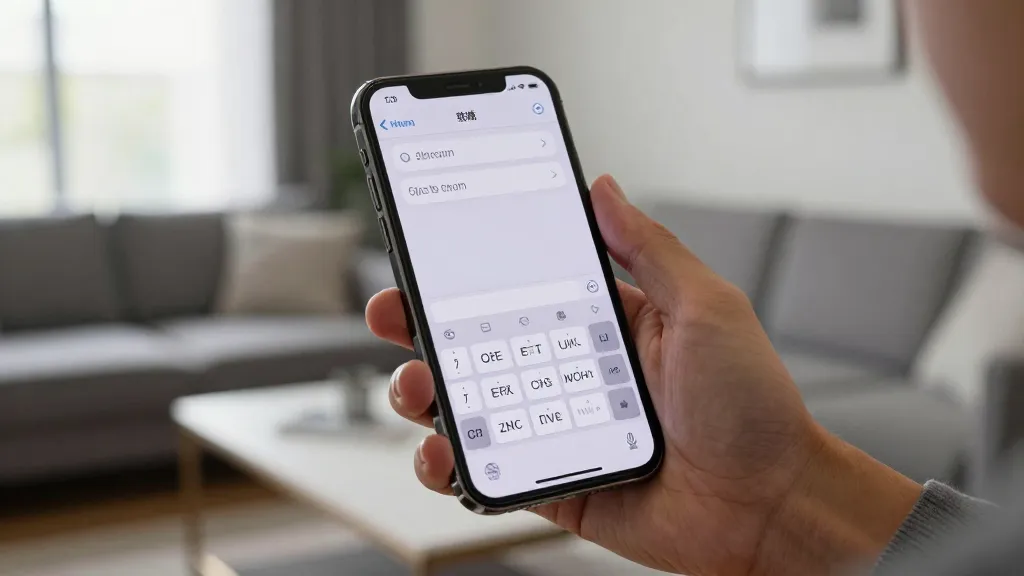
If your iPhone screen is typing on its own, it can be frustrating and confusing. This issue, often referred to as How to Fix iPhone Ghost Touch Screen Typing by Itself, is commonly known as 'ghost touch'—a problem where the screen responds to touch inputs without user interaction. It can lead to unintended messages, emails, or app actions, making it essential to address promptly. Whether you're a tech-savvy user or someone less familiar with troubleshooting, this article provides clear steps to help you resolve the issue at home.
Understanding the root cause of ghost touch is the first step toward finding a solution. This article explains the nature of the problem and why your iPhone might be responding to touch inputs without your command. We'll guide you through simple troubleshooting methods, including resetting settings and restoring from backups, to help you regain control of your device.
While some issues can be resolved with basic fixes, others may require more advanced troubleshooting or professional assistance. This article covers when to seek help and how to prevent future occurrences of ghost touch. With the right approach, you can restore your iPhone's functionality and avoid unwanted screen typing.
Understanding iPhone Ghost Touch and Screen Typing Alone
Ghost touch on an iPhone refers to the device responding to taps or keyboard input without any user interaction, which can be frustrating and disruptive. This issue, often called screen typing alone, is a common problem that can affect both tech-savvy and non-tech users. Understanding the underlying causes and how the touch response system works is key to finding an effective solution.
What Is Ghost Touch on an iPhone?
Ghost touch on an iPhone involves the device registering inputs that the user did not make, such as unexpected taps or keyboard entries. This can occur on the screen, buttons, or touch-sensitive areas, leading to unintended actions like sending messages or opening apps. The issue may manifest during use or even when the phone is idle, making it difficult to determine the exact cause.
Why Does the Screen Type Alone?
Screen typing alone typically indicates a malfunction in the device's touch response system. This system is responsible for detecting and processing touch inputs, and when it malfunctions, it can register phantom touches. Factors such as software glitches, outdated firmware, or hardware defects can contribute to this problem. Environmental factors like moisture or physical damage may also play a role in causing unexpected screen interactions.
Basic Troubleshooting Steps for iPhone Ghost Touch
The first step in resolving iPhone ghost touch issues is to restart your device. A simple restart can clear temporary software glitches that may be causing the screen to type on its own. Hold the power button until the 'Slide to Power Off' slider appears, then slide it. Wait a minute, then press the power button again to turn it back on.
- Restart the iPhone to resolve temporary software glitches.
- Update the iOS to the latest version for bug fixes and performance improvements.
- Reconnect the iPhone to a trusted Wi-Fi network to prevent connectivity-related issues.
- Check for any recent app updates that may be causing the problem.
Keeping your iPhone's iOS up to date is crucial for preventing and fixing ghost touch problems. Apple frequently releases updates that include bug fixes and performance improvements, which can address underlying issues causing the screen to type alone. Go to Settings > General > Software Update to check for available updates. If an update is available, download and install it, then restart your iPhone.
Wi-Fi connectivity can also influence touch screen behavior, so ensure your iPhone is connected to a trusted network. Connectivity issues might interfere with how the device processes touch inputs, leading to unintended actions like screen typing. If you're on an untrusted network, switch to a known, stable Wi-Fi connection. This can help eliminate any network-related disruptions.
Finally, check for recent app updates that might be contributing to the problem. Some apps, especially those with complex touch interactions, can cause unexpected behavior if not updated. Go to Settings > App Store to review any pending updates. Install the updates and observe if the ghost touch issue persists. If the problem continues after these steps, consider more advanced troubleshooting methods.
Advanced Fixes for iPhone Phantom Touch and Screen Typing
Advanced fixes for iPhone phantom touch and screen typing involve resetting settings and restoring from backups to address deeper system issues. These steps can resolve software glitches and restore normal touch functionality without data loss.
How to Reset All Settings on an iPhone
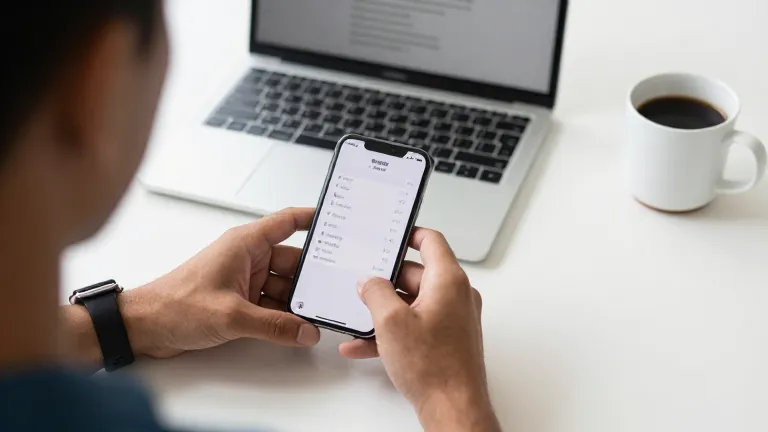
Resetting all settings on an iPhone can resolve configuration issues that may cause ghost touch. To do this, go to Settings > General > Reset > Reset All Settings. This action reverts system preferences, including display and accessibility options, without deleting personal data. After the reset, check if the touch issue persists. If the problem resolves, it indicates a software configuration error that can be corrected without a full restore.
Restoring iPhone From Backup: A Step-by-Step Guide
Restoring an iPhone from a backup can fix deeper system-level issues that may be causing phantom touch. Connect your iPhone to a computer and open Finder (or iTunes on older systems). Select your device, then choose Restore Backup. Ensure the backup is from a time when the touch function was working normally. This process reinstalls the operating system and reapplies your settings, potentially resolving persistent touch anomalies. If the issue remains after restoration, consider checking for physical damage or moisture.
When to Seek Professional Help for iPhone Touch Screen Issues
If the ghost touch issue continues after trying all basic and advanced troubleshooting methods, it may be time to seek professional help. Persistent screen typing alone can indicate deeper hardware or software problems that require expert attention. A technician can perform in-depth diagnostics to identify whether the issue stems from a faulty touchscreen, damaged internal components, or a more complex software conflict.
Physical damage to the iPhone screen, such as cracks or water exposure, can also cause ghost touch behavior. If the device has been dropped, exposed to liquid, or suffered any impact, the screen may have sustained internal damage that isn't easily repaired through software solutions. In these cases, a professional repair service can assess the extent of the damage and recommend the appropriate course of action.
If the ghost touch issue is tied to a specific app or software that cannot be resolved through standard troubleshooting, it may require a more specialized approach. Some apps can interfere with the touchscreen's functionality, especially if they are poorly coded or incompatible with the iOS version. A professional can determine whether the issue is app-specific or if it affects the entire system.
When in doubt, or if the problem is significantly impacting daily use, it's best to consult a qualified technician. They can provide an accurate diagnosis and suggest the most effective repair or solution, whether it involves software updates, hardware replacement, or a combination of both. Seeking professional help ensures that the issue is resolved correctly and prevents further complications.
Preventing Future iPhone Ghost Touch and Screen Typing Problems
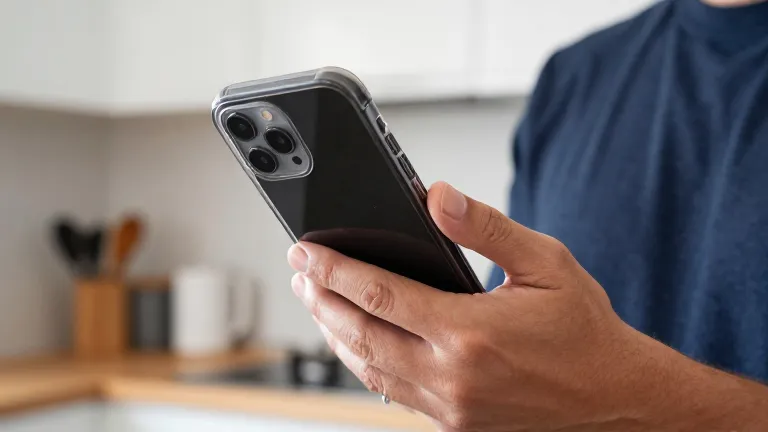
Preventing future iPhone ghost touch and screen typing problems starts with mindful usage and regular maintenance. One of the simplest ways to avoid this issue is to avoid using third-party screen protectors that may interfere with touch sensitivity. These accessories can sometimes create a barrier between your fingers and the screen, leading to unintended inputs. Stick to Apple-approved accessories or use a simple, thin film to protect your screen without compromising its responsiveness.
- Avoid using third-party screen protectors that may interfere with touch sensitivity.
- Keep the iPhone clean and free from debris that could cause unintended contact.
- Regularly update the iOS and apps to ensure the system runs smoothly.
- Use a high-quality case to protect the screen from accidental damage.
Keeping your iPhone clean and free from debris is another key step in preventing ghost touch issues. Dust, dirt, or oils from your fingers can accumulate on the screen and cause the device to register touches that weren’t intended. Use a soft, lint-free cloth to wipe the screen regularly, and avoid using harsh chemicals that could damage the display. Additionally, be mindful of placing your phone on surfaces that might leave residue or particles on the screen.
Regularly updating your iPhone’s iOS and apps is essential for maintaining optimal performance and preventing software-related issues. Apple frequently releases updates that address bugs and improve touch sensitivity, so ensuring your device is running the latest version can help avoid ghost touch problems. Similarly, keeping your apps up to date ensures compatibility and reduces the risk of software conflicts that might contribute to the issue.
Using a high-quality case can also help prevent future ghost touch and screen typing problems. A well-designed case can protect your iPhone from accidental drops, scratches, and impacts that might damage the screen or internal components. However, it's important to choose a case that doesn’t add unnecessary bulk or pressure to the screen, as this could affect touch responsiveness. A case with a raised edge or a screen-protecting design is ideal for maintaining sensitivity while offering protection.
Frequently Asked Questions
What causes the iPhone screen to type on its own?
Ghost touch issues can be caused by software glitches, physical damage, or interference from external objects. These problems often result in unintended screen inputs.
Can a dirty screen cause ghost touch issues?
Yes, a dirty or smudged screen can lead to ghost touch problems. Debris or moisture can interfere with the touchscreen's ability to register accurate inputs.
Is it possible to fix iPhone phantom touch without professional help?
Many iPhone ghost touch issues can be resolved with basic troubleshooting or advanced fixes. Professional help is typically needed for physical damage or complex software problems.
How do I know if my iPhone's touch screen is physically damaged?
Physical damage may cause the screen to respond inconsistently, flicker, or not register touches at all. If the issue persists after troubleshooting, it may require professional repair.
Final Thoughts
Fixing iPhone ghost touch and screen typing issues often involves a combination of basic and advanced troubleshooting. Regular maintenance and timely intervention can prevent minor problems from becoming major ones.
If the issue persists, seek professional assistance for a thorough diagnosis. Taking proactive steps can help maintain the reliability and performance of your iPhone touch screen.





