
How to Fix Ethernet Cable Connected But Not Detected on PC
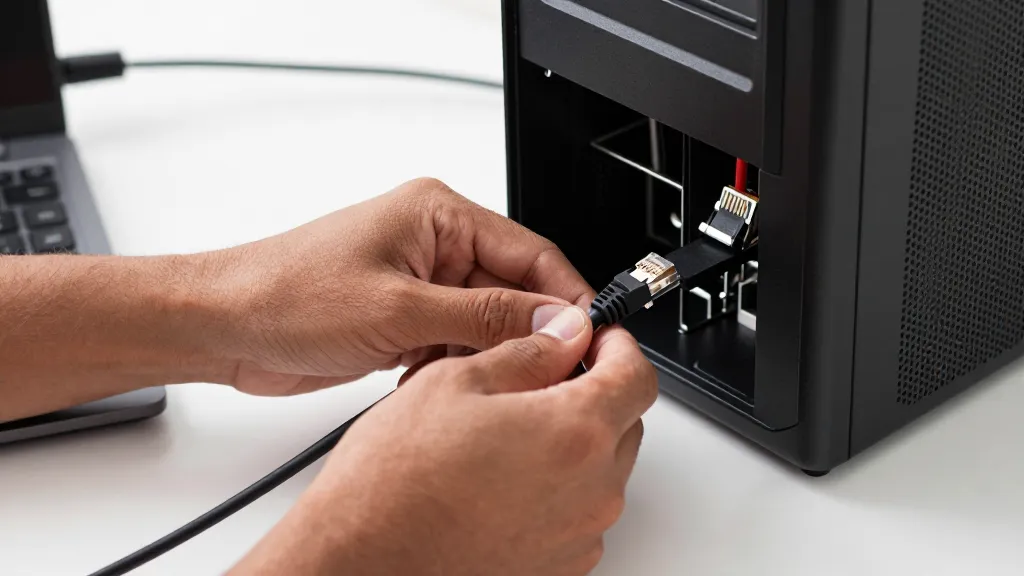
If your Ethernet cable is connected but not detected on your PC, it can be frustrating, especially when you rely on a stable internet connection. This issue might stem from a simple physical problem or a more complex software or hardware malfunction. The article 'How to Fix Ethernet Cable Connected But Not Detected on PC' provides a step-by-step guide to help you resolve this issue without needing professional assistance. By following these practical troubleshooting steps, you can identify and fix the problem efficiently.
The first step is to verify the physical connection and ensure the Ethernet cable is intact. A damaged or faulty cable can prevent your PC from recognizing the connection, so checking for visible wear or testing with a different cable is a crucial first action. If the cable appears to be in good condition, the next step involves ensuring that your Ethernet adapter is enabled and properly configured.
From updating drivers to refreshing network settings, this article covers a range of solutions tailored for users encountering Ethernet connectivity issues. By systematically addressing potential causes, you can restore your PC's ability to detect and use the Ethernet connection effectively.
Check the Physical Connection and Cable Integrity
The first step in troubleshooting an Ethernet cable that is connected but not detected is to ensure the physical connection is secure and the cable is in good condition. A loose or damaged cable can prevent the PC from establishing a network connection, even if the cable appears to be plugged in.
Examine the Cable for Damage
Begin by checking the physical connection between the Ethernet cable and both the PC and the router or modem. Ensure that the cable is fully inserted into the LAN port on your PC and the corresponding port on the router or modem. Sometimes, a cable may appear to be connected but may not be seated properly, which can lead to connectivity issues.
Test with a Different Cable
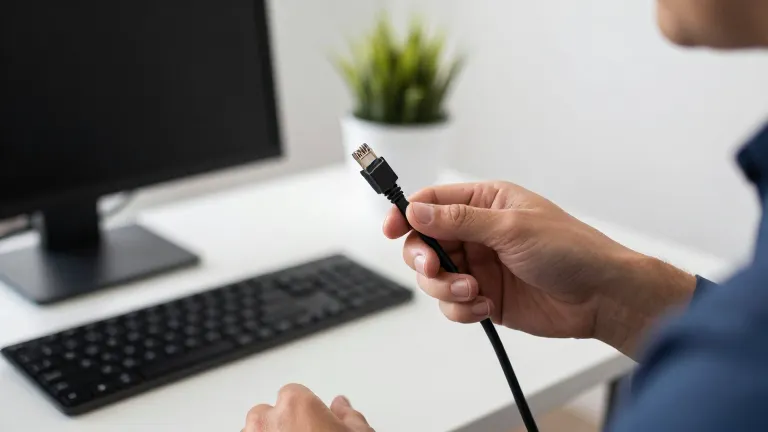
Once the cable is securely connected, inspect it for any signs of physical damage. Look for frayed wires, kinks, or broken connectors at either end of the cable. A damaged cable can disrupt the signal and prevent the PC from detecting the connection. If you notice any damage, replace the cable immediately with a new one to rule out this issue.
Ensure the Ethernet Adapter Is Enabled
Before proceeding with more advanced troubleshooting steps, it's essential to verify whether the Ethernet adapter is enabled on your PC. Open the Device Manager by right-clicking the Start menu and selecting it. In the Device Manager window, expand the 'Network adapters' section to locate your Ethernet adapter. If the adapter is disabled, it will have a yellow exclamation mark next to it, indicating a problem.
Once you've identified the Ethernet adapter, right-click on it and select 'Enable device' from the context menu. This action will activate the adapter and may resolve the issue if it was simply disabled. If the adapter is already enabled, ensure it is set as the default network adapter by right-clicking it and choosing 'Set as default'. This ensures Windows prioritizes the Ethernet connection over other available network interfaces.
After enabling the adapter, it's recommended to restart your PC to apply the changes fully. Restarting the system allows the operating system to reinitialize all hardware components, including the Ethernet adapter. Once the PC has restarted, check if the Ethernet connection is now detected by looking for a network icon in the system tray or by attempting to access a website through the wired connection.
If the Ethernet adapter is enabled but still not detected, it may be a sign of a deeper issue, such as a hardware malfunction or driver conflict. However, confirming that the adapter is enabled is a crucial first step in the troubleshooting process. This simple action can often resolve connectivity problems without the need for more complex interventions.
Update or Reinstall Ethernet Drivers
Updating or reinstalling Ethernet drivers can resolve connectivity issues caused by outdated or corrupted software. This process ensures your PC uses the latest driver versions, which may include bug fixes, performance improvements, and compatibility updates. If the driver is not functioning correctly, it can prevent the Ethernet connection from being recognized, even if the physical cable is connected.
Use Windows Update for Driver Installation
To update drivers via Windows Update, open Device Manager and locate the Ethernet adapter under 'Network adapters'. Right-click the adapter and select 'Update driver'. Windows will search for the latest driver online and install it automatically. This method is simple and effective for most users, though it may not always provide the most recent or specialized driver versions.
Download and Install Latest Drivers Manually
If automatic updates fail, manually downloading the latest driver from the manufacturer's website is a reliable alternative. Visit the official support or download page for your PC's brand, locate the Ethernet driver for your specific model, and download the installer. Follow the on-screen instructions to install the driver, ensuring you restart your PC afterward to apply the changes. This approach guarantees you receive the most up-to-date and compatible driver version for your hardware.
Troubleshoot Network and IP Configuration Issues
If your Ethernet cable is connected but not detected, issues with your network and IP configuration could be the root cause. Incorrect IP settings or conflicts in the network can prevent your PC from establishing a proper connection, even if the physical link is intact. Refreshing your IP address settings and reviewing the configuration details can help identify and resolve these issues.
Refresh IP Address Settings
To refresh your IP address settings, open the Command Prompt as an administrator and run the commands 'ipconfig /release' followed by 'ipconfig /renew'. This process forces your PC to release its current IP address and request a new one from the router, which can resolve temporary configuration issues. Ensure that your PC successfully receives a valid IP address from the router, as this is essential for communication within the local network.
Check for IP Configuration Errors
To check for IP configuration errors, run the 'ipconfig /all' command in the Command Prompt. This will display detailed network information, including the IP address, subnet mask, default gateway, and DNS settings. Look for any inconsistencies or errors, such as an IP address of 0.0.0.0 or 169.254.x.x, which indicate a failure to obtain a valid IP address from the router. Ensure that your PC is connected to the same network as the router and that there are no conflicts in the IP address assignments.
Test the Ethernet Connection on Another Device
To determine whether the issue is specific to your PC or a broader network problem, connect another device, such as a laptop, smartphone, or smart TV, to the same Ethernet port. If the other device successfully connects and receives an IP address, it indicates that the problem is likely with your PC’s Ethernet adapter or its configuration. This step helps isolate the issue and provides clarity on whether the fault lies with the hardware or software on your machine.

If the second device also fails to connect, the issue may lie with the Ethernet port itself, the cable, or the network router. In this case, try using a different Ethernet cable to rule out cable damage or poor connectivity. If the cable works with the second device but not your PC, the problem is likely with your PC’s network adapter. However, if the cable still fails with the second device, the Ethernet port or the router may be at fault.
If the Ethernet port and cable are functioning correctly, the next step is to test the router’s settings or consider resetting it. Some routers have a port or setting that can be toggled to refresh the connection. If the router is not responding, it may need to be restarted or reconfigured. Additionally, ensure that the router is properly connected to the modem and that all network devices are receiving power.
By systematically testing with another device, you can narrow down the source of the problem and take targeted steps to resolve it. This method not only saves time but also ensures that you address the correct component, whether it’s your PC, the cable, the port, or the router. If the issue persists after these tests, it may be necessary to seek further technical support or consider replacing the affected hardware.
Frequently Asked Questions
What should I do if my Ethernet cable is connected but not detected?
First, check the physical connection and ensure the cable is undamaged. If the issue persists, test with a different cable or try connecting to another device to isolate the problem.
How can I check if my Ethernet adapter is enabled on Windows?
Open Device Manager and look for the Ethernet adapter under Network adapters. If it’s disabled, right-click and select Enable. If it’s missing, the adapter may need to be reinstalled or updated.
What if my Ethernet driver is not working properly?
Use Windows Update to install the latest drivers or download them manually from the manufacturer’s website. If the issue persists, uninstall and reinstall the driver to resolve conflicts.
Why is my Ethernet cable working on another device but not on my PC?
The issue might be with your PC’s Ethernet port or adapter. Try using a different port, checking for physical damage, or testing with another device to determine if the problem is hardware-related.
Next Steps for a Stable Ethernet Connection
Fixing an Ethernet connection issue typically starts with verifying the physical connection and ensuring the adapter is enabled. If the problem persists, updating or reinstalling drivers is often necessary. For more persistent issues, checking network settings or testing with another device can help identify the root cause.
If you're still unable to resolve the issue, consider contacting your network provider or a technician for further assistance. A systematic approach to troubleshooting ensures you address each potential cause effectively.





