
How to Fix Google Play Store Pending Download Stuck on Android
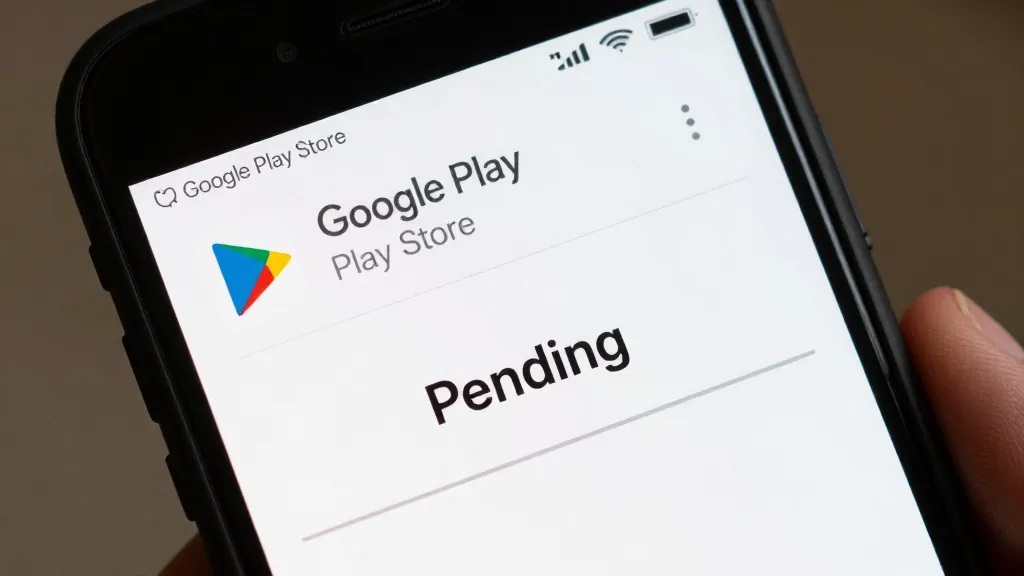
If your Google Play Store download is stuck on 'Pending' and not progressing, it can be frustrating, especially when you're eager to get the app or update. This issue can occur for various reasons, including network problems, corrupted app data, or system conflicts. The main keyword here is 'How to Fix Google Play Store Pending Download Stuck on Android,' and this article provides practical, step-by-step solutions to help you resolve the issue effectively.
This guide covers common causes of the problem and offers actionable fixes, such as clearing the app cache and data, uninstalling and reinstalling the Google Play Store, and testing with different downloads. It also includes advanced troubleshooting tips for persistent issues and advice on how to prevent future occurrences.
Whether you're tech-savvy or a non-tech user, the solutions provided are designed to be simple and easy to follow. If you're still experiencing issues after trying these methods, the article also outlines when it's best to seek professional help, such as performing a factory reset or contacting Google Support.
Understanding Why the Google Play Store Download Is Stuck
Understanding why the Google Play Store download is stuck is the first step in resolving the issue. A pending download can be frustrating, but identifying the root cause can help you find the right solution. Whether the problem lies with your network, the app itself, or system settings, knowing what to look for can save you time and effort.
Common Causes of a Stuck Download
Common causes of a stuck download include app conflicts, network issues, or corrupted data. Sometimes, other apps running in the background can interfere with the Play Store's ability to download updates or new apps. Additionally, an unstable or slow internet connection can cause the download to pause or stop entirely. If your device is low on storage, the Play Store might also fail to complete the download. It's important to check for any recent changes to your device's settings or app usage that could contribute to the issue.
How to Tell If Your Download Is Truly Stuck
Differentiating between a paused download and a truly stuck one is crucial. A paused download typically shows a progress bar with a pause icon, indicating that the download can be resumed later. However, if the download remains at 0% or doesn't move at all, it's likely stuck. This can happen if the Play Store is unable to access the server or if there's a problem with the app's data. To confirm if the download is stuck, try restarting your device or checking your internet connection. If the issue persists, it's a sign that a deeper system or network problem may be at play.
Step-by-Step Fixes to Resolve the Stuck Download
Resolving a stuck Google Play Store download often starts with basic troubleshooting steps that can quickly restore functionality. These methods are designed to address common issues without requiring advanced technical knowledge.
- Clear the cache and data of the Google Play Store app
- Restart your Android device
- Uninstall and reinstall the Google Play Store app
- Check your internet connection for stability
Clearing Cache and Data
Clearing the cache and data of the Google Play Store app can resolve issues caused by corrupted or outdated files. To do this, go to Settings > Apps > Google Play Store > Storage > Clear Cache and then Clear Data. This action resets the app's state and may allow downloads to resume. Be aware that this will remove any pending downloads and may require you to re-enter your Google account credentials.
Uninstalling and Reinstalling the App
Uninstalling and reinstalling the Google Play Store app can eliminate software conflicts that prevent downloads from progressing. To uninstall, go to Settings > Apps > Google Play Store > Uninstall. After removing the app, restart your device and then reinstall it from the Google Play Store. This process ensures that you have the latest version of the app and can help fix persistent bugs or glitches.
Advanced Troubleshooting for Persistent Issues
If the Google Play Store download remains stuck after basic troubleshooting, advanced steps can help isolate and resolve the issue. By testing with different downloads and checking system updates, you can determine if the problem is app-specific, device-wide, or related to your Android version.
Testing with a Different Download
Try downloading a different app from the Google Play Store to see if the issue persists. If the new download works, the problem may be with the original app or its specific file. If the issue continues, it could indicate a broader problem with your device or network. Additionally, testing the download on another phone can help determine if the issue is device-specific. If the same problem occurs on another device, it may point to a network or account issue rather than a local problem.
Checking for System Updates
Ensure your Android system is up to date, as updates often include bug fixes and performance improvements. Go to Settings > System > System Update to check for available updates. If an update is available, install it and restart your device before attempting the download again. An outdated system might lack critical fixes that could resolve the download issue. Even if the download works after an update, it's worth checking for additional updates to maintain optimal device performance.
Preventing Future Stuck Downloads
Preventing future stuck downloads involves proactive steps to ensure your Android device operates smoothly during updates and installations. By managing network settings and app permissions, you can reduce the likelihood of encountering download issues again.
- Enable Wi-Fi optimization to ensure stable network conditions.
- Avoid using the device while downloading large files.
- Monitor app permissions to prevent background activity that might interfere with downloads.
- Schedule downloads during off-peak hours for smoother performance.
Optimizing Network Settings
Optimizing network settings is crucial for maintaining a stable connection during downloads. Enable Wi-Fi optimization in your device's settings to prioritize internet traffic for the Google Play Store. This ensures that your download has a dedicated bandwidth, reducing the risk of interruptions. Additionally, ensure your Wi-Fi router is functioning properly and avoid using it for other heavy tasks simultaneously.
Avoiding device usage during large downloads helps prevent network congestion. When downloading big apps or updates, keep your phone in a location with minimal interference and refrain from streaming, gaming, or browsing. This allows your device to focus its resources on the download, minimizing the chances of it getting stuck.
Managing App Permissions
Managing app permissions ensures that background processes do not interfere with downloads. Regularly review and restrict permissions for apps that are not essential for the Google Play Store. This prevents other apps from using bandwidth or system resources that could slow down or stop the download process.
By scheduling downloads during off-peak hours, you can take advantage of lower network congestion and faster speeds. This is particularly useful if you're on a shared or limited data plan. Use your device's built-in scheduling tools or third-party apps to set download times that align with optimal network performance.
When to Seek Professional Help
If basic troubleshooting steps fail to resolve the Google Play Store pending download issue, it's time to consider more advanced solutions or seek professional assistance. Persistent problems may indicate deeper system errors or conflicts that require specialized attention to resolve effectively.
When to Factory Reset Your Phone
Factory resetting your Android phone should be considered only as a last resort after all other fixes have been exhausted. This action will erase all personal data, apps, and settings, so it's crucial to back up important information before proceeding. If the issue persists despite thorough troubleshooting, a factory reset can help eliminate software glitches or corrupted system files that might be causing the problem.
Contacting Google Support
If the stuck download issue remains unresolved after trying all available solutions, contacting Google Support is the next logical step. Google's dedicated support team can provide guidance tailored to your specific device and issue, helping to identify any underlying system problems. When reaching out, be prepared to provide details about your Android version, the app in question, and the steps you've already taken to troubleshoot the issue.
Frequently Asked Questions
What should I do if my Google Play download is stuck at 0%?
If your download is stuck at 0%, start by checking your internet connection. If it's stable, try clearing the Play Store cache and data. If the issue persists, consider reinstalling the app or restarting your device.
Can a bad Wi-Fi connection cause the Play Store to get stuck?
Yes, a weak or unstable Wi-Fi connection can cause the Play Store to get stuck during a download. Ensure your connection is strong and stable, or try switching to a mobile data network.
Will clearing the Play Store cache delete my downloaded apps?
No, clearing the Play Store cache will not delete your downloaded apps. It will only remove temporary files and settings, which can help resolve download issues.
How do I check if my Android device is up to date?
To check for updates, go to Settings > System > System Update. If an update is available, follow the prompts to download and install it.
Final Thoughts
By following the outlined steps, you can effectively resolve most Google Play Store download issues. Regular maintenance and updates can prevent future problems.
If the issue persists, consider reaching out to Google Support for further assistance. Keeping your device updated and managing network settings will help ensure smooth app downloads.





