How to Fix HP Printer Showing Offline on Windows 11
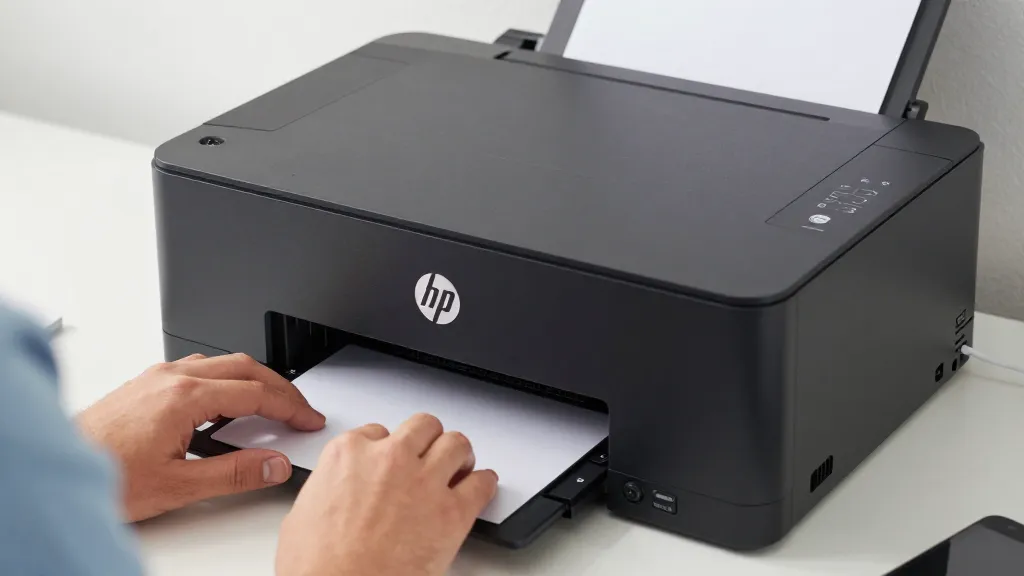
If your HP printer is showing offline on Windows 11, it can be frustrating, especially when you need to print documents urgently. This issue often arises due to connectivity problems, outdated drivers, or incorrect printer settings. The main keyword here is How to Fix HP Printer Showing Offline on Windows 11, and this article provides a clear, step-by-step guide to help you resolve it without needing professional support. Whether you're a home user or an office worker, understanding the root cause of the offline status is the first step toward a solution. We'll walk you through basic checks, driver updates, and advanced troubleshooting techniques to get your printer back online and functioning smoothly.
Understanding Why Your HP Printer Shows Offline
When your HP printer shows as offline on Windows 11, it can be frustrating, especially if you need to print documents urgently. This status typically indicates that Windows 11 is unable to establish a proper connection with your printer, which can stem from a variety of issues such as connectivity problems, software glitches, or misconfigured settings. Understanding the root cause is essential to resolve the issue effectively.
Common Causes of HP Printer Offline Status
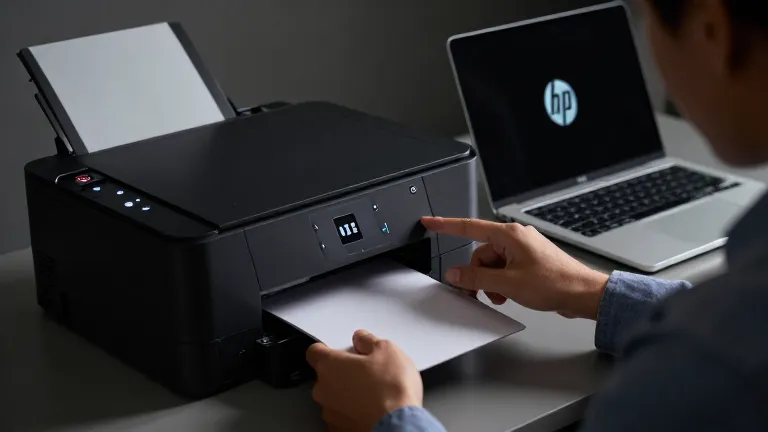
Common causes for an HP printer displaying an offline status include incorrect printer settings, outdated or corrupted drivers, and network-related problems. For example, if your printer is not properly connected to the same Wi-Fi network as your Windows 11 device, it may fail to communicate, resulting in an offline status. Additionally, if the printer’s IP address has changed or it is not set as the default printer, Windows may not recognize it correctly. Another frequent issue is when the printer driver is outdated or incompatible with the latest Windows 11 updates, which can prevent the system from functioning as expected.
How Windows 11 Handles Printer Connectivity
Windows 11 manages printer connectivity through its built-in Print Spooler service, which handles printing tasks and ensures communication between your computer and the printer. If this service encounters an error or becomes unresponsive, it may incorrectly mark the printer as offline. Furthermore, Windows 11 may not always detect the printer automatically, especially if the printer is not properly configured in the system settings or if the printer’s firmware is not up to date. The operating system also relies on network discovery and file sharing features to locate and connect to printers, so any disruption in these areas can lead to the offline status.
Step-by-Step to Fix HP Printer Offline on Windows 11
Before diving into complex fixes, it's essential to perform simple checks that can resolve most HP printer offline issues on Windows 11. These steps ensure the printer is correctly connected and ready to communicate with your system.
- Restart your HP printer and computer to refresh the connection and clear temporary glitches.
- Verify that the printer is properly connected to your network or USB port, and ensure it is turned on.
- Check for any error messages on the printer display and address them if possible.
- Ensure the printer is set to the correct IP address or connected via a stable Wi-Fi or Ethernet link.
Basic Checks Before Troubleshooting
Start by restarting both your HP printer and your Windows 11 computer. This action can resolve minor connectivity issues by resetting the communication between the device and the system. If your printer is connected via USB, ensure the cable is securely plugged in and try a different port if needed. If it's networked, confirm that the printer is connected to the same Wi-Fi network as your computer and that no firewall settings are blocking the connection.
Updating Printer Drivers and System Software
Keeping your printer drivers and Windows 11 up to date is crucial for maintaining proper functionality. Visit the HP website and download the latest drivers compatible with your printer model and Windows 11 version. Additionally, check for Windows updates through Settings > Update & Security to ensure your system is running the latest patches and features. Outdated software can lead to compatibility issues and prevent the printer from being recognized as online.
Fix HP Printer Offline by Adjusting Printer Settings
Adjusting printer settings in Windows 11 is a crucial step in resolving the 'HP Printer Showing Offline' issue. The operating system often marks printers as offline due to misconfigurations or incorrect settings. By accessing the printer properties and verifying the status, you can ensure that the printer is recognized and available for use.
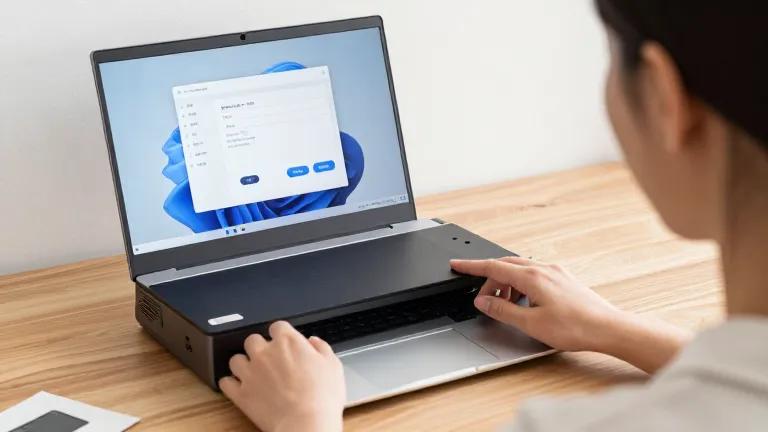
How to Uncheck 'Use Printer Offline' in Windows 11
To uncheck the 'Use Printer Offline' option, open the Start menu and type 'Devices and Printers'. Click on the printer icon to open its properties. Navigate to the 'Printer' tab and ensure the 'Use Printer Offline' checkbox is unchecked. If it is checked, deselect it and click 'Apply' to save the changes. This action tells Windows 11 that the printer is available and ready to print.
Setting the HP Printer as the Default Device
If your HP printer is not set as the default, it may not be recognized correctly. Right-click on the printer icon in the 'Devices and Printers' window and select 'Set as default printer'. This ensures that Windows 11 prioritizes this device for print jobs. If multiple printers are connected, setting the correct one as default can prevent confusion and ensure proper communication between the system and the printer.
Troubleshoot HP Printer Offline by Restarting the Print Spooler
Restarting the Print Spooler service can resolve temporary software conflicts that may cause your HP printer to show as offline on Windows 11. This service manages print jobs and communication between your computer and printer, and restarting it can help restore connectivity.
- Open the Services management console by pressing Win + R, typing 'services.msc', and pressing Enter.
- Locate the 'Print Spooler' service in the list and right-click it to select 'Stop'.
- Once stopped, right-click the service again and select 'Start' to restart it.
- Check if the printer is now online by printing a test page or using the printer status in Windows.
What Is the Print Spooler Service?
The Print Spooler service acts as a middleman between your computer and printer, handling print jobs and ensuring they are sent correctly. If this service malfunctions or becomes unresponsive, it can lead to your printer being marked as offline. Restarting the service can clear any temporary glitches and restore normal operation.
How to Restart the Print Spooler in Windows 11
To restart the Print Spooler, open the Services console and stop the service before starting it again. This process can resolve issues caused by software conflicts or corrupted temporary files. After restarting, Windows will re-establish the connection with your printer, potentially fixing the offline status.
Advanced Fixes for Persistent HP Printer Offline Issues
If your HP printer continues to show as offline after trying basic fixes, you may need to perform advanced troubleshooting steps. These include resetting the printer’s network settings, reinstalling the printer driver, and checking for potential software conflicts. These methods can resolve deeper connectivity issues and ensure your printer is recognized properly by Windows 11.
Resetting Printer Network Settings
Resetting your HP printer’s network settings can resolve issues related to IP address conflicts or incorrect network configurations. To do this, access the printer’s control panel, navigate to the Network settings, and select the option to reset the network. This will clear any stored network information and allow the printer to reconnect to your Wi-Fi or Ethernet connection. After resetting, restart the printer and reconfigure the network settings through the printer’s interface or the HP software.
Reinstalling the HP Printer Driver
Reinstalling the HP printer driver can eliminate conflicts caused by corrupted or outdated software. Begin by uninstalling the current driver through the Control Panel or Settings app, then restart your computer. After the restart, visit the official HP website and download the latest driver for your specific printer model. Install the driver and restart your computer again to ensure the new software is properly recognized. This process can restore the printer’s functionality and resolve persistent offline status issues.
Frequently Asked Questions
Why is my HP printer showing offline even though it's connected?
Your HP printer may show as offline due to a miscommunication between the printer and the computer. This can be caused by incorrect settings, outdated drivers, or connectivity issues. Ensure the printer is properly connected and check for any error messages on the printer display.
How do I uncheck 'Use Printer Offline' in Windows 11?
To uncheck 'Use Printer Offline', open the Printers & Scanners settings, select your HP printer, click 'Manage', and then 'Use Printer Offline'. Toggle the switch to 'Off' to resolve the offline status.
What should I do if restarting the print spooler doesn't work?
If restarting the print spooler doesn't resolve the issue, try resetting the printer's network settings or reinstalling the HP printer driver. These advanced steps can help reestablish a stable connection between the printer and the computer.
Can I fix HP printer offline issues without updating the driver?
Yes, you can address the offline issue by checking basic connections, unchecking the 'Use Printer Offline' option, or restarting the print spooler. However, updating the driver is often a recommended step for long-term stability.
Next Steps for a Stable Printer Connection
Addressing an HP printer showing offline on Windows 11 requires a systematic approach, from basic checks to advanced troubleshooting. Start with simple steps like checking the printer connection and ensuring the 'Use Printer Offline' option is off. If these don't resolve the issue, consider updating your printer driver or restarting the print spooler service.
For persistent offline issues, resetting the printer's network settings or reinstalling the driver can provide a more permanent solution. Maintaining regular updates and ensuring proper connectivity will help prevent future problems.