How to Fix Epson Printer Printing Blank Pages or Missing Colors
If your Epson printer is printing blank pages or missing colors, it can be frustrating, especially when you need to produce professional-quality prints. This issue is often linked to printhead problems or clogged ink nozzles, which can disrupt the printing process. The good news is that many of these issues can be resolved without professional help. This article provides a clear, step-by-step guide on how to fix Epson printer printing blank pages or missing colors. We’ll walk you through identifying the cause, cleaning the printhead, and resetting the printer to restore optimal performance. Whether you’re a home user or a small business owner, these practical solutions can help you get your prints back on track.
Identify the Cause of Blank Pages or Missing Colors
Before attempting to resolve issues with your Epson printer printing blank pages or missing colors, it's essential to identify the root cause. This involves checking whether the problem stems from the printer itself, the paper used, or the ink supply. By systematically evaluating these factors, you can narrow down the issue and apply the most effective solution.
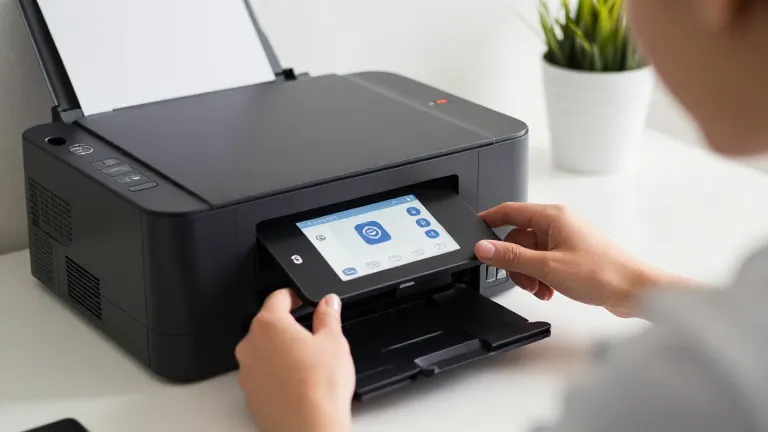
Check the Printer Status
Start by checking the printer status for any error messages or warning lights. These indicators can provide valuable clues about the nature of the problem. For example, a low ink warning or a paper jam message can point to specific issues that need attention. Refer to your printer’s manual for the meaning of each indicator and the recommended actions.
Inspect the Ink Cartridges
Next, inspect the ink cartridges to ensure they are properly installed and not empty. Remove and reinsert each cartridge to confirm they are seated correctly. If any cartridge appears empty or shows a low ink level, it may need to be replaced. Additionally, check for any physical damage or blockages that could interfere with ink flow. A faulty or improperly installed cartridge is a common cause of blank pages or missing colors.
Clean the Printhead and Ink Nozzles
Cleaning the printhead and ink nozzles is a crucial step in resolving issues like blank pages or missing colors. Over time, dust, dried ink, and other debris can clog the printhead, leading to poor print quality. Using the printer’s built-in cleaning function is often the first and most effective way to address these issues.
- Access the printer settings through the control panel or printer software to locate the printhead cleaning option.
- Run the cleaning cycle as instructed by the printer. Most models allow you to select the number of cleaning passes.
- If the issue persists, repeat the cleaning process. Some printers require multiple cycles to fully clear clogs.
- If automatic cleaning fails, proceed to manual cleaning by gently wiping the printhead with a lint-free cloth and distilled water.
Use the Printer's Built-in Cleaning Tool
The printer’s built-in cleaning tool is designed to remove minor clogs and restore proper ink flow. This function typically uses a combination of water and cleaning solutions to clear the nozzles. It is essential to follow the on-screen prompts carefully to ensure the process is completed correctly.
Manual Printhead Cleaning
Manual cleaning involves physically removing debris from the printhead. Start by turning off the printer and allowing it to cool. Locate the printhead and use a damp, lint-free cloth to gently wipe away any visible dirt or dried ink. Avoid using harsh chemicals or abrasive materials that could damage the printhead. After cleaning, reassemble the printer and test the print quality.
Perform a Deep Cleaning of the Printer
A deep cleaning of your Epson printer involves more than just the printhead and ink nozzles. Start by using a soft, lint-free cloth to gently wipe the exterior of the printer. This helps remove dust and debris that may accumulate over time and affect print quality. Pay special attention to areas around the ink delivery tubes and the print head, as these can collect residue that interferes with ink flow. Ensure the cloth is slightly damp, but avoid using excessive moisture to prevent damage to internal components.
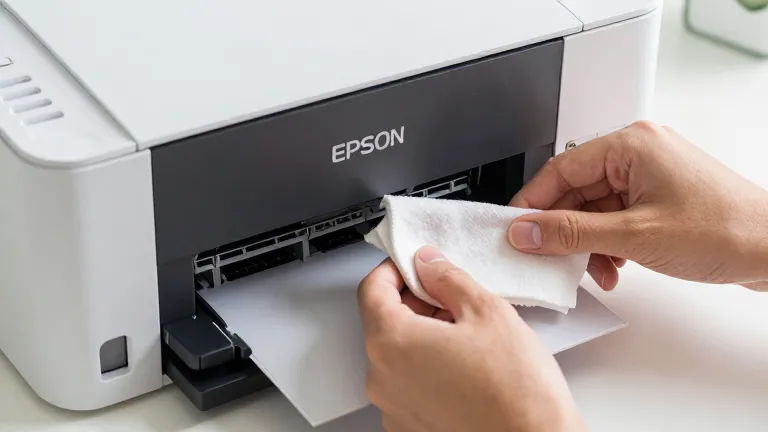
When cleaning the ink delivery tubes and print head area, handle the components with care to avoid dislodging any parts. Use a clean, dry portion of the cloth to wipe away any visible ink or dirt. If the print head is accessible, gently wipe it with a dry cloth to remove any dried ink or particles that may be clogging the nozzles. This step is crucial for restoring proper ink distribution and preventing streaks or blank pages.
Place the printer on a stable, flat surface to ensure proper alignment and prevent mechanical issues. An unstable surface can lead to misalignment of the print head, resulting in poor print quality or incomplete color output. After cleaning, allow the printer to sit for a few minutes to let any residual moisture evaporate. This helps prevent short circuits or damage to sensitive electronic components. Once the printer is dry, power it on and test the print settings to confirm the issue has been resolved.
Replace or Reinstall Ink Cartridges
Replacing or reinstalling ink cartridges is a crucial step in resolving issues like blank pages or missing colors. Proper installation ensures that the printer can access the correct ink for printing, while damaged or dried-out cartridges can lead to print failures. This section outlines the process of reinstalling and replacing cartridges to restore optimal printing performance.
- Turn off the printer and open the cartridge access door.
- Carefully remove the ink cartridges and inspect them for damage, such as cracks or dried-out ink.
- Wipe the contacts on the cartridges and the printer’s cartridge slots with a dry, lint-free cloth.
- Reinsert the cartridges, ensuring they are fully seated and locked into place.
Reinstalling Ink Cartridges
Reinstalling ink cartridges is a simple yet effective way to reset the printer’s ink system. Start by turning off the printer and opening the cartridge access door. Remove the cartridges and check for any visible damage, such as cracks or dried-out ink. If the cartridges appear to be in good condition, wipe the contacts with a dry, lint-free cloth to remove any dust or debris. Reinsert the cartridges, making sure they are fully seated and locked into place. This process can resolve minor issues like misalignment or temporary print failures.
Replacing Faulty Ink Cartridges
If the cartridges are damaged or the ink has dried out, they may need to be replaced. Damaged cartridges can cause inconsistent ink flow, leading to blank pages or missing colors. Dried-out cartridges often result in clogged nozzles and poor print quality. When replacing cartridges, ensure you use genuine Epson ink to maintain compatibility and print quality. After replacing the cartridges, turn the printer back on and run a test print to verify that the issue has been resolved. If the problem persists, further troubleshooting may be required.
Reset the Printer and Restore Default Settings
Resetting the printer and restoring default settings can resolve software-related issues that may cause blank pages or missing colors. This process clears temporary errors and resets the printer’s internal configuration, which can improve performance and correct miscommunication between the printer and the computer.
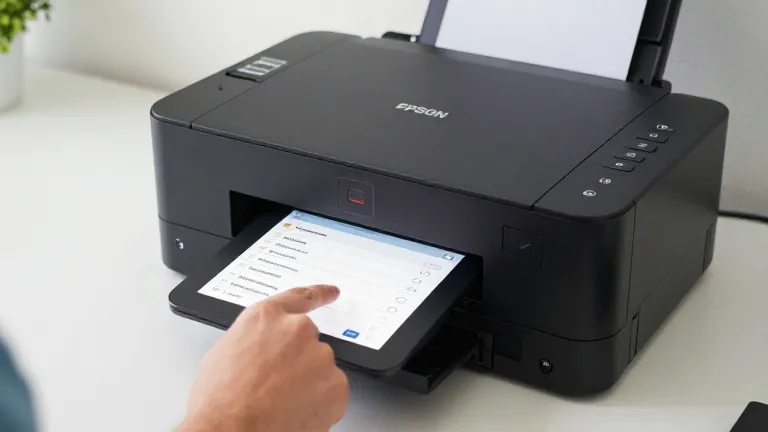
Resetting the Printer Settings
To reset the printer to factory settings, locate the printer’s control panel and navigate to the ‘Settings’ or ‘System’ menu. Look for an option labeled ‘Factory Reset’ or ‘Restore Defaults.’ Confirm the action to clear all custom settings and return the printer to its original state. This step is particularly useful if recent software updates or configuration changes have caused unexpected behavior.
Reinstalling Printer Drivers
Reinstalling the printer drivers ensures that the printer is using the latest, compatible software. Visit the Epson website and download the latest drivers for your specific printer model. Uninstall the existing drivers through the Control Panel or System Preferences, then install the new version. After installation, restart the printer and the computer to apply the changes. Additionally, check for firmware updates through the printer’s settings or Epson’s support portal to ensure the printer is running the most recent version of its operating system.
Frequently Asked Questions
Why is my Epson printer printing blank pages even though there is ink?
Your Epson printer may print blank pages due to clogged ink nozzles or a faulty printhead. Check the ink levels and run the built-in cleaning tool. If the issue persists, manually clean the printhead or replace the ink cartridges.
How often should I clean the printhead on my Epson printer?
Clean the printhead every 100 to 200 pages or when you notice print quality issues. Regular cleaning helps maintain optimal print performance and prevents clogs.
Can I use third-party ink cartridges with my Epson printer?
Using third-party ink cartridges may affect print quality and warranty. Ensure they are compatible with your Epson model and follow the manufacturer’s guidelines for installation and maintenance.
What should I do if the printer still prints blank pages after cleaning?
If cleaning doesn’t resolve the issue, check for paper jams, faulty cartridges, or incorrect print settings. If the problem continues, contact Epson support for further troubleshooting.
Final Thoughts
Regular maintenance, such as printhead cleaning and checking ink levels, can prevent most issues with Epson printers. If problems persist, consider resetting the printer or reinstalling drivers. Follow these steps to ensure optimal print performance.
If your Epson printer continues to print blank pages or missing colors, consult Epson support for advanced troubleshooting. Keeping your printer in good condition ensures reliable and high-quality prints.