
How to Fix iMessage Waiting for Activation Error on iPhone
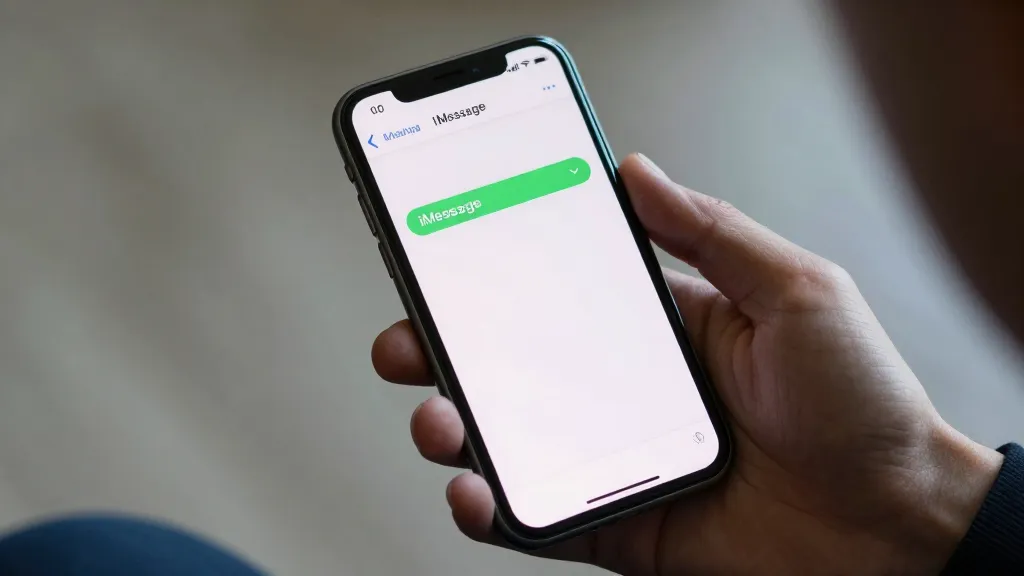
If you're encountering the 'iMessage Waiting for Activation' error on your iPhone, you're not alone. This issue can prevent you from sending or receiving messages, disrupting both personal and professional communication. The error typically appears when your iPhone is unable to complete the iMessage activation process, often due to connectivity or account-related problems. In this article, we'll guide you through practical steps to resolve this error without needing professional help.
We'll start by explaining what causes the iMessage Waiting for Activation error and how to identify it on your device. Next, we'll walk you through a step-by-step troubleshooting process, including checking your internet connection, verifying your Apple ID, and restarting your iPhone. For more persistent issues, we'll explore advanced troubleshooting options such as resetting network settings and reactivating iMessage.
Finally, we'll provide tips to prevent future activation errors, such as keeping your Apple ID details updated and maintaining a stable internet connection. Whether you're a home user or a busy professional, these solutions will help you restore iMessage functionality and keep your communication flowing smoothly.
Understanding the iMessage Waiting for Activation Error
The iMessage Waiting for Activation Error is a common issue that can disrupt your ability to send and receive messages on your iPhone. This error typically appears when the device is not properly connected to the internet, or if there is an issue with the Apple ID associated with the device. It may also occur due to problems with the iMessage server or after a recent iOS update. Understanding the causes and signs of this error can help you resolve it quickly and efficiently.
What Causes the iMessage Waiting for Activation Error?
The iMessage Waiting for Activation Error is usually triggered by a lack of stable internet connectivity, which prevents the iPhone from communicating with Apple's servers. Additionally, if the Apple ID linked to the device is incorrect or has been changed without updating the settings, the activation process may fail. Another possible cause is an issue with the iMessage service itself, such as temporary server downtime or maintenance. In some cases, a recent iOS update may introduce compatibility issues that affect the activation process.
How to Recognize the iMessage Activation Error on Your iPhone
When the iMessage Waiting for Activation Error occurs, users typically see a message stating that their iPhone is waiting for activation. This message is displayed on the screen when attempting to send or receive messages, and it may also appear in the Settings app under the iMessage section. The error can be frustrating as it prevents normal communication, leaving users confused about the cause or how to proceed. Recognizing these symptoms is the first step in troubleshooting and resolving the issue.
Step-by-Step Guide to Fix iMessage Waiting for Activation Error
The iMessage Waiting for Activation Error often stems from connectivity or account issues. Addressing these problems step by step can resolve the error without needing professional help.
- Check Your Internet Connection
- Verify Apple ID and Re-login
- Restart the iPhone and Retry Activation
Check Your Internet Connection
Ensure your iPhone is connected to a stable Wi-Fi or cellular data network. iMessage requires an active internet connection to activate. If you're on Wi-Fi, try switching to cellular data or vice versa. Also, check that your router or carrier is functioning properly.
Verify Apple ID and Re-login
Confirm that your Apple ID is correctly signed in on the device. Go to Settings > [Your Name] to verify your account details. If the Apple ID is incorrect or outdated, sign out and re-enter the correct credentials. Make sure that two-factor authentication is enabled, as it can sometimes interfere with the activation process.
Restart the iPhone and Retry Activation
Restart your iPhone to clear temporary system glitches. After restarting, attempt to re-activate iMessage. If the issue persists, consider signing out of your Apple ID completely and signing back in. This can refresh the account settings and resolve any hidden conflicts.
Advanced Troubleshooting for iMessage Activation Issues
Advanced troubleshooting steps can help resolve persistent iMessage activation issues by addressing deeper system settings and account configurations. These methods are ideal when basic fixes fail and require more in-depth adjustments to restore iMessage functionality.
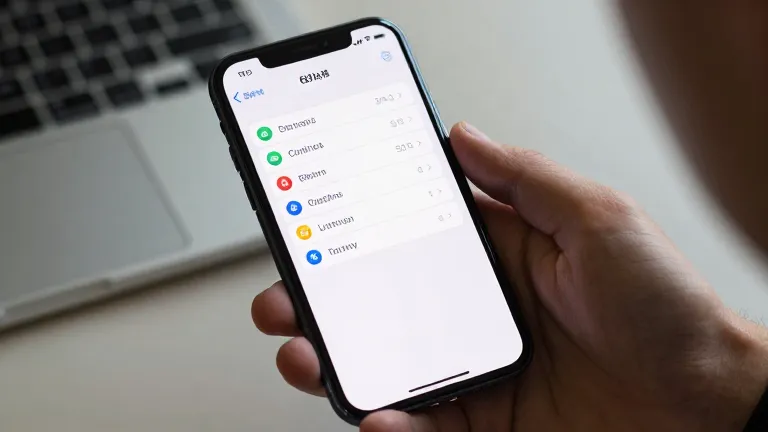
- Reset network settings on the iPhone to resolve connectivity problems.
- Turn off and on iMessage in the Settings to force a reactivation.
- Sign out of the Apple ID and sign back in to refresh the account details.
- Update the iOS version to the latest release if an update is available.
Reset Network Settings
Resetting network settings can resolve underlying connectivity issues that may be preventing iMessage from activating. This action resets Wi-Fi, Bluetooth, and cellular settings, which can sometimes interfere with iMessage registration. To do this, go to Settings > General > Reset > Reset Network Settings. Note that this will erase saved Wi-Fi passwords and Bluetooth pairings.
Turn Off and On iMessage
Turning off and on iMessage forces the iPhone to re-register the device with Apple’s servers. This can resolve issues caused by corrupted settings or outdated configurations. Navigate to Settings > Messages > Toggle iMessage off, wait a few seconds, then toggle it back on. This process may take a few minutes to complete.
Sign Out and Back In to Apple ID
Signing out of your Apple ID and signing back in can refresh account details and resolve authentication issues. This is particularly useful if the system has cached outdated information. To do this, go to Settings > [Your Name] > Sign Out, confirm the action, and then sign back in with your Apple ID. Ensure your password is correct and that two-factor authentication is enabled.
Troubleshooting iMessage Activation After iOS Update
After an iOS update, iMessage activation issues can arise due to incomplete setup or server reconnection problems. Reactivating iMessage on your iPhone can often resolve these issues, especially if the update disrupted the previous configuration.
Reactivating iMessage After iOS Update
If your iMessage is stuck in an activation state after an iOS update, try reactivating it through the Settings app. Navigate to 'Messages' and toggle off iMessage, then toggle it back on. This process forces the device to reconnect to Apple's servers and can resolve configuration mismatches. If the error persists, ensure your iPhone is connected to a stable Wi-Fi or cellular network, as internet connectivity is crucial for iMessage activation.
Check for Apple ID Lock or Suspension
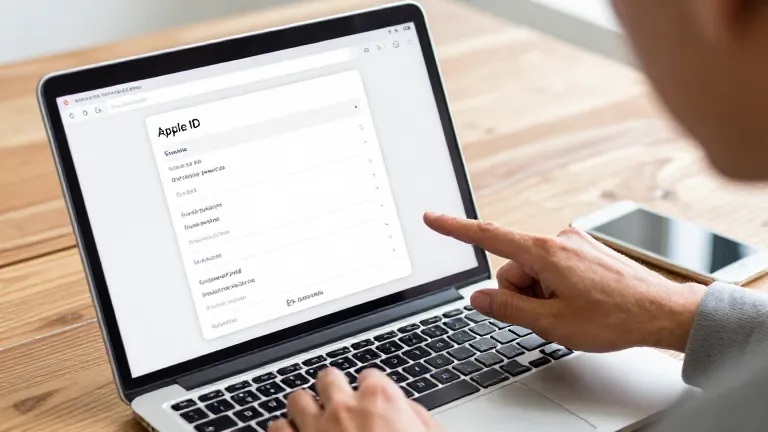
Before attempting to reactivate iMessage, verify that your Apple ID is active and not locked. An inactive or suspended Apple ID can prevent iMessage from functioning properly. You can check your account status on the Apple ID account page. If your account has been locked or suspended, follow the instructions provided by Apple to resolve the issue. Once your Apple ID is confirmed to be active, try reactivating iMessage again to ensure the error is resolved.
Preventing Future iMessage Activation Errors
Preventing future iMessage activation errors requires proactive maintenance and awareness. By keeping your Apple ID updated, ensuring a stable internet connection, and avoiding multiple Apple IDs on one device, you can significantly reduce the likelihood of encountering activation issues. These steps not only enhance reliability but also simplify troubleshooting when problems do arise.
Keep Apple ID and Account Details Updated
Ensure your Apple ID is always up to date and active. Regularly check your account details, including your password and email address, to avoid login failures. If your Apple ID has been suspended or locked, contact Apple Support to resolve the issue. Keeping your account information current ensures seamless access to iMessage and other Apple services.
Maintain a Stable Internet Connection
Maintain a stable internet connection to prevent connectivity issues during iMessage activation. Use a reliable Wi-Fi network or a strong cellular signal, especially when setting up or reactivating iMessage. Avoid environments with weak or unstable connections, as they can cause activation delays or failures. A consistent internet connection also helps with regular iOS updates and service availability.
Avoid Multiple Apple IDs on One Device
Avoid using multiple Apple IDs on the same device for iMessage. While it is possible to have multiple accounts, this can lead to confusion and potential activation errors. Stick to a single Apple ID for iMessage to simplify management and reduce conflicts. If you need to use multiple accounts for other services, ensure they are not linked to iMessage to maintain stability and avoid unexpected errors.
Frequently Asked Questions
What should I do if my iPhone is stuck on iMessage waiting for activation?
If your iPhone is stuck on iMessage waiting for activation, start by checking your internet connection and ensuring you're logged into the correct Apple ID. If the issue persists, try restarting your iPhone or resetting network settings. If these steps don't resolve the problem, consider signing out and back in to your Apple ID or contacting Apple Support.
Can a weak internet connection cause the iMessage activation error?
Yes, a weak or unstable internet connection can cause the iMessage activation error. iMessage requires a stable internet connection to verify your Apple ID and activate the service. Ensure you're connected to a strong Wi-Fi or cellular network before attempting to activate iMessage again.
How do I know if my Apple ID is the problem for iMessage activation?
If your Apple ID is the issue, you may see messages indicating an invalid Apple ID or login failure. Check that you're using the correct Apple ID and password. If you're unsure, try signing out and back in to your Apple ID or resetting your password through the Apple website.
What if iMessage activation keeps failing after an iOS update?
After an iOS update, iMessage activation may fail due to cached data or account issues. Try signing out of your Apple ID and back in, or reset your network settings. If the problem continues, consider restoring your iPhone from a backup or contacting Apple Support for further assistance.
Next Steps for Resolving iMessage Activation Issues
iMessage activation errors can be resolved with a few straightforward steps, such as checking your internet connection, verifying your Apple ID, and restarting your device. If these don't work, advanced troubleshooting like resetting network settings or signing out of your Apple ID can help. Maintaining a stable connection and keeping your account details updated can prevent future issues.
If you're still experiencing iMessage activation problems, reach out to Apple Support for personalized assistance. Following the steps outlined in this article should help you resolve most iMessage activation errors effectively.





