
How to Fix Android Fingerprint Scanner Not Recognizing Finger
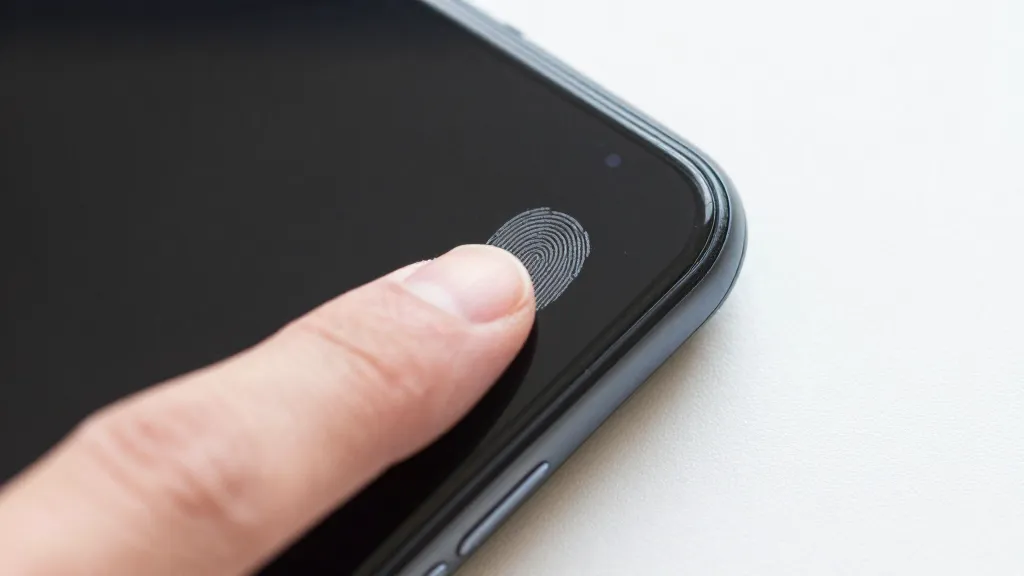
If your Android device is failing to recognize your fingerprint, it can be frustrating, especially when you rely on it for secure access. Whether you're trying to unlock your phone or authenticate a transaction, a malfunctioning fingerprint scanner can disrupt your daily routine. The main keyword here is 'How to Fix Android Fingerprint Scanner Not Recognizing Finger,' and this article provides practical solutions to help you resolve the issue. We'll walk you through simple troubleshooting steps, advanced fixes, and when to consider more drastic measures like a factory reset. By following these steps, you can regain control of your device without needing professional assistance.
Troubleshoot Basic Causes of Fingerprint Not Recognizing
Before diving into more complex solutions, start with basic troubleshooting steps that can resolve many fingerprint recognition issues. These simple actions often address common problems like sensor dirt, incorrect finger placement, or outdated fingerprint settings. Following these steps can help you identify and fix the issue without needing advanced technical skills.
Clean the Fingerprint Sensor and Finger
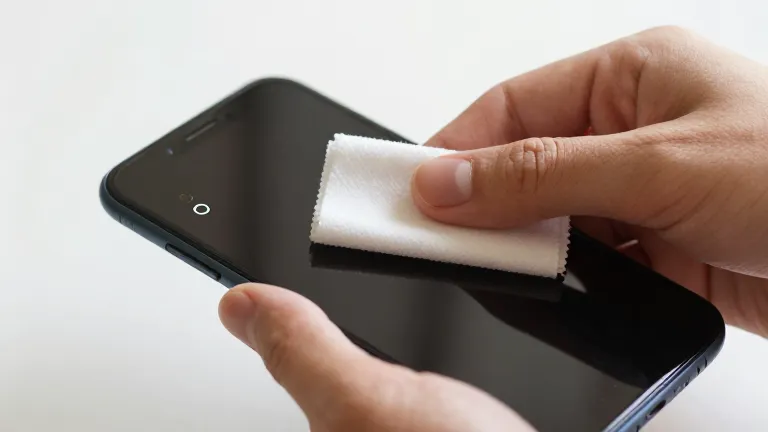
Ensure the fingerprint sensor is free from dirt, dust, or moisture. Use a soft, lint-free cloth to gently wipe the sensor area. Avoid using harsh chemicals or abrasive materials that could damage the sensor. Similarly, clean your finger with mild soap and water, then dry it thoroughly before attempting to unlock your device. A dirty sensor or wet finger can prevent the scanner from accurately reading your fingerprint.
Verify Fingerprint Registration
Check if your fingerprint is properly registered in the device settings. Go to Settings > Biometrics and Security > Fingerprint. If your fingerprint is not listed, add it by following the on-screen prompts. If it is registered, try re-registering it to refresh the sensor's database. If the issue persists, try using a different finger to see if the problem is specific to one fingerprint. Re-registering your fingerprint can resolve recognition errors caused by sensor misalignment or outdated data.
How to Re-Register Your Fingerprint on Android
Re-registering your fingerprint is a straightforward process that can resolve recognition issues. By following the steps below, you can ensure your fingerprint is properly registered and recognized by your Android device.
- Open the Settings app and navigate to Biometric or Security settings.
- Select 'Fingerprint' and follow the on-screen instructions to re-register the fingerprint.
- Ensure your finger is clean and placed correctly during registration.
- Test the fingerprint after re-registration.
Step-by-Step Guide to Re-Register Fingerprint
Begin by opening the Settings app on your Android device. Scroll down to find the 'Biometric' or 'Security' section, which may vary slightly depending on your device manufacturer. Tap on 'Fingerprint' to access the fingerprint management settings.
Once inside the fingerprint settings, you will be prompted to either add a new fingerprint or re-register an existing one. Follow the on-screen instructions carefully. The system will ask you to place your finger on the sensor multiple times to capture different angles and details for accurate recognition.
During registration, it's crucial to keep your finger clean and dry. Avoid applying excessive pressure or moving your finger too quickly. Ensure the sensor is fully exposed and not obstructed by any case or screen protector. If you're using a new finger, make sure it's fully healed and free from cuts or dirt.
After completing the registration process, test your fingerprint by attempting to unlock your device or authenticate a secure app. If it works, your fingerprint is successfully re-registered. If not, repeat the process or consider other troubleshooting steps.
Advanced Fixes for Persistent Fingerprint Recognition Issues
When basic troubleshooting steps fail to resolve fingerprint recognition issues, it's time to explore more advanced solutions. These methods focus on system-level adjustments and conflict resolution, which can often be the root cause of persistent recognition problems.

Restart and System Updates
Start by restarting your Android device. Sometimes, a simple reboot can clear temporary glitches that interfere with fingerprint recognition. After restarting, test the scanner again to see if the issue resolves. If it doesn't, check for any pending system updates. Manufacturers frequently release updates that improve biometric performance and fix software bugs. Go to Settings > System > Software Update to check for updates and install them if available.
Safe Mode and App Conflicts
To identify if a third-party app is causing conflicts, reboot your device in Safe Mode. This mode disables all non-essential apps, allowing you to determine if an app is disrupting the fingerprint scanner. To enter Safe Mode, press and hold the Power button, then tap and hold 'Power off' until the 'Safe Mode' prompt appears. If the scanner works in Safe Mode, uninstall recently installed apps one by one to isolate the conflicting application. This method helps pinpoint and resolve app-related interference with biometric features.
When to Factory Reset or Restore Your Android Device
A factory reset is a last resort for resolving persistent fingerprint recognition issues on Android. It erases all data, settings, and registered fingerprints, restoring the device to its original state. This should only be considered after exhausting all other troubleshooting steps, as it carries significant risks to personal information and convenience.
Understanding the Risks of a Factory Reset
Factory resetting your Android device can lead to the loss of personal data, apps, and settings. Before proceeding, ensure you have backed up important files to a cloud service or external storage. Additionally, be aware that this process will remove all registered fingerprints, requiring you to re-register them afterward. It is also important to note that a factory reset does not guarantee a resolution for hardware-related issues with the fingerprint scanner.
Steps to Perform a Factory Reset
To perform a factory reset, navigate to Settings > System > Reset > Erase all data (factory reset). Confirm the action to proceed. The device will reboot and begin the setup process, similar to when you first unboxed it. After the reset, you will need to re-register your fingerprint in the security settings. If you have a backup, restore your data during the initial setup to recover your files and apps.
How to Diagnose Hardware Issues with the Fingerprint Scanner
If your Android device's fingerprint scanner continues to fail after trying software-based solutions, the issue may stem from hardware damage. Diagnosing and addressing hardware problems requires careful inspection and testing to determine whether the sensor or related components are faulty.
Physical Inspection and Testing
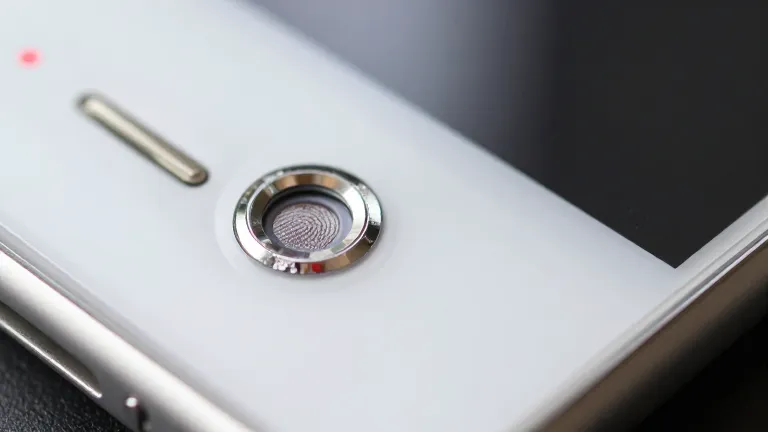
Begin by visually inspecting the fingerprint sensor and the surrounding area for signs of physical damage such as cracks, scratches, or debris. A damaged sensor may not register fingerprints correctly, even if the software is functioning properly. Try using different fingers or hands to see if the issue is specific to a particular finger or hand. If the sensor appears intact but still fails to recognize fingerprints, it may be due to internal damage or wear.
Professional Repair Options
If physical inspection does not resolve the issue, consider contacting the device manufacturer or a certified service center for professional repair. Hardware problems like a faulty sensor often require specialized tools and expertise to diagnose and fix. In some cases, replacing the fingerprint sensor may be necessary. Before proceeding with a repair, ensure that all software-based solutions have been exhausted, as hardware issues are typically a last resort after troubleshooting software-related causes.
Frequently Asked Questions
What should I do if my Android fingerprint scanner still doesn't work after re-registering?
If your fingerprint scanner still doesn't work after re-registering, try restarting your device or updating the system. If the issue persists, consider checking for hardware damage or seeking professional repair.
Can a third-party app cause my fingerprint scanner to stop working?
Yes, some third-party apps can interfere with the fingerprint scanner's functionality. Uninstalling recently added apps or using built-in security features can help resolve this issue.
Is it possible to fix a hardware issue with the fingerprint sensor without replacing it?
In some cases, cleaning the sensor or adjusting its settings can resolve minor hardware issues. However, significant damage may require professional repair or replacement.
How do I know if my Android device needs a factory reset for the fingerprint issue?
If all other troubleshooting steps fail and the fingerprint scanner still doesn't work, a factory reset may be necessary. This should be a last resort, as it will erase all data on your device.
Final Steps for Resolving Fingerprint Issues
Fixing an Android fingerprint scanner issue often starts with basic troubleshooting, such as cleaning the sensor or re-registering the fingerprint. If these steps don't resolve the problem, advanced methods like system updates or safe mode can help. If all else fails, a factory reset or hardware repair may be required.
To ensure long-term functionality, keep your device updated and avoid using third-party apps that may interfere with biometric features. If the issue persists, consult a professional for hardware evaluation.





