
Why iPhone Not Charging: How to Fix It
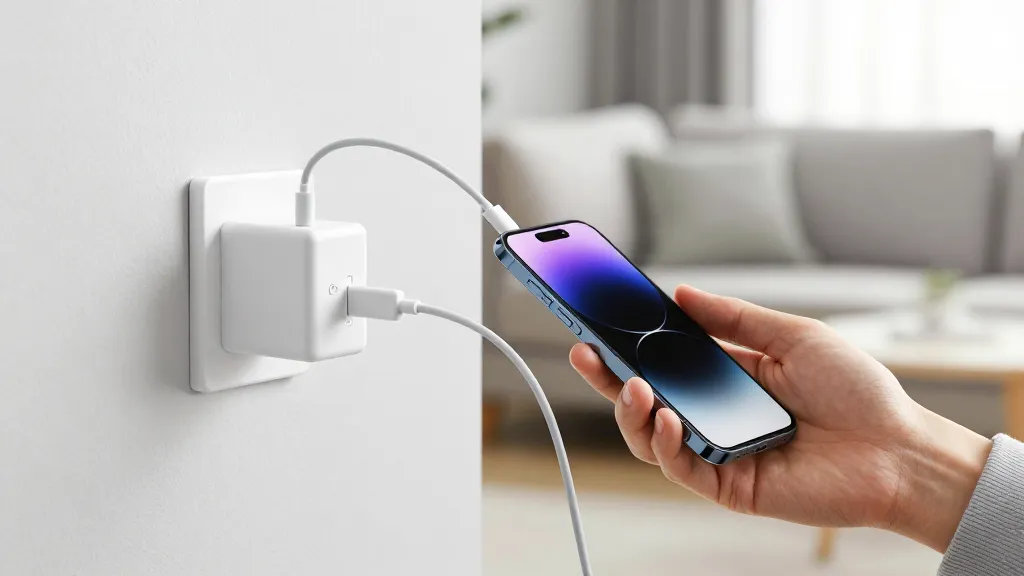
If your iPhone is not charging, it can be frustrating, especially when you rely on it for work or family tasks. Whether it's a full charge or just a quick power-up, the issue can disrupt your daily routine. The main keyword here is why iPhone not charging, and this article will guide you through simple, actionable steps to diagnose and fix the problem. You don't need technical expertise to resolve this issue—just a few checks and adjustments can help your iPhone start charging again. We'll cover everything from the charging cable and adapter to your iPhone settings and power sources, ensuring you can get back to using your device without delay.
Check the Charging Cable and Adapter
If your iPhone isn't charging, start by checking the charging cable and adapter. These are often the simplest solutions to a complex problem. A damaged or faulty cable can prevent your device from receiving power, so it's important to inspect and test them thoroughly.
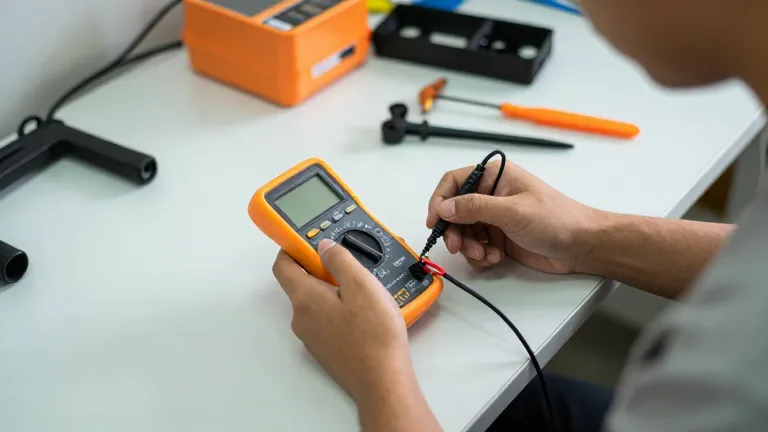
How to Test the Cable and Adapter
To test your cable and adapter, connect them to a different power source. If your iPhone starts charging, the issue likely lies with the original cable or adapter. Try plugging the cable into another device, like a laptop or another phone, to confirm if it's working. If the cable works with another device but not your iPhone, the problem may be with the charging port or the iPhone itself.
Signs of a Faulty Charging Cable
Look for signs of wear on the cable, such as frayed wires, broken connectors, or exposed insulation. These can cause intermittent charging or prevent the iPhone from receiving power altogether. Also, check the adapter for any physical damage, like cracks or burn marks, which can affect its ability to deliver a stable charge. If you notice any of these issues, replace the cable or adapter immediately.
Verify the Charging Port
A dirty or obstructed charging port can prevent your iPhone from charging properly. Dust, lint, or debris can accumulate in the port over time, disrupting the connection between the device and the charging cable. Regular cleaning can help maintain a reliable connection and avoid unnecessary frustration.
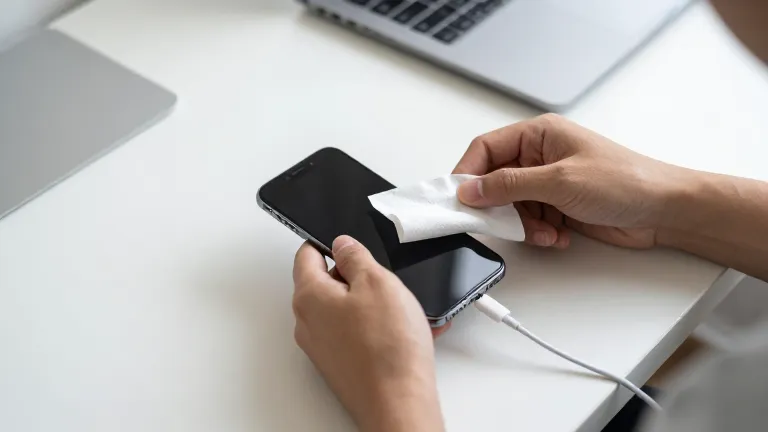
How to Clean the Charging Port Safely
To clean the charging port safely, use a soft, dry cloth to gently wipe the area around the port. If debris is stuck inside, you can use a toothpick to carefully remove it, making sure not to push it deeper into the port. Avoid using liquid or abrasive materials, as they can damage the delicate components inside the port.
When to Replace the Charging Port
If the charging port is damaged or shows signs of wear, such as bending, corrosion, or physical cracks, it may need to be replaced. A damaged port can prevent the iPhone from charging even if the cable and power source are working correctly. If cleaning doesn't resolve the issue, consider visiting an authorized service provider to assess and replace the charging port.
Check the iPhone Settings
iPhone settings can significantly impact charging behavior, so it's important to review them carefully. Certain modes and display settings may prevent the device from charging properly or show incorrect battery information. Adjusting these settings can resolve unexpected charging issues and ensure your iPhone functions as intended.
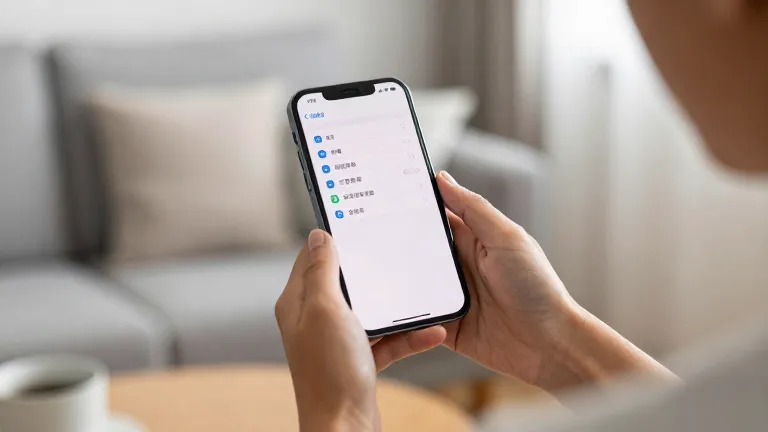
How to Adjust iPhone Settings for Charging
Ensure your iPhone is not in airplane mode or low power mode, as these settings can restrict charging. To check, open the Settings app and look for the 'Airplane Mode' toggle. If it's on, turn it off. Similarly, low power mode can limit background activity and potentially affect charging speed. Disable it by going to Settings > Battery > Low Power Mode and toggling it off.
What to Do If the Battery Percentage Is Hidden
If your battery percentage is not visible, it may lead to confusion about your iPhone's charge level. To check this, go to Settings > Battery and ensure the 'Battery Percentage' option is enabled. This setting allows you to see the exact battery level, which is helpful for managing charging. If the option is grayed out, your device may be running an older iOS version that doesn't support this feature. Updating to the latest iOS version can make this setting available.
Try a Different Power Source
If your iPhone isn't charging, the issue might not be with the device itself but with the power source you're using. Testing your power source can help identify if the problem lies with the outlet, USB port, or the charger you're using.
How to Test the Power Source
Start by plugging your iPhone into a different power outlet or USB port. Electrical issues, such as a faulty outlet or a port that doesn't supply enough power, can prevent your iPhone from charging. If your iPhone charges in a different location but not in its usual one, the problem is likely with the original power source. You can also try using a different USB cable to rule out any interference from the cable itself.
When to Use a Dedicated Charger
Avoid using power banks or USB hubs unless you're certain they provide sufficient power. Many power banks and USB hubs don't deliver the required 2.4A or higher current needed to charge an iPhone efficiently. If you're using a USB hub, try connecting your iPhone directly to the computer or a wall outlet instead. A dedicated charger designed for your iPhone is the most reliable option, as it ensures consistent and safe charging.
Troubleshoot Software and Hardware Issues
Software and hardware issues can occasionally prevent your iPhone from charging properly. Restarting your device can resolve temporary glitches, while checking for updates ensures you have the latest fixes. If these steps don’t work, a factory reset may be necessary to restore normal function.
How to Restart and Update Your iPhone
Restarting your iPhone can clear minor software issues that may interfere with charging. Press and hold the power button until the ‘Slide to Power Off’ slider appears, then slide it to turn off the device. After a few seconds, press the power button again to turn it back on. This process can resolve connectivity or system errors that might be causing the charging problem.
When to Reset Your iPhone
If your iPhone still doesn’t charge after restarting, check for available software updates. Go to Settings > General > Software Update to see if an update is pending. Installing the latest version can fix bugs or compatibility issues that might be affecting the charging process. If no update is available, consider resetting your iPhone as a final troubleshooting step. A factory reset will erase all data, so ensure you have backed up your device before proceeding.
Frequently Asked Questions
What should I do if my iPhone is not charging at all?
Start by checking the cable and adapter for damage. Ensure the charging port is clean and free of debris. If the issue persists, try a different power source or reset your iPhone.
Can a damaged charging port cause my iPhone to stop charging?
Yes, a damaged charging port can prevent your iPhone from charging properly. Inspect the port for physical damage or debris. If necessary, consider replacing the port.
How do I know if the charging cable is faulty?
Look for signs like intermittent charging or no charging at all. Test the cable with another device or try a different cable to determine if it is the issue.
What can I do if my iPhone shows no charging progress?
Ensure the cable and adapter are working correctly. Check for software issues by restarting your iPhone. If the problem persists, consider a hardware check or professional repair.
Next Steps for Your iPhone Charging Issue
If your iPhone isn’t charging, start with simple checks like the cable, adapter, and port. If these don’t resolve the issue, consider software or hardware troubleshooting. Addressing these areas can help restore your iPhone’s charging functionality.
If you’ve tried all the basic steps and still have issues, it’s best to consult an Apple service provider. They can diagnose and repair any underlying hardware problems that may be affecting your iPhone’s charging.





