
How to Fix My Settings: Troubleshooting Guide
If you're struggling with how to fix my settings, you're not alone. Whether you're a home user or an office worker, device settings issues can disrupt your workflow and cause frustration. Common problems range from incorrect network configurations to app permissions and system preferences that aren't functioning as expected. This guide is designed to help you identify and resolve these issues without needing professional assistance.
We'll start by explaining what settings issues are and how to spot the root cause of your problem. From there, you'll learn basic troubleshooting steps like restarting your device and checking for system updates. These simple actions can often resolve minor glitches and bring your settings back to normal.
For more persistent issues, we'll walk you through how to reset settings on both iOS and Android devices. We'll also cover advanced troubleshooting techniques, such as using built-in diagnostic tools and managing app permissions. If you're still having trouble, we'll guide you on when to seek professional help and how to contact device support effectively.
Understanding What Settings Issues Are
Settings issues can disrupt your daily tasks, whether you're using a smartphone, computer, or tablet. These problems range from minor glitches to more serious system errors that affect performance and functionality. Understanding what settings issues are and how they manifest can help you address them effectively.
Common Types of Settings Problems
Common settings problems often include misconfigured time zones, incorrect network connectivity, or improper app permissions. These issues can lead to missed notifications, failed connections, or restricted app functionality. For example, a wrong time zone setting might cause calendar events to appear at incorrect times, while an app lacking permission to access your camera could prevent it from working properly. Other common issues include incorrect display settings, audio output problems, or malfunctioning touch controls.
How to Identify the Root Cause
Identifying the root cause of a settings issue involves observing the symptoms and checking affected areas. Start by noting when the issue first appeared and whether it occurred after a software update or hardware change. If your device is unable to connect to Wi-Fi, it may be a network or router problem rather than a device setting. Similarly, if an app consistently crashes or behaves oddly, it might be due to conflicting permissions or background processes. Keeping a record of recent changes can help pinpoint the cause and guide your troubleshooting efforts.
Basic Troubleshooting Steps for Settings
Basic troubleshooting steps can often resolve common settings issues without requiring advanced technical knowledge. These steps are designed to address temporary glitches, outdated software, and recent changes that may be causing the problem.
- Restart your device to clear temporary glitches.
- Check for system updates to resolve bugs or compatibility issues.
- Review recent changes to identify what might have caused the problem.
How to Restart Your Device
Restarting your device is one of the simplest yet most effective ways to resolve minor settings issues. When a device is left running for extended periods, temporary glitches can accumulate, leading to unexpected behavior. A restart clears the device's memory and resets active processes, which can often fix problems related to settings not functioning correctly.
Checking for System Updates
Checking for system updates ensures that your device is running the latest version of its operating system. Manufacturers frequently release updates that address bugs, security vulnerabilities, and compatibility issues. These updates may include fixes for settings-related problems that were introduced in previous versions. To check for updates, go to your device's settings and look for the 'Software Update' or 'System Update' option.
How to Reset Settings on Your Device
Resetting settings on your device can resolve persistent issues without erasing your personal data. This process reverts your device to its factory default settings, which may help if standard troubleshooting steps haven't worked. However, it's important to understand that resetting settings can affect your current configuration and may require you to reconfigure your device afterward.
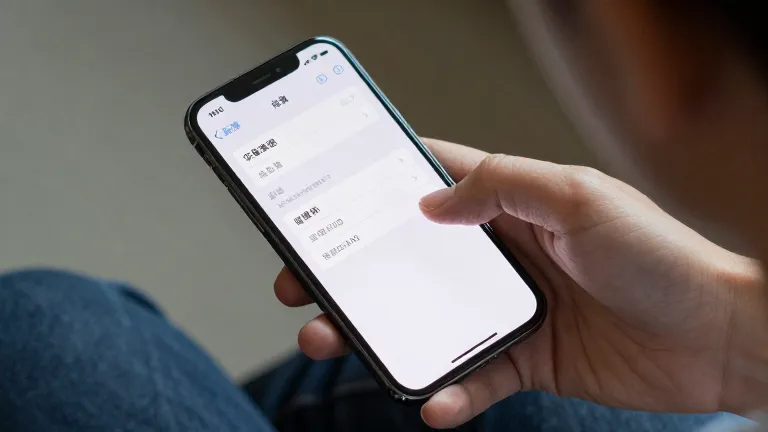
- Resetting settings on iOS devices involves accessing the Settings app and selecting General > Reset > Reset Settings. This action will restore your device to its original settings without deleting your personal data.
- On Android devices, resetting settings typically requires going to Settings > System > Reset > Reset Settings. This process will restore your device to its factory default settings while keeping your files and apps intact.
- Before resetting, ensure that your device is backed up to prevent any data loss. While resetting settings does not delete personal data, it is always wise to have a backup in place.
- After resetting, you may need to reconfigure your device, including re-entering Wi-Fi passwords, setting up your account, and reinstalling apps. This process can take some time, so plan accordingly.
Resetting Settings on iOS Devices
To reset settings on an iOS device, open the Settings app and navigate to General > Reset > Reset Settings. This option will restore your device to its factory default settings, which can help resolve issues like persistent app crashes or connectivity problems. The process does not delete your personal data, such as photos or messages, but it will remove custom settings and configurations.
Resetting Settings on Android Devices
Resetting settings on an Android device can be done through the Settings menu by selecting System > Reset > Reset Settings. This action will restore your device to its original configuration, which may help with issues like app conflicts or system errors. Unlike iOS, Android reset settings often retain your personal data, such as files and apps, but it's still recommended to back up important information before proceeding.
Advanced Settings Troubleshooting
Advanced settings troubleshooting involves using built-in tools and managing app behaviors to resolve persistent issues. These methods can help identify underlying causes that basic fixes may miss, allowing for more targeted solutions.
Using Diagnostic Tools on Your Device
Most modern devices come with diagnostic tools that can scan for software issues, performance bottlenecks, and configuration errors. On Windows, the built-in 'Troubleshoot' utility can run system checks for network, display, and other settings-related problems. macOS users can leverage the 'Diagnose' feature in Apple’s support tools to identify and fix common setting conflicts. These tools often provide clear guidance on how to resolve detected issues, making them a valuable resource for deeper troubleshooting.
Managing App Permissions and Background Processes
Third-party apps and background processes can interfere with system settings, causing unexpected behavior or conflicts. Reviewing the list of running apps and disabling non-essential services can help isolate the issue. On Android, checking the 'Battery' or 'Storage' settings can reveal apps using excessive resources. On iOS, reviewing the 'Settings > Battery' section can highlight apps affecting performance. Adjusting app permissions through the device settings ensures apps only access necessary functions, reducing the risk of setting conflicts.
When to Seek Professional Help
Some settings issues may require hardware inspection or advanced software tools. If basic troubleshooting methods fail, it's essential to recognize when the problem is beyond your control and seek professional assistance.

Signs That Your Issue Is Beyond Basic Fixing
Signs that your issue is beyond basic fixing include persistent errors after multiple attempts, unresponsive settings menus, or hardware-related problems like malfunctioning touchscreens or sensors. If your device fails to boot properly or exhibits unusual behavior that affects core functions, these are indicators that professional help is needed. Additionally, if you're unable to identify the root cause through standard diagnostic steps, it's time to consult a technician.
How to Contact Device Support
To contact device support, start by visiting the official website of your device manufacturer. Most companies offer online support portals, live chat, or phone assistance. Be prepared to provide details about your device model, operating system version, and the specific issue you're experiencing. If you're unsure where to start, search for the support page using your device's make and model. For urgent issues, contacting customer support via phone or in-person at an authorized service center may be the most effective approach.
Frequently Asked Questions
What should I do if my settings are not working after a software update?
If your settings are not working after a software update, try restarting your device. If the issue persists, check for additional updates or roll back to a previous version if possible. If problems continue, consider contacting support for further assistance.
Can resetting my settings cause data loss?
Resetting your settings typically does not delete your personal data, but it may reset app preferences and network configurations. Always back up important data before resetting to avoid any potential loss.
How do I check for system updates on my Android phone?
To check for system updates on your Android phone, go to Settings > System > System Update. If an update is available, follow the on-screen instructions to download and install it.
What are the most common settings problems users face?
Common settings problems include connectivity issues, incorrect app permissions, and misconfigured preferences. These can often be resolved by restarting the device, updating the software, or resetting the settings.
Next Steps for Fixing Your Settings
By following the steps outlined in this guide, you can effectively troubleshoot and resolve most settings issues. Start with basic troubleshooting, such as restarting your device and checking for updates, before moving to more advanced solutions.
If you're still experiencing issues, it's best to seek professional help. Remember to always back up your data before making significant changes to your device settings.





