
How to Fix Netgear Nighthawk Router Dropping WiFi Connection
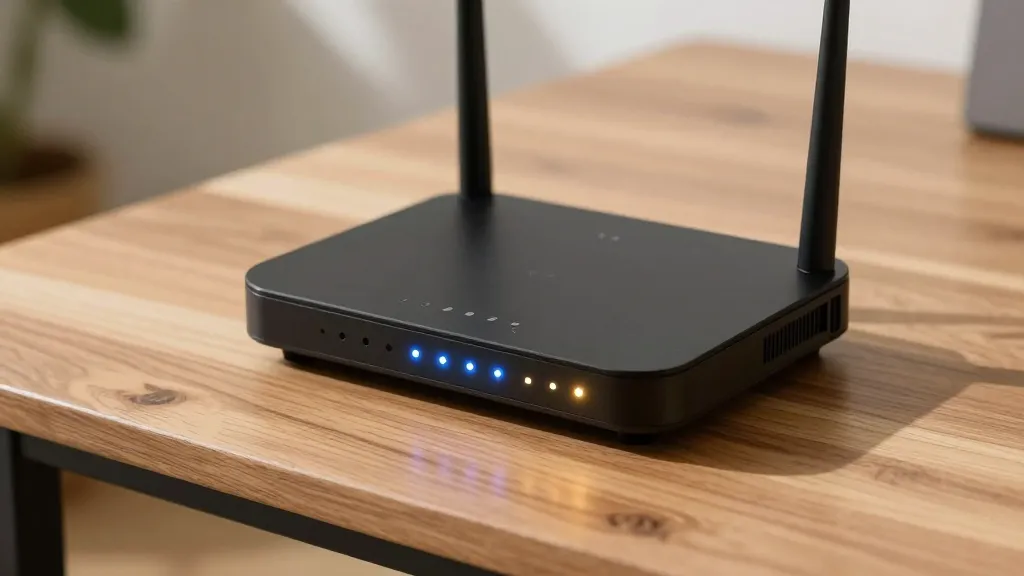
If your Netgear Nighthawk router keeps dropping WiFi connections, it can disrupt your work, streaming, and online activities. Whether you're a home user or small business owner, a stable internet connection is essential for daily tasks. This article provides clear, actionable steps to help you fix the issue and restore reliable WiFi. We’ll explore common causes, simple fixes, and advanced troubleshooting techniques to keep your network running smoothly.
From updating firmware to optimizing your router’s placement, we cover practical solutions that don’t require technical expertise. You’ll learn how to identify the type of connection drop you’re experiencing and take the right steps to resolve it. Our guide is designed for users who want to solve the problem without diving into complex settings or hardware changes.
If your Netgear Nighthawk router continues to drop WiFi connections despite your efforts, we’ll also guide you through advanced troubleshooting and when it might be time to replace your router. By following these steps, you can ensure a more stable and efficient home or office network.
Why Your Netgear Nighthawk Router Is Dropping WiFi Connection
Understanding why your Netgear Nighthawk router is dropping WiFi connections is the first step toward resolving the issue. WiFi drop problems can be frustrating and disrupt daily activities, but they often stem from a mix of hardware, software, and environmental factors. By identifying the root cause, you can take targeted steps to restore a stable connection.
Common Causes of WiFi Disconnections
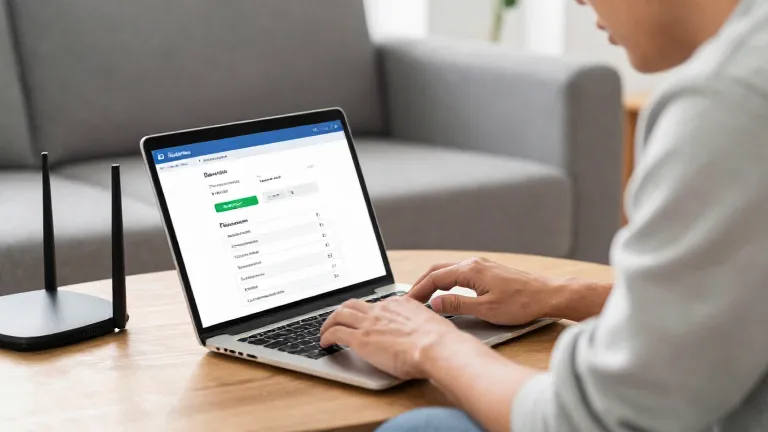
Common causes of WiFi disconnections include outdated firmware, interference from nearby electronic devices, and misconfigured router settings. Outdated firmware can introduce bugs that affect performance, while interference from devices like microwaves, cordless phones, or Bluetooth gadgets can weaken signal strength. Incorrect settings, such as overly restrictive security protocols or improper channel selection, can also lead to unstable connections. Regularly updating firmware and reviewing settings can help mitigate these issues.
How to Identify the Type of Connection Drop
Identifying the type of connection drop is key to diagnosing the problem. A sudden drop may indicate a hardware issue or a software glitch, while intermittent drops could be due to environmental interference. If your connection drops during high usage, it might be a sign of overloading the router’s resources. Observing patterns in when and how the connection drops can help determine whether the problem lies with the router, your network environment, or external factors like ISP issues.
Step-by-Step Guide to Fix Netgear Nighthawk WiFi Drops
To resolve WiFi drops on your Netgear Nighthawk router, start with basic troubleshooting steps that address common causes like outdated firmware, channel interference, and temporary glitches. These actions can often restore stability without requiring advanced technical skills or additional hardware.
- Check for and install firmware updates to ensure your router runs the latest software with bug fixes and performance improvements.
- Restart the router and all connected devices to clear temporary glitches that might be causing intermittent connectivity issues.
- Adjust the WiFi channel to avoid interference from neighboring networks and improve signal stability.
- Reset the router to factory settings if the issue persists, but be sure to back up your settings before doing so.
How to Update Router Firmware
Updating your Netgear Nighthawk router’s firmware is a simple yet effective way to resolve WiFi drops. Log in to the router’s admin panel using a web browser, enter the default IP address (usually 192.168.1.1), and navigate to the firmware update section. Check for available updates from the manufacturer’s website, and follow the on-screen instructions to install the latest version. Firmware updates often include bug fixes, security patches, and performance enhancements that can stabilize your WiFi connection.
How to Change WiFi Channel Settings
Changing the WiFi channel can help reduce interference from other networks and improve signal strength. Log in to the router’s admin panel, go to the wireless settings, and select a different channel for both the 2.4GHz and 5GHz bands. Avoid channels that are heavily used by nearby networks, as this can cause congestion and dropped connections. Use a WiFi analyzer tool if available to identify the least crowded channel, or manually switch to a channel with fewer users for better performance.
Optimize Your Router’s Environment to Prevent WiFi Drops
Optimizing your router's environment is a crucial step in preventing WiFi drops. By adjusting the physical setup of your Netgear Nighthawk router and managing connected devices, you can significantly improve signal strength and coverage. This section provides practical tips to enhance your network’s reliability and performance.
Best Placement for Router Signal Strength
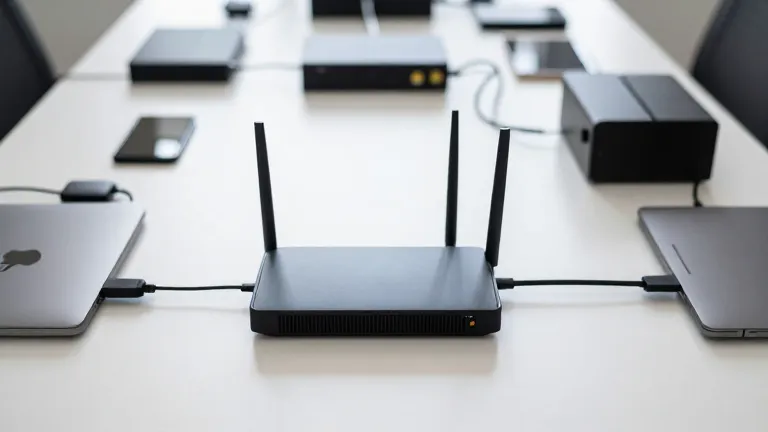
Positioning your router in a central location helps ensure even coverage throughout your home or office. Avoid placing it near corners or in isolated areas where signal strength may weaken. Ideally, the router should be placed on a flat surface, elevated slightly, and away from obstructions like furniture or appliances. This setup minimizes signal interference and allows the WiFi to reach all corners of your space effectively.
How to Use a WiFi Extender Effectively
Using a WiFi extender or mesh system can eliminate dead zones and expand your network’s reach. Place the extender halfway between your router and areas with weak signal to rebroadcast the connection. For mesh systems, position nodes strategically to cover all areas without overlapping too much. This approach ensures consistent connectivity and reduces the chances of WiFi drops, especially in larger spaces or multi-story buildings.
Advanced Troubleshooting for Persistent WiFi Drops
Persistent WiFi drops on your Netgear Nighthawk router may require deeper investigation beyond basic troubleshooting. Advanced steps can help uncover hidden issues like overheating, power-saving settings, or network congestion. Addressing these factors can restore stability and improve overall performance.
How to Check for Router Overheating
Router overheating can cause intermittent WiFi drops and reduce lifespan. Ensure the router is placed in a well-ventilated area, away from heat sources like direct sunlight or appliances. If the router feels excessively warm to the touch, consider relocating it or using a cooling pad. Overheating is often caused by poor airflow or prolonged heavy usage, so regular maintenance and proper placement are essential for long-term reliability.
How to Enable Dual-Band WiFi
Switching to a dual-band network can alleviate congestion and improve connection stability. Dual-band routers operate on both 2.4 GHz and 5 GHz frequencies, allowing devices to connect to the least crowded band. Access your router's settings to enable dual-band mode and assign devices to the optimal frequency based on their needs. This setup reduces interference and ensures smoother performance, especially in environments with multiple connected devices.
When to Replace Your Netgear Nighthawk Router
If your Netgear Nighthawk router continues to drop WiFi connections despite troubleshooting, it may be time to consider a replacement. Older models may lack support for modern WiFi standards like WiFi 6, which offer improved stability and faster speeds. Check the router’s model number and compare it with the latest specifications to determine if it is outdated. If your router is more than five years old, it might not be able to handle the demands of today’s high-speed internet usage, leading to frequent disconnections.
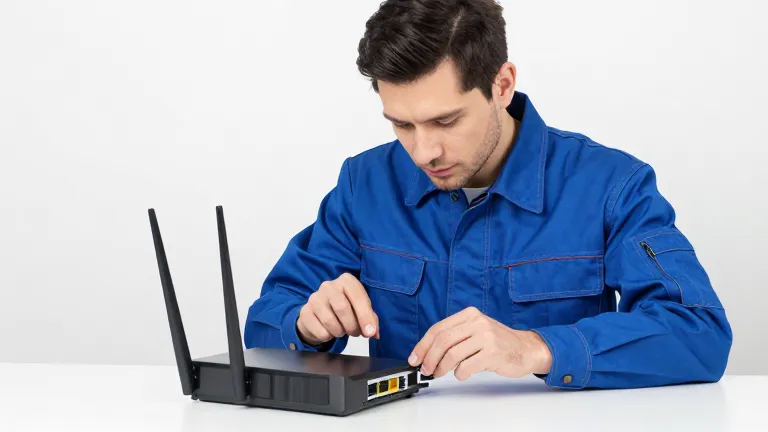
Physical damage or internal hardware failure can also cause persistent WiFi drops. Inspect the router for visible signs of wear, such as cracks, burn marks, or overheating. If the router feels unusually hot to the touch or emits a burning smell, it could indicate a failing power supply or internal components. In such cases, replacing the router with a newer model that has better heat dissipation and durable components is a more reliable solution.
When comparing performance, newer Netgear Nighthawk models often include advanced features like dual-band WiFi, improved signal range, and enhanced security protocols. These upgrades can significantly reduce connectivity issues and improve overall network reliability. If your router struggles with multiple devices or high data usage, upgrading to a model with higher throughput and better multitasking capabilities may be necessary.
Before purchasing a new router, research models that are compatible with your internet service provider and offer the features you need. Consider factors such as range, speed, and ease of setup. A more advanced model can provide a more stable and efficient WiFi experience, especially if you rely on the network for work or home automation. Replacing your router is a proactive step to ensure long-term connectivity and performance.
Frequently Asked Questions
What should I do if my Netgear Nighthawk router keeps dropping WiFi?
Start by checking for firmware updates and adjusting WiFi channel settings. If issues persist, reposition the router or use a WiFi extender. Avoid placing the router near interference sources.
How can I check if my Netgear router firmware is up to date?
Access the router's admin panel by typing the IP address into a browser. Navigate to the firmware section to view the current version and check for available updates.
Why does my Netgear Nighthawk router drop WiFi when other devices are connected?
This could be due to interference from other devices or networks. Try changing the WiFi channel or moving the router to a more central location to improve signal strength.
Is it possible to fix WiFi drops without replacing the router?
Yes, most issues can be resolved by updating firmware, changing WiFi channels, or optimizing the router's placement. Only consider replacement if these steps fail.
Final Steps for Stable WiFi
Addressing WiFi drops on your Netgear Nighthawk involves checking firmware, adjusting settings, and optimizing the environment. A combination of these methods often resolves connectivity issues without hardware replacement.
If these steps don’t resolve the issue, consider advanced troubleshooting or router replacement. Stay proactive with regular maintenance to prevent future drops.





