
How to Fix Xfinity or Spectrum Modem Keeps Rebooting Randomly
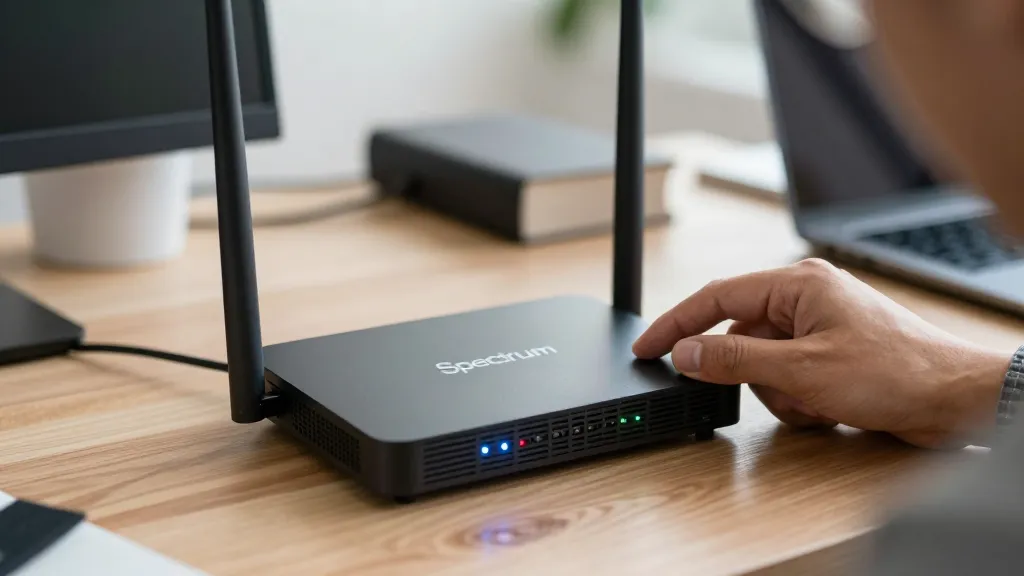
If your Xfinity or Spectrum modem keeps rebooting randomly, it can disrupt your internet connection and cause frustration. This issue might stem from environmental factors, physical damage, or even a faulty power source. Before calling a technician, there are several practical steps you can take to identify and resolve the problem. This article provides a clear, step-by-step guide to help you fix 'How to Fix Xfinity or Spectrum Modem Keeps Rebooting Randomly' without professional assistance. We’ll cover basic troubleshooting, cable checks, signal improvements, and advanced solutions to restore stable connectivity. By following these methods, you can address the issue confidently and regain reliable internet access.
Identify the Root Cause of Modem Reboots
Before taking any action to resolve your Xfinity or Spectrum modem rebooting issue, it's essential to understand whether the problem is temporary or persistent. If the reboots occur sporadically and stop on their own, it may be a minor glitch. However, if the issue persists, it indicates a deeper problem that requires more detailed troubleshooting.

Check for Environmental Factors
Environmental factors can often be the root cause of modem reboots. Check for power fluctuations by using a surge protector or a voltage meter to ensure stable electricity supply. Overheating is another common issue; ensure the modem is placed in a well-ventilated area away from heat sources. If the modem is in a high-traffic area with many electronic devices, interference from Wi-Fi routers, microwaves, or cordless phones can disrupt its operation. Moving the modem to a different location or reducing nearby electronic devices may help stabilize its performance.
Look for Physical Damage
Physical damage to the modem or its connections can also trigger random reboots. Inspect the modem's exterior for cracks, dents, or signs of moisture, which can affect its internal components. Check the power cable and ports for fraying, loose connections, or burn marks. A damaged power supply or faulty internal wiring can lead to unexpected shutdowns. If you notice any physical issues, replacing the modem or the power supply may be necessary to restore stable operation.
Basic Troubleshooting Steps for Modem Reboots
Before diving into more complex solutions, start with basic troubleshooting steps that can often resolve random modem reboots. These simple actions can eliminate minor issues and help stabilize your connection.
- Unplug the modem and wait for 5 to 10 minutes before plugging it back in.
- Check that the power outlet is functioning and try plugging the modem into a different outlet.
- Inspect all cables for looseness, damage, or wear, and ensure they are securely connected.
- If the modem is still rebooting, repeat the process after ensuring all connections are stable.
How to Restart the Modem
To restart the modem, locate the power port on the back or bottom of the device and unplug it. Allow the modem to sit unplugged for at least 5 to 10 minutes. This gives the internal components time to reset and can resolve temporary glitches causing the reboot.
Verify Power Source and Connections
Ensure the power source is stable by testing the outlet with another device. If the outlet is faulty, the modem may lose power unexpectedly. If the issue persists, try using a different outlet or power strip to rule out electrical instability. Additionally, inspect all cables for physical damage or wear and reconnect them firmly to ensure a secure connection.
Check and Replace the Coaxial Cable
A faulty coaxial cable can be a common cause of modem rebooting. This cable connects your modem to the wall outlet and is responsible for transmitting the internet signal. Inspecting and replacing the coax cable can help resolve instability issues and prevent unexpected reboots.
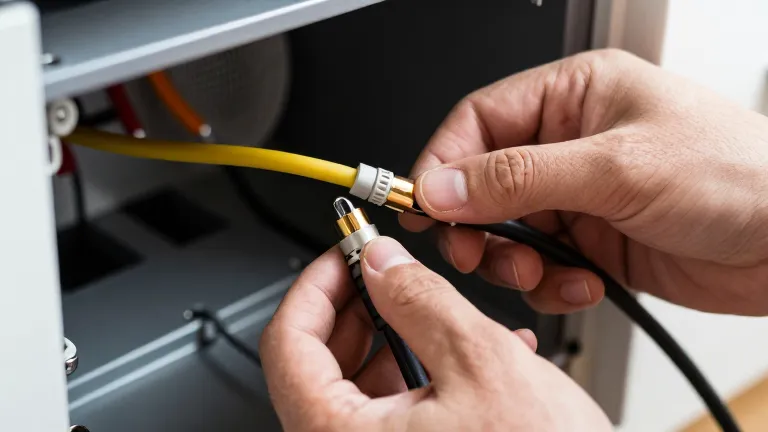
- Inspect the coax cable for physical damage or wear.
- Ensure the cable is securely connected at both ends.
- Test with a different cable to rule out a faulty connection.
How to Inspect the Coax Cable
To inspect the coax cable, start by visually examining the entire length of the cable for any signs of damage. Look for cuts, fraying, or kinks that could disrupt the signal. Pay special attention to areas where the cable may have been bent or pinched, as these can cause internal breaks. If the cable appears worn or damaged, it may be the source of intermittent connectivity issues.
Replace the Coax Cable If Damaged
If the coax cable is damaged, replace it with a new, high-quality cable that matches the original specifications. Begin by disconnecting the old cable from both the modem and the wall outlet. Then, connect the new cable securely at both ends, ensuring the connectors are fully seated. After replacing the cable, power cycle the modem and check if the rebooting issue has been resolved. A properly functioning coax cable can significantly improve signal stability and prevent unexpected reboots.
Fix Signal Drop Issues on Your Network
Signal drop issues can cause your Xfinity or Spectrum modem to reboot unexpectedly. Poor signal reception between your modem and the network can lead to instability, so addressing this problem is essential for a reliable connection.
Improve Signal Reception
To improve signal reception, position your modem closer to the router or the main network source. If your modem is far from the router, move it to a more central location in your home. Avoid placing it in areas with thick walls, basements, or enclosed spaces, as these can weaken the signal. Also, keep the modem away from large metal objects or appliances that might interfere with the signal.
Use Signal Boosters or Extenders
If moving the modem doesn’t resolve the issue, consider using a signal booster or extender. These devices amplify the signal and can help improve connectivity in areas with weak reception. Choose a booster that is compatible with your modem and network type. Place the extender in a location where it can receive a strong signal from the main source and then retransmit it to the modem or other devices. This can help stabilize the connection and reduce the chances of unexpected reboots.
Advanced Solutions for Persistent Reboots
If your Xfinity or Spectrum modem continues to reboot after basic troubleshooting, consider more advanced solutions. Resetting the modem to factory settings and updating its firmware can resolve deeper issues. These steps should be taken carefully, as they may reset your network settings and require reconfiguration.
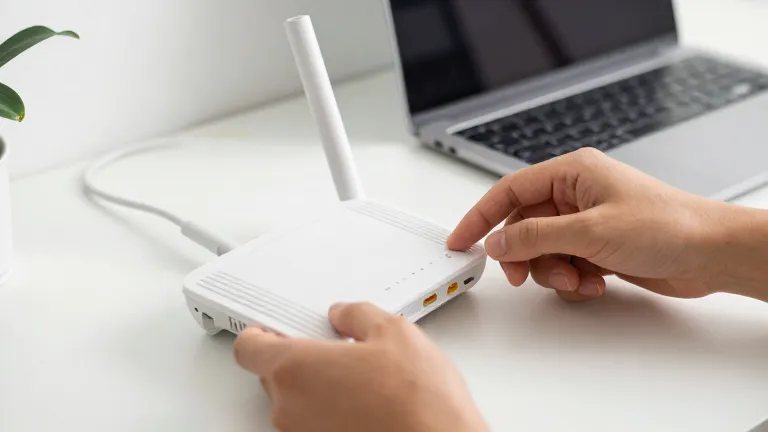
- Reset Modem to Factory Settings
- Update Modem Firmware
- Contact Spectrum Support for Further Assistance if the Issue Persists
Reset Modem to Factory Settings
Resetting your modem to factory settings can resolve software conflicts or corrupted settings that may be causing the reboots. Locate the reset button on the back or bottom of the modem and press and hold it for 30 seconds. This will restore the modem to its original state, erasing any custom configurations. After resetting, you will need to reconfigure the modem, including reconnecting to your internet service and setting up Wi-Fi networks.
Update Modem Firmware
Updating the modem firmware ensures it runs the latest software, which may include bug fixes and performance improvements. Log in to the modem's web interface using its default IP address (usually 192.168.1.1) and check for firmware updates in the settings menu. Follow the on-screen instructions to download and install the update. If the modem does not support automatic updates, visit the Spectrum support website to download the latest firmware version and follow the manual installation guide.
Frequently Asked Questions
What should I do if my Xfinity modem keeps rebooting?
Start by checking for environmental factors and physical damage. If issues persist, try restarting the modem and verifying power connections.
Can a faulty coax cable cause my Spectrum modem to restart?
Yes, a damaged or loose coax cable can lead to signal drop and cause the modem to reboot. Inspect and replace the cable if needed.
How do I fix a signal drop that leads to modem reboots?
Improve signal reception by positioning the modem optimally and using signal boosters or extenders to enhance connectivity.
What if my modem keeps rebooting even after basic troubleshooting?
Try resetting the modem to factory settings or updating its firmware. If the problem persists, contact Xfinity support for further assistance.
Final Thoughts
Modem reboots often stem from environmental issues, faulty cables, or signal drops. Address these by checking connections, replacing damaged cables, and improving signal strength. If problems persist, advanced steps like resetting or updating firmware may be necessary.
Contact Xfinity support if the issue remains unresolved. Regular maintenance and awareness of potential causes can help prevent future reboots and ensure stable internet service.





