
How to Fix Router Not Connecting to Internet: Troubleshooting Guide
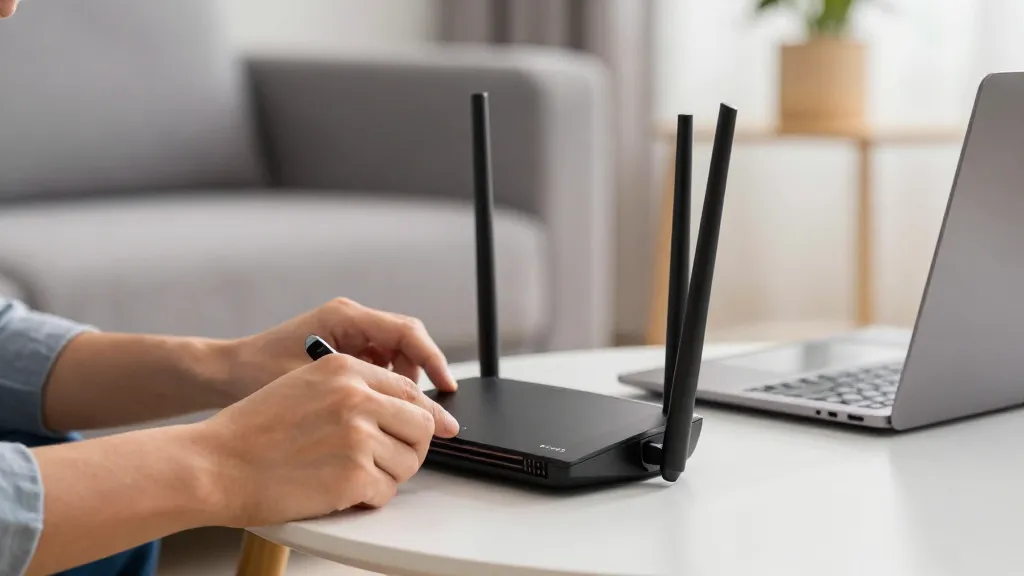
If your router is not connecting to the internet, it can be frustrating, especially when you need reliable connectivity for work or daily tasks. The main keyword here is how to fix router not connecting to internet, and this guide will walk you through practical steps to restore your connection. Whether you're a home user or an office worker, these troubleshooting methods are designed for non-tech experts who want to resolve issues without professional help. The first step is to check your basic connectivity and settings, ensuring everything is properly powered and connected. From there, we’ll move on to more advanced solutions, helping you identify and fix the root cause of the problem.
Check Basic Connectivity and Settings
Before diving into complex troubleshooting steps, start by verifying the most basic elements of your router setup. A simple power issue or loose cable can often be the root cause of connectivity problems. This section guides you through checking your router’s physical connections and confirming that your internet service is active.
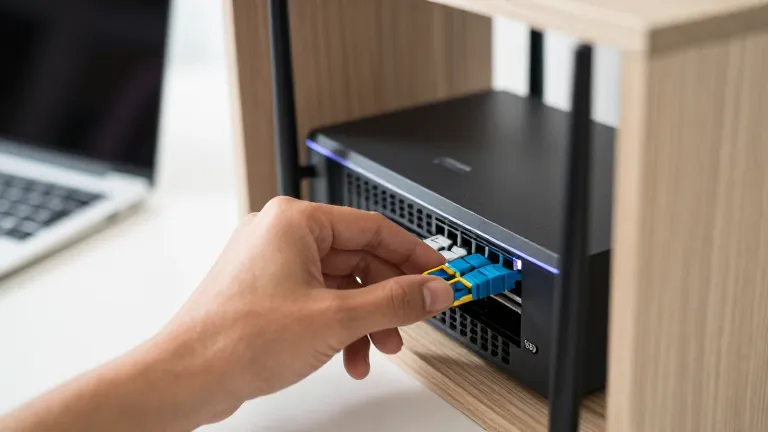
Verify Power and Physical Connections
Ensure that your router is properly powered by checking the power cable and outlet. If the router is not turning on, try plugging it into a different outlet or using a surge protector. Next, inspect all physical connections, including the Ethernet cable linking the router to the modem. A loose or damaged cable can prevent the router from receiving an internet signal. If you're using a Wi-Fi connection, make sure your device is within range and that the Wi-Fi is enabled. If the signal is weak or unstable, move closer to the router or try a different location.
Confirm ISP Status and Internet Access
Check with your internet service provider (ISP) to confirm that there are no ongoing outages in your area. You can do this by visiting the ISP’s official website or contacting their customer support. If the ISP is experiencing issues, you may need to wait until the problem is resolved. Additionally, try accessing a website from another device to see if the issue is isolated to one device or affects all devices on the network. If other devices also can’t connect, the problem is likely with the router or the ISP rather than your individual device.
Restart Your Router and Modem
Restarting your router and modem is a fundamental step in resolving internet connectivity issues. This simple process can often resolve temporary glitches and restore your connection without requiring advanced technical knowledge.
- Unplug both the router and modem for at least 30 seconds.
- Plug them back in and wait for the lights to stabilize.
- Wait for the router to reboot and re-establish the internet connection.
- Test the connection after rebooting to see if the issue is resolved.
How to Restart Your Router and Modem
To restart your router and modem, locate the power cable for both devices and unplug them from the electrical outlet. Ensure that both devices are fully powered down by waiting for at least 30 seconds. This step helps to clear any temporary errors or memory issues that might be affecting the connection.
Wait Time and Reconnection Process
Once you’ve unplugged the devices, plug them back in one at a time. Allow several minutes for the modem to establish a connection with your internet service provider and for the router to reboot. During this time, observe the status lights on both devices to ensure they are indicating proper operation. If the lights remain steady, it’s a good sign that the devices are functioning correctly.
Reset Router Settings to Default
Resetting your router to factory settings can resolve connectivity issues caused by misconfiguration or software glitches. This process restores default settings, which may improve performance and stability. However, it also means you’ll need to reconfigure your network settings afterward.
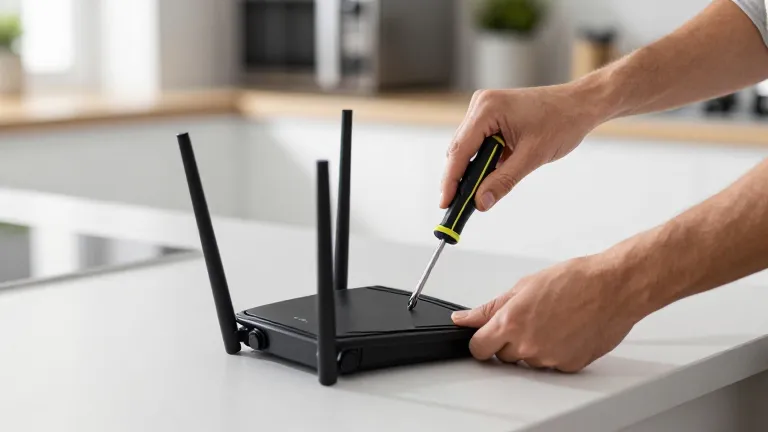
How to Reset Your Router to Factory Settings
To reset your router, locate the reset button, usually found on the back or bottom of the device. Press and hold this button for 10 to 30 seconds until the router’s lights start flashing or reset. Some routers may take up to a minute to reboot fully. Once the router restarts, it will reconnect to your ISP’s network using default settings. If your router has a separate modem, ensure it is also reset if needed.
Reconfiguring Router Settings After Reset
After resetting, you’ll need to reconfigure your router’s settings to match your network requirements. Log in to the router’s admin panel using the default IP address, typically 192.168.0.1 or 192.168.1.1. Set a new admin password and configure your Wi-Fi network name (SSID) and password. Ensure the router is set to the correct network mode, such as 2.4GHz or 5GHz, depending on your device compatibility. If you’re using dual-band, consider enabling both bands for better coverage and performance.
Update or Reinstall Router Firmware
Updating or reinstalling router firmware can resolve connectivity issues caused by software bugs or outdated system files. This process involves accessing the router's admin panel to check for updates, downloading the latest firmware from the manufacturer's website, and installing it properly. After the update, rebooting the router ensures the new firmware is active and functioning correctly.
How to Check for and Install Firmware Updates
To check for firmware updates, connect your router to a computer using an Ethernet cable or Wi-Fi, then open a web browser and enter the router's IP address, typically 192.168.0.1 or 192.160.1.1. Log in using the default username and password, usually 'admin' for both. Navigate to the firmware update section, which may be labeled as 'System Tools,' 'Firmware Upgrade,' or 'Software Update.' If an update is available, download the latest firmware file from the manufacturer's official website and upload it to the router using the 'Upload' or 'Install' button.
Troubleshooting Firmware Installation Issues
If the firmware update fails or causes issues, first ensure the file is compatible with your router model and that you're using the correct file format, such as .bin or .rom. If the update doesn't work, try reconnecting the power supply to the router, wait for a few minutes, and attempt the installation again. If problems persist, contact the manufacturer's support team for guidance. In some cases, restoring the router to factory settings and reapplying the firmware may resolve persistent issues.
Advanced Troubleshooting Steps
Advanced troubleshooting steps can help identify and resolve complex internet connectivity issues. These methods go beyond basic fixes and are useful when standard troubleshooting fails. By testing for IP address conflicts, using network diagnostic tools, and checking for software interference, you can pinpoint the cause of the problem more precisely.
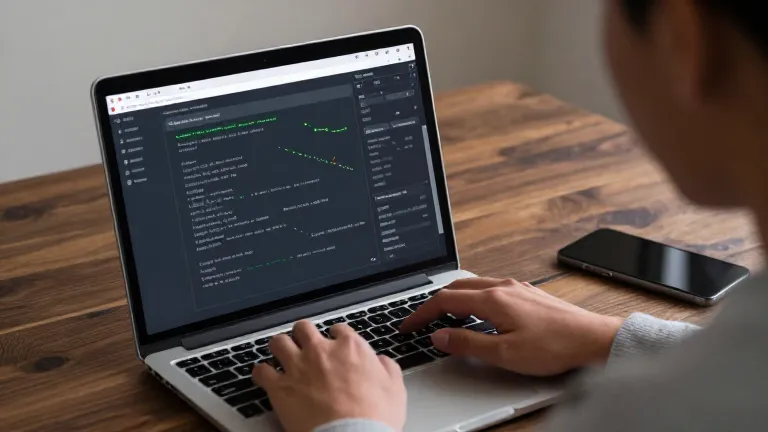
How to Test for IP Address Conflicts
IP address conflicts occur when two devices on the same network are assigned the same IP address, leading to connectivity issues. To check for conflicts, access your router’s admin panel and review the list of connected devices. Look for duplicate IP assignments or devices with the same MAC address. If a conflict is found, assign static IP addresses to the affected devices or restart the router to reset the IP allocation.
Using Traceroute and Ping for Network Diagnostics
Traceroute and ping commands are essential tools for diagnosing network problems. Open the command prompt or terminal and type 'ping [website]' to test connectivity to a specific server. If packets are lost or responses are delayed, the issue may lie in your local network or the ISP’s connection. Use 'traceroute [website]' to trace the path data takes to reach its destination. This can help identify where the connection fails, whether it’s within your home network or further along the internet path.
Frequently Asked Questions
What should I do if my router still doesn't connect to the internet after a restart?
If your router still doesn't connect to the internet after a restart, try resetting it to factory settings. If the issue persists, check for firmware updates or contact your ISP for further assistance.
Can a firmware update fix my router's internet connection issues?
A firmware update can resolve compatibility issues or bugs that affect your router's performance. Always download updates from the manufacturer's website and follow the installation instructions carefully.
How do I know if my router's settings are causing the connection problem?
Check for incorrect IP address settings, subnet masks, or gateway configurations. Also, ensure that your router's firewall or security settings aren't blocking internet access.
What can I do if my internet service provider is not responding to my complaints?
Contact your ISP through alternative channels, such as email or live chat. If necessary, escalate the issue to their customer service department or consider switching providers.
Final Steps and Support
Troubleshooting a router not connecting to the internet involves checking basic connections, restarting devices, and updating firmware. If issues persist, advanced steps like testing IP conflicts or using diagnostic tools can help identify the root cause.
If all else fails, reach out to your ISP for support. Keeping your router updated and maintaining proper settings can prevent future connectivity problems.





