
How to Fix Slow WiFi Speeds on One Specific Device

Slow WiFi speeds on a single device can be frustrating, especially when other devices on the same network are working fine. If you're experiencing this issue, the problem likely lies with your device's connection rather than the overall network. This article provides practical steps to diagnose and fix slow WiFi speeds on one specific device, helping you restore fast and reliable internet access. Whether you're at home or in the office, these solutions are designed to address common causes of slow connections without requiring professional assistance.
The first step is to check for physical interference and ensure your device is positioned correctly relative to the router. Distance and obstacles can significantly impact signal strength and speed. By optimizing your device's location, you may immediately improve your connection without any complex troubleshooting.
Next, we'll explore how to verify and switch between WiFi bands, update network drivers, and run speed tests to identify potential issues. These steps are tailored for home users and office workers who want to resolve slow WiFi speeds on a single device efficiently and effectively.
Check for Interference and Distance From Router
If your device is experiencing slow WiFi speeds while others on the network are fine, the issue may be related to its proximity to the router or environmental factors affecting the signal. Start by assessing how far your device is from the router and whether any physical barriers are obstructing the connection.
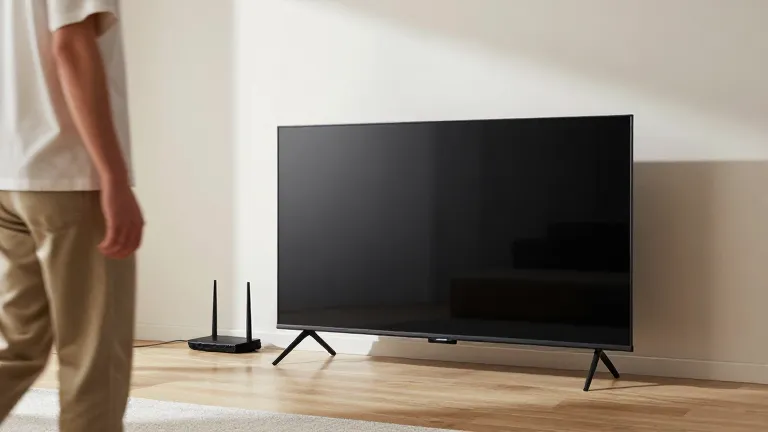
Positioning Your Device Near the Router
Ensure your device is within a reasonable distance from the router. WiFi signals weaken over distance, so placing your device closer to the router can significantly improve connection speed. If your device is in a different room or on a different floor, try moving it closer to the router to see if performance improves.
Reducing Physical Obstacles and Interference
Identify and remove potential sources of interference that may be disrupting your WiFi signal. Walls, especially those made of concrete or metal, can block or weaken the signal. Additionally, electronic devices such as microwaves, cordless phones, and Bluetooth devices can cause interference. Move your device away from these objects to see if the connection stabilizes.
If possible, place the router in a central location within your home or office to maximize coverage. Avoid placing it near large appliances or in enclosed spaces. A clear line of sight between the router and your device can greatly enhance signal strength and reduce latency.
Verify WiFi Band Selection (2.4GHz vs 5GHz)
Verifying your WiFi band selection is crucial when experiencing slow speeds on a single device. Many routers operate on both 2.4GHz and 5GHz bands, but devices may connect to the wrong one based on compatibility or signal strength. Understanding the differences between these bands and how to switch them can help resolve performance issues.

Understanding 2.4GHz and 5GHz Bands
The 2.4GHz band offers broader coverage and better penetration through walls, making it suitable for larger spaces. However, it typically provides slower speeds and is more prone to interference from other devices like microwaves and Bluetooth. The 5GHz band, on the other hand, delivers faster speeds and less interference but has a shorter range and struggles to pass through solid objects. If your device is connected to the 2.4GHz band, it might be experiencing slower speeds even if the 5GHz band is available.
How to Switch Between WiFi Bands
To switch between WiFi bands, check your device's WiFi settings for options to select the 5GHz network. Some routers broadcast both bands with different names, such as 'SSID_2.4' and 'SSID_5GHz'. If your device doesn't automatically connect to the 5GHz band, ensure it supports this frequency. Older devices or those with outdated hardware may only support 2.4GHz. Additionally, some routers require manual selection of the 5GHz band, especially if the device is not detecting it automatically.
Update or Reinstall the Network Adapter Driver
Outdated or corrupt network adapter drivers can lead to slow WiFi performance on specific devices. Ensuring your drivers are up to date or reinstalling them can resolve compatibility issues and improve connection stability.
- Open Device Manager and check for available driver updates for your network adapter.
- If no updates are available, roll back to a previous driver version if the issue started after a recent update.
- Uninstall the network adapter and restart your device to allow Windows to reinstall the driver automatically.
- Use a trusted driver update tool to scan and install the latest drivers for your network adapter.
How to Update Network Adapter Drivers
To update your network adapter drivers, open Device Manager by right-clicking the Start menu and selecting it. Expand the Network adapters section, right-click your adapter, and choose 'Update driver.' Windows will search for and install the latest driver from the internet. If no updates are found, manually download the latest driver from the manufacturer’s website and install it.
When to Roll Back or Reinstall Drivers
Roll back your driver if recent changes caused the issue. Right-click the adapter in Device Manager, select 'Properties,' then go to the 'Driver' tab. Click 'Roll Back Driver' to revert to a previous version. If rolling back isn’t possible, uninstall the driver completely and restart your device. Windows will reinstall the default driver, which may resolve the problem. Reinstalling the driver ensures all settings are reset and can fix conflicts that may be slowing your WiFi connection.
Run a Speed Test and Diagnose Network Issues
Running a speed test is a crucial step in diagnosing slow WiFi speeds on a single device. By using a reliable speed test tool, you can determine whether the issue lies with the device itself, the network, or external factors like congestion. Comparing results across different devices helps isolate the problem, whether it's a local issue on the specific device or a broader network problem.

Using Speed Test Tools to Identify Issues
Use a speed test tool such as Speedtest.net or Fast.com to measure your internet speed. These tools assess download and upload speeds, as well as latency, providing a clear picture of your connection's performance. If the results show significantly lower speeds on the affected device compared to others, the issue is likely local to that device. Conversely, if the speeds are consistent across all devices, the problem may be with your internet service provider or router.
Checking for Bandwidth-Hogging Applications
Once you've confirmed the speed issue is local to the device, check for bandwidth-hogging applications running in the background. Streaming services, large file downloads, or peer-to-peer applications can consume significant bandwidth, slowing down your connection. Open your device's task manager or activity monitor to identify and close any unnecessary processes that may be using excessive data. If the issue persists, consider limiting background data usage through your device's settings or by using Quality of Service (QoS) features on your router.
Troubleshoot Advanced Settings and Router Configuration
Troubleshooting advanced settings and router configuration can resolve hidden issues affecting your device's WiFi performance. Many problems stem from misconfigured router settings, outdated firmware, or incorrect network configurations. By resetting the router and optimizing its settings, you can often restore stable and fast WiFi connectivity.
Resetting Your Router to Default Settings
Resetting your router to its factory settings can eliminate configuration errors that may be causing slow WiFi speeds. Before proceeding, ensure you back up any custom settings or saved Wi-Fi passwords. To reset, locate the small reset button on the router, press and hold it for 30 seconds, then power cycle the router. After rebooting, reconfigure the router with your preferred settings, including SSID, password, and security protocols. This process can resolve conflicts caused by incorrect or outdated configurations.
Adjusting WiFi Channel for Better Performance
Changing the WiFi channel on your router can reduce interference and improve performance, especially in crowded environments. Most routers operate on the 2.4GHz band, which has limited channels, while 5GHz offers more options. Access the router’s admin panel and navigate to the wireless settings. Select a less congested channel, such as channel 1, 6, or 11 for 2.4GHz, or a higher channel on 5GHz. Avoid channels near neighbors to minimize interference. Save the changes and test your WiFi speed again to see if performance improves.
Frequently Asked Questions
Why is my WiFi slow on one device but not others?
Slow WiFi on one device may be due to interference, incorrect band selection, or software issues. Check if the device is connected to the correct band and ensure its drivers are up to date.
How do I know if my device is using the 5GHz band?
Check your device’s WiFi settings for a 5GHz network name. Some routers broadcast both bands with different SSIDs, so ensure you’re connected to the correct one.
Can a corrupted network adapter driver cause slow WiFi speeds?
Yes, a corrupted or outdated driver can lead to performance issues. Updating or reinstalling the driver can often resolve slow WiFi speeds.
What should I do if my WiFi speed is slow even when I’m close to the router?
Check for physical obstructions, interference, or bandwidth-hogging apps. Resetting the router or adjusting the WiFi channel may also improve performance.
Final Thoughts
Slow WiFi on a single device is often due to interference, incorrect band selection, or outdated software. Addressing these issues through simple steps like checking connections, updating drivers, and optimizing settings can restore performance.
If the problem persists, consider advanced troubleshooting like resetting your router or adjusting WiFi channels. Regularly maintaining your network ensures optimal speeds for all devices.





