
How to Fix Smart TV Screen Dim or Too Dark on Bright Mode
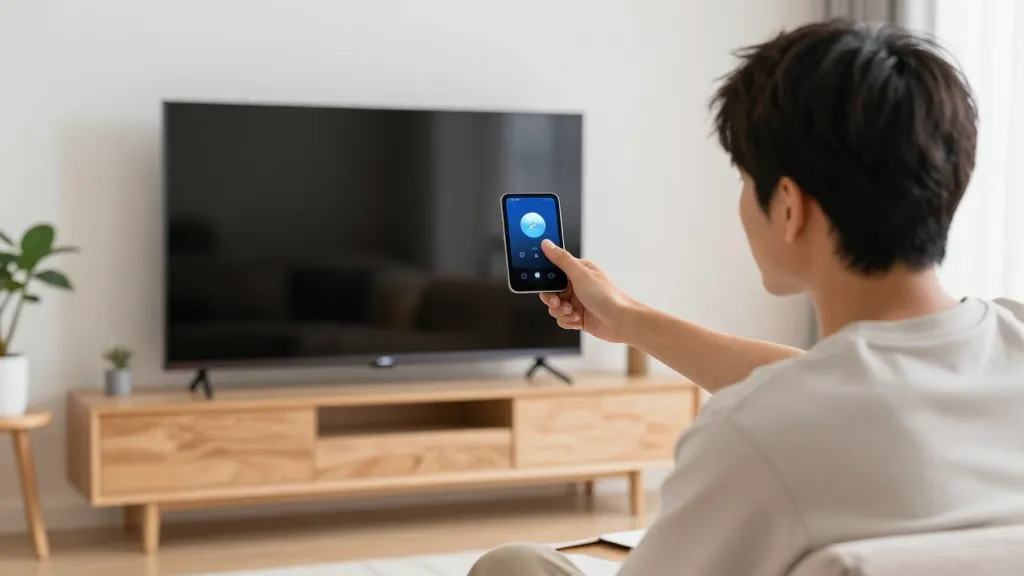
If your smart TV screen appears too dim, even when Bright Mode is enabled, you're not alone. Many users struggle to achieve the right brightness levels, especially in well-lit environments. The main keyword here is how to fix smart tv screen dim even on bright mode. This issue can be frustrating, as Bright Mode is designed to enhance visibility, yet it may not always deliver the desired results. In this article, we’ll explore practical solutions to address dimming screens, from manual adjustments to advanced features that can help you optimize your viewing experience. Whether you're at home or working from your office, understanding how to fine-tune your TV’s brightness settings can make a significant difference. We’ll guide you through the steps to ensure your screen is as bright as it should be, without compromising picture quality.
Bright Mode on a smart TV is intended to boost screen brightness for better visibility in daylight or bright rooms. However, it’s not a one-size-fits-all solution, and its effectiveness can depend on your TV model and settings. Sometimes, even with Bright Mode activated, the screen may still appear too dark. This can be due to incorrect calibration, outdated firmware, or environmental factors like ambient light. By understanding how Bright Mode works and what might be causing the dimness, you can take the right steps to resolve the issue.
This article covers everything you need to know about adjusting your smart TV’s brightness settings. We’ll start by explaining what Bright Mode is and why it might not be working as expected. Then, we’ll guide you through manual adjustments, troubleshooting steps, and advanced features that can enhance brightness. Whether you’re looking to improve your home viewing experience or optimize your office setup, these tips will help you get the most out of your smart TV. Let’s dive in and find the solution that works for you.
Understanding Smart TV Bright Mode
Bright mode is a feature designed to enhance visibility in well-lit environments by automatically adjusting screen brightness and color settings. This mode is particularly useful for users who watch TV in rooms with ambient light or during daylight hours. However, even with bright mode enabled, some users may still experience a dim screen, which can be frustrating. Understanding how bright mode works and why it might not function as expected is essential for resolving this issue.
What Is Bright Mode on a Smart TV?
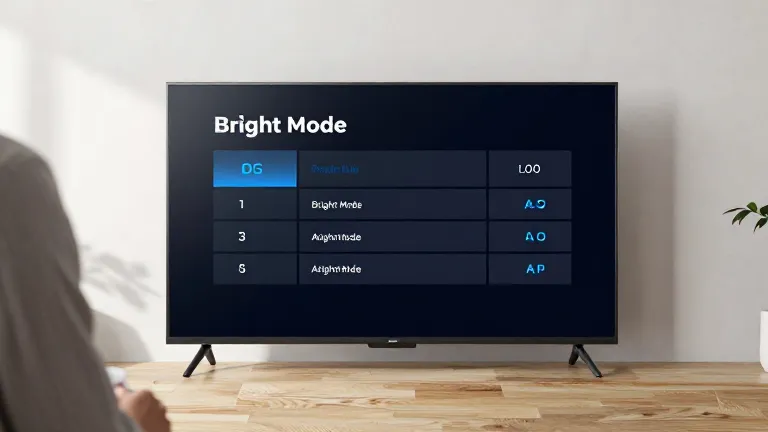
Bright mode on a smart TV is a setting that optimizes the display for visibility in brighter settings. It typically increases the screen's brightness and adjusts color saturation to make content more visible without causing eye strain. This mode is often activated through the TV's picture settings menu and can be toggled on or off depending on the user's preference. Some smart TVs also use ambient light sensors to automatically adjust brightness levels based on the surrounding environment.
Why Bright Mode Might Not Work
Bright mode may not work correctly if the TV is set to a specific picture mode, such as 'Cinema' or 'Night,' which prioritize lower brightness for a more immersive viewing experience. Additionally, some TVs might not activate bright mode properly due to software glitches or incorrect calibration settings. In some cases, the TV's firmware may not support bright mode fully, leading to inconsistent brightness levels even when the feature is enabled. Ensuring that the TV is set to the correct picture mode and that all software updates are installed can help resolve these issues.
How to Adjust Brightness Settings Manually
Manually adjusting brightness settings on your smart TV can significantly improve visibility, especially in bright environments. By accessing the TV's settings and fine-tuning the brightness level, you can ensure that the screen remains clear and comfortable to watch regardless of the ambient light.
Locating Brightness Settings on Your TV
To adjust brightness manually, start by navigating to the TV's settings menu. Look for options labeled 'Picture Settings,' 'Brightness,' or 'Display Settings,' which are typically found under the 'Picture' or 'Display' section. Use the on-screen controls to increase the brightness level if it appears too low. Some TVs allow you to adjust brightness in increments, so experiment with different settings to find the optimal balance.
Testing Brightness in Different Lighting
Once you've adjusted the brightness, it's important to test the screen in various lighting conditions. Brightness settings can appear different in a dark room versus a well-lit space, so observe how the screen looks under different circumstances. If the screen still appears dim, consider switching between picture modes like 'Standard,' 'Dynamic,' or 'Movie' to see if any of these override the bright mode settings. Make sure your TV is not in a specific mode that limits brightness, as this can affect visibility even when bright mode is enabled.
Troubleshooting Bright Mode Issues
If your smart TV's screen remains dim despite enabling bright mode, troubleshooting steps can help resolve the issue. Temporary glitches, outdated firmware, or incorrect settings can interfere with brightness functionality. By following specific actions, you can identify and correct these problems effectively.
Restarting the TV to Fix Brightness
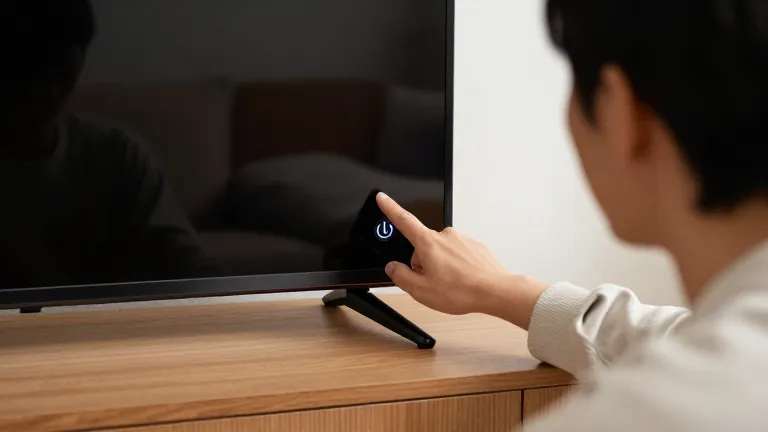
Restarting your smart TV can resolve temporary software glitches that affect brightness settings. To do this, press the power button to turn off the TV, wait for 30 seconds, and then power it back on. This action resets the system and may restore normal brightness levels. If the issue persists after a restart, it could indicate a more persistent software problem.
Checking for Firmware Updates
Checking for firmware updates is crucial, as manufacturers often release patches to fix known issues, including brightness problems. Access the TV's settings menu, navigate to the 'System' or 'Support' section, and look for an option to check for updates. If an update is available, follow the on-screen instructions to install it. Firmware updates can address bugs that prevent bright mode from functioning correctly.
Using Smart TV Features to Enhance Brightness
Smart TVs often come with advanced features designed to optimize screen brightness and viewing experience. By leveraging these built-in tools and integrating with smart home devices, users can achieve better brightness control without manual adjustments. This section explores how to use the TV's calibration tools and smart home integration to enhance brightness.
Using Auto Brightness and Calibration Tools
Many smart TVs include built-in calibration tools that analyze ambient light and adjust brightness accordingly. To access these tools, navigate to the TV’s settings menu and look for options like 'Auto Brightness' or 'Smart Calibration.' These features use sensors to detect the surrounding light and automatically adjust the screen brightness for optimal visibility. Some models also allow manual calibration for more precise control.
Smart Home Integration for Brightness Control
Smart home integration offers another way to manage brightness levels. Devices like smart bulbs or lighting systems can be linked to the TV to adjust ambient light in sync with screen brightness. For instance, a smart bulb can dim or brighten based on the TV’s brightness settings, creating a more comfortable viewing environment. Additionally, some smart TVs support voice assistants like Alexa or Google Assistant, which can be used to adjust brightness settings remotely.
When to Seek Professional Help
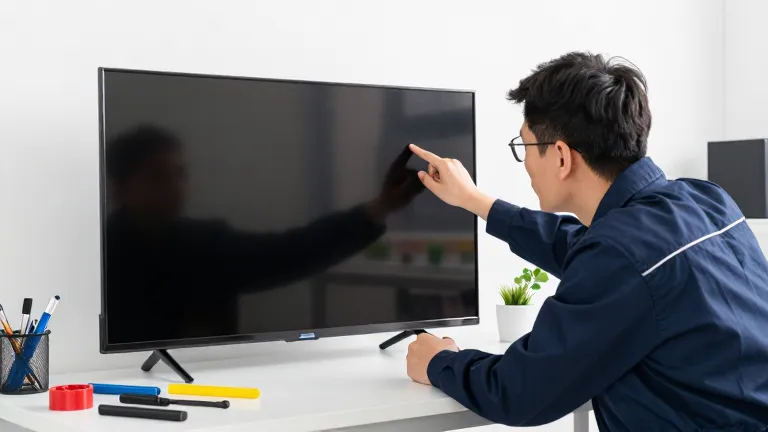
If manual adjustments fail to resolve the dim screen issue, it's time to consider professional assistance. Persistent dimming, even in bright mode, may indicate a deeper problem such as a faulty backlight or hardware malfunction. Professional help ensures accurate diagnosis and repair, particularly if the issue remains unresolved after following all troubleshooting steps.
When to Contact the Manufacturer
Contact the manufacturer if the dim screen issue persists despite thorough troubleshooting. They can provide guidance on advanced diagnostics or recommend authorized service centers. Faulty backlight components or internal hardware failures often require expert attention to identify and resolve.
Warranty and Repair Options
Before seeking professional help, check your TV's warranty coverage. Most manufacturers offer warranty periods ranging from one to several years, which may cover repairs for defective components. If your TV is still under warranty, contacting the manufacturer ensures you receive repair services at no cost. Always retain warranty documentation and service records to facilitate the repair process.
Frequently Asked Questions
Why is my smart TV screen dim even when bright mode is enabled?
Bright mode may not fully resolve dimness due to ambient light or incorrect settings. Check for firmware updates and recalibrate the display for optimal brightness.
How do I know if my smart TV is in a specific picture mode that affects brightness?
Look for a 'Picture Mode' or 'Scene' setting in the TV menu. Modes like 'Cinema' or 'Standard' can reduce brightness compared to 'Bright' or 'Dynamic'.
Can I use a third-party app to adjust my smart TV's brightness?
Some third-party apps can control brightness through smart home integration, but they may not offer the same precision as built-in tools. Always check compatibility and user reviews.
What should I do if my smart TV's brightness settings are not working?
Try restarting the TV, checking for firmware updates, or resetting the settings. If these don't resolve the issue, contact the manufacturer for further assistance.
Next Steps for Brighter Viewing
To address a dim smart TV screen, start by adjusting brightness settings manually and testing in different lighting conditions. Utilize built-in calibration tools and smart home integration to enhance brightness. If these steps don’t resolve the issue, consider firmware updates or professional support.
Follow these steps to ensure your smart TV delivers optimal brightness. Regularly check for updates and maintain your settings for a better viewing experience. If problems persist, reach out to the manufacturer for tailored solutions.





