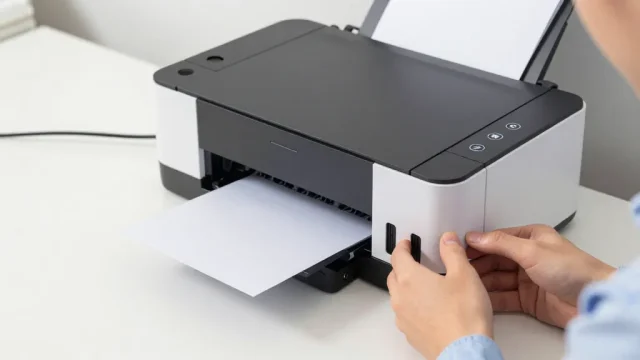
How to Fix Printer Paper Jam Error With No Paper Inside
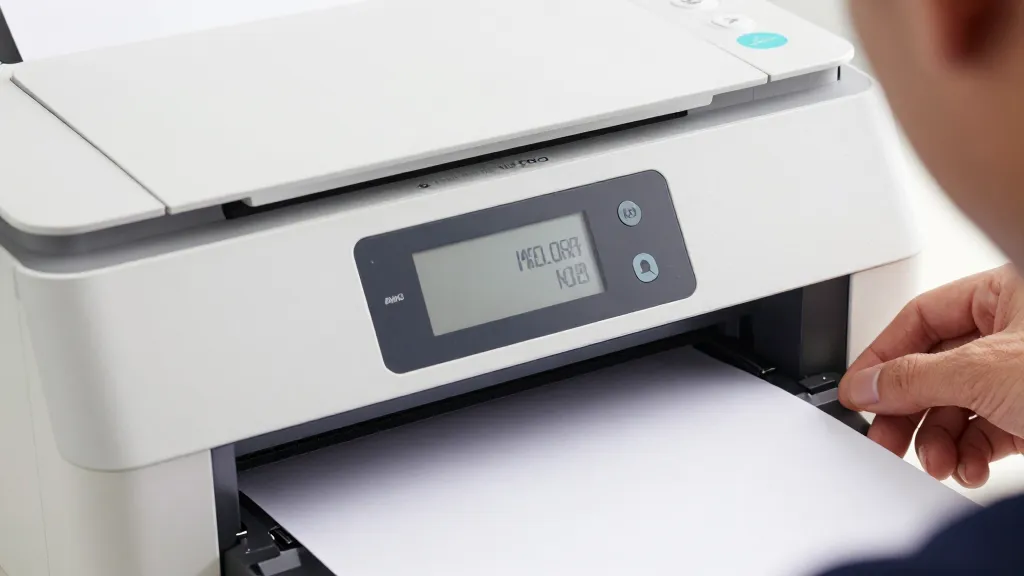
If your printer displays a paper jam error but there’s no visible paper inside, it can be frustrating to figure out what’s going on. This issue is common among home users and office workers who rely on their printers for daily tasks. The main keyword here is how to fix printer paper jam error with no paper. This article provides a clear, step-by-step guide to help you resolve the issue without needing professional help. We’ll explore the possible causes of the error, how to safely clear it, and tips to prevent it from happening again. Whether you're dealing with a home printer or an office machine, this guide is designed to help you troubleshoot and fix the problem effectively.
Understanding why your printer shows a paper jam error without any paper can start with checking the printer’s internal components. Sometimes, the printer’s sensors may misinterpret the absence of paper as a jam, leading to false error messages. This can happen due to sensor malfunctions, software glitches, or even residual paper fragments that are not easily visible. By following the steps outlined in this article, you can identify and resolve these issues without the need for a technician.
In addition to troubleshooting the immediate error, we’ll also cover preventative measures to keep your printer running smoothly. Regular maintenance, proper paper loading, and software updates can significantly reduce the chances of encountering such errors. If you still experience issues after following these steps, it’s important to know when to seek professional help. This article is your go-to resource for resolving how to fix printer paper jam error with no paper and ensuring your printer operates reliably.
Understanding the Printer Paper Jam Error
The 'paper jam' error is a common issue that can frustrate users when it appears without any visible paper in the printer. This error typically indicates that the printer's internal sensors have detected an obstruction, even when no paper is present. Understanding the nature of this error is crucial for effective troubleshooting, as it can often be resolved without professional assistance.
What Does the Paper Jam Error Mean?
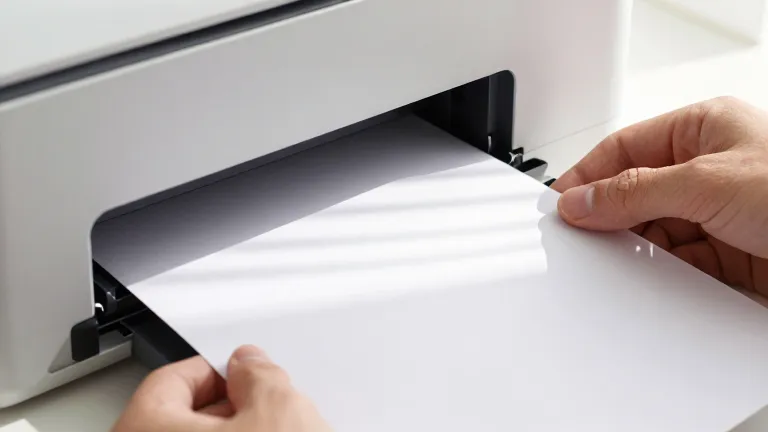
The paper jam error is a signal that the printer has detected an issue with its paper path. This can occur due to a variety of reasons, such as a paper fragment, a misaligned component, or a sensor malfunction. The error message is designed to alert users to potential problems that could disrupt the printing process. However, it's important to distinguish between a real jam and a false error, as the latter can lead to unnecessary troubleshooting.
Why Might the Printer Show a Paper Jam Without Paper?
Printers may display a paper jam error even when no paper is inside due to sensor misinterpretations or software glitches. Sensors can sometimes become dirty or misaligned, leading to false readings. Additionally, firmware issues or outdated software can cause the printer to misinterpret normal operations as a jam. Understanding these potential causes helps users approach the problem systematically and avoid unnecessary complications. Recognizing the difference between a real jam and a false error is key to resolving the issue efficiently.
Step-by-Step Guide to Fix the Paper Jam Error
To resolve a paper jam error with no paper inside, start by safely inspecting the printer’s internal components for any residual fragments or debris that might be triggering the error. This process involves opening the printer, checking for obstructions, and ensuring all parts are clean and free of damage.
- Turn off the printer and unplug it from the power source to avoid electrical risks.
- Open the printer’s access panel carefully, following the manufacturer’s instructions to avoid damaging internal components.
- Inspect the paper tray, rollers, and any visible pathways for small paper fragments or dust that may be lodged in the mechanism.
- Use a soft, dry cloth or compressed air to gently clean any debris from the rollers and internal channels.
- Close the printer and plug it back in, then turn it on to see if the error clears.
- If the error persists, restart the printer by turning it off, waiting 30 seconds, and then turning it back on.
How to Safely Open the Printer and Check for Debris
Before opening the printer, make sure it is completely powered down and unplugged to prevent any risk of electric shock or damage to the device. Locate the access panel, which is typically found at the back or front of the printer, and open it slowly to avoid applying unnecessary pressure to any moving parts.
Steps to Clear the Error Message and Restart the Printer
After inspecting and cleaning the internal components, restart the printer to allow it to reset and recheck its status. If the error message still appears, consult the printer’s manual for specific instructions on clearing error codes or updating the firmware. Some printers offer a reset option in their settings menu that can help resolve persistent issues.
Common Causes of Paper Jam Errors Without Paper
Paper jam errors without visible paper often stem from underlying issues that aren't immediately obvious. These can range from faulty sensors to software misbehavior, and environmental factors can also play a role. Understanding the most common causes can help users troubleshoot effectively and prevent future occurrences.
Sensor Issues and Misinterpretations
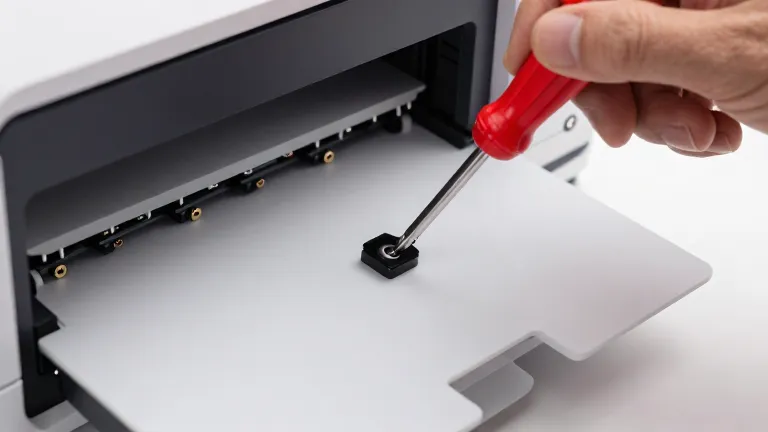
Sensor issues are a leading cause of paper jam errors without actual paper. Printers rely on sensors to detect the presence or movement of paper, and if these sensors become dirty, misaligned, or damaged, they may falsely report a jam. Dust, pet hair, or ink residue can accumulate on sensor contacts, leading to incorrect readings. Regular cleaning of the sensor area can help mitigate this issue.
Software and Firmware Glitches
Outdated printer drivers or firmware can also trigger paper jam errors. These software components manage communication between the printer and the computer, and if they are not up to date, they may misinterpret signals or fail to handle print jobs correctly. Firmware updates often include bug fixes and performance improvements that can resolve such errors. Checking for and installing the latest drivers and firmware from the manufacturer's website is a simple yet effective troubleshooting step.
Preventative Measures to Avoid Future Paper Jam Errors
Preventing future paper jam errors requires consistent maintenance and mindful usage habits. By following simple yet effective practices, you can significantly reduce the chances of encountering this issue again.
How to Clean and Maintain Your Printer
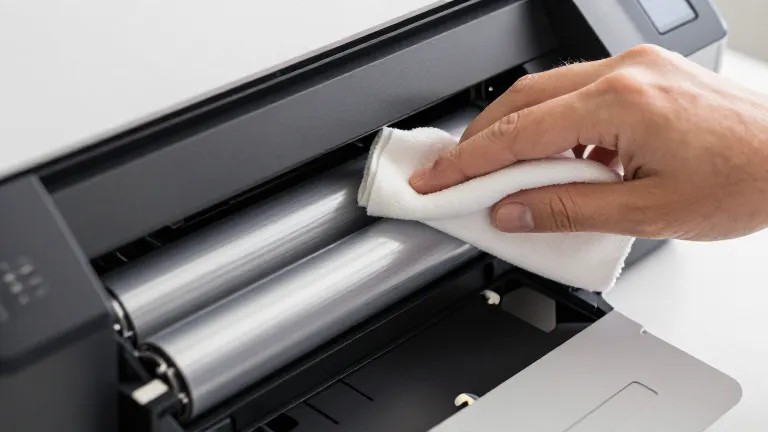
Regular cleaning and maintenance are essential for keeping your printer running smoothly. Use a soft, dry cloth to wipe down the exterior and internal components, including the paper tray and rollers. Pay special attention to the sensors, as dust or debris can cause false paper jam readings. It’s also advisable to check for any leftover paper fragments or small particles that may have lodged in the mechanisms. Cleaning should be done periodically, especially after heavy use or if you notice any unusual behavior from the printer.
Best Practices for Paper Loading and Settings
Proper paper loading and settings play a crucial role in avoiding paper jam errors. Always use high-quality paper that is compatible with your printer’s specifications, as low-quality or damaged paper can lead to feeding issues. Make sure the paper is loaded correctly, with the edges aligned and the tray adjusted to the appropriate size. Avoid overloading the tray, as this can cause misalignment or jams. Additionally, ensure that the printer’s settings match the paper size and type you are using. Regularly reviewing and adjusting these settings can help prevent unexpected errors and improve overall print performance.
When to Seek Professional Help
If your printer continues to display a paper jam error even after following all troubleshooting steps, it may be time to seek professional help. Persistent issues could indicate deeper mechanical or electronic problems that require specialized tools and expertise to resolve.
Signs That It’s Time to Call a Technician
Signs that the issue may be beyond your ability to fix include recurring paper jam errors, unusual noises from the printer, or visible damage to internal components. If the error persists after cleaning, resetting, and checking for debris, it could indicate a faulty sensor, damaged print head, or misalignment within the printer mechanism. These issues often require professional diagnosis and repair to avoid further complications.
Options for Professional Support and Repair
Contacting the printer manufacturer’s customer support or a qualified technician is the best option for long-term resolution. Many printers come with warranty coverage that includes repair or replacement services, which can save you time and money. If your printer is still under warranty, avoid attempting advanced repairs yourself, as this could void the warranty or cause additional damage. Professional support ensures that the problem is addressed correctly and safely, minimizing the risk of future malfunctions.
Frequently Asked Questions
Why is my printer showing a paper jam even though there’s no paper inside?
A paper jam error without paper can result from sensor malfunctions, debris blocking sensors, or software glitches. Check the printer’s internal components for any obstructions and ensure the sensors are clean and functioning correctly.
How can I tell if the paper jam error is real or false?
To determine if the error is false, visually inspect the printer for any paper or debris. If none are found, the error is likely false. Restart the printer and check if the error persists.
Can a paper jam error occur without any actual paper in the printer?
Yes, a paper jam error can occur without paper due to sensor misreadings, software issues, or mechanical problems. Clean the printer and reset the system to resolve false errors.
What should I do if the paper jam error keeps coming back after clearing it?
If the error persists, check for persistent debris or sensor issues. If troubleshooting doesn’t resolve the problem, consider professional repair to address underlying mechanical or software issues.
Final Thoughts
Understanding and resolving paper jam errors without paper requires attention to both hardware and software. Regular maintenance and careful troubleshooting can help prevent recurring issues.
If the error persists after basic fixes, it’s best to seek professional assistance. Proper care and attention to your printer’s settings will help maintain smooth operation.