
How to Fix Mesh WiFi Node Flashing Red or Offline
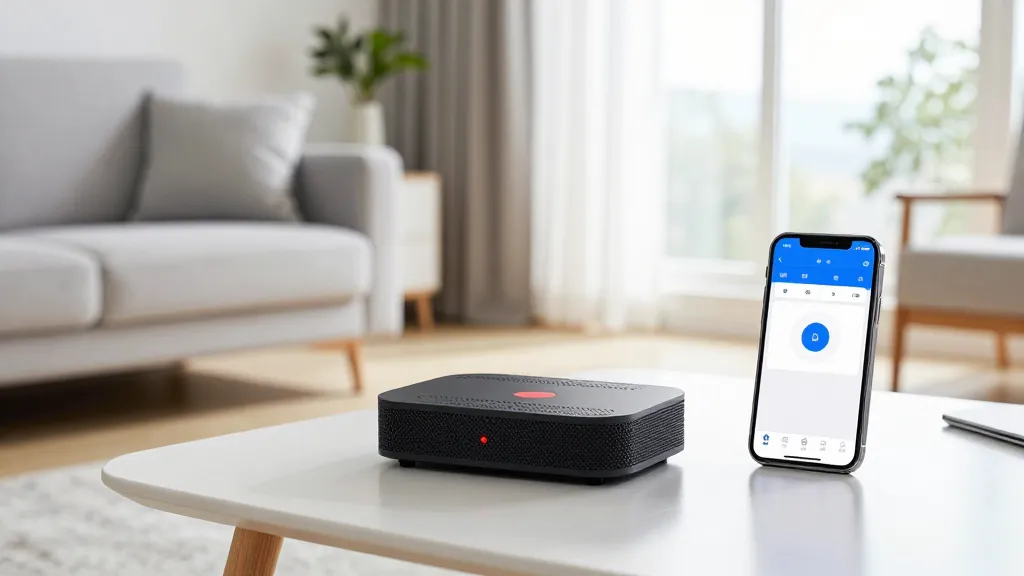
If your mesh WiFi node is flashing red or showing as offline, it can disrupt your home network and frustrate your internet experience. This issue often stems from a variety of factors, including power problems, connectivity issues, or even hardware malfunctions. Understanding how to fix mesh WiFi node flashing red or offline is crucial for maintaining a stable and reliable network. In this article, we’ll walk you through the common causes of this problem and provide practical solutions to get your system back online. Whether you’re dealing with a single node or multiple nodes, these steps will help you troubleshoot and resolve the issue effectively. We’ll cover everything from basic troubleshooting to advanced configuration options, ensuring your mesh WiFi system works as intended.
Understanding Why Your Mesh WiFi Node Is Flashing Red or Offline
A flashing red light or offline status on a mesh WiFi node signals a connectivity problem that can disrupt your network. Understanding the underlying cause is key to resolving the issue efficiently. Whether the problem stems from power, firmware, or physical placement, identifying the root cause ensures a targeted solution.
Common Causes of Mesh WiFi Node Offline Status
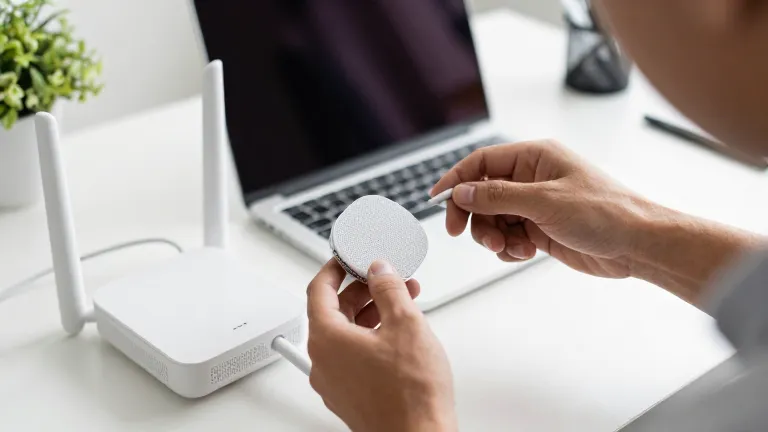
Common causes for a mesh WiFi node showing an offline status include power issues, firmware glitches, or improper placement. Power problems can arise from faulty cables, unstable outlets, or insufficient power supply, especially if the node is battery-powered. Firmware issues may occur due to outdated software or corrupted updates, leading to communication breakdowns with the main router. Incorrect placement, such as placing the node behind walls or in areas with heavy interference, can also prevent it from establishing a stable connection.
How to Check the Node’s Power and Connection
To check the node’s power and connection, first ensure it is properly plugged in or charged. If using an outlet, verify that the circuit is working by testing with another device. For battery-powered nodes, replace the battery or charge it fully. Next, inspect the physical placement—nodes should be placed in open areas with minimal obstructions to ensure optimal signal strength. If the node is too far from the main router or other nodes, it may struggle to maintain a connection. Additionally, check for any physical damage to the node or its components, which could affect its ability to function correctly.
Basic Troubleshooting Steps for a Flushing Red Node
Before diving into more complex solutions, start with basic troubleshooting steps to address a flashing red or offline mesh WiFi node. These simple actions can often resolve connectivity issues without requiring advanced technical knowledge.
- Restart the node and the main router to reset the connection.
- Check for physical obstructions or interference that could block the signal.
- Ensure the node is placed in a central location for optimal coverage.
Restarting Your Mesh WiFi System
Restarting your mesh WiFi system is a straightforward way to resolve temporary glitches or software conflicts. Turn off the main router and all nodes for about 30 seconds, then power them back on in the correct sequence. This process can clear minor errors and re-establish communication between the nodes and the router.
Checking Physical Placement and Obstructions
Physical obstructions and interference can significantly impact signal strength and connectivity. Avoid placing nodes near thick walls, metal objects, or large appliances that emit electromagnetic interference. Keep the node away from devices like microwaves, cordless phones, and Bluetooth speakers to prevent signal disruption.
Proper placement is crucial for optimal coverage. Place the node in a central location within your home or apartment to ensure it can communicate effectively with other nodes and devices. Avoid corners or areas with high traffic, as these can cause signal degradation and connectivity issues.
How to Reconnect a Mesh WiFi Node That’s Offline
If your mesh WiFi node is showing an offline status, the first step is to reconnect it to your network using the manufacturer’s app. This process typically involves scanning for the node, rejoining the network, and ensuring it syncs with the system. Follow the app’s instructions carefully to avoid further issues.
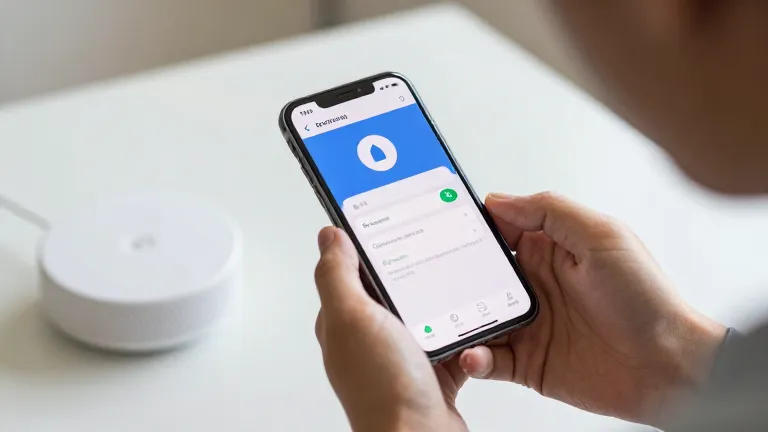
- Open the mesh WiFi app and navigate to the node management section.
- Select the offline node and choose the option to ‘reconnect’ or ‘rejoin the network’.
- Follow the on-screen prompts to scan for the node and reconfigure its settings.
- Once the node is reconnected, check its status in the app to confirm it’s online and functioning.
Using the App to Reconnect the Node
Using the app to reconnect a mesh WiFi node is the most effective method for resolving an offline status. Start by opening the app and accessing the node management interface. Look for the option to ‘reconnect’ or ‘rejoin the network’ and select the specific node that is offline. The app will guide you through the process, which typically involves scanning for the node, re-establishing the connection, and verifying that it syncs with the main router. This method ensures that the node is properly configured and aligned with the rest of your mesh system.
Resetting the Node to Factory Settings
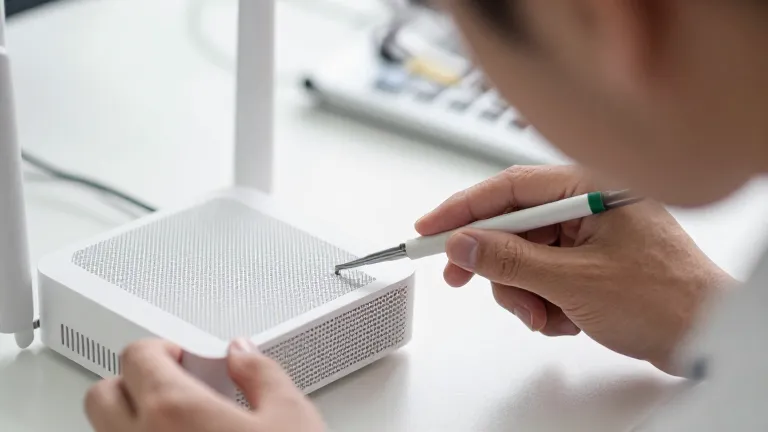
If the node remains unresponsive after attempting to reconnect through the app, resetting it to factory settings may be necessary. Locate the reset button on the node, usually found on the back or bottom, and press and hold it for 10 to 30 seconds until the LED light starts flashing. This will erase all current settings and return the node to its original state. After the reset, you’ll need to reconfigure the node through the app, following the setup process as if it were a new device. While this method can resolve persistent connectivity issues, it will also remove any custom settings you had previously configured.
Extending the Range of Your Mesh WiFi System
Extending the range of your mesh WiFi system is essential for ensuring consistent coverage throughout your home or apartment. Proper placement of nodes can significantly improve signal strength and reduce dead zones. By understanding how to position nodes and utilizing the mesh app’s tools, you can optimize your network for better performance.
Optimal Placement for Mesh WiFi Nodes
Optimal placement involves positioning nodes in central locations with minimal physical obstructions. Avoid placing nodes near thick walls, metal objects, or large appliances that can block or weaken the signal. Nodes should be placed at least 3 feet away from other electronic devices to prevent interference. Placing nodes on higher floors or in open spaces can also help extend coverage to lower areas.
Using the App to Test Signal Strength
Most mesh systems come with a dedicated app that allows you to test signal strength and adjust node placement accordingly. Use the app to scan for weak spots in your coverage and move nodes to areas where they can provide better signal. Some apps also offer visual heatmaps to show where the signal is strongest and where it might be dropping. Regularly checking and adjusting node positions based on these insights can help maintain a stable and extended WiFi range.
When to Contact Support or Replace a Faulty Node
If basic troubleshooting steps fail to resolve your mesh WiFi node’s flashing red or offline status, it may be time to seek manufacturer support. Some nodes may be faulty, and even after trying all recommended fixes, they might not function correctly. Before reaching out, ensure your system has the latest firmware updates, as these can resolve compatibility or performance issues.
When to Seek Manufacturer Support
Contacting the manufacturer’s support team is the next step if your mesh node remains offline after following all troubleshooting steps. Support teams can provide specific guidance for your device model, including advanced diagnostic tools or replacement instructions. Be prepared to provide details about your system, such as the model number and any error messages you’ve encountered.
Checking for Firmware Updates
Checking for firmware updates is a critical step before contacting support or replacing a node. Firmware updates often address bugs, improve stability, and enhance performance. You can check for updates through the mesh system’s app, which will notify you if a new version is available. Installing the latest firmware can sometimes resolve connectivity issues without requiring hardware replacement.
Frequently Asked Questions
What should I do if my mesh WiFi node is flashing red but not connecting?
If your mesh WiFi node is flashing red but not connecting, start by restarting the system and checking the node's physical placement. Ensure it's within range of the main router and free from obstructions. If the issue persists, try reconnecting through the app or resetting the node.
Can I fix a mesh WiFi node that’s offline without contacting support?
Yes, you can often fix a mesh WiFi node that's offline by restarting the system, repositioning the node, or reconnecting through the app. If these steps don’t resolve the issue, a factory reset may help, but contacting support is recommended if the node remains unresponsive.
How do I know if my mesh WiFi node is faulty or just misconfigured?
To determine if your mesh WiFi node is faulty or misconfigured, try basic troubleshooting steps like restarting the system and repositioning the node. If the node remains offline after these steps, it may be faulty. Check for firmware updates or contact support for further assistance.
What are the best practices for placing mesh WiFi nodes in a home?
Place mesh WiFi nodes centrally, away from walls and obstructions, and within range of the main router. Avoid placing them near metal objects or large appliances that may interfere with the signal. Use the app to test signal strength and adjust placement as needed.
Final Thoughts
Fixing a mesh WiFi node that is flashing red or offline often involves basic troubleshooting steps like restarting the system, repositioning the node, and reconnecting through the app. If these steps don't resolve the issue, a factory reset or contacting support may be necessary.
To maintain optimal performance, ensure your mesh WiFi nodes are placed correctly and regularly check for firmware updates. If a node remains unresponsive, consider replacing it to avoid disruptions in your network.





