
How to Fix Windows 11 Keyboard Not Working
If your Windows 11 keyboard is not working, it can be frustrating, especially when you're trying to type or navigate your system. Whether it's a physical keyboard or a virtual one, a non-responsive keyboard can disrupt your workflow. The main keyword here is how to fix Windows 11 keyboard not working, and this article provides a step-by-step guide to help you resolve the issue. From basic checks to advanced troubleshooting, we cover practical solutions that work for both tech-savvy users and those less familiar with system settings.
We start by checking the physical connections and settings to ensure the keyboard is properly connected and enabled. If the keyboard isn't responding, it might be a simple fix that you can apply right away. Next, we explore how to restart your system and test the keyboard on another device to isolate the problem. These steps are designed to be user-friendly and accessible, even if you're not a technical expert.
For more persistent issues, we move on to updating or reinstalling keyboard drivers, using built-in troubleshooting tools, and performing advanced fixes like System File Checker and clean boot. Each step is explained clearly, so you can follow along without confusion. Whether you're dealing with a hardware issue or a software glitch, this guide offers actionable solutions to get your keyboard working again.
Check Physical Connections and Settings
Before diving into complex troubleshooting steps, start by verifying the most basic aspects of your keyboard's functionality. A malfunctioning keyboard on Windows 11 can often be resolved by checking physical connections and settings. This section covers essential checks that can quickly identify and resolve common issues.
Verify Physical Connection
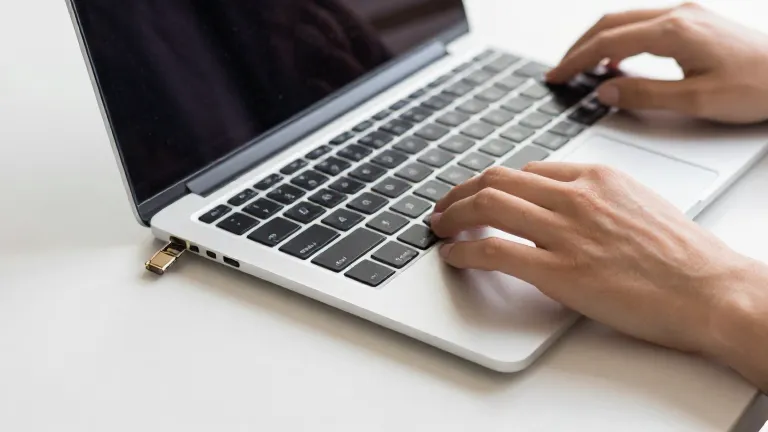
Ensure your keyboard is properly connected to your Windows 11 PC. If you're using a wired keyboard, check that it is securely plugged into a USB port. For wireless keyboards, confirm that the USB receiver is inserted into the computer and that the keyboard is paired correctly with the device. If you're using a laptop, make sure the keyboard is not covered by a closed lid or a case that might block access to the keys. If the keyboard is not responding, try plugging it into a different USB port or restarting your computer to see if that resolves the issue.
Enable On-Screen Keyboard
Enable the On-Screen Keyboard as a troubleshooting step if your physical keyboard is unresponsive. To do this, press the Windows key and type 'On-Screen Keyboard' to open the utility. Ensure the checkbox for 'Show the On-Screen Keyboard' is selected. This can help determine if the issue is with the physical keyboard itself or with Windows 11's input settings. If the on-screen keyboard works, it confirms the problem lies with the physical keyboard or its drivers. Additionally, confirm that your keyboard is set as the default input device by navigating to Settings > Devices > Typing and selecting the correct keyboard from the list.
Restart Windows 11 and the Keyboard
Restarting your Windows 11 PC and the keyboard can resolve many common issues by clearing temporary glitches and re-establishing connections. This section outlines simple steps to test the keyboard’s functionality and isolate potential hardware or software problems.
- Restart Your Computer
- Unplug and Reconnect the Keyboard
- Try a Different USB Port
- Test the Keyboard on Another Device
Restart Your Computer
Restarting your computer is a fundamental step that can resolve minor software conflicts or system glitches affecting the keyboard. To do this, click the Start menu, select the Power icon, and choose Restart. After the system boots up, test the keyboard again to see if the issue is resolved. This step is particularly useful if the problem started recently or after a software update.
Test the Keyboard on Another Device
To test the keyboard on another device, connect it to a different computer, laptop, or mobile device. If the keyboard works on another system, the issue likely lies with your Windows 11 setup rather than the hardware itself. This helps determine whether the keyboard is faulty or if there’s a software conflict on your PC. If it doesn’t work on another device, the keyboard may need to be replaced or further diagnosed.
Update or Reinstall Keyboard Drivers
Updating or reinstalling keyboard drivers can resolve issues where the keyboard is not working properly in Windows 11. This section outlines steps to update, roll back, or reinstall drivers to restore keyboard functionality.
Update or Roll Back Drivers
Open Device Manager by right-clicking the Start menu and selecting it. Expand the 'Keyboards' category to locate your keyboard device. Right-click the device and choose 'Update driver' to search for updates. If an update is available, follow the prompts to install it. If the keyboard recently stopped working after a system update, consider rolling back to a previous driver version by selecting 'Roll Back Driver' from the same context menu.
Reinstall Keyboard Drivers
To reinstall the keyboard driver, right-click the keyboard device in Device Manager and select 'Uninstall device'. Confirm the action and restart your computer. Windows will automatically reinstall the driver during the reboot. Ensure your system is up to date by checking for Windows updates through Settings. Additionally, visit the keyboard manufacturer’s website to download and install any recent driver updates that may address compatibility or performance issues.
Use Built-in Troubleshooting Tools
Built-in troubleshooting tools in Windows 11 can help identify and resolve keyboard issues without requiring advanced technical knowledge. These tools are designed to scan for common problems and offer solutions, making them ideal for both tech-savvy users and those less familiar with system settings.
Run the Windows Troubleshooter
To run the Windows 11 troubleshooter for keyboard issues, open the Settings app by pressing the Windows key and typing 'Settings'. Navigate to 'System' > 'Troubleshoot' and select 'Other troubleshooters'. From the list, choose 'Keyboard' and click 'Run the troubleshooter'. This tool will automatically detect and attempt to fix any issues it finds, such as incorrect device settings or conflicting software.
Test with On-Screen Keyboard
The On-Screen Keyboard is a useful tool to determine if your physical keyboard is functioning correctly. To access it, go to 'Settings' > 'Accessibility' > 'Keyboard' and toggle on 'Use the On-Screen Keyboard'. This virtual keyboard will appear on your screen, allowing you to type and test if input is working. If the on-screen keyboard responds, the physical keyboard may be faulty or have software conflicts. If it doesn't, the issue may be more serious and require further troubleshooting.
Advanced Fixes for Persistent Issues
If your keyboard still doesn't work after trying the basic fixes, it's time to explore more advanced solutions. These steps are designed for persistent issues and can help identify deeper system or software conflicts.

- Use System File Checker to repair any corrupted system files.
- Perform a Clean Boot to identify software conflicts.
- Check for keyboard-specific settings in Control Panel or Settings.
- Consider using a different keyboard to rule out hardware failure.
Use System File Checker
System File Checker (SFC) is a built-in Windows tool that scans for and repairs corrupted system files. To use it, open Command Prompt as an administrator and run the command `sfc /scannow`. This process may take some time, but it can resolve issues that affect keyboard functionality or other system components.
If SFC doesn't fix the problem, you can also try the DISM command to repair the Windows image. Run `DISM /Online /Cleanup-Image /RestoreHealth` in an elevated Command Prompt. These tools are particularly useful if the keyboard issue is linked to system file corruption.
Perform a Clean Boot
A Clean Boot starts Windows with a minimal set of drivers and startup programs, helping to identify if third-party software is causing the keyboard issue. To perform a Clean Boot, open the System Configuration tool (msconfig), disable non-Microsoft services, and restart your PC. If the keyboard works after this, you can gradually re-enable services to pinpoint the conflicting program.
If the problem persists, consider checking keyboard-specific settings in the Control Panel or Settings app. Some keyboards have additional settings that might be disabled by default, and these can sometimes be overlooked in the main Settings menu.
Frequently Asked Questions
Why is my keyboard not working on Windows 11 even though it's connected?
Your keyboard may not work due to driver issues, incorrect settings, or hardware problems. Check the connection, ensure the keyboard is enabled in Settings, and run the troubleshooter.
How do I enable the On-Screen Keyboard on Windows 11?
Open Settings, navigate to Accessibility > Keyboard, and toggle On-Screen Keyboard to On. This provides an alternative input method if your physical keyboard is not working.
What should I do if my keyboard stops working after a Windows update?
Restart your computer and check for driver updates. If the issue persists, roll back the drivers or perform a clean boot to identify conflicting software.
Can a USB keyboard work with a wireless connection on Windows 11?
A USB keyboard can be used with a wireless connection if it supports Bluetooth or has a built-in wireless receiver. Ensure the keyboard is properly paired and drivers are installed.
Next Steps for Keyboard Issues
To resolve keyboard issues on Windows 11, start by checking connections, restarting your system, and updating drivers. If problems persist, use built-in tools or advanced methods like System File Checker. If you're still experiencing difficulties, consider contacting Microsoft support for further assistance.
Follow these steps to regain full keyboard functionality. If the issue remains unresolved, it may be a hardware or deeper system problem that requires professional help.





