
Why Troubleshooting Is Not Working

If you're trying to fix a broken device or appliance but feel like your troubleshooting efforts are falling short, you're not alone. Many home users and tech-savvy individuals face the frustrating situation where 'why troubleshooting is not working' becomes a recurring challenge. Despite following step-by-step guides, the problem persists, leaving you stuck and unsure of what to do next. This article explores why standard troubleshooting methods often fail, how to recognize when they're not effective, and alternative strategies to help you resolve issues without professional assistance. Whether you're dealing with a stubborn software glitch or a hardware malfunction, understanding the root causes of your frustration can lead you toward more effective solutions.
Understanding Why Troubleshooting Steps Fail
Many users find that standard troubleshooting steps fail to resolve their issues, often due to a mix of outdated information, incomplete guidance, and human error. Even well-documented procedures can miss critical details or fail to account for unique device configurations. Understanding the root causes of these failures is essential for anyone attempting to resolve technical problems independently.

Common Reasons Troubleshooting Fails
Troubleshooting steps can fail due to outdated or incomplete information. Over time, devices and software evolve, and some troubleshooting guides may not reflect the latest updates or changes. For example, a guide written for an older version of an operating system might not apply to a newer release, leading to confusion or ineffective solutions. Additionally, some guides may omit rare or complex issues, leaving users without clear direction when facing uncommon problems.
When Standard Guides Don't Apply
Standard troubleshooting guides often fail to address specific user scenarios or device variations. A step-by-step guide may work for most users, but it may not account for unique hardware setups, regional settings, or custom configurations. For instance, a guide that assumes a standard Wi-Fi setup may not address issues caused by a router's advanced security features or a device's specific network preferences. These oversights can leave users struggling to find a solution that fits their particular situation.
How to Identify When Troubleshooting Is Not Working
Identifying when troubleshooting is not working is crucial to avoid wasting time and effort on ineffective solutions. Recognizing the signs of failed troubleshooting and keeping track of your efforts can help you pivot to more effective strategies.
Signs That Troubleshooting Isn't Working
Signs that troubleshooting is not working include repeated failures despite following recommended steps, no change in device behavior after attempting fixes, and the problem resurfacing after temporary resolution. If the issue persists across multiple troubleshooting attempts, it may indicate a deeper, more complex problem that standard guides cannot address. It's also a red flag if the same issue keeps occurring, suggesting that the root cause has not been properly identified or resolved.
Tracking Your Troubleshooting Efforts
Keeping a detailed record of your troubleshooting steps helps identify patterns and avoid redundant actions. Writing down each step, including what was done, when, and the outcome, can reveal overlooked details or inconsistencies. This record can also serve as a reference when seeking help from support communities or professionals, ensuring you provide a clear and comprehensive account of your attempts. Tracking your efforts also helps distinguish between temporary glitches and ongoing issues, allowing for a more targeted approach to problem-solving.
Alternative Approaches to Troubleshooting
When standard troubleshooting methods fail, turning to specialized tools and community insights can provide deeper clarity and effective solutions.
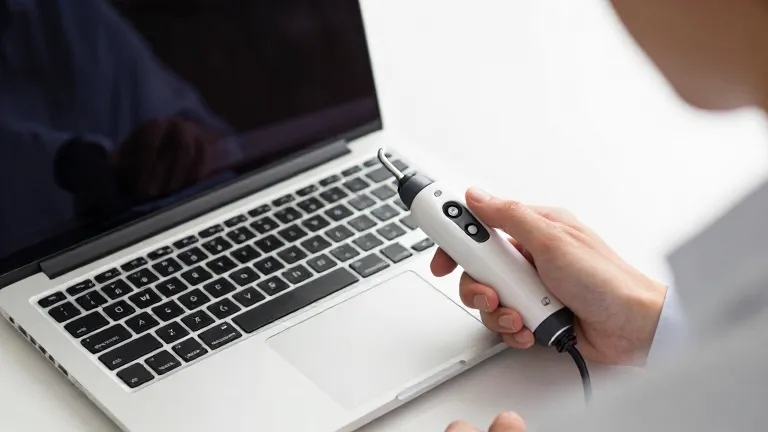
- Use diagnostic tools or software to pinpoint the issue.
- Consult user forums or community support for real-world insights.
- Check for firmware or software updates that may resolve the problem.
Using Diagnostic Tools and Software
Diagnostic tools and software are designed to identify issues that may not be apparent through basic troubleshooting. These tools can scan for system errors, detect hardware malfunctions, and provide detailed reports that guide users toward accurate solutions. For example, network diagnostic tools can reveal connectivity issues, while system monitors can highlight performance bottlenecks. Using these tools often requires some technical knowledge, but they can significantly reduce the time spent on guesswork.
Many devices come with built-in diagnostic tools, such as the 'Troubleshoot' feature in Windows or diagnostic modes in printers and routers. Third-party software, like Malwarebytes or HWMonitor, can also offer advanced diagnostics. It's important to follow the tool's instructions carefully and interpret the results to avoid misdiagnosis. If the tool identifies a specific error, searching for that error code can lead to targeted fixes.
Leveraging Community and Support Resources
User forums and community support platforms are invaluable resources for troubleshooting. These platforms often host discussions where users share their experiences, solutions, and workarounds for similar problems. For instance, a forum might have multiple threads addressing the same error message, with users offering step-by-step fixes or compatibility notes. Engaging with these communities can provide a broader perspective and help users avoid common pitfalls.
When seeking community support, it's essential to provide clear and detailed information about the issue. Including error messages, system specifications, and steps already taken can help others understand the problem better and offer more relevant advice. Platforms like Reddit, Stack Overflow, and manufacturer-specific forums are great places to start. Always verify the credibility of the advice received and cross-check with official documentation to ensure accuracy.
When to Move Beyond Basic Troubleshooting
Moving beyond basic troubleshooting requires a clear understanding of when standard steps are insufficient. Some issues stem from hardware degradation, complex software conflicts, or system limitations that are not easily resolved through simple fixes.
Recognizing Hardware or Software Limitations
Hardware issues often manifest as intermittent failures, unresponsive components, or physical damage that cannot be resolved through software adjustments. For example, a failing hard drive may exhibit error messages, unexpected shutdowns, or data loss, which standard troubleshooting steps cannot address. Similarly, complex software conflicts—such as compatibility issues between updates or corrupted system files—may require advanced diagnostic tools or reinstallation of the operating system. These situations often go beyond the scope of typical troubleshooting guides and may necessitate deeper technical knowledge or specialized equipment.
Deciding When to Seek Professional Help
Deciding when to seek professional help involves assessing the severity and persistence of the issue. If troubleshooting efforts have exhausted all basic options and the problem remains unresolved, it may be time to consult a technician. This is especially true if the device or appliance shows signs of being beyond repair, such as persistent hardware failures, repeated system crashes, or safety hazards. Additionally, attempting to resolve complex issues without proper expertise can lead to further complications, such as data loss, permanent hardware damage, or incorrect configuration settings. In such cases, seeking professional assistance is not only advisable but often necessary to avoid unnecessary risks and expenses.
Steps to Take If Troubleshooting Isn't Working
When troubleshooting fails, taking deliberate and methodical steps can help resolve the issue without professional assistance. Simple yet effective actions like resetting, restarting, and inspecting physical components often address problems that standard troubleshooting misses.
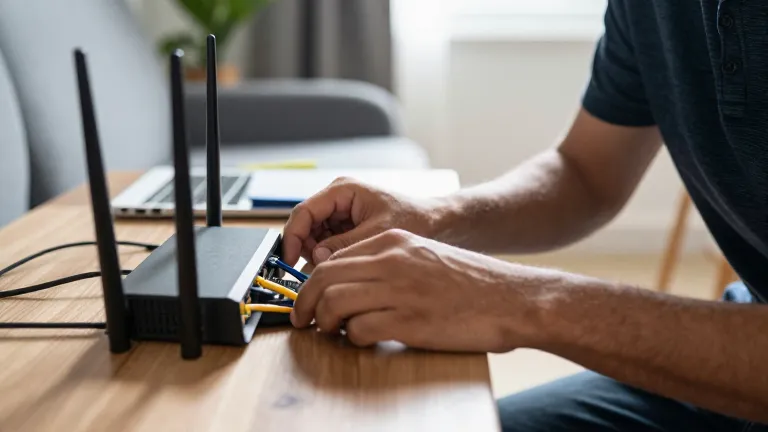
- Restart the device or appliance to clear temporary errors.
- Reset settings to default to eliminate configuration issues.
- Check for physical damage or loose connections that may be overlooked.
Basic Reset and Restart Techniques
Restarting a device or appliance is one of the most basic yet effective troubleshooting steps. It clears temporary errors, resets memory, and can resolve software glitches that prevent normal operation. To do this, simply turn off the device, wait for 30 seconds, and then power it back on. This process is especially useful for devices that have been running continuously or have encountered a software crash.
Inspecting for Physical Damage or Connection Issues
Physical damage or loose connections can often be the root cause of device failures, yet they are frequently overlooked during troubleshooting. Inspect all cables, ports, and internal components for signs of wear, fraying, or disconnection. For appliances with removable panels, open them to check for dust buildup or damaged wiring. If any issues are found, replace or reseat the affected parts before proceeding with further troubleshooting.
Frequently Asked Questions
What should I do if standard troubleshooting steps don't work?
If standard steps don't work, consider using diagnostic tools or consulting support resources. If issues persist, it may be necessary to seek professional assistance or evaluate hardware limitations.
How can I tell if my troubleshooting efforts are failing?
Signs that troubleshooting is failing include repeated issues, no progress, or inconsistent results. Tracking your efforts and identifying patterns can help determine if a different approach is needed.
Can outdated information cause troubleshooting to fail?
Yes, outdated information can lead to ineffective troubleshooting. Always verify the relevance of steps and resources, especially for newer systems or software versions.
When should I stop troubleshooting and seek professional help?
Stop troubleshooting if you've exhausted all basic steps, noticed physical damage, or encountered complex errors. Seeking professional help ensures proper diagnosis and resolution.
Final Thoughts
Troubleshooting can fail due to outdated information, hardware limitations, or complex issues. Recognizing when to shift strategies or seek help is key to resolving problems effectively.
If standard steps don't work, consider diagnostic tools, community resources, or professional assistance. Knowing when to move beyond basic troubleshooting improves problem-solving outcomes.





